How to Change Copilot Voice Language in Windows 11

Changing the Copilot voice language in Windows 11 lets you switch the built-in speech tool between over 20 different languages, so the assistant speaks back in the right one. It also stops the software from guessing which language you are speaking, which keeps voice chats accurate and natural every time you ask a question.
Open Copilot or visit copilot.microsoft.com, click the voice settings gear icon during a voice chat, and select your language from the dropdown menu. The assistant switches to that language immediately for all future responses.
You can make the change in two places: directly through your web browser, or through the main Windows settings. Both methods are linked below. Pick the one that matches how you normally use Copilot, and follow the steps in that guide.
- Using Copilot Voice with Microsoft Copilot – Microsoft Support
- Supported regions and languages in Microsoft Copilot – Microsoft Support
Before you start, keep these points in mind:
- Voice language and display language are separate. Changing how Copilot speaks does not change the language of Windows menus. If you want to change that too, do it separately.
- The language list can vary. Which languages you see depends on your Copilot version and your region. If the language you want is missing, check that Copilot and Windows are fully updated. Then close Copilot and open it again.
- Test it after changing. Open Copilot, start a voice chat and say a short sentence. Check that the reply comes back in the language you chose. Make sure your microphone is allowed and working, or Copilot will not hear you at all.
- The change is easy to undo. To go back, repeat the same steps and select your previous language.
Method 2Change Voice Language During a Voice Conversation
Updating your copilot voice language while you are actively talking to the assistant is useful if you need to switch languages mid-conversation. While you are speaking with Copilot, click the gear icon for voice settings and pick a new language from the dropdown menu to immediately change how the assistant responds to you.- Open the copilot.microsoft.com website or the Copilot app on Windows 11.
- Sign in with your Microsoft account if you want to save your settings.
- While talking to Copilot using your voice, click the Voice settings button (gear icon).
- Pick a language from the dropdown menu. Auto-detect is the default.
Method 3Change Copilot Voice Language in Microsoft Edge
- Open Microsoft Edge.
- Sign in with your Microsoft account if you want to save your settings.
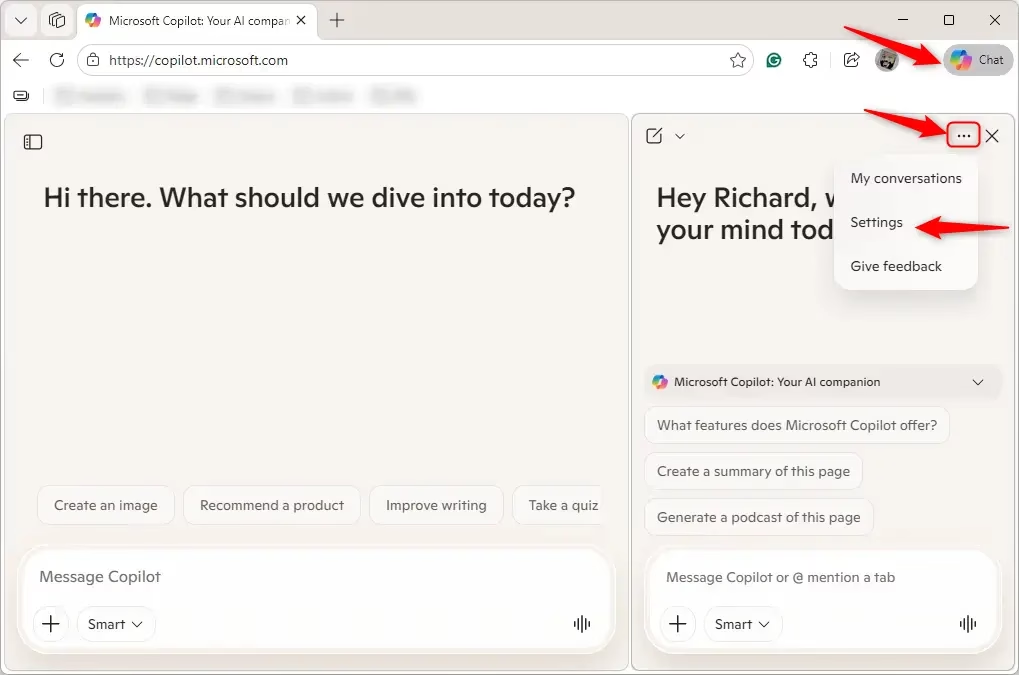
- Click the Copilot icon in the toolbar.
- Click the More options button (three dots). Then click Settings .
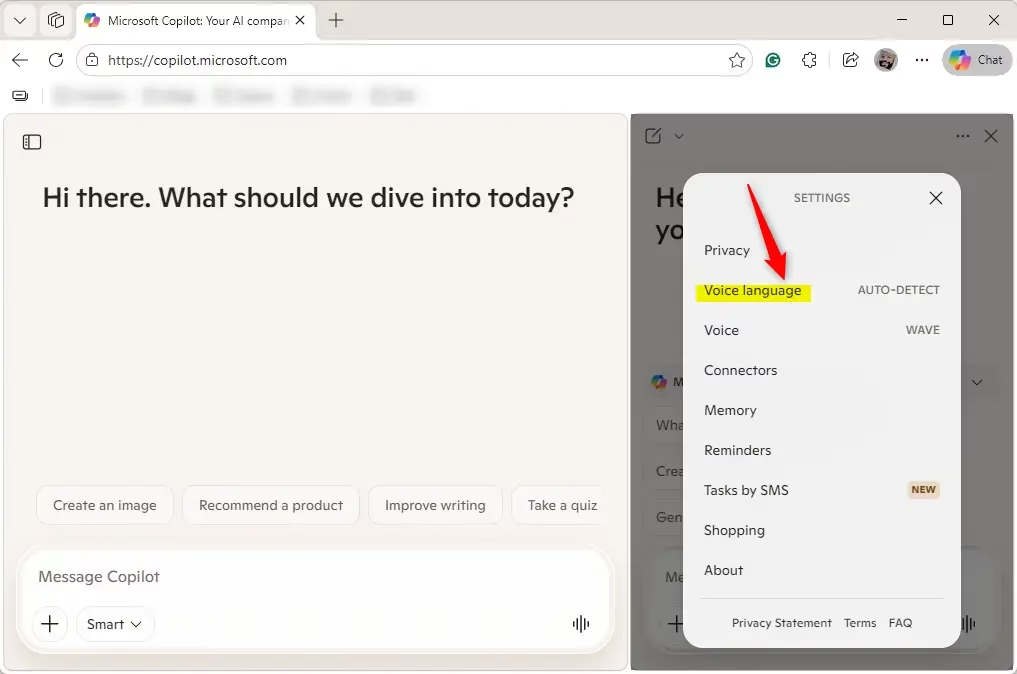
- Click Voice language.
- Pick a voice language from the list. Auto-detect is the default.
Summary
You can change this setting from the main Copilot menu, during an active voice chat, or through Microsoft Edge. Signing in first lets the preference sync across devices. Leaving the setting unconfigured forces Copilot back into automatic detection mode.
Frequently asked questions
How do I turn off Copilot on my 🪟 Windows 11?
Right-click the Copilot icon in your taskbar and select Disable Copilot, or open Settings System About and turn off the Copilot toggle. You can also disable it through Group Policy Editor (gpedit.msc) if you're on Windows 11 Pro or Enterprise by setting Allow Copilot to Off.
How do I change the language settings on 🪟 Windows 11?
Open Settings and go to Time & language Language & region. Click your current language to change it, or select Add a language to install a new one. You can also adjust regional format settings and keyboard layouts in this same menu.
How to add voice to text to speech in 🪟 Windows 11?
Open Settings Accessibility Text-to-speech. Choose your preferred voice from the dropdown, adjust speed and pitch, then test it. Windows reads text aloud when you highlight it in most apps and in the Narrator tool.
How do I change the language on my Copilot?
Visit copilot.microsoft.com or open the Copilot app, sign in with your Microsoft account, click Preferences, and select your language from the dropdown menu. The change applies immediately to how Copilot understands and responds to you.
Still have a question?
Answered by AI from this guide. Good questions may be added to this page — please don't include personal details.
Method 1Change Voice Language in Copilot Settings
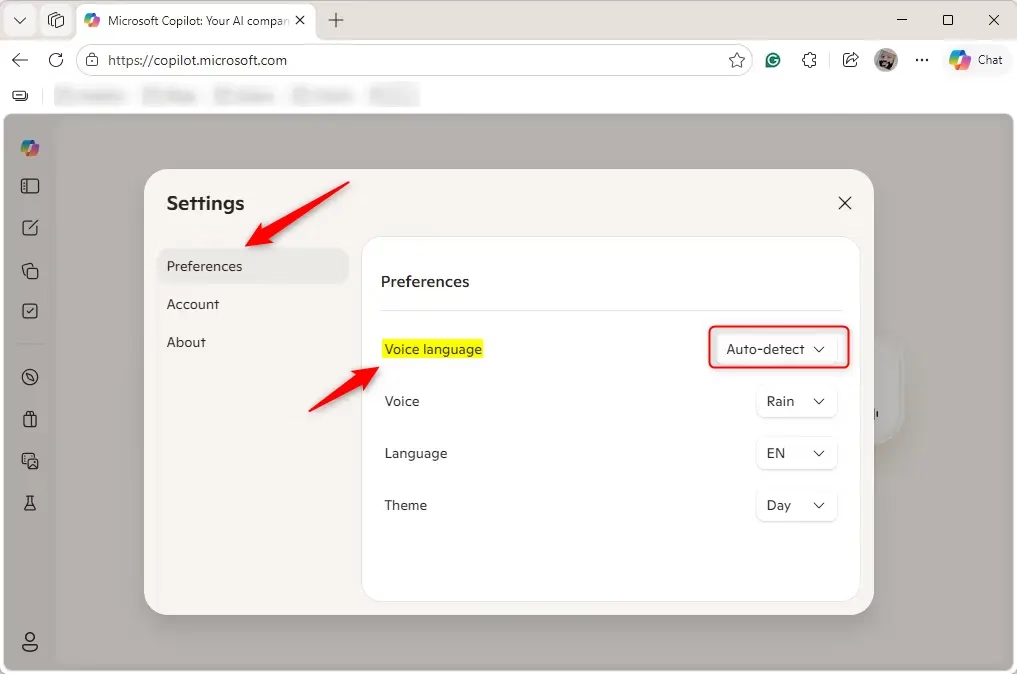
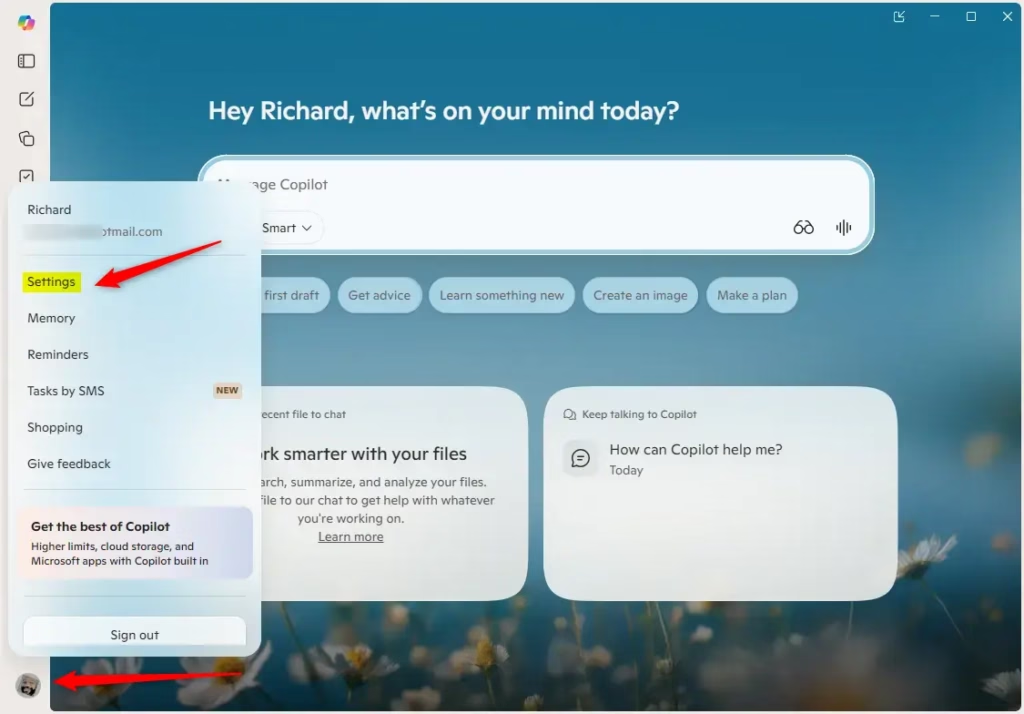
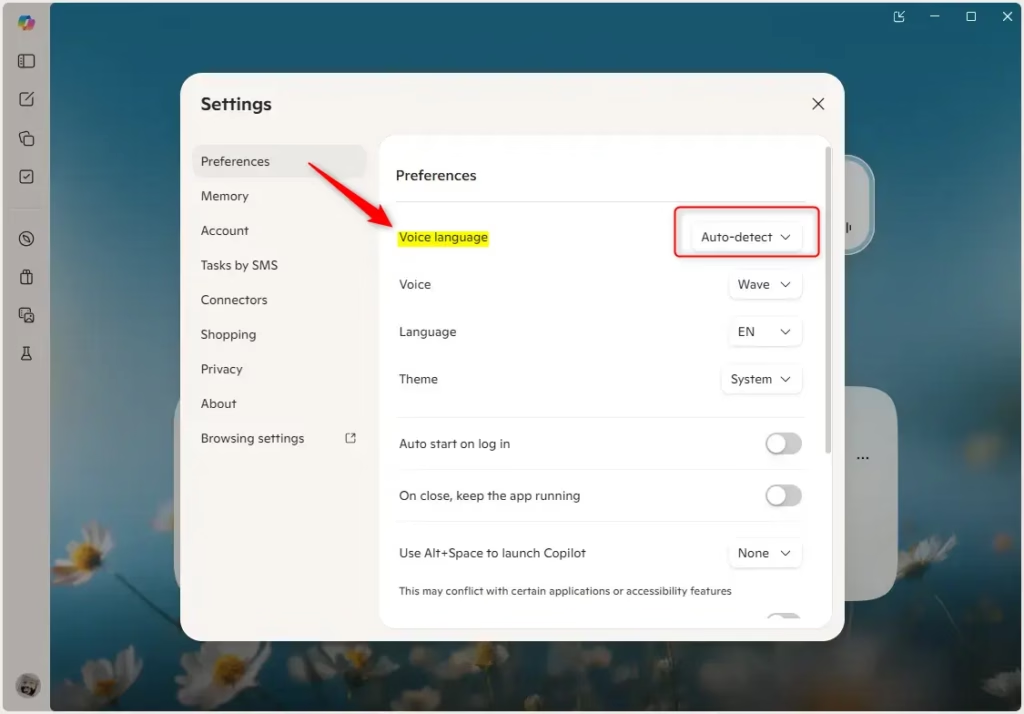
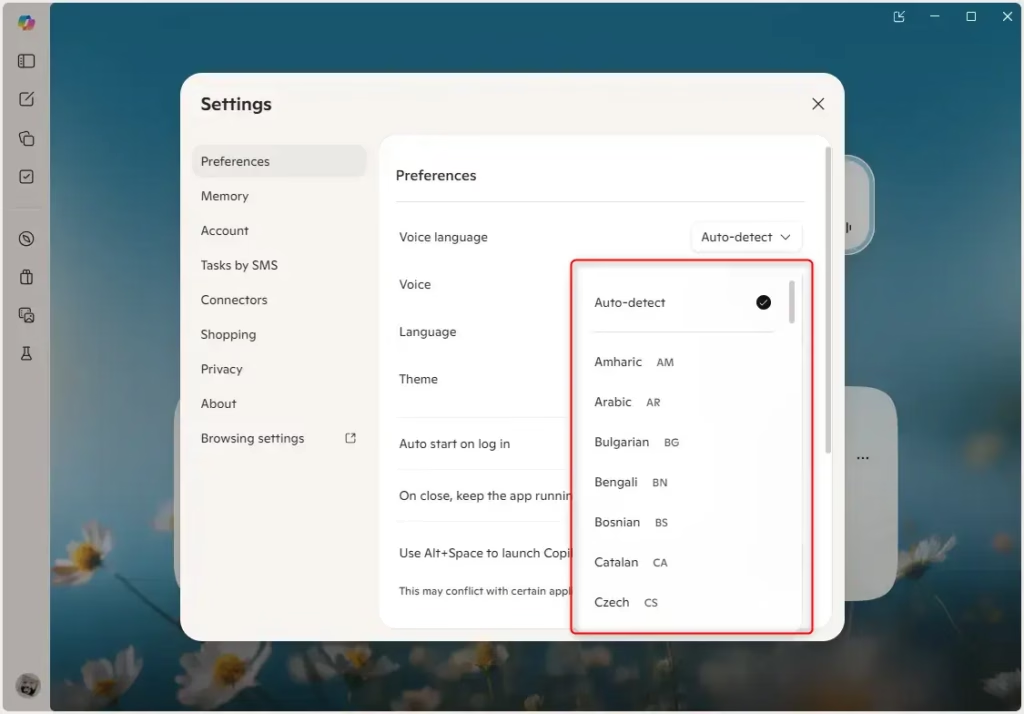
Changing your copilot voice language through the main settings menu lets you set a default language before you start talking. Open the Copilot app or website on Windows 11, sign in with your Microsoft account, open your preferences, and pick your preferred language from the dropdown menu so Copilot always understands and speaks back in that language.- Open the copilot.microsoft.com website or the Copilot app on Windows 11.
- Sign in with your Microsoft account if you want to save your settings.
- In the app (full view), click the Account button on the left side. Then click Sign in.
- Click Preferences on the left side. Pick a voice language from the dropdown menu. Auto-detect is the default.
Method 2Change Voice Language During a Voice Conversation
Updating your copilot voice language while you are actively talking to the assistant is useful if you need to switch languages mid-conversation. While you are speaking with Copilot, click the gear icon for voice settings and pick a new language from the dropdown menu to immediately change how the assistant responds to you.- Open the copilot.microsoft.com website or the Copilot app on Windows 11.
- Sign in with your Microsoft account if you want to save your settings.
- While talking to Copilot using your voice, click the Voice settings button (gear icon).
- Pick a language from the dropdown menu. Auto-detect is the default.
Method 3Change Copilot Voice Language in Microsoft Edge
- Open Microsoft Edge.
- Sign in with your Microsoft account if you want to save your settings.
- Click the Copilot icon in the toolbar.
- Click the More options button (three dots). Then click Settings.
- Click Voice language.
- Pick a voice language from the list. Auto-detect is the default.
Summary
You can change this setting from the main Copilot menu, during an active voice chat, or through Microsoft Edge. Signing in first lets the preference sync across devices. Leaving the setting unconfigured forces Copilot back into automatic detection mode.
How do I turn off Copilot on my 🪟 Windows 11?
Right-click the Copilot icon in your taskbar and select Disable Copilot, or open Settings System About and turn off the Copilot toggle. You can also disable it through Group Policy Editor (gpedit.msc) if you're on Windows 11 Pro or Enterprise by setting Allow Copilot to Off.
How do I change the language settings on 🪟 Windows 11?
Open Settings and go to Time & language Language & region. Click your current language to change it, or select Add a language to install a new one. You can also adjust regional format settings and keyboard layouts in this same menu.
How to add voice to text to speech in 🪟 Windows 11?
Open Settings Accessibility Text-to-speech. Choose your preferred voice from the dropdown, adjust speed and pitch, then test it. Windows reads text aloud when you highlight it in most apps and in the Narrator tool.
How do I change the language on my Copilot?
Visit copilot.microsoft.com or open the Copilot app, sign in with your Microsoft account, click Preferences, and select your language from the dropdown menu. The change applies immediately to how Copilot understands and responds to you.
Did this guide fix your problem?

About the Author
Richard
Tech Writer, IT Professional
Richard is a writer at Geek Rewind who turns complex IT tasks into clear, step-by-step guides. He draws on years of hands-on experience in system administration and enterprise IT operations, focusing on Windows, Linux and WordPress: the problems people actually run into, and the fixes that work. His server and WordPress guides come from systems he runs himself. Richard builds and maintains the platform behind Geek Rewind, from its Ubuntu servers and Nginx configuration to its custom WordPress plugins. Many new tutorials start with readers' questions, and he's always glad to answer them in the comments.
No comments yet — be the first to share your thoughts!