How to Use Microsoft Edge in Another Language

Microsoft Edge can show its menus and settings in another language, and it can translate web pages into over 100 languages using its built-in translation tools. You don’t need any extra plugins or browser extensions. Both the display language and the translation options are managed from the browser’s settings, and you can set them up in a few clicks.
Two things are easy to mix up. The display language controls Edge’s own menus, buttons and settings. The language list controls which languages websites are told you read, and which languages Edge will not offer to translate. This tutorial covers both.
Open Microsoft Edge, click the three dots in the top-right corner, select Settings, choose Languages from the left sidebar, click Add languages, search for or scroll to your language, tick the box, and click Add. Your new language now appears in the Preferred languages list.
Making Microsoft Edge Speak Your Language
Edge lets you change the language used for its menus and settings. The change applies to the browser itself, not to the Windows display language. Your Windows menus and apps stay as they are.
Step 1Go to Edge’s Language Settings
Start by opening the Settings page. The steps are:
2. Click the three dots (Settings and more) in the top-right corner. A dropdown menu appears. You can also press Alt+F to open it from the keyboard.
3. Select Settings. Edge opens the Settings page in a new tab, with a list of categories down the left side.
From this page you can manage your display languages and your translation options.
- Open Microsoft Edge.
- Look for the three dots (
...) in the top-right corner of the browser window. This is the "Settings and more" menu. Click it. - A menu will appear. Click on Settings. This opens a new tab for Edge's settings.

Quick Tip: If you can't find a preference, check the three-dot menu in the top-right corner first. It opens the main options panel. The search box at the top of the Settings page also works well. Type "language" and Edge filters the page to the matching options.
Step 2Find the Languages Section
The left-hand sidebar on the Settings tab lists the setting categories. If the sidebar is hidden because the window is narrow, widen the window or click the menu icon at the top left of the page to bring it back.
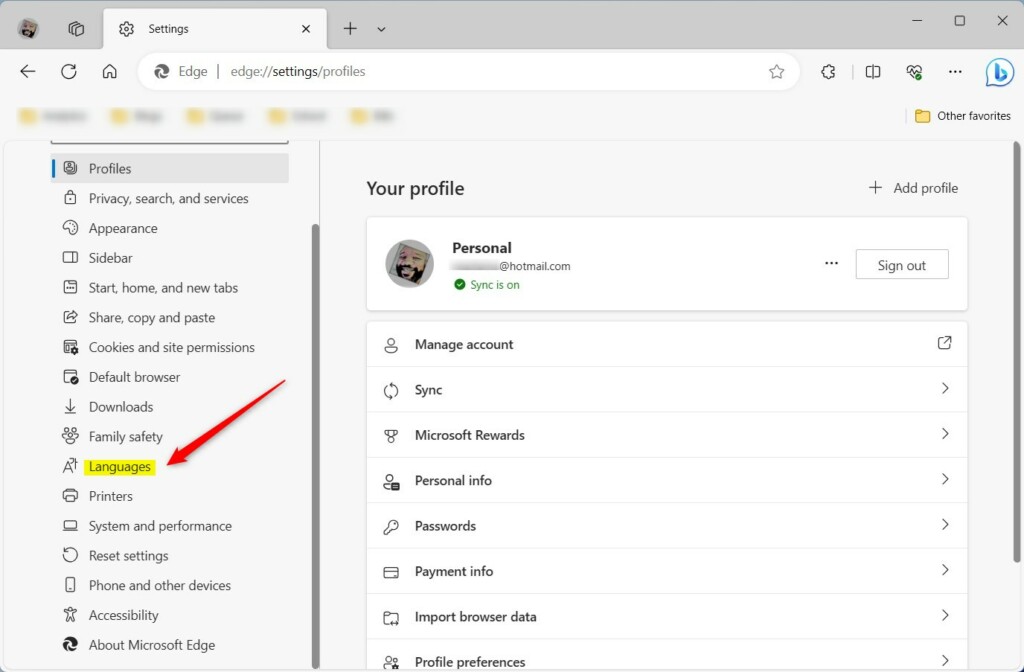
Select Languages in the sidebar. The Languages page opens on the right.
- On the left side of the Settings menu, click on Languages.
This screen shows the languages already in your list and the options that go with them. It also has a switch that offers to translate pages not written in a language you read. Leave that switch on if you want Edge to prompt you when you open a foreign-language site.
Step 3Add a New Language
Before you can use a new language, you have to add it to your list. The steps are:
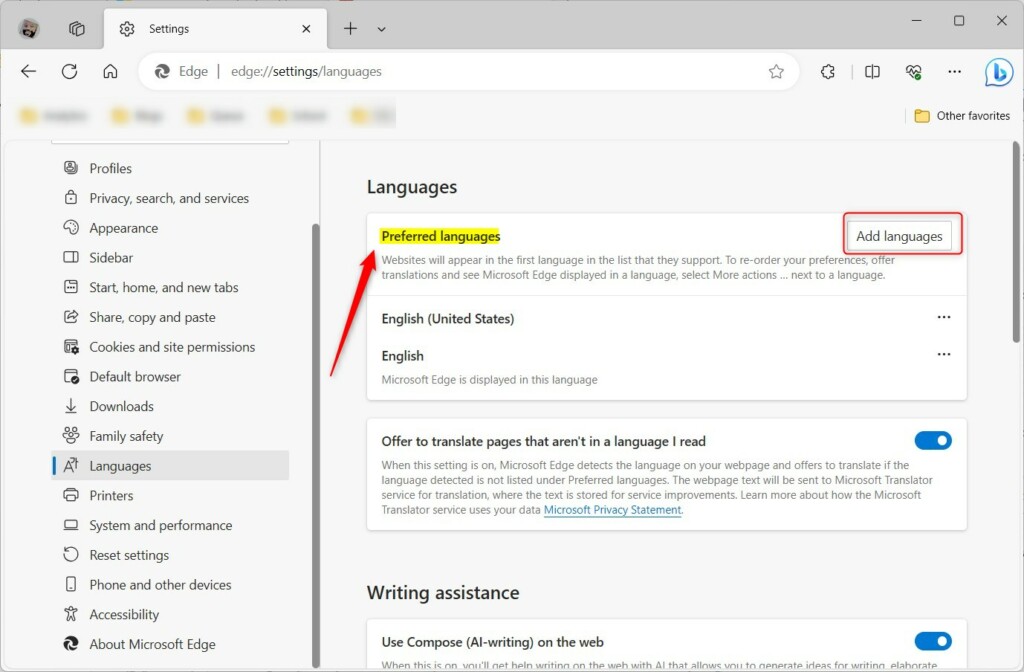
1. On the Languages settings page, find the Preferred languages section.
2. Click the Add languages button. A window opens with the full list of available languages.
3. Type the name of the language you want into the search box, or scroll through the list.
4. Tick the box next to the language, then click Add. The language now appears in your Preferred languages list.
If a language you expect is missing, try searching for it by its native name or a regional variant, such as a country-specific version of the language.
- On the Languages settings page, look for the section called "Preferred languages."
- Click the button that says Add languages.
- A new window will open with a long list of languages. You can scroll through it. Or, if you know the language name, type it in the search bar at the top. For example, type "Spanish" to find Spanish.
- When you find the language you want, check the box next to it. You can pick more than one.
- After choosing your languages, click the Add button at the bottom of the window.
Good to Know: Adding a language to the list is safe. Edge does not apply it to the menus until you choose to. To undo the addition, open the three-dot menu next to the language and remove it. Languages you added only to read pages can be removed without any effect on your display language.
Step 4Choose Your Main Display Language
Once the language is in your list, you can make it the language Edge uses for its own menus. The steps are:
1. Go back to the Languages settings page.
2. Find the language you want in the Preferred languages list.
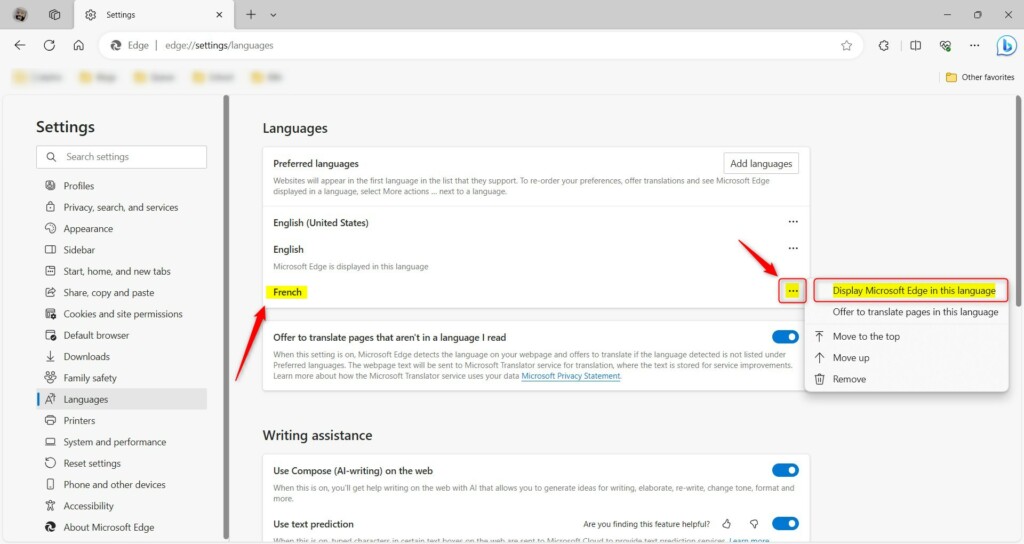
3. Click the three dots beside it.
4. Choose Display Microsoft Edge in this language. Edge shows a prompt asking you to restart the browser.
5. Click the restart button in the prompt. After Edge reopens, the menus and settings appear in your chosen language.
If the option is greyed out, the language probably isn't available as a display language for Edge. Not every language that can be added for websites can be used for the menus. In that case, pick a different language or a regional version of it.
To go back, repeat the steps and choose your original language. Edge restarts again.
- Go back to the main Languages settings page.
- You will now see the language you just added in your "Preferred languages" list.
- Next to the language you want to use most, click the three dots (
...). - A small menu will appear. Click Display Microsoft Edge in this language.
Save any active work inside Edge, such as forms you are filling in or documents in web apps, before you confirm the restart. Edge normally reopens your tabs, but unsaved input on a page can be lost.
Step 5Change the Language Order (If You Want)
The order of your list tells websites which language you prefer to read first. If a site offers several languages, it uses the highest one on your list that it supports. The steps are:
1. Go back to the Languages settings page.
2. Click the three dots next to any language in the list.
3. Choose Move to top, Move up or Move down. The list reorders straight away.
The order changes which language websites send you. It does not change the display language of Edge's menus. That is set separately with the option in the previous section. Moving the first or last item further in the same direction isn't possible, so those options may not appear for those items.
- On the Languages settings page, look at your list of preferred languages.
- Next to each language, you'll see those same three dots (
...). Click them. - In the menu that pops up, you'll see options like "Move to top," "Move up," and "Move down." Use these to arrange your languages in the order you like, with your favorite at the top.
Summary
With your languages added, one chosen for the menus and the order set, Edge shows its interface and your favorite websites in the language that suits you best.
You can come back to these settings at any time to add, reorder or remove languages.
Have a question about this guide?
Answered by AI from this guide. Good questions may be added to this page — please don't include personal details.
Did this guide fix your problem?

About the Author
Richard
Tech Writer, IT Professional
Richard is a writer at Geek Rewind who turns complex IT tasks into clear, step-by-step guides. He draws on years of hands-on experience in system administration and enterprise IT operations, focusing on Windows, Linux and WordPress: the problems people actually run into, and the fixes that work. His server and WordPress guides come from systems he runs himself. Richard builds and maintains the platform behind Geek Rewind, from its Ubuntu servers and Nginx configuration to its custom WordPress plugins. Many new tutorials start with readers' questions, and he's always glad to answer them in the comments.
No comments yet — be the first to share your thoughts!