Search Old Copilot Chats on Windows 11

- 5 ways to do it
- Needs administrator rights
- Includes a restart or sign-out
Copilot keeps a list of your past chats, so you can find an old one again from the Copilot app or the Copilot website. You need to sign in with the same Microsoft account you used for the original chat. Chats saved under a different account will not show up.
The conversation list has a search box in most cases. If it does not, you can still find the chat. Open it in a web browser and press Ctrl+F to search the words on the page. Your browser history can also help you find the page again.
Nothing in this guide needs administrator rights. Every step runs under your normal user account. The sections below cover each method and what to try when a chat is missing.
You can search old Copilot chats from the conversation list in the Copilot app on Windows 11, or on copilot.microsoft.com, as long as you are signed in with the same Microsoft account you used for the original chat. Open the side panel, then use the search field at the top if your version has one.
Which Copilot do you have?
Three different products use the Copilot name, and each stores chats in a different place. Identify yours first, or you will look in the wrong list.
- The Copilot app on Windows 11. This is the app you open from Start. Chats are saved to your Microsoft account.
- Copilot on the web. This is copilot.microsoft.com in any browser, including Microsoft Edge. It uses the same personal Microsoft account history as the app.
- Microsoft 365 Copilot Chat. This is the work or school version, tied to an organisation account. Your IT department controls how long its history is kept.
Microsoft replaced the older Copilot side panel from early Windows 11 builds with the Copilot app. If you used the old panel while signed in with a Microsoft account, those chats may appear in the list. Microsoft changes the Copilot app often, so labels and icon positions below can differ slightly from what you see.
Check that you are signed in first
Copilot saves conversation history only for signed-in users. A chat you had while signed out is not stored in any list, and no search can bring it back. Do this check before you hunt for anything.
- Select Start, type Copilot, and press Enter. The Copilot app opens.
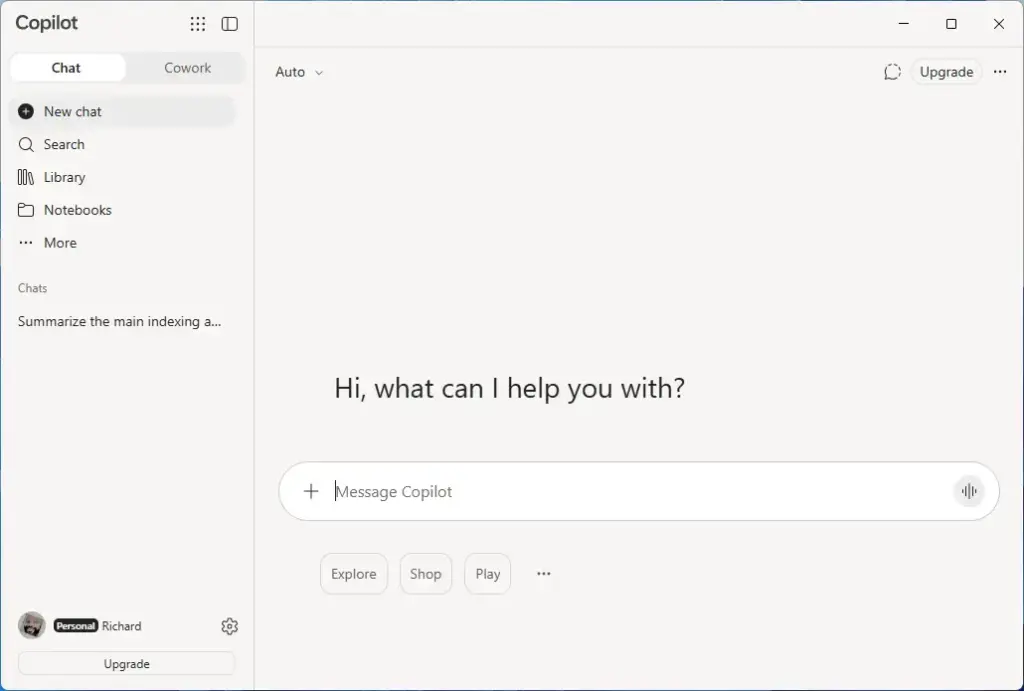
Copilot - Look for your name or profile picture in the app. If you see a Sign in button instead, select it and sign in with the Microsoft account you used before.
- If you have more than one Microsoft account, check which one is active. A chat from your personal account does not appear under a work account, and the reverse is also true.
Once you are signed in, your saved conversations are available in the side panel.
Method 1Browse the conversation list in the Copilot app
This is the main route. The conversation list shows your saved chats by title, and recent versions of the app may include a search field above it. Use the list first, because it is the one source Copilot itself maintains.
Open the list and look for a search box
- Open the Copilot app.
- Select the side panel icon near the top left of the window. This expands the panel if it is collapsed. You should now see a list of past conversations. In current versions it sits under a heading such as History or a similar label.
- Look at the top of the panel for a search field or a magnifying glass icon. If one is there, select it and type a word you remember from the chat.
- Select a result to open the conversation. The full back-and-forth loads in the main window.
If you see no search field, your version of the app does not have one yet. Scroll the list and read the titles instead, then move to the methods below. Copilot writes titles automatically, usually from your first message. A vague opening prompt can give a title you won’t recognise, so open a few candidates before you rule them out. Open a few candidates rather than ruling them out by title.
If the list looks short or empty
An empty list almost always means one of three things: you are signed out, you are on a different account, or the history has been deleted. See the troubleshooting section further down.
Method 2Use Copilot on the web
The website shows the same saved history as the app and lets you use browser tools that the app does not. This helps when the app has no search box.
- Open a browser and go to copilot.microsoft.com.
- Select Sign in if you are not already signed in. Use the same Microsoft account as the app.
- Select the side panel icon if the panel is collapsed. Your conversation list appears.
- Scroll to the bottom of the list. The page loads older conversations only as you scroll. Until you scroll to the bottom, older chats stay out of reach.
- Press Ctrl+F and type a keyword. The browser highlights matching conversation titles on the page.
This finds only titles that are loaded on the page. It does not search the body text of chats you have not opened. If a keyword returns nothing, the word is probably in the chat body and not in its title. Open the likely chats and search inside them, as described next.
Method 3Search inside a long conversation
When you know which chat you want but not where in it the answer sits, search within the open conversation. A long chat can run to many screens, and scrolling takes time.
- Open the conversation from the list, in the app or on the website.
- Scroll to the top of the chat. Long conversations may load in sections, and text that has not loaded cannot be found.
- Press Ctrl+F. In a browser, the browser’s find bar opens. In the app, a find bar may or may not open, depending on the version. If nothing appears, open the same chat on copilot.microsoft.com and use the browser’s find bar there.
- Type your keyword and press Enter to jump between matches.
Ctrl+F matches the exact characters you type. If you remember the idea but not the wording, try a different word or a shorter fragment, such as install instead of installation.
Method 4Check your browser history
If you used Copilot in a browser, the page may be in your history even when you cannot find it in the conversation list. This is a fallback, and it is the least reliable method here.
- In Microsoft Edge, press Ctrl+H to open the History panel. In other browsers, Ctrl+H also opens history.
- Type copilot in the search field.
- Look for entries from copilot.microsoft.com around the date you remember.
- Select an entry to reopen the page.
Entries often show a generic page title, so you may have to open several. The chat that loads is the live version from your account, not a stored copy. If you deleted the conversation from Copilot, the history entry leads nowhere useful. Pages opened in a private window (InPrivate in Edge, incognito in Chrome) do not appear in browser history at all.
Method 5Find chats in Microsoft 365 Copilot Chat
Work and school accounts use a separate chat history. Open Microsoft 365 Copilot Chat from the Microsoft 365 Copilot app, Microsoft Edge, or Microsoft Teams, signed in with your organisation account. Your previous chats appear in a panel on the left side of the chat window.
Two limits apply here. First, your organisation sets retention rules, so a chat can disappear sooner than you expect, and you cannot change that yourself. Second, the personal Copilot app and this version do not share history. If you cannot find a chat from your work account in the personal app, that is normal. Open Microsoft 365 Copilot Chat instead. If the conversation is still missing, ask your IT administrator how long your organisation keeps chats (its retention policy).
Why an old chat does not show up
Work through this list in order when you know a chat existed and cannot find it. It starts with the most common causes.
- You were signed out. Chats from a signed-out session are not saved. If the chat never appeared in your list, this is the likely reason.
- Your personal and work accounts each keep their own list, so check both. Switch between your personal and work accounts and check the list for each. This is the most common cause when someone insists a chat has vanished.
- The chat was deleted. Deleting a conversation, or clearing your whole history, removes it from the list. Treat that as permanent. This guide cannot confirm a restore option in Copilot.
- The chat is too old. Microsoft limits how long Copilot keeps history. Check Microsoft’s current Copilot support page for the retention period, because it can change.
- The list has not loaded fully. Scroll to the bottom of the conversation list so older items load. Then sign out and back in, or reload the page, if items still seem missing.
- The app is out of date. Open the Microsoft Store, go to Library, and select Get updates. Newer versions of the Copilot app can add features such as a search box. Check again after updating.
- Your organisation restricts Copilot. If Copilot is missing or limited on a work PC, a policy set by your administrator may be the cause. Only your IT team can change that.
Why Windows Search cannot find Copilot chats
Searching from the taskbar does not look inside Copilot conversations. Windows Search (the built-in indexer that finds files, apps and settings) does not index chats stored in your Microsoft account. Typing a phrase from a chat into the search box returns nothing, and changing indexing options will not fix that. Use the Copilot list, the website, or the browser methods above.
Do not rely on asking Copilot to remember
You can ask Copilot, “What did we talk about last week?” It may give you an answer, but that answer can be incomplete or wrong. Copilot does not read back through your saved list the way you do. Open the actual conversation to confirm anything you plan to act on, especially commands, settings or dates.
Make future chats easier to find
These habits take seconds and save time later.
- Start with a clear first prompt. Since titles usually come from your opening message, a specific first line gives you a title you can recognise. “Fix Outlook search not finding emails” beats “Help me with this.”
- Stay in one chat per topic. Returning to the same conversation means one title to remember and one place to search.
- Copy important answers elsewhere. Paste commands, steps or figures you need into a note or document. Chats can be deleted or expire, and your note stays under your control.
- Stay signed in. A signed-out chat is gone when you close it.
What to do next
If none of the methods turns up your chat, it was most likely never saved, was deleted, or is older than Copilot keeps. Check your other Microsoft accounts once more before giving up. To clear chats you no longer want, open the Copilot menu for a single conversation, or find the history and privacy options in Copilot’s settings. Check the exact labels in your version first, because deletion cannot be undone. If you manage Copilot on work PCs, your next step is to review what your organisation’s retention policy allows.
Have a question about this guide?
Answered by AI from this guide. Good questions may be added to this page — please don't include personal details.
Did this guide fix your problem?

About the Author
Richard
Tech Writer, IT Professional
Richard is a writer at Geek Rewind who turns complex IT tasks into clear, step-by-step guides. He draws on years of hands-on experience in system administration and enterprise IT operations, focusing on Windows, Linux and WordPress: the problems people actually run into, and the fixes that work. His server and WordPress guides come from systems he runs himself. Richard builds and maintains the platform behind Geek Rewind, from its Ubuntu servers and Nginx configuration to its custom WordPress plugins. Many new tutorials start with readers' questions, and he's always glad to answer them in the comments.
No comments yet — be the first to share your thoughts!