Switch Copilot Language to English on Windows 11

Copilot’s language comes from Windows, so you change it outside the Copilot app. In most cases Copilot takes its interface language from your Windows display language (the language Windows uses for menus, buttons and apps). To switch it, go to Settings Time & language Language & region, choose English, and sign out and back in.
The steps below switch Copilot to English. They also cover the region setting, a greyed-out English option, and the separate voice and keyboard settings. The menu names match current Windows 11 builds (23H2 and 24H2). Older builds may word some labels differently.
To change Copilot to English on Windows 11, set your Windows display language to English. Copilot takes its interface language from that setting. Open Settings , select Time & language, then Language & region. Choose English (United States) or English (United Kingdom) under Windows display language, and sign out and back in to apply it.
What Controls the Language Copilot Uses
Copilot does not have one language switch. Three separate things decide what you see and hear, and changing the wrong one is the most common reason Copilot stays in the wrong language.
Windows Display Language
This is the setting that matters most. It controls the language of Windows menus and most built-in apps, and Copilot follows it for its buttons, labels and prompts. If Windows is set to German, Copilot’s interface appears in German.
Country or Region
Windows also stores a Country or region value. It does not translate Copilot’s menus, but it can influence which content and features Copilot offers. If your region is set to a non-English country, check it after you change the display language.
The Language You Type or Speak
Copilot generally answers in the language you write your question in. If you type in English and still get replies in another language, the cause is usually a voice setting or an earlier instruction in the same conversation. Voice has its own language setting, covered in a later section.
Before You Start
Check these points first. They explain most of the cases where the steps below fail.
- Administrator rights: Adding a new display language may ask for administrator approval. If you use a standard account, Windows shows a prompt asking for an administrator's password.
- Work or school PCs: An organisation can lock the display language with a policy, which is a rule its IT team sets on the PC. In that case the language list is greyed out or the install fails, and only your IT team can change it.
- Single Language editions: Some PCs ship with a "Single Language" edition of Windows 11 Home, which is limited to one display language. These editions can block adding a second display language. Check Settings System About under Windows specifications to see your edition.
- Internet connection: Windows downloads the English language pack (the files that translate Windows into that language). A metered connection (one with a data limit) or an offline PC can stop the download.
- Save your work: The change needs a sign-out, which closes your open apps.
If Copilot is missing from your PC entirely, you have a different problem. See how to enable or disable Windows Copilot in Windows 11 first.
How to Switch the Copilot Language to English on 🪟 Windows 11
Follow the numbered steps below in order. Flag any step that needs an administrator account before you start.
- Press Windows + I. The Settings app opens.

- Select Time & language in the left pane. The page shows date, time and language options.

Settings › Time & language - Select Language & region. You see a Windows display language list at the top and a Preferred languages section below it.
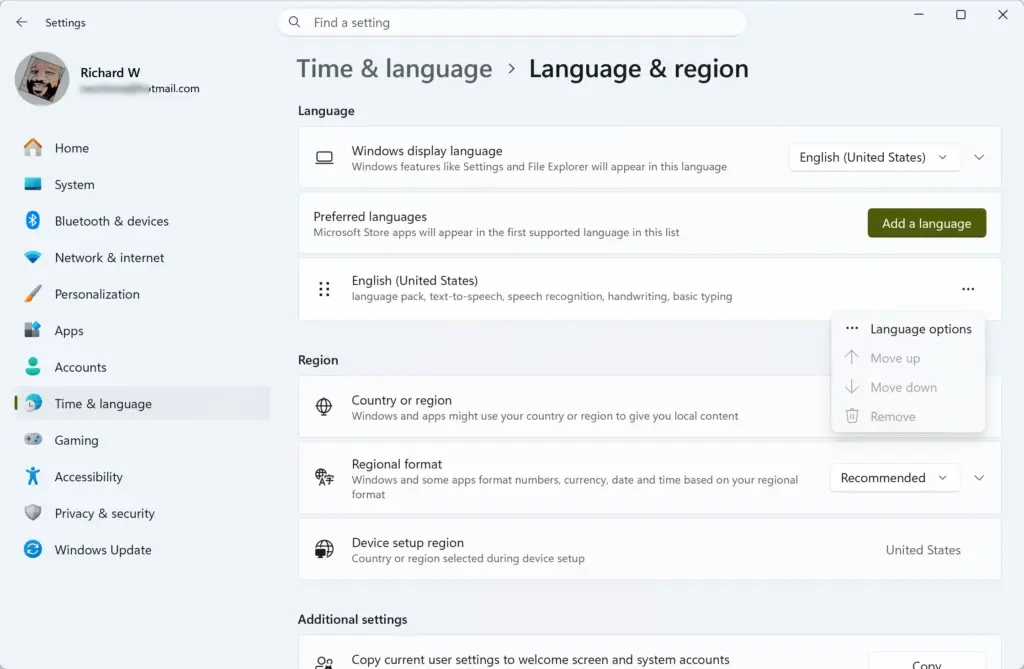
- Open the Windows display language list. If an English option such as English (United States) appears, select it and go to step 8. This means the language is already installed.
- Select Add a language if English is not in the list. A window titled Choose a language to install opens. This step may ask for administrator approval.
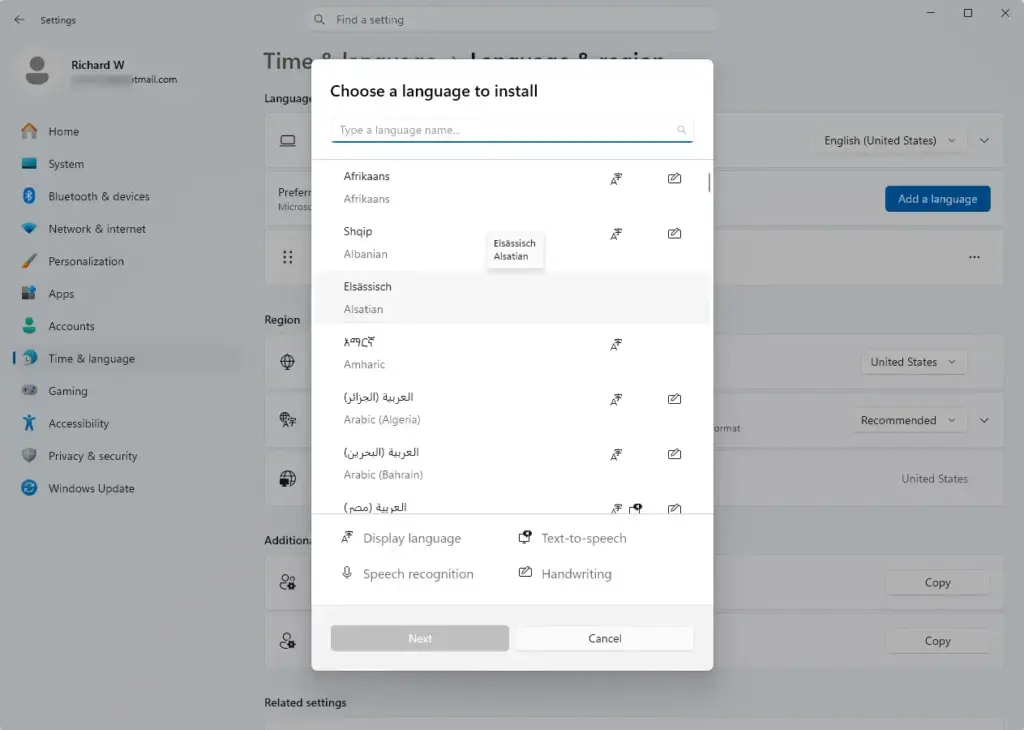
- Type English in the search box and select your variant. Choose English (United States) or English (United Kingdom), then select Next.
- Tick Set as my Windows display language, then select Install. Windows downloads the language pack. A progress bar appears beside the language in the Preferred languages list.
- Select Sign out when Windows asks. If no prompt appears, open the Start menu, select your profile picture, and choose Sign out. Then sign back in. Windows applies the new display language at sign-in.
- Open Settings Time & language Language & region again. Confirm that Windows display language now shows English.
- Open the Country or region list and select your country. This step is optional, but it keeps Copilot's regional content consistent with where you are.
- Close the Copilot app completely. For a full close, press Ctrl + Shift + Esc to open Task Manager, select Copilot under Apps, and choose End task.
- Open Copilot again from the taskbar or the Start menu. Its menus and prompts now appear in English.
If Copilot still shows the old language, restart the PC and open Copilot again. A restart reloads every background process. That includes the ones that saved the old language when you signed in.
Check That Copilot Is Now in English
Open Copilot and look at three places: the greeting or prompt box, the Settings entry inside the app, and a short test chat. Type a question in English, such as "What is the weather like in London today?" The reply should come back in English.
If the interface is English but the reply is not, the problem is the conversation language, not the display language. Type "Reply in English from now on" and send it. Start a new chat if the old one keeps ignoring the instruction.
If Copilot Still Shows Another Language
Work through the cases below in order. Each one matches what you see on screen.
English Is Missing or Greyed Out in the Language List
A greyed-out Windows display language list or a disabled Add a language button points to a policy or edition limit. On a work or school PC, an administrator has locked it. On a personal PC, check whether you run a Single Language edition of Windows 11 Home, as described earlier.
If you use a standard account on a personal PC, sign in with an administrator account and repeat the steps. Language packs install for the whole PC. The display language, though, applies to each user account separately.
The Language Pack Will Not Install
A stalled progress bar or a failed install usually means a download problem. Check that the PC is online and that the connection is not set as metered. Open Settings Network & internet and look at the connection properties.
Next, open Settings Windows Update and select Check for updates. Windows delivers language packs through the same service, so a blocked or paused update can stop the install. Resume updates if they are paused, then try Add a language again.
Copilot Keeps the Old Language After Sign-Out
A running Copilot process can hold onto the old language. End the Copilot task in Task Manager, then reopen Copilot. If that fails, restart the PC.
Also confirm that you changed the display language, not only the Regional format (the date, time and number style) or the keyboard. Those settings sit on the same page but do not translate Copilot's menus.
Menus Are English but the Keyboard Types in Another Language
The display language and the keyboard layout are separate settings. If your keyboard still types accented or non-Latin characters, follow how to change your keyboard language to English in Windows 11. To switch layouts quickly while you work, press Windows + Space.
Change the Copilot Voice Language
Voice input and spoken replies use their own language setting, so Copilot can show English menus yet listen for or speak another language. The voice settings sit inside Copilot and not in Windows Settings. For those steps, read how to change Copilot voice language in Windows 11.
If speech recognition mishears your English, check that Windows uses your microphone for input (the default input device) in Settings System Sound
Copilot in Microsoft Edge or in a Browser
Copilot in Microsoft Edge and on the Copilot website may use the browser's language or your Microsoft account instead of the Windows display language. If the Copilot app is in English but the browser version is not, set the browser to English too.
In Edge, open the menu with the three dots, choose Settings, and look for Languages. Select the option to display Microsoft Edge in English, then restart the browser when it asks. Edge changes its labels between releases, so the wording may differ slightly on your build.
The Copilot website also shows a language settings option on its sign-in page. Its position changes as Microsoft updates the site, so scroll the page and check the footer if you cannot find it.
Undo the Change
To return Copilot to its earlier language, open Settings Time & language Language & region. Open the Windows display language list, select the previous language, and sign out and back in. Windows keeps the English language pack installed, so you can switch back later without downloading it again.
To free the space it uses, select the three dots beside English in the Preferred languages list and choose Remove.
What to Do Next
Copilot now opens in English, but the taskbar entry or the sidebar may behave differently than you expect. In that case, read how to turn on or off Ask Copilot on the Windows 11 taskbar. To change how Copilot appears on screen, see how to switch between Copilot views in Windows 11.
A Windows feature update or a new user profile can bring back the previous display language, because each profile keeps its own setting. Repeat the steps above on that profile if Copilot returns to the wrong language. If you would rather not use Copilot, how to disable Windows 11 Copilot explains how to turn it off.
Frequently asked questions
Is english a germanic language?
Yes. English is a West Germanic language, part of the Germanic branch of the Indo-European family. It grew out of the dialects brought to Britain by Anglo-Saxon settlers in the 5th century. Its closest living relatives are German, Dutch, and Frisian.
How old is the english language?
English is about 1,500 years old. Its roots go back to the 5th century, when Anglo-Saxon settlers brought Old English to Britain. Modern English took shape after the Norman Conquest of 1066, and Shakespeare wrote in an early form of it.
What is english language?
English is a West Germanic language and the most widely used language for business, science and the internet. It is the first language of about 380 million people and is spoken as a second language by many more. It is the official language of dozens of countries.
Still have a question?
Answered by AI from this guide. Good questions may be added to this page — please don't include personal details.
Did this guide fix your problem?

About the Author
Richard
Tech Writer, IT Professional
Richard is a writer at Geek Rewind who turns complex IT tasks into clear, step-by-step guides. He draws on years of hands-on experience in system administration and enterprise IT operations, focusing on Windows, Linux and WordPress: the problems people actually run into, and the fixes that work. His server and WordPress guides come from systems he runs himself. Richard builds and maintains the platform behind Geek Rewind, from its Ubuntu servers and Nginx configuration to its custom WordPress plugins. Many new tutorials start with readers' questions, and he's always glad to answer them in the comments.
No comments yet — be the first to share your thoughts!