Change Administrative Language Settings in Windows 11

- 21 steps
- Needs administrator rights
- Includes a restart or sign-out
Administrative language settings in Windows 11 control the language used on the sign-in screen and in system accounts. They also affect older programs that do not support Unicode (the modern standard for storing text in any language). To change them, open Settings Time & language Language & region and select Administrative language settings under Related settings.
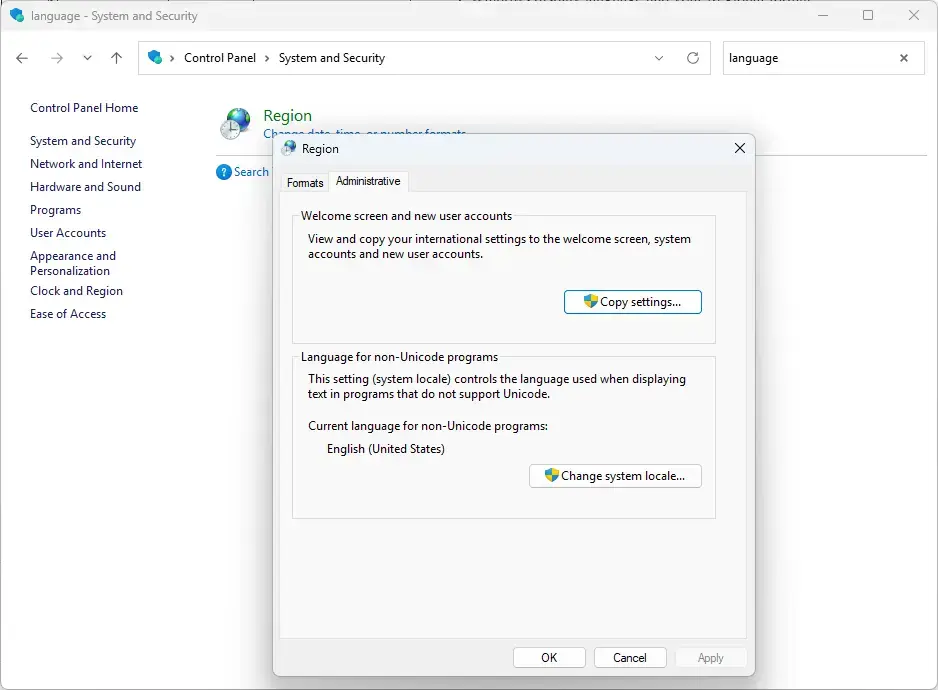
That opens the Region window on its Administrative tab, which has two controls: Copy settings and Change system locale. Both need an administrator account, and a new system locale needs a restart. The steps below cover each control, the UTF-8 checkbox, and how to reverse the change.
Administrative language settings in Windows 11 control the sign-in screen, system accounts and the language used by older non-Unicode programs. To open them, go to Settings Time & language Language & region, select Administrative language settings under Related settings, then use the Administrative tab in the Region window. Copy settings and Change system locale need an administrator account.
What the administrative language settings change
Windows keeps several language settings that sound alike but do different jobs. The administrative ones sit at the system level, so they affect the whole PC rather than one person’s account.
- System locale: the language and region Windows uses for programs that do not support Unicode. Older business software, games and utilities often depend on it. The Administrative tab lists it as Current language for non-Unicode programs.
- Welcome screen and system accounts: the language and format used on the sign-in screen and by built-in service accounts (the accounts Windows uses to run background tasks).
- New user accounts: the defaults given to any account created after you copy the settings.
These settings do not change the language of menus and apps in your own account. That is the Windows display language, and it has its own page in Settings. If that is what you need, read how to change the display language in Windows 11 instead.
Before you start
Check three things first, because they decide whether the steps work on your PC.
- Use an administrator account. Windows asks for administrator approval when you select Copy settings or Change system locale. A standard account is a normal user account without admin rights. On one, you need an administrator’s password.
- Save your work. Changing the system locale requires a restart, and Windows offers it right away.
- Set your own account first. Copy settings copies what your signed-in account uses today. If your display language, format or location is wrong, correct it before you copy.
The steps match current versions of Windows 11. Windows 11 Home and Pro both have these settings, so the steps work the same on either edition.
How to change administrative language settings in 🪟 Windows 11
The steps below change administrative language settings in one pass. They open the Region window, copy your language settings to the sign-in screen and new accounts, then set the system locale. If you only need the system locale, skip steps 6 to 10 and start at step 11. Skip steps 11 to 16 if you only want to copy settings.
- Press Win+I to open Settings . The Settings app opens on the System page.

Start Menu - Select Time & language. The menu is in the left pane. The page lists Date & time, Language & region, Typing and other options.

Settings › Time & language - Select Language & region. You see your preferred languages, the Windows display language and your Regional format.
- Scroll down to Related settings. This section sits near the bottom of the page.
- Select Administrative language settings. The Region window opens. If it shows the Formats tab, select the Administrative tab at the top. You should see two sections: Welcome screen and new user accounts and Language for non-Unicode programs.
- Select Copy settings. (Administrator required.) A shield icon on the button means it needs administrator approval. Select Yes on the User Account Control prompt, or enter an administrator’s credentials. The Welcome screen and new user settings dialog opens.
Control Panel - Review the settings listed under Current user. The dialog shows the display language, input language, format and location your account uses. If anything is wrong, select Cancel, fix it in Language & region, and start again from step 6.
- Select the Welcome screen and system accounts checkbox. This applies your language settings to the sign-in screen and to system accounts. Skip this step if you do not want the sign-in screen to change.
- Select the New user accounts checkbox. This makes your settings the default for accounts created later. Existing accounts keep their current settings.
- Select OK. The dialog closes and you return to the Region window. The sign-in screen shows the change after you restart, which happens in step 16.
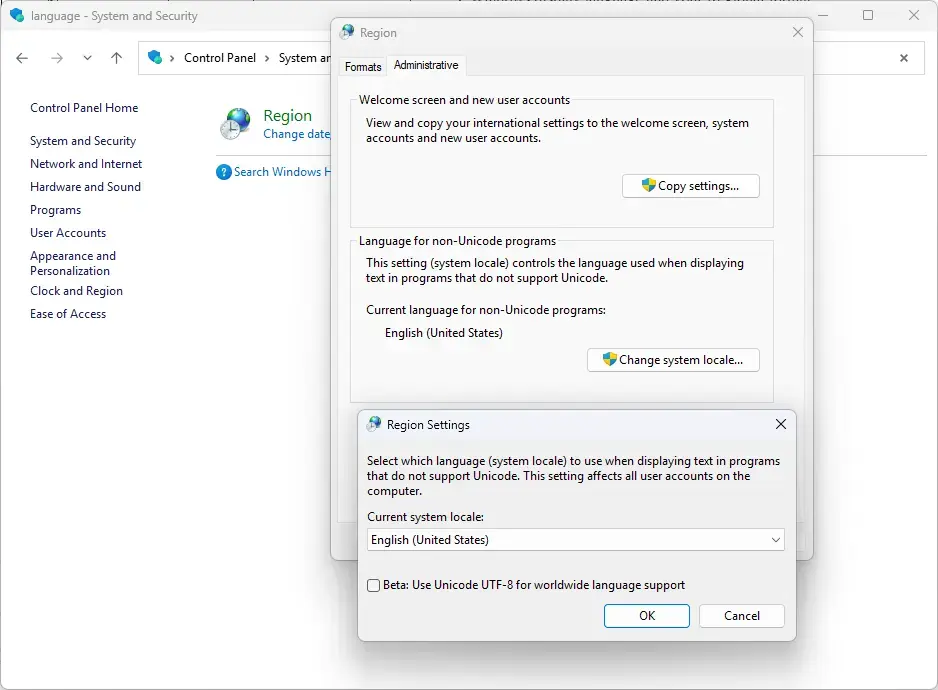
- Select Change system locale. (Administrator required.) This button is under Language for non-Unicode programs. Approve the User Account Control prompt if it appears. The Region Settings dialog opens.
- Open the Current system locale list. The list holds every language and region combination Windows supports, such as English (United States) or Japanese (Japan).
- Select the language and region you need. Pick the one your older software expects. If you are unsure, check the software’s documentation, because the wrong locale garbles text.
- Check the UTF-8 box only if you need it. The option is labelled Beta: Use Unicode UTF-8 for worldwide language support. Leave it clear unless a program or vendor tells you to turn it on. The next section explains the trade-off.
- Select OK. (Administrator required.) Windows shows a message saying you must restart your computer to apply the changes. It offers Restart now and Cancel.
Control Panel - Select Restart now after saving your work. The PC restarts. If you chose Welcome screen and system accounts in step 8, the sign-in screen now uses the copied settings.
- Reopen Administrative language settings to confirm. Follow steps 1 to 5 again. Current language for non-Unicode programs now shows the locale you picked.
What the UTF-8 checkbox does
Many modern apps already use Unicode. The checkbox is for the reverse case: it makes Windows treat non-Unicode programs as though they use UTF-8. Microsoft labels it Beta in the dialog, so some older software may behave oddly with it.
Turn it on when a developer tool, script or text-based program (one you run by typing commands) needs UTF-8 to show characters from several languages correctly. Leave it off for older programs written for a specific regional encoding. Those programs can show garbled or unreadable text when UTF-8 is forced on them.
If text looks broken after you enable it, go back to Change system locale, clear the checkbox, select OK, and restart.
Change the Region window’s other tabs if you need them
The Region window has two more tabs next to Administrative. They affect your own account, not the whole system.
- Formatssets how Windows shows dates, times, numbers and currency. For a date-only change, see how to change the date format in Windows 11.
- Locationsets your home location, which some apps and services use for local content.
Changing these does not touch the system locale. They apply to the account you are signed in with.
How to undo the change
Every part of this process can be reversed. Each reversal needs administrator approval.
- Open Administrative language settings. Use Settings Time & language Language & region, then select the link under Related settings.
- Select Change system locale. Approve the User Account Control prompt.
- Choose your previous locale from the Current system locale list. Clear the UTF-8 checkbox if you turned it on.
- Select OK, then Restart now. The old non-Unicode behavior returns after the restart.
Then select Copy settings again and tick the same checkboxes. Windows overwrites the earlier copy. Accounts already created with the old defaults keep them.
If the options are missing or greyed out
Several things can block these controls. Work through them in this order.
- You are signed in with a standard account. Windows prompts for an administrator’s password when you select a button with a shield icon. Enter it, or sign in with an administrator account. If you do not know any administrator password, ask whoever manages the PC.
- The link is missing from Settings. Press Win+R, type
intl.cpl, and press Enter. The Region window opens directly. Select the Administrative tab. - The PC belongs to a work or school. Organizations can lock language and region settings. If the buttons stay greyed out after you approve the User Account Control prompt, your IT team probably controls them. Ask them to change the setting.
- The restart prompt never appears. Close the dialogs and restart the PC from the Start menu. The system locale applies only after a restart.
If Windows keeps changing your language or region
Some people find their settings have changed after a feature update or after they sign in to a new account. Windows can reapply defaults when it sets up a new profile, which is why the New user accounts option matters on shared PCs. Our post on why Windows 11 automatically changes your default language and region settings covers the causes and what to check.
How system-level language differs from app-level language
The system locale does not decide the language of every app. Each app has its own rules, and some keep their own language option separate from Windows. Two examples on the same PC show the difference.
Windows Terminal has its own language behavior, covered in how to change the Windows Terminal language in Windows 11. Microsoft Teams stores its own language and regional settings, which you change through the steps in changing your language and regional settings in Teams. If an app still shows the wrong language after you change the administrative settings, check that app's own settings next.
What to do next
If your sign-in screen and system accounts now use the right language, the typing side may still need attention. Set your layout with how to change your keyboard language to English in Windows 11. To change menus and apps for your own account, use the display language preferences guide.
Frequently asked questions
How to adjust power and sleep settings in 🪟 Windows 11?
Open Settings, then go to System Power & battery Under Screen and sleep, set how many minutes pass before the screen turns off and before your PC goes to sleep. Pick a value from each drop-down menu. Choose Never to stop that setting from turning anything off. Changes take effect right away, so you can test them by leaving the PC idle.
How to adjust display settings in 🪟 Windows 11?
Open Settings and select System Display to change how your screen looks. Use the Display resolution drop-down to pick a sharper or smaller picture. Use Scale to make text and apps larger or smaller. Changes apply right away, and Windows asks you to keep or revert them.
How to check multiple language support in 🪟 Windows 11 site support.Microsoft.com?
Open Settings Time & language Language & region to see which languages your PC supports. Each language in the Preferred languages list shows its installed features, such as Basic typing, Handwriting, and Speech. Select a language and open Language options to check what it includes.
How to change keyboard language?
Press the Windows key + Spacebar to switch between keyboard languages. To add one, open Settings Time & language Language & region, select the language, then choose Language options Keyboards Add a keyboard. Pick the layout you need. The new keyboard appears in the switcher right away.
How to change language?
To change the Windows display language, open Settings Time & language Language & region. Select Add a language, install the one you want, then move it to the top of Preferred languages. Sign out and back in to apply it. Windows shows menus and buttons in that language after you sign back in.
How to change administrator in 🪟 Windows 11?
Open Settings, select Accounts, then select Other users. Click the account you want, choose Change account type, and select Administrator. You must be signed in as an administrator to make this change. The new role applies at the account's next sign-in, so that user should sign out and back in.
Still have a question?
Answered by AI from this guide. Good questions may be added to this page — please don't include personal details.
Did this guide fix your problem?

About the Author
Richard
Tech Writer, IT Professional
Richard is a writer at Geek Rewind who turns complex IT tasks into clear, step-by-step guides. He draws on years of hands-on experience in system administration and enterprise IT operations, focusing on Windows, Linux and WordPress: the problems people actually run into, and the fixes that work. His server and WordPress guides come from systems he runs himself. Richard builds and maintains the platform behind Geek Rewind, from its Ubuntu servers and Nginx configuration to its custom WordPress plugins. Many new tutorials start with readers' questions, and he's always glad to answer them in the comments.
No comments yet — be the first to share your thoughts!