How to Turn On Unicode UTF-8 Support in Windows 11

Older Windows 11 programs sometimes display international text incorrectly. Turning on Unicode UTF-8 fixes most of these rendering errors.
Open Settings Time & language Language & region Administrative language settings, select the Administrative tab, click Change system locale, tick Use Unicode UTF-8 for worldwide language support, click OK, then restart your PC. The setting applies system-wide to all user accounts after the restart.
What is Display Language?
Changing it adapts the operating system to a preferred regional standard. It does not change how older programs read and write text, and that is where many display problems start.
Legacy applications often lack proper text encoding support, so a language change alone may not fix them. Unicode UTF-8 is a universal character encoding standard that represents virtually all written languages. When you turn it on, Windows uses UTF-8 as the system-wide code page for programs that still rely on a legacy encoding.
Why Turn On Unicode UTF-8?
Older programs often default to a legacy system encoding (a code page tied to one region) instead of UTF-8. This is why non-English characters show up as corrupted symbols or question marks. With UTF-8 enabled, those programs handle international characters and symbols much better.
The setting is system-wide and applies to every user account on the PC. It is available in both Windows 11 Home and Pro.
How to Turn On Unicode UTF-8 Using Windows Settings
The Settings app is the quickest way to turn on global UTF-8 support, and you don’t need to edit the system by hand. It helps most with broken symbols in multilingual applications and older utilities that handle international text poorly. You need an administrator account, because this changes the system locale.
- Open Settings. Click the Start menu and select Settings, or press Windows key + I. The Settings window opens.
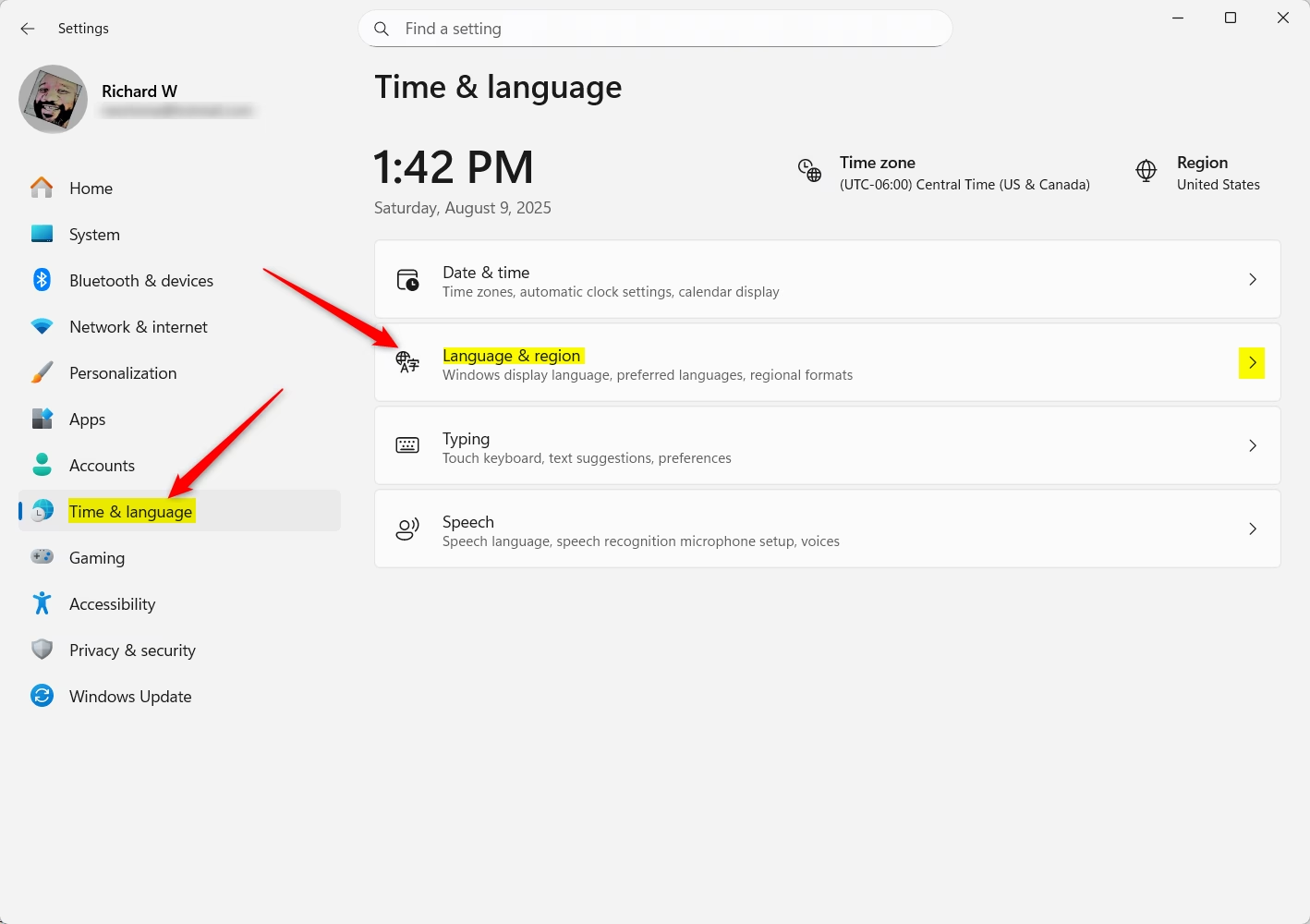
- Click Time & language in the left pane.
- Click Language & region on the right.
- Scroll down to the related settings and click Administrative language settings. The Region dialog opens.
- Select the Administrative tab, then click Change system locale... under "Language for non-Unicode programs". If prompted by User Account Control, approve it with an administrator account.
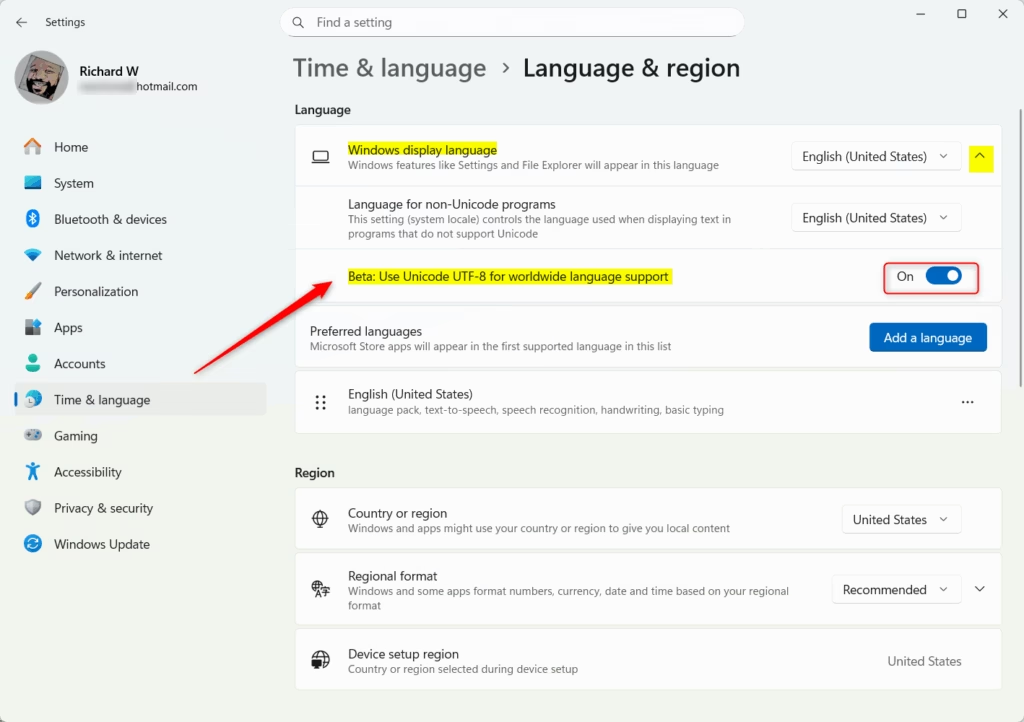
- In the Region Settings window, tick the checkbox Use Unicode UTF-8 for worldwide language support. On some Windows 11 builds it is labelled Beta: Use Unicode UTF-8 for worldwide language support. Untick it to turn UTF-8 off again.
- Click OK. Windows asks you to restart.
- Click Restart now. The change does not apply until the PC restarts.
If the checkbox is greyed out or the change won't save, you are probably not signed in as an administrator. Sign in with an administrator account and try again.
After the restart, open the same Region Settings window and check that the box is still ticked.
How to Enable Unicode UTF-8 Using the Registry Editor (Advanced)
Registry edits can cause unexpected issues, so create a system restore point first. To do that, search for Create a restore point in the Start menu, open it, and click Create... on the System Protection tab.
⚠️ Administrative permissions are required to complete these steps:
- Open the Registry Editor. You can find how to do this here: Open Registry Editor. The editor is the same in Home and Pro.
- Go to this folder path:
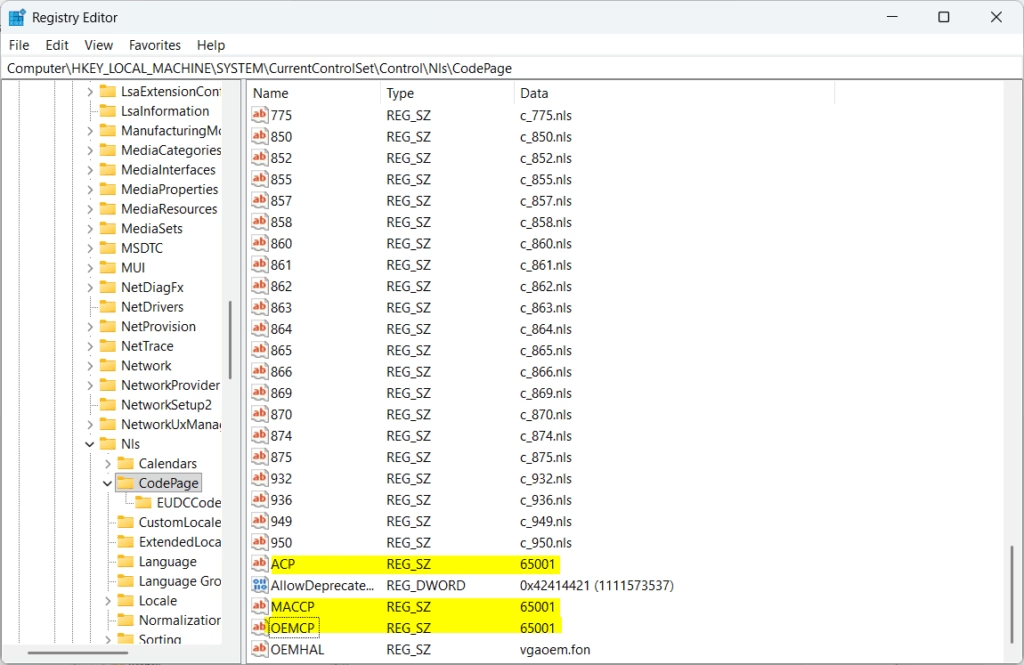
Computer\HKEY_LOCAL_MACHINE\SYSTEM\CurrentControlSet\Control\Nls\CodePage. Paste it into the address bar at the top of the editor, or expand the folders in the left pane one by one. - In the right pane, find the entries named ACP, MACCP, and OEMCP.
- Double-click each one. In the Value data box, enter
65001to turn Unicode UTF-8 support on, then click OK. Repeat for all three entries. - Close the Registry Editor and restart the PC.
To revert the configuration, change the three entries back to their original values. These are the usual defaults for a US English installation:
- ACP = 1252
- MACCP = 10000
- OEMCP = 437
Other regions use different defaults, so note the original values before you change them. If you made a restore point, you can also use it to roll back. Restart the PC afterwards. A restart applies the new encoding parameters across all active user sessions.
Summary
- Unicode UTF-8 support helps Windows display different languages correctly on your computer.
- You can use the easy Settings app method or the advanced Registry Editor method.
- Always back up your system before editing the registry to stay safe.
- Restart your PC after changes to make sure they take effect.
- Turning on UTF-8 can fix problems where some programs don't show your language properly.
Unicode UTF-8 support in Windows 11 helps your computer correctly display text from many different languages. You can set it through the Settings app or the Registry Editor. A restore point protects you from mistakes during manual registry editing, and a restart applies the new character encoding rules. If an older program behaves worse afterwards, turn the setting off again and restart.
Was this guide helpful?

About the Author
Richard
Tech Writer, IT Professional
Richard is a writer at Geek Rewind who turns complex IT tasks into clear, step-by-step guides. He draws on years of hands-on experience in system administration and enterprise IT operations, focusing on Windows, Linux and WordPress: the problems people actually run into, and the fixes that work. His server and WordPress guides come from systems he runs himself. Richard builds and maintains the platform behind Geek Rewind, from its Ubuntu servers and Nginx configuration to its custom WordPress plugins. Many new tutorials start with readers' questions, and he's always glad to answer them in the comments.




No comments yet — be the first to share your thoughts!