How to Change Your Keyboard Language to English in Windows 11

- 43 steps
- Needs administrator rights
- Includes a restart or sign-out
Adding an English keyboard to Windows 11 takes just two minutes and requires no restart. Open Settings, go to Time & language Language & region, and add English from there—then switch between keyboards using the taskbar indicator or Windows key + Spacebar.
This article covers how to add an English keyboard, switch between different keyboard languages, remove a keyboard you no longer need, fix the wrong English layout, and set English as the default on the sign-in screen. We also explain what to do if these options are missing or greyed out.
Open Settings Time & language Language & region, select Add a language, search for and choose English (United States) or English (United Kingdom) to match your keyboard layout, then select Install. Switch using the language code in the taskbar or Windows key + Spacebar.
Keyboard Language vs Display Language
Windows treats these as two separate settings, and mixing them up is the most common reason people end up with the wrong result.
- Keyboard language (also called the input method) decides which characters appear when you press a key. It controls the layout, such as US or United Kingdom, and where symbols like @ and ” sit.
- Windows display language decides the language of menus, Settings, and system messages.
You can have an English keyboard and a non-English display language, or the reverse. The main steps below change the keyboard. A later section covers the display language.
Before You Start
Check these points first so you do not stall partway through:
- Internet connectionAdding a language downloads language features from Microsoft. Without a connection, the install can sit at “Waiting” or fail.
- Which English you needEnglish (United States) gives you the US layout. English (United Kingdom) gives you the UK layout. The letters match, but symbols such as @, “, £, #, and the backslash sit on different keys. Pick the one that matches the printed keys on your keyboard.
- Administrator rightsAdding a keyboard for your own account does not need them. Applying English to the sign-in screen does, and that step is flagged below.
How to Add an English Keyboard in 🪟 Windows 11
This is the main method. It adds English as a language, and Windows adds the matching keyboard layout with it.
Step 1Open Language & region settings
This page lists every language and keyboard on your PC.
- Right-click the Start button and select Settings.

Windows 11 Start menu with Settings gear icon highlighted. - Select Time & language in the left pane.

Settings › Time & language - Select Language & region.
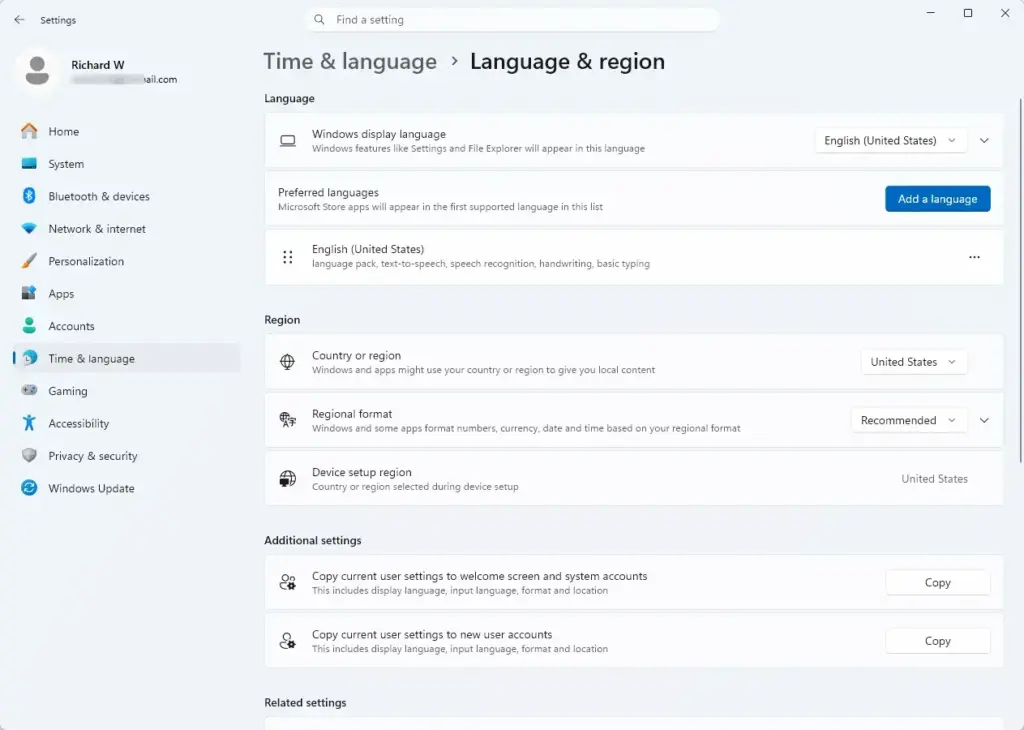
Settings › Time & language › Language & region
You should see a Preferred languages list. Each entry shows the language name and small icons for the features installed for it.
Step 2Add English as a language
This step downloads English and installs its keyboard.
- Next to Preferred languages, select Add a language.
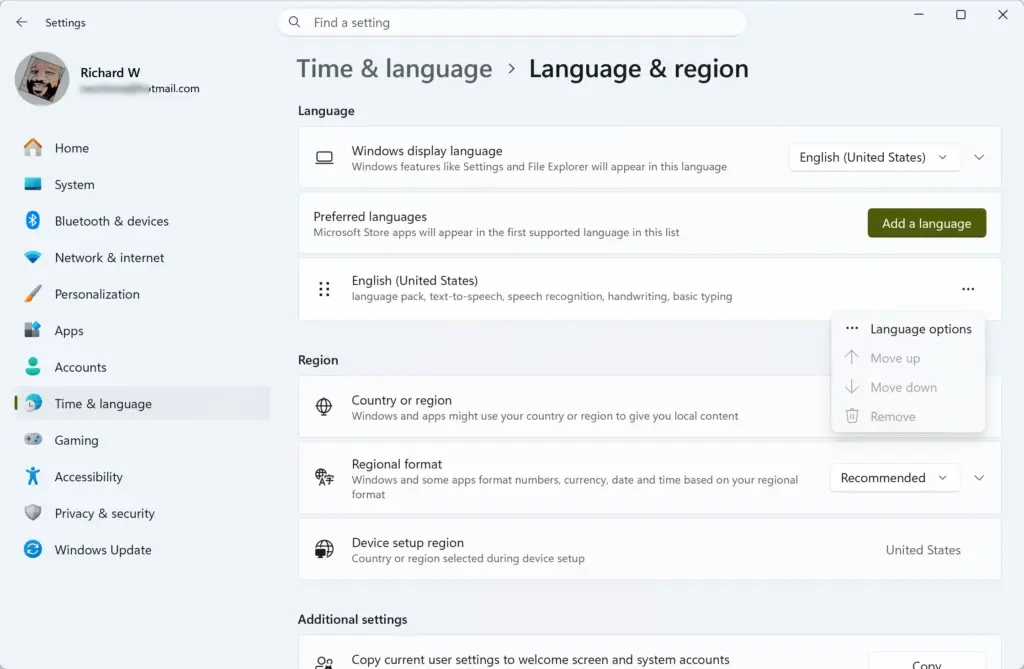
Settings > Time & language > Language & region > Preferred languages - In the search box, type English.
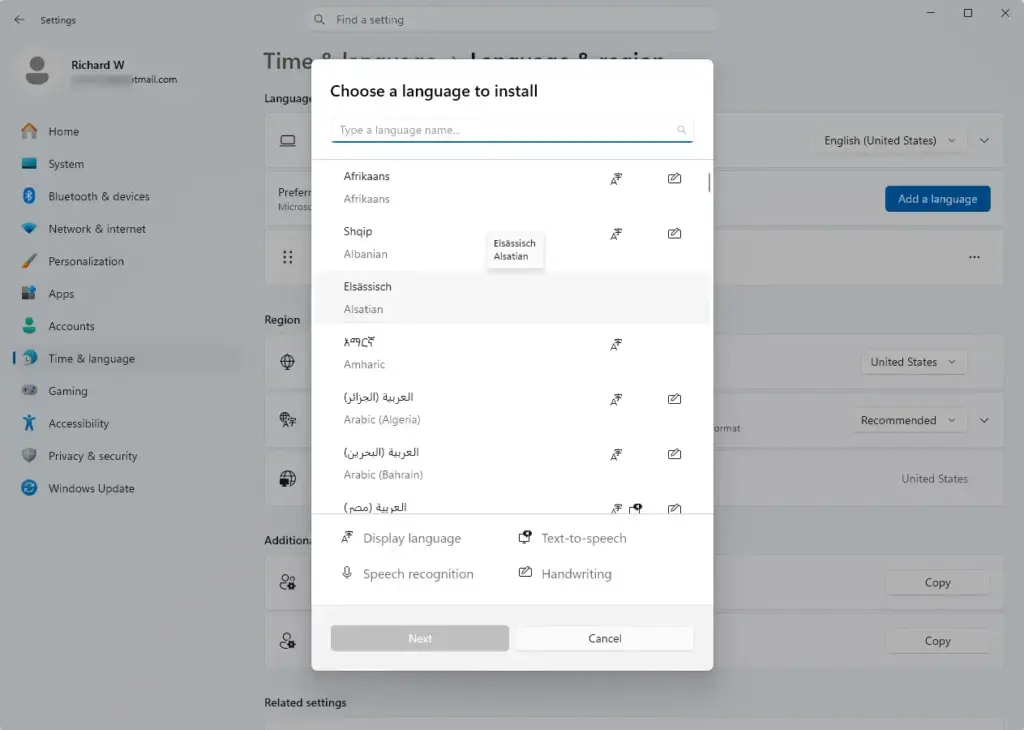
- Select the version you want, for example English (United States) or English (United Kingdom).
- Select Next.
A screen titled Install language features appears with several checkboxes.
Step 3Choose the install options
Windows offers optional extras here. For a keyboard change, you only need the language pack.
- Leave Install language pack ticked.
- Clear the Set as my Windows display language checkbox if you want to keep your current menus and Settings language. Leave it ticked if you want Windows itself to switch to English. This option signs you out later.
- Tick or clear the other features, such as handwriting and speech recognition, as you need them.
- Select Install.
If the install stalls or shows an error, check your internet connection, then select the three dots (…) next to English and look for a retry option. If the language still will not install, restart the PC and repeat Step 2.
How to Switch to the English Keyboard
Once you have more than one keyboard, Windows lets you switch between them at any time. You have three ways to do it.
Switch with the taskbar indicator
The indicator sits in the system tray near the clock and shows a short code, such as ENG for English.
- Select the language code in the taskbar, near the clock.
- Select English in the list that opens.
The code in the taskbar changes to ENG, and the next key you press uses the English layout. If the indicator is missing, see the troubleshooting section below.
Switch with the keyboard shortcut
The fastest method is a shortcut that works in any app.
- Hold the Win and tap Spacebar.
- Keep the Win held and tap Spacebar again until English is highlighted.
- Release both keys.
A small pop-up lists your installed keyboards while you hold the Win. Release both keys to select the highlighted one. Note: Depending on your setup, Left Alt + Shift also cycles through keyboards.
Change the switching shortcut
If Alt + Shift triggers by accident while you type, you can change or disable it.
- Open Settings Time & language Typing.
- Select Advanced keyboard settings.
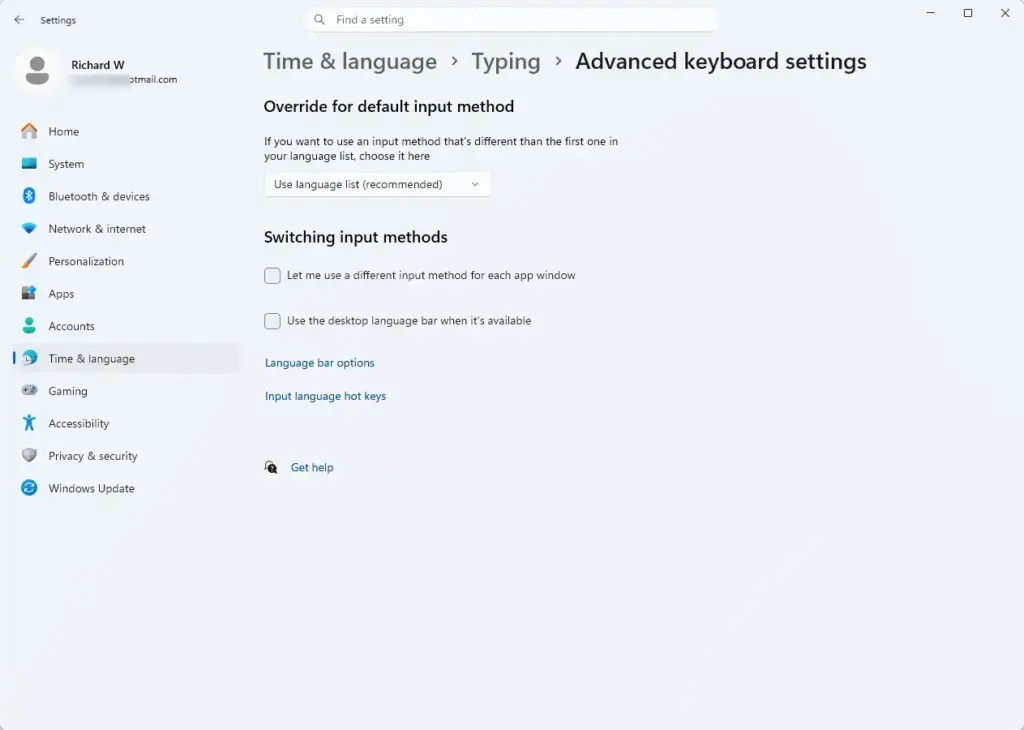
Settings › Time & language › Typing › Advanced keyboard settings - Select Input language hotkeys. A dialog titled Text Services and Input Languages opens.
- On the Advanced Key Settings tab, select Change Key Sequence.
- Choose a different sequence, or select Not Assigned, then select OK.
The Windows key + Spacebar shortcut is separate and keeps working.
How to Add Only the English Keyboard Layout to an Existing Language
If you only want English typing and do not want a second language pack, add the English layout to the language you already have. This is useful when you type mostly in another language and need a US layout for programming, gaming, or passwords.
- Open Settings Time & language Language & region.
- In Preferred languages, select the three dots (…) next to your current language.
- Select Language options.
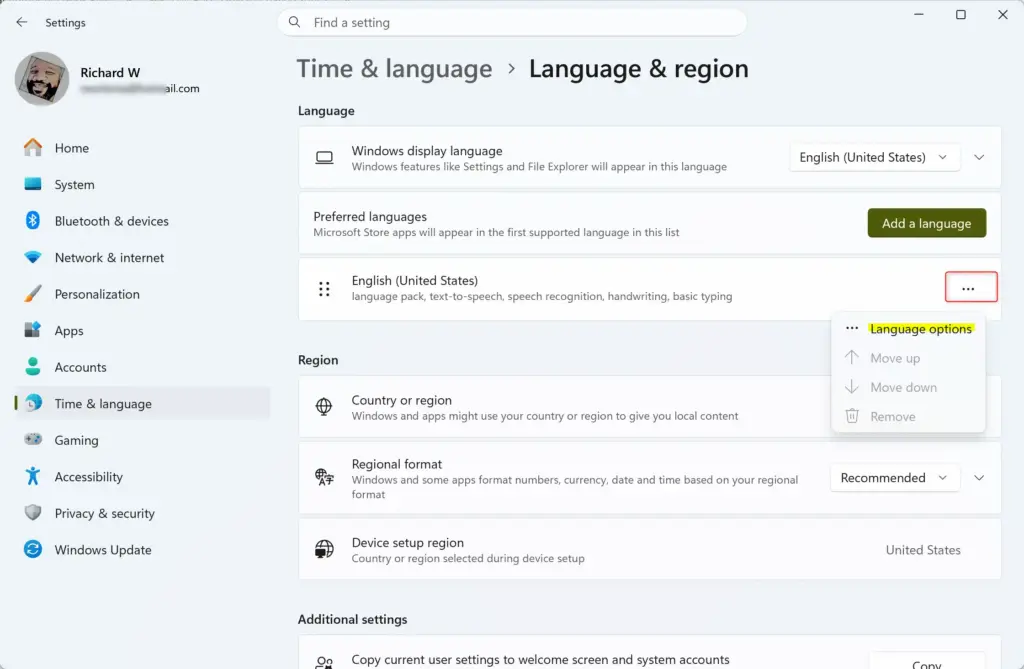
- Under Keyboards, select Add a keyboard.
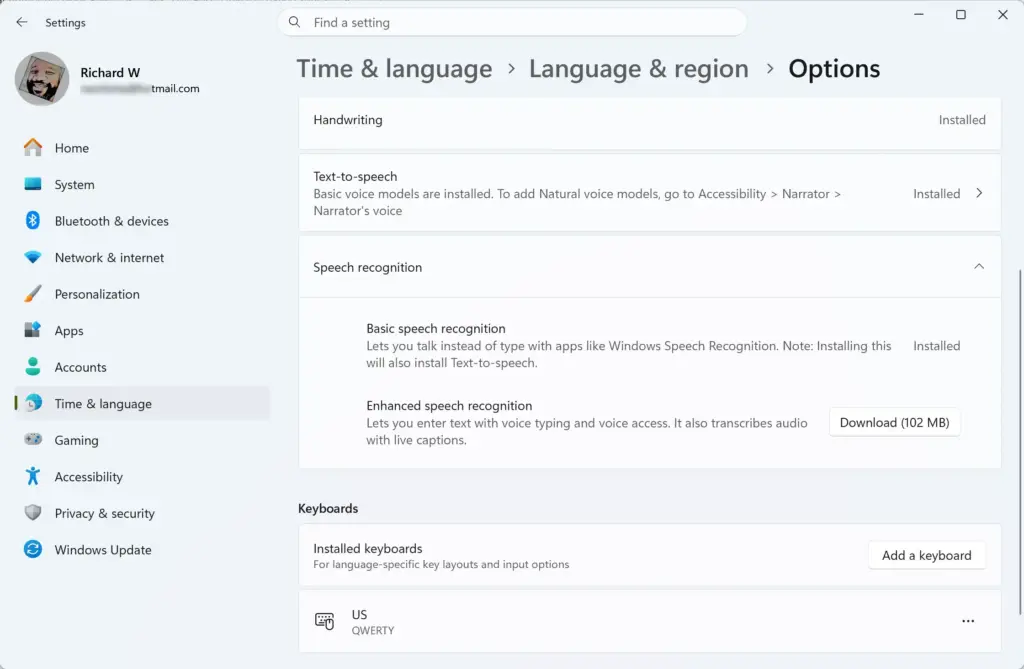
Settings > Bluetooth > Keyboard - Select US (or United Kingdom) from the list.
The new layout appears under Keyboards and in the taskbar switcher. The taskbar code still shows your original language, but the keys follow the layout you chose. Check which keyboard is active by opening the taskbar switcher — the name shown under the language code tells you which layout is active.
How to Fix the Wrong English Layout
If English is already installed but characters come out wrong, the layout is the likely cause. The typical signs are @ and ” swapped, or # and £ appearing where you expect something else.
- Open Settings Time & language Language & region.
- Select the three dots (…) next to English, then select Language options.
- Under Keyboards, select Add a keyboard and add the layout that matches your physical keyboard, for example US or United Kingdom.
- Select the three dots (…) next to the layout you do not want, then select Remove.
Open a text editor such as Notepad and press the symbol keys to confirm the output now matches the key labels.
How to Make English Apply on the Sign-In Screen
The sign-in screen and new user accounts use their own settings separately, so a password with symbols can fail if the layout differs. At the sign-in screen, you can pick a keyboard with the language button near the bottom-right corner before you type the password.
To copy your settings to the sign-in screen and new accounts permanently, use Administrative language settings. This step requires administrator privileges.
- Open Settings Time & language Language & region.
- Scroll down and select Administrative language settings. The Region dialog opens on the Administrative tab.
- Select Copy settings. Approve the User Account Control prompt if one appears.
- Under Copy your current settings to, tick Welcome screen and system accounts. Tick New user accounts if you want new profiles to start with the same settings.
- Select OK.
Windows may ask you to restart. Restart when prompted, and the sign-in screen then uses the same language settings as your account.
If Copy settings is greyed out, you are not signed in as an administrator. Sign in with an administrator account and repeat the steps.
How to Change the Windows Display Language to English
Skip this section if you only need to type in English. Use it if menus, Settings, and system messages should also appear in English.
- Open Settings Time & language Language & region.
- If English is not in Preferred languages, add it using the steps earlier in this guide and tick Set as my Windows display language.
- If English is already installed, open the Windows display language drop-down and select English.
- Select Sign out when Windows prompts you.
- Sign back in.
Menus, Settings, and the Start menu now appear in English after you sign back in. Some apps change the next time you open them.
How to Remove a Keyboard or Language You No Longer Need
Removing a layout also undoes the change if you added the wrong one. The removal only affects your account.
- Open Settings Time & language Language & region.
- To remove a whole language, select the three dots (…) next to it, then select Remove.
- To remove a single layout, select the three dots next to the language, select Language options, then select the three dots next to the layout under Keyboards and select Remove.
Windows does not let you remove the language it uses as the display language. Change the display language first, then remove the language you no longer want. The taskbar indicator disappears when only one keyboard remains.
Troubleshooting
The language indicator is missing from the taskbar
Windows shows the indicator only when two or more keyboards are installed. If you have just one, it stays hidden. Add a second keyboard, and the indicator appears. You can also check Settings Personalization Taskbar System tray icons if it was hidden.
Add a language is greyed out or a message says settings are managed by your organization
On a work or school PC, an administrator can restrict language changes. Contact your IT department. You cannot override this from your account.
The language installs but will not become the display language
Some Windows 11 editions, such as Windows 11 Home Single Language, are limited in which display languages they allow. Keyboard layouts are a separate setting, so adding an English keyboard layout to your existing language still works. If you need the display language itself changed, check your Windows edition under Settings System About.
The keyboard changes by itself between apps
Windows can remember a different keyboard for each app window. To control this, open Settings Time & language Typing Advanced keyboard settings. Tick or clear Let me use a different input method for each app window. The exact wording of this option can vary between Windows 11 builds, so look for the one that mentions a different input method per app window.
What to Do Next
If a layout is still wrong after you remove and re-add it, restart the PC and check Language options again for any leftover keyboards you did not intend to keep. Windows updates and new user profiles can bring back default keyboards, so open Language & region after a feature update to confirm your setup is unchanged. To type in another language alongside English, repeat the Add a language steps and use Windows key + Spacebar to move between them.
Frequently asked questions
How do I change my keyboard back to English?
Open Settings and go to Time & language Language & region. Select your preferred English keyboard layout from the list, then click Add. Use the taskbar language indicator or Windows key + Spacebar to switch to it. If English is already listed, click it to make it active.
Why is my keyboard suddenly in a different language?
You may have accidentally switched keyboards using Windows key + Spacebar or the taskbar language indicator. Another user on your computer might have added a different keyboard. Check Settings Time & language Language & region to see what keyboards are installed and remove ones you don't use.
How do I get my keyboard back to normal in 🪟 Windows 11?
Go to Settings Time & language Language & region. Find English in the list and click it to make it your active keyboard. If it's not there, click Add language and select English. You can also remove other keyboards by clicking them and selecting Remove.
How to quickly switch between keyboard languages?
Press Windows key + Spacebar to cycle through installed keyboards instantly. Alternatively, click the language indicator on the taskbar (bottom right) and select the keyboard you want from the menu. Both methods work without opening Settings.
Still have a question?
Answered by AI from this guide. Good questions may be added to this page — please don't include personal details.
Did this guide fix your problem?

About the Author
Richard
Tech Writer, IT Professional
Richard is a writer at Geek Rewind who turns complex IT tasks into clear, step-by-step guides. He draws on years of hands-on experience in system administration and enterprise IT operations, focusing on Windows, Linux and WordPress: the problems people actually run into, and the fixes that work. His server and WordPress guides come from systems he runs himself. Richard builds and maintains the platform behind Geek Rewind, from its Ubuntu servers and Nginx configuration to its custom WordPress plugins. Many new tutorials start with readers' questions, and he's always glad to answer them in the comments.
No comments yet — be the first to share your thoughts!