How to Enable or Disable Graphics Hardware Acceleration in Copilot Web Browsing on Windows 11

Copilot’s built-in web browsing uses graphics hardware acceleration by default. If web pages render slowly, or videos on web pages (built with HTML5, the standard web code for video) or fonts look wrong, turn the setting off to see if it helps. You can turn it back on at any time.
Open the Copilot app, then go to Copilot Chat settings Web browsing System and performance > System. Turn off “Use graphics acceleration when available” to stop Copilot’s web browsing drawing pages on your graphics card. No administrator rights are needed, and you can turn it back on at any time.
About the Copilot app and in-app browsing
It connects to your Microsoft 365 apps and lets you create documents, spreadsheets, and presentations. Your Copilot experience depends on the account you sign in with. A work or school account gets enterprise data protection. A personal account works with or without a Microsoft 365 Personal, Family, or Premium subscription.
Copilot now supports in-app browsing on Windows 11. Websites that Copilot shares in chat open inside the desktop app, side by side with the conversation. You can manage tabs, toggle full-screen, or open links externally.
What hardware acceleration does in Copilot web browsing
Hardware acceleration moves drawing of graphics and text from the CPU (the main processor) to the GPU (the graphics processor) when one is available. This leaves the CPU free to handle other apps.
Sometimes it backfires. The graphics driver (the software that controls your graphics card) may not work well with Copilot. Or your graphics card may not support the acceleration settings Copilot uses. In that case, performance drops instead of improving. If pages load slowly or video and fonts look wrong, turn the setting off.
How to turn graphics hardware acceleration on or off in Copilot
You find this setting in Copilot Chat settings, under Web browsing. It is on by default. No administrator privileges are required.
- Open the Copilot app.
- Open Copilot Chat settings.
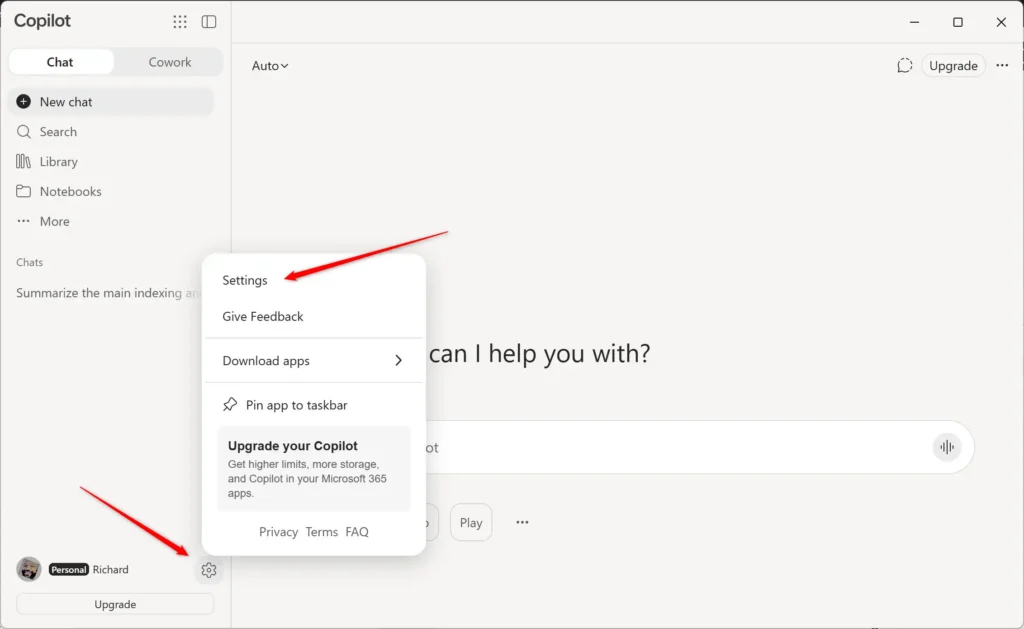
- Select Web browsing on the left side, then select System and performance.
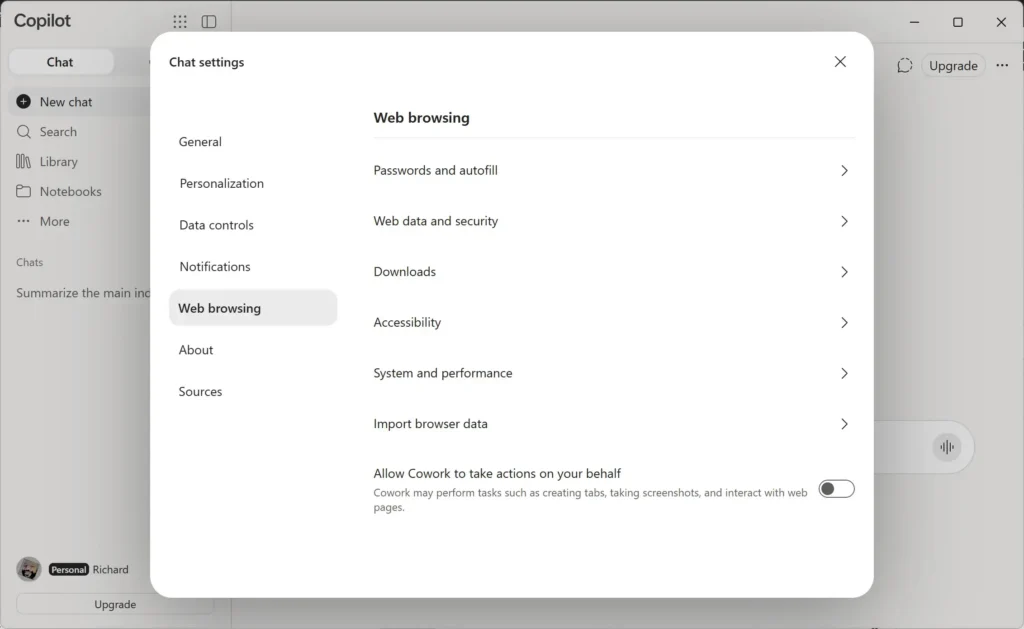
- Select System.
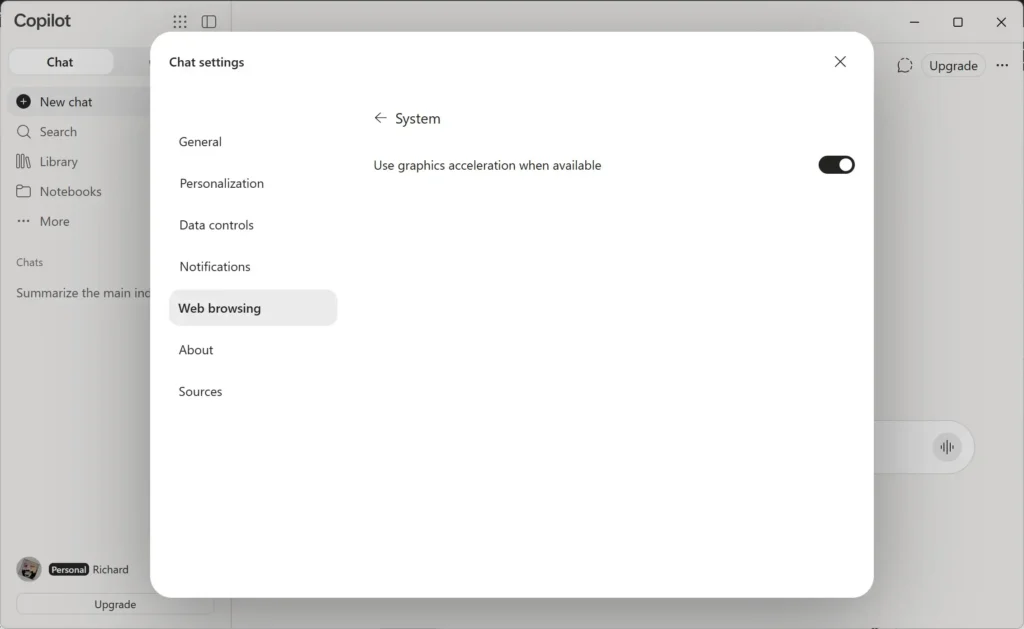
- Turn Use graphics acceleration when available on (default) or off, depending on what you want.
If this didn't work
If rendering problems continue with the setting off, turn it back on, so the acceleration is unlikely to be the cause. A graphics driver problem is the other likely cause. Check the driver for your graphics card next.
Frequently asked questions
How to enable mobile hotspot in 🪟 Windows 11?
Open Settings, go to Network & internet, and select Mobile hotspot. Turn on the switch labeled Share my Internet connection with other devices. Windows shows the network name and password that other devices need. Your PC needs a Wi-Fi adapter for this to work.
How to disable automatic updates in 🪟 Windows 11?
Open Settings, select Windows Update, and choose Pause updates to hold them for up to five weeks. Once the pause ends, Windows must install updates before you can pause again. Turning updates off entirely leaves your PC open to security risks, so pausing is the safer option.
How to disable hardware acceleration?
Hardware acceleration is set inside each app, not in one place for all of Windows. Open the app's settings, check the System or Advanced section, and turn off the option usually called Use hardware acceleration when available. Restart the app to apply the change.
How to turn off hardware acceleration?
You turn off hardware acceleration in the app that uses it, not in Windows. Open the app's settings, look under System or Advanced, and clear the hardware acceleration option. Close and reopen the app. Your PC may use more processor power afterward, and video may look less smooth.
How to turn on hardware acceleration?
Open the app's settings, go to System or Advanced, and switch on the hardware acceleration option. Restart the app so the change takes effect. If the app crashes or shows screen glitches afterward, turn the option off again.
How to turn off hardware acceleration discord?
Open Discord and select the gear icon next to your username to reach User Settings. Under App Settings, choose Advanced, then switch off Hardware Acceleration. Discord asks you to restart, so confirm the prompt to apply the change.
Still have a question?
Answered by AI from this guide. Good questions may be added to this page — please don't include personal details.
Did this guide fix your problem?

About the Author
Richard
Tech Writer, IT Professional
Richard is a writer at Geek Rewind who turns complex IT tasks into clear, step-by-step guides. He draws on years of hands-on experience in system administration and enterprise IT operations, focusing on Windows, Linux and WordPress: the problems people actually run into, and the fixes that work. His server and WordPress guides come from systems he runs himself. Richard builds and maintains the platform behind Geek Rewind, from its Ubuntu servers and Nginx configuration to its custom WordPress plugins. Many new tutorials start with readers' questions, and he's always glad to answer them in the comments.
No comments yet — be the first to share your thoughts!