How to Enable or Disable Energy Saver for Copilot Web Browsing in Windows 11

Energy saver for Copilot web browsing reduces the Copilot app’s resource use while you browse, which extends battery life. Use the steps below to turn energy saver on or off for your account in Windows 11.
To turn energy saver for Copilot web browsing on or off, open the Copilot app, go to Copilot Chat settings, then click Web browsing, System and performance, and Performance. Under Power settings, switch Enable energy saver on or off. Choose Balanced or Maximum savings when it is on. Energy saver is on by default.
About Copilot web browsing and energy saver
The Microsoft Copilot app is Microsoft’s AI app for work. It connects to the Microsoft 365 apps and content you use every day. It creates documents, spreadsheets, and presentations, runs tasks with Cowork [Verification Required: confirm what Cowork does and add a short plain-English gloss], and lets you choose between leading AI models. It uses Work IQ, which helps the app understand your job and company, and it keeps your data protected.
A work or school account gets a version your organisation pays for, with enterprise data protection (extra safeguards for company data). A personal account gets an experience for individuals, with or without a Microsoft 365 Personal, Family, or Premium subscription.
Websites open side by side with your chat. You can manage tabs, switch to full screen, or open links in an external browser. The app stores browsing data on your device, the same way Edge does.
Energy saver improves performance and extends battery life when your device runs on battery power. Windows efficiency mode (a power-saving setting that limits background apps) may stay on whatever you choose here.
With energy saver on, Copilot web browsing:
- Reduces background tab activity and some foreground activity.
- Puts background tabs to sleep after 30 minutes or less of inactivity. This happens only if the sleeping tabs setting is on.
- Copilot may take extra steps to save battery, which can make videos play less smoothly.
Actual savings depend on your device, your applications, and how you use them.
Energy saver has two modes:
- Balanced saves power when your device is unplugged or the battery is low. You should notice no slowdown or only minor slowdowns when you browse.
- Maximum savings conserves battery when you can’t connect to power for a long time. It saves more power, but you may see visible slowdowns, and video quality may drop. For example, videos may be less smooth.
Separately, you can turn on Use energy saver even when connected to power. This cuts power use further, and you may notice some slowdowns while you browse.
Open the Copilot performance settings
These steps take you to the Performance page, where both options live.
- Open the Copilot app.
- Open Copilot Chat settings.
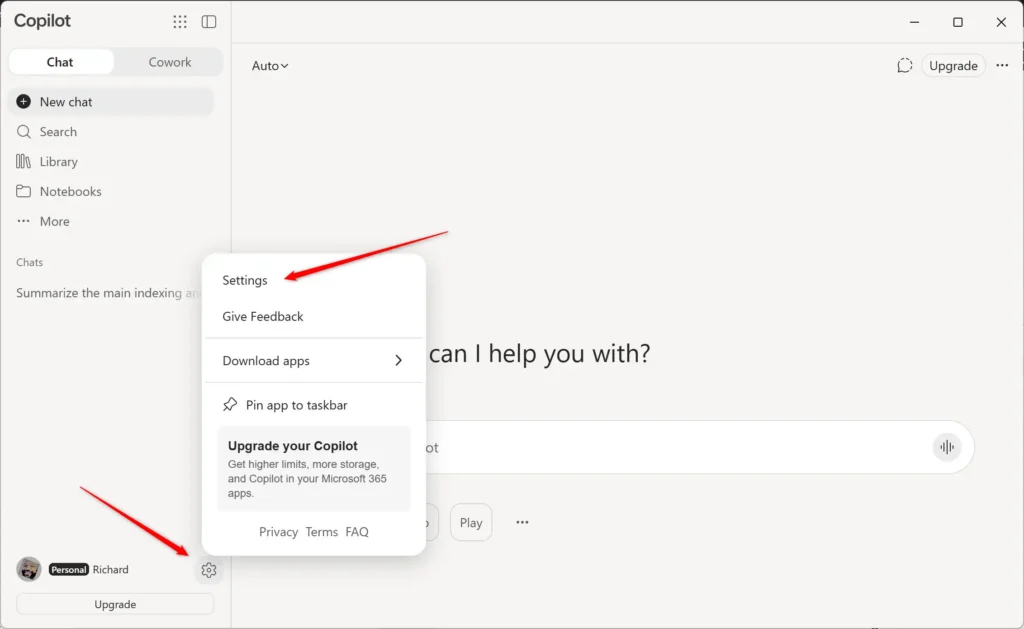
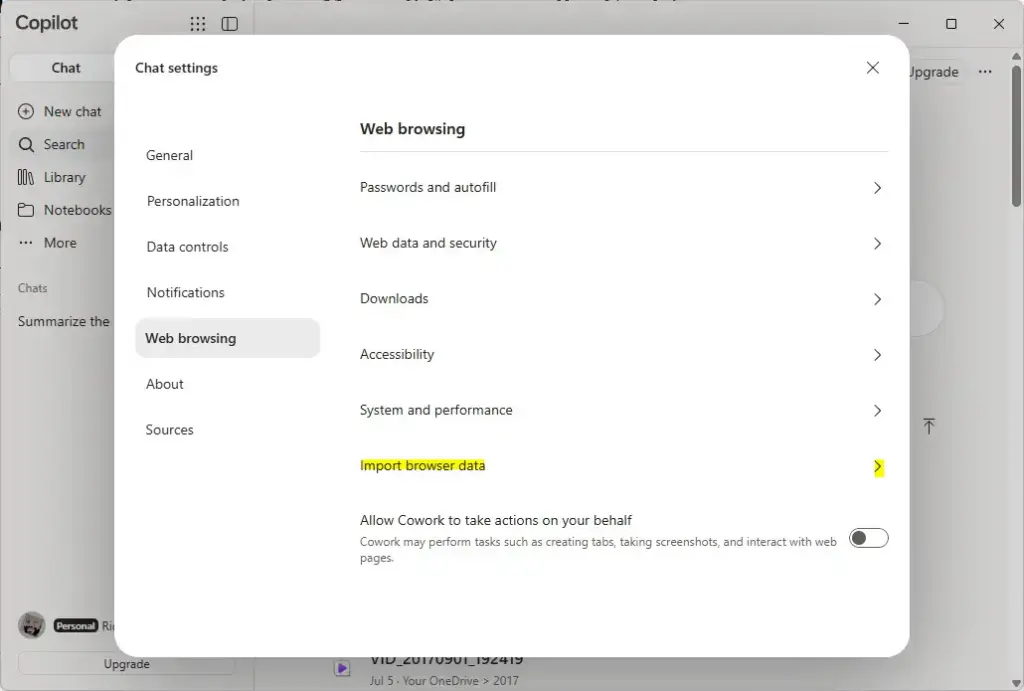
Copilot - Click or tap Web browsing on the left side, then click or tap System and performance.
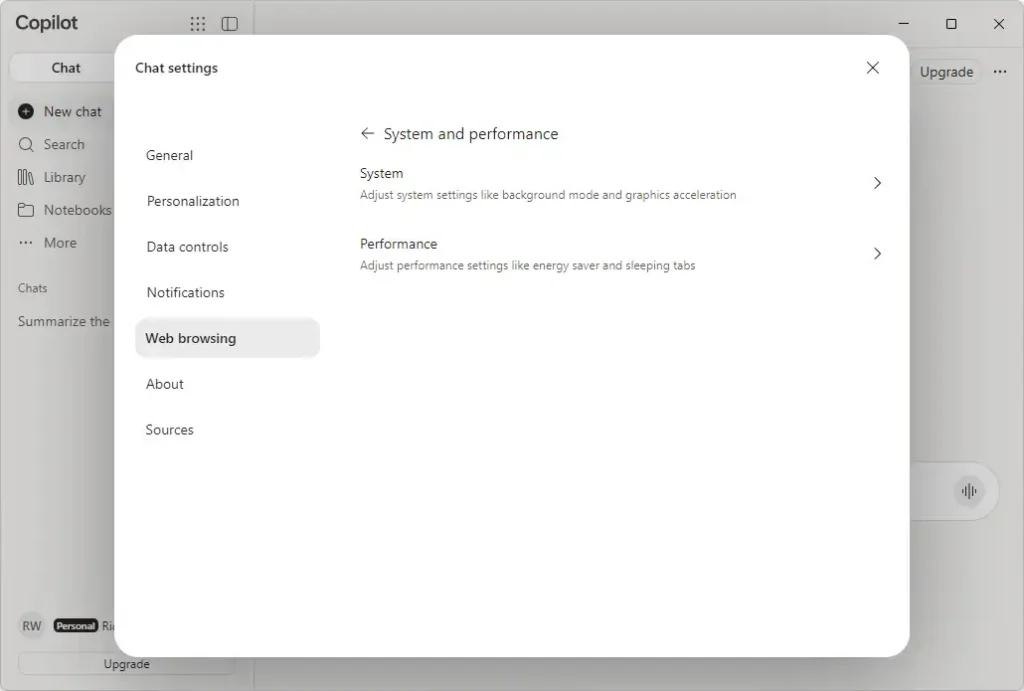
Copilot - Click or tap Performance.
Copilot
Turn on energy saver for Copilot web browsing
Energy saver is on by default. Go through the steps below to turn it back on or change its mode.
- Under Power settings, turn on Enable energy saver.
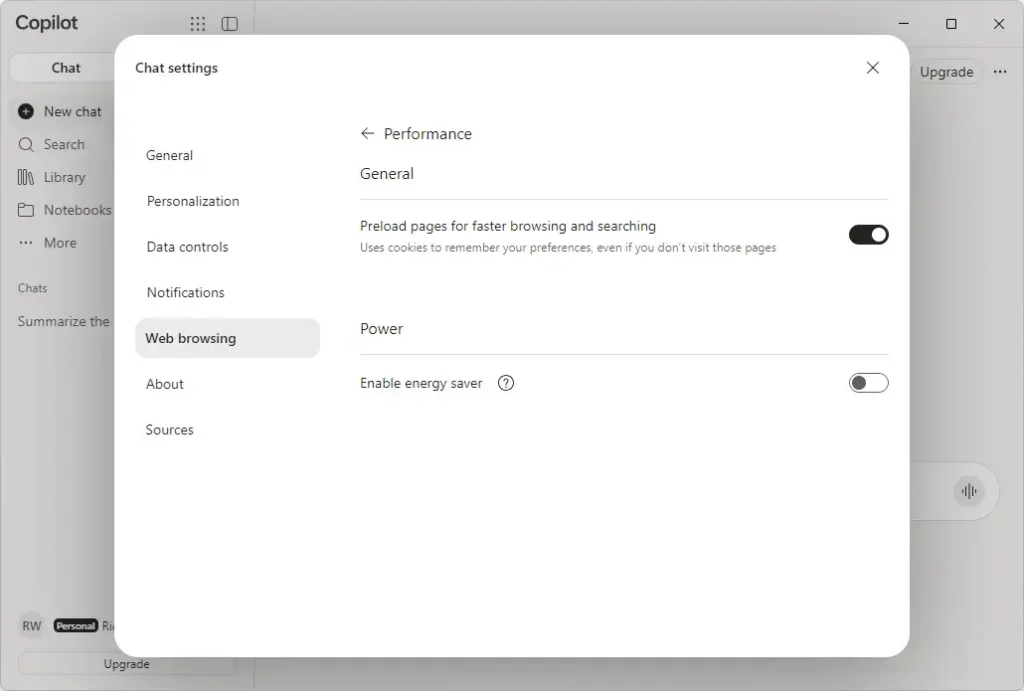
Copilot - Select Balanced (default) or Maximum savings, depending on the mode you want.
- Turn Use energy saver even when connected to power on or off (default), depending on what you want.
Turn off energy saver for Copilot web browsing
This stops Copilot from limiting browsing activity to save power.
Under Power settings, turn off Enable energy saver.
What to do next
To undo the change, return to Performance in the Copilot app and switch Enable energy saver back to its previous state. If videos play less smoothly while you browse on battery, change the mode from Maximum savings to Balanced. Windows efficiency mode is a separate setting, so check it too if battery life is still short.
Have a question about this guide?
Answered by AI from this guide. Good questions may be added to this page — please don't include personal details.
Did this guide fix your problem?

About the Author
Richard
Tech Writer, IT Professional
Richard is a writer at Geek Rewind who turns complex IT tasks into clear, step-by-step guides. He draws on years of hands-on experience in system administration and enterprise IT operations, focusing on Windows, Linux and WordPress: the problems people actually run into, and the fixes that work. His server and WordPress guides come from systems he runs himself. Richard builds and maintains the platform behind Geek Rewind, from its Ubuntu servers and Nginx configuration to its custom WordPress plugins. Many new tutorials start with readers' questions, and he's always glad to answer them in the comments.
No comments yet — be the first to share your thoughts!