How to Enable or Disable Energy Saver in Windows 11

- 21 steps
- Needs administrator rights
- Includes a restart or sign-out
Energy Saver in Windows 11 lowers your PC’s power use. On a laptop that helps the battery last longer, and on any PC it can trim your electricity bill a little. Microsoft introduced the feature in Windows Build 26002. You can turn it on at any time, even when the computer is plugged into the wall. It replaces the older Battery Saver mode.
This mode saves power by limiting some background activity and slightly reducing system performance. It can also dim the screen. Turn it on when you want to stretch the battery, and turn it off when you need full speed for a heavy task. This guide covers three ways to do it: the Settings app, the Quick Settings menu, and the Registry Editor. The first two are safe for everyone. The registry method is for advanced users.
Open Settings, click System, then Power & battery, find Energy saver, and toggle the Always use energy saver switch on. The setting takes effect immediately and remains active even when your PC is plugged in.
How to Turn On or Off “Always use energy saver”
The Settings app is the main place to control Energy Saver, and it is the only place with all the options, including automatic turn-on. Press the Win plus I, click System, and then select Power & battery. The steps below walk through it. If you don’t see an Energy saver section, your PC is probably on a Windows 11 version older than the one that introduced it. On those versions the same feature is called Battery saver and appears on laptops only.
- Open the Settings app . Click the Start menu and choose Settings, or press Win+I on your keyboard. The Settings window should open.
- In Settings, click System on the left side. The System options appear on the right.
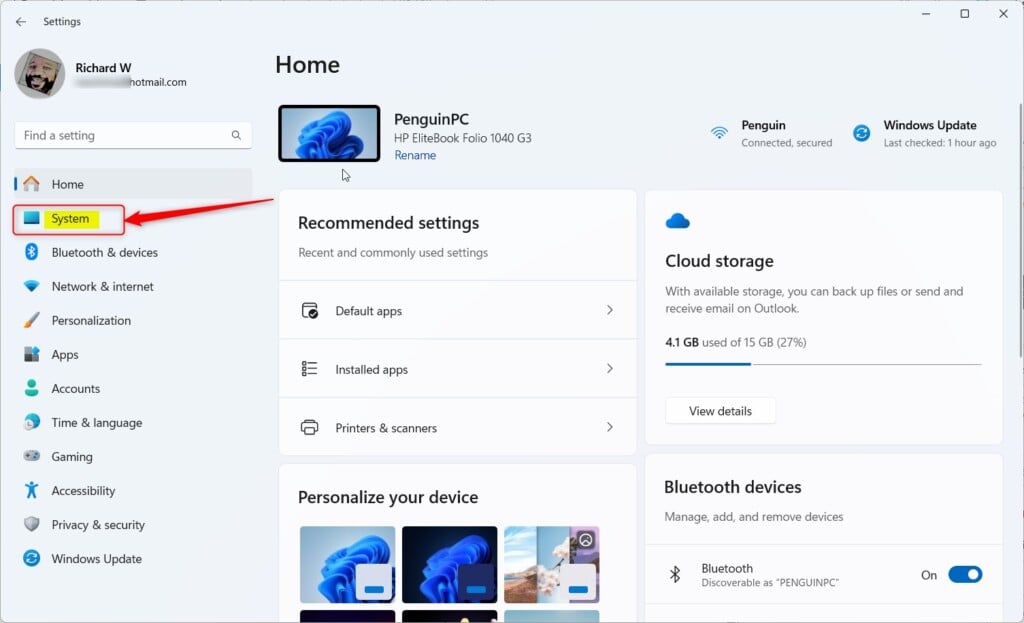
Windows 11 System button in Settings - On the right, click Power & battery (on some PCs it is just called Power). The power and battery settings open.
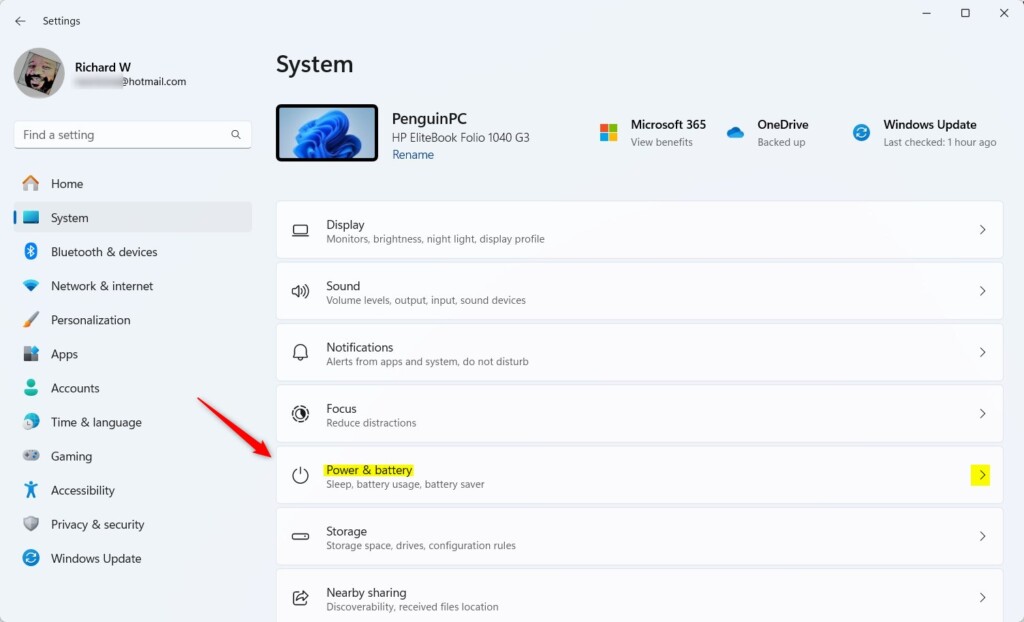
Windows 11 Power and Battery Settings - Find the Energy saver section and click it to expand it. You should see its options, including a button to turn it on right now and a setting for turning it on automatically at a chosen battery level.
- Turn on the switch for Always use energy saver to save power all the time. The switch should show as On. Keep in mind that this stays active even when the PC is plugged in, so performance will be a little lower until you switch it off.
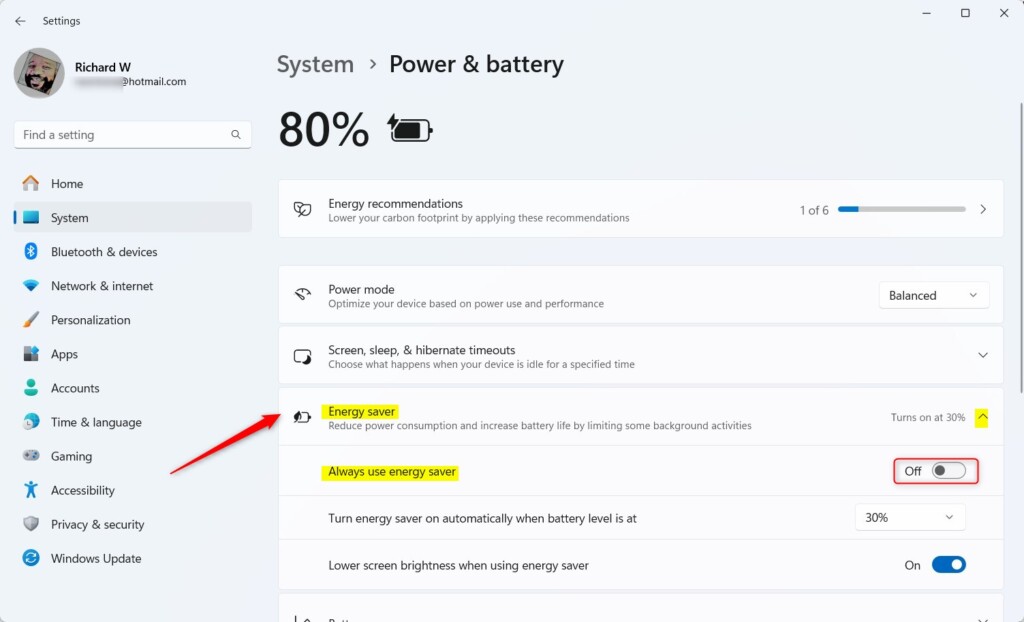
Toggle Always use Energy Saver in Windows 11 - To stop using Energy Saver all the time, switch Always use energy saver off here. This is also how you undo the change if the PC feels slower than you would like. No restart is needed for either direction.
Turn Energy Saver On or Off Quickly from Quick Settings
Quick Settings is the fastest way to turn Energy Saver on or off, because you don’t have to open the full Settings app. Click the network, volume or battery icons at the bottom right of the screen to open Quick Settings, then click the Energy saver button. You can also open Quick Settings by pressing Win+A. The change takes effect straight away and needs no restart.
- Click the Quick Settings button on the bottom right of your screen (where the volume and network icons are). A panel with tiles opens above the taskbar.
- Look for the Energy saver button and click it to turn Energy Saver on or off. The tile is highlighted when the mode is on. If you can't see the tile, click the pencil icon (Edit quick settings) at the bottom of the panel, choose Add, and pick Energy saver from the list.
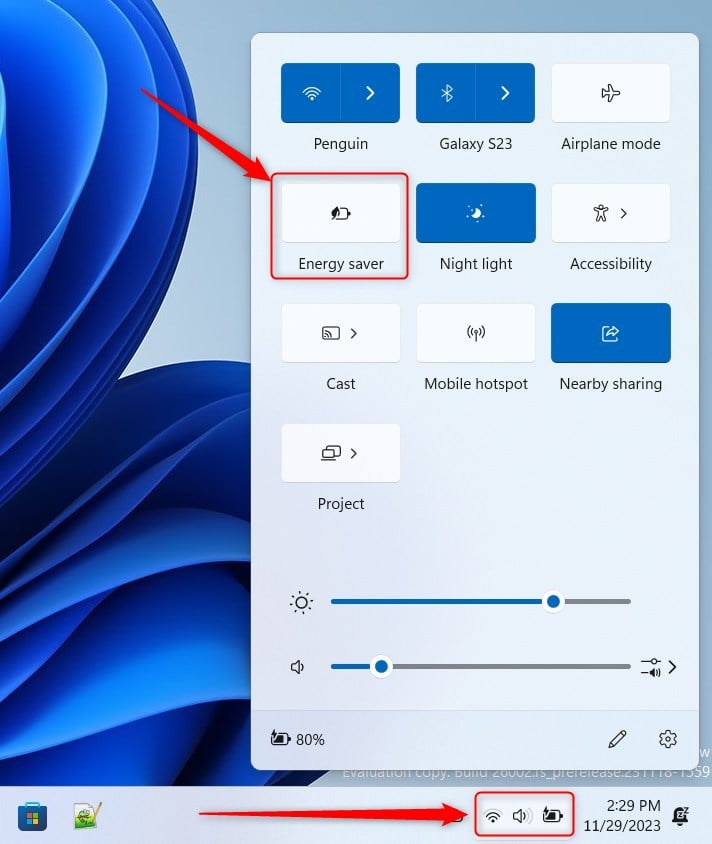
Toggle Energy Saver in Quick Settings
Using Windows Registry Editor (Advanced)
This requires administrator access and careful editing, so only use it if the Settings app or Quick Settings is not an option for you. A wrong change in the registry can cause problems, so consider exporting the key first (in Registry Editor, right-click the key and choose Export) so you have a backup to restore. Open the tool by typing regedit in the Start menu search and pressing Enter.
- ⚙️ Requires admin access. Open Registry Editor by typing
regeditin the Start menu search and pressing Enter. If a User Account Control prompt appears, click Yes. If you are not signed in as an administrator, you will be asked for an admin password. - Go to this folder (called a key):
Computer\HKEY_LOCAL_MACHINE\SYSTEM\CurrentControlSet\Control\Power. You can paste the path into the address bar at the top of the Registry Editor window, or expand the folders in the left pane one by one. - In the right panel, find
EnergySaverState(a DWORD value). If you don't see it, right-click an empty area inside the panel, choose New DWORD (32-bit) Value, and name itEnergySaverState. The new value appears in the list, ready to edit. - Double-click
EnergySaverStateand set its value to:1to turn Energy Saver ON2to turn Energy Saver OFF
- Click OK and close the Registry Editor.
- Restart your computer to apply the changes. After you sign back in, check Settings System Power & battery to confirm the Energy saver state is what you set. To undo the change, set the value back or import the backup you exported earlier.
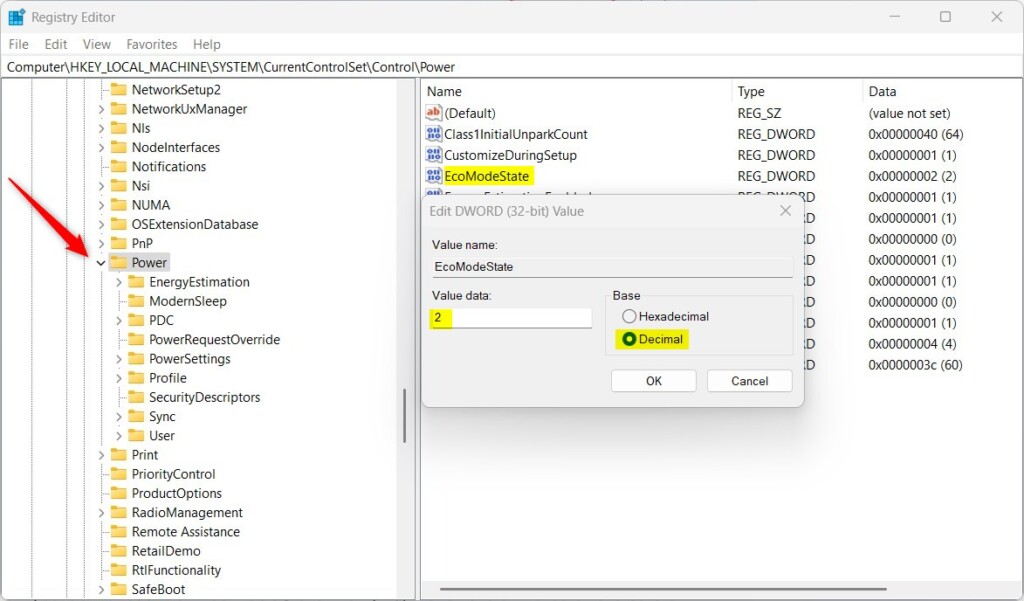
Windows 11 Registry Editor Energy Saver Settings
Summary
Windows 11 Energy Saver is a helpful tool that cuts down on power use and makes your battery last longer. For everyday use, the Quick Settings button is the fastest way to switch it on or off, and Settings gives you the full set of options. Advanced users can also adjust it with the Registry Editor, but back up the key first. If a method doesn't work on your PC, check that your Windows 11 version includes Energy Saver.
Have a question about this guide?
Answered by AI from this guide. Good questions may be added to this page — please don't include personal details.
Did this guide fix your problem?

About the Author
Richard
Tech Writer, IT Professional
Richard is a writer at Geek Rewind who turns complex IT tasks into clear, step-by-step guides. He draws on years of hands-on experience in system administration and enterprise IT operations, focusing on Windows, Linux and WordPress: the problems people actually run into, and the fixes that work. His server and WordPress guides come from systems he runs himself. Richard builds and maintains the platform behind Geek Rewind, from its Ubuntu servers and Nginx configuration to its custom WordPress plugins. Many new tutorials start with readers' questions, and he's always glad to answer them in the comments.
No comments yet — be the first to share your thoughts!