How to Use Energy Recommendations in Quick Settings in Windows 11

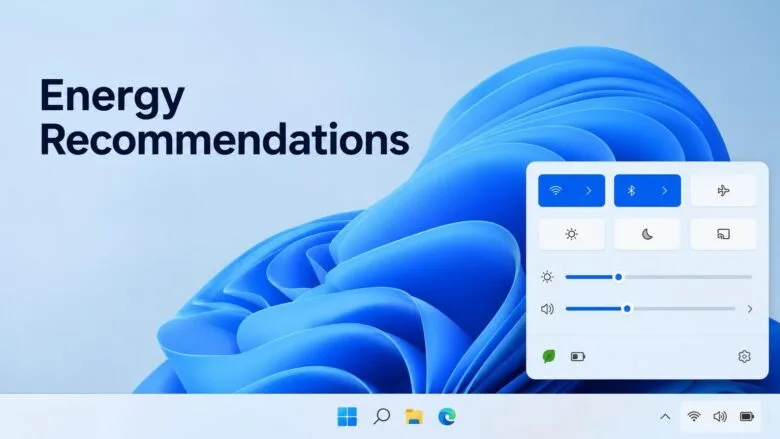
Energy Recommendations in Quick Settings only appear on Windows Insider preview builds. Open Quick Settings from the right side of the taskbar , or press Win+A, to see them. The feature is in Windows Insider preview builds only, and it appears for Windows Insiders on the Experimental channel. Press Win+A to open Quick Settings and look for Energy Recommendations.
Energy Recommendations are a list of changes that can reduce your PC’s energy use, such as shorter screen or sleep timers. Because this is a preview, Microsoft may change or remove it before release. A standard Windows 11 install does not show it yet.
Press Win+A to open Quick Settings and look for Energy Recommendations, which lists changes such as shorter screen or sleep timers. The feature exists only in Windows Insider preview builds on the Experimental channel, so a standard Windows 11 install won’t show it. To get it, open Settings , select Windows Update , then click Windows Insider Program.
What Energy Recommendations in Quick Settings do
Quick Settings is the flyout (a small panel that pops up over the desktop) that holds on/off switches for Wi-Fi , Bluetooth , Airplane mode and similar controls. In the preview, Energy Recommendations appear there as well. That puts the suggested actions one click from the taskbar , so you no longer have to dig through Settings to find them.
Both places show the same feature, so use whichever is faster for you. If you want the full walkthrough of that Settings page, see how to apply Energy Recommendations in Windows 11.
Before you start
Check three things before you follow the steps. They explain most cases where the feature is missing.
You need the Experimental channel
Windows Insiders on the Experimental channel see Energy Recommendations in Quick Settings. The Insider channels (Windows Insider Program tracks that receive early builds) do not all get the same features. If your PC is on a different channel, or is not enrolled, Quick Settings does not show the feature.
Joining the Insider Program is hard to undo
Use a test PC or a machine you can afford to reset, and back up your files first. Skip the enrolment steps below if your PC is already on the Experimental channel.
Administrator rights and diagnostic data
Enrolling a PC in the Windows Insider Program requires an administrator account. Windows may also ask you to turn on optional diagnostic data (extra usage information sent to Microsoft) before it lets you join. Accept the prompt if it appears, because the Insider Program cannot run without it.
How to use Energy Recommendations in Quick Settings
These steps get Energy Recommendations into Quick Settings on Windows 11 and show you how to use them. Follow the numbered steps in order. Steps 2 to 6 apply only if your PC is not yet on the Experimental channel. Skip them if the channel is already correct.
- Open Settings . Press Win+I, or right-click Start and choose Settings.

- Select Windows Update . It is at the bottom of the left pane. The Windows Update page opens on the right.

Settings › Windows Update - Click Windows Insider Program. This administrator step opens the page that controls your preview enrolment. If you see a prompt from User Account Control, click Yes.
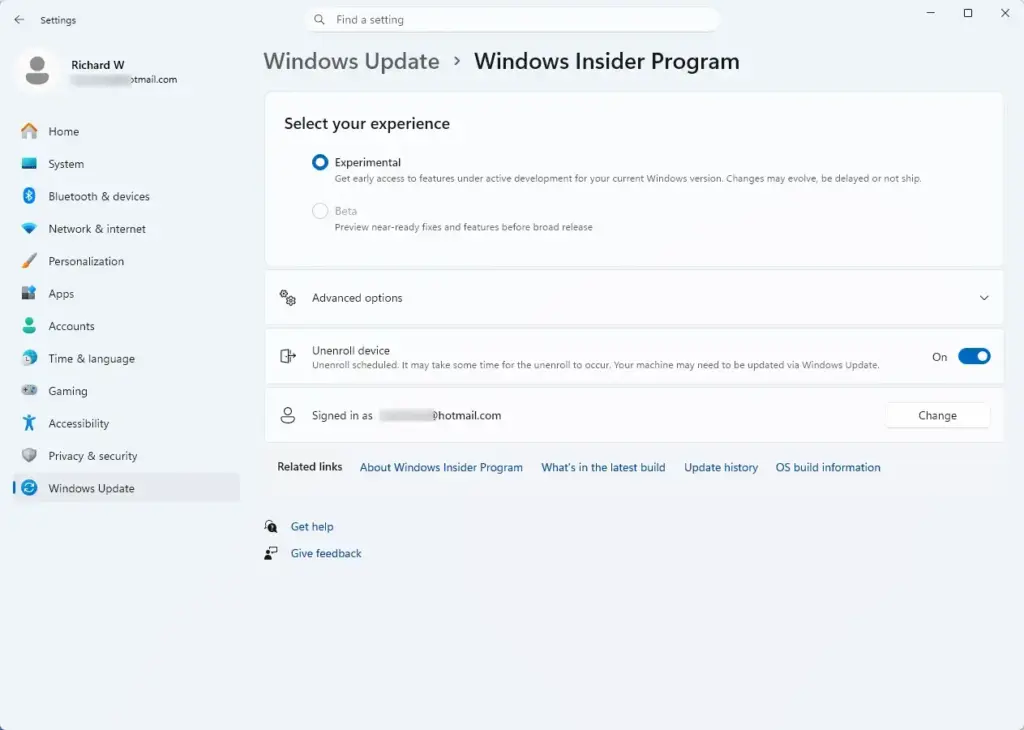
Settings › Windows Update › Windows Insider Program - Click Get started. Windows asks you to link an account. Sign in with the Microsoft account you want to use for the Insider Program. If your PC is already enrolled, the page shows your current channel instead, so check whether it says Experimental.
- Choose the Experimental channel. Select it from the channel list, then confirm any agreement screens. Channel names and layout can change between preview builds, so go by the name Experimental.
- Restart the PC. Windows asks you to restart to finish enrolling. Save your work, then click Restart now.
- Install the latest preview build. Go to Settings Windows Update , click Check for updates , and let the build download and install. Restart again when Windows asks. Large preview builds can take a while, so leave the PC plugged in.
- Open Quick Settings. Press Win+A, or click the cluster of network, volume and battery icons at the right end of the taskbar . A panel opens above the taskbar.
- Look for Energy Recommendations. Check the panel for the Energy Recommendations entry. Its exact position can differ between preview builds.
- Select a suggested action. Choose one recommendation and apply it. Windows changes the matching setting for you, and the suggestion should update or drop off the list.
- Open Power & battery to check the result. Go to Settings System Power & battery The Energy Recommendations section on that page lists the same suggestions and shows what each action does.
If Energy Recommendations don’t appear in Quick Settings
A missing entry is the most common problem with preview features. Work through the causes below in order.
Check your channel
Open Settings Windows Update Windows Insider Program and read the channel name. If it shows a different channel, Quick Settings will not show Energy Recommendations. The feature is tied to the Experimental channel, so switching to another channel does not help.
Check that the preview build is installed
Enrolling in a channel does not change anything until a preview build installs. Open Settings Windows Update and check for pending updates or a restart prompt. Then press Win+R, type winver, and press Enter to see your build number (the version number of your Windows install). Find the build number listed for your channel in Microsoft’s release announcement, then compare it with the number you found.
Wait for a gradual rollout
Insider features often reach devices in stages, so two PCs on the same build can behave differently. Microsoft may release a feature to some PCs before others. If the build is current and the channel is right, check again after the next update.
Do not edit the registry to force the feature on. No verified registry setting for it exists, and a wrong change in a preview build can cause new problems.
Use the Settings page instead
The Power & battery page also shows Energy Recommendations with suggested actions. If Quick Settings does not show the entry yet, open Settings System Power & battery and work from there. Windows 11 has shown energy recommendations on that page for some time, so it is a reliable fallback.
Undo a recommendation you applied
Energy Recommendations change ordinary Windows settings , so you can reverse them by hand. Open Settings System Power & battery and find the setting the recommendation changed. Recommendations so far have changed the screen timer, the sleep timer or the power mode. Check these three settings first.
Set the value back to what you used before. If you do not remember the old value, check the options listed under Screen, sleep, & hibernate timeouts and pick the one that suits you. Applying a recommendation is not a one-way change.
Combine recommendations with Energy Saver
Energy Recommendations suggest permanent changes to how your PC behaves. Energy Saver is different: it is a mode that trims background activity and screen brightness while you run on battery or when you choose to turn it on. The two work well together on a laptop.
To control the mode itself, read how to enable or disable Energy Saver in Windows 11. For tips on stretching a charge, see how to save battery life using Energy Saver in Windows.
On a laptop with a backlit keyboard, Energy Saver can also dim the lighting. For keyboard backlight settings, read changing the keyboard backlight in Energy Saver. To turn dimming on or off, read turning keyboard backlight dimming with Energy Saver on or off.
If most of your day happens in a browser, Microsoft Edge has its own version of the feature. See how to turn Energy Saver on or off in Microsoft Edge.
Leave the Experimental channel
Back up your files before you leave. If you no longer want preview builds, open Settings Windows Update Windows Insider Program and choose Stop getting preview builds. Windows offers options for how to leave.
One option waits until the next stable release and keeps your files and apps intact, but your PC stays on preview builds until then. Leaving immediately usually means a clean install of Windows, which erases your apps and settings.
What to do next
If Energy Recommendations still do not appear in Quick Settings, use the Power & battery page. Check again after your next preview build installs, since Microsoft may change this feature before release. For a task that works on any current Windows 11 PC, turn on Energy Saver and set it to start at a battery level you choose.
Have a question about this guide?
Answered by AI from this guide. Good questions may be added to this page — please don't include personal details.
Did this guide fix your problem?

About the Author
Richard
Tech Writer, IT Professional
Richard is a writer at Geek Rewind who turns complex IT tasks into clear, step-by-step guides. He draws on years of hands-on experience in system administration and enterprise IT operations, focusing on Windows, Linux and WordPress: the problems people actually run into, and the fixes that work. His server and WordPress guides come from systems he runs himself. Richard builds and maintains the platform behind Geek Rewind, from its Ubuntu servers and Nginx configuration to its custom WordPress plugins. Many new tutorials start with readers' questions, and he's always glad to answer them in the comments.
No comments yet — be the first to share your thoughts!