How to Dock or Undock Copilot in Windows 11


Whether Copilot stays pinned to the side of your screen or floats like a normal app comes down to one setting in Windows 11. This guide shows how to dock or undock the Copilot window, what to expect from each mode, and what to check if the option is missing.
Open Copilot or press Win+C, click the three dots menu, and select Dock to toggle between a side panel and a floating window. The change takes effect with no restart required.
Copilot in Windows is a generative AI assistant. It is a chatbot that understands natural language, so you can ask it to change system settings and work across applications.
Adding Copilot places a new Copilot button on the Taskbar. Clicking this button, or using the keyboard shortcut (Win+C), opens a quick pop-up menu.
Once Copilot is active, Windows offers plenty of ways to customize it. Enable or disable it, open Copilot when Windows starts, Pin or Unpin the Copilot side panel, Resize the Copilot side panel, delete chat history in Copilot, create a desktop shortcut, and more.
Starting with Windows 11 build 26080, Microsoft includes an updated Copilot experience. You can now switch between the docked panel and a regular app window, so Copilot fits your own workflow and desktop setup. This is the build where the Dock option first appeared, so older builds will not have it.
Dock or undock Copilot on Windows
You change how the Copilot window behaves from a menu inside the app. By default, Copilot stays pinned to the side of your screen as a panel. When you undock it, it becomes a normal window. You can resize it, move it anywhere on your desktop, and close it like any other program.
Follow these steps to dock or undock Copilot:
- Open Copilot, or press Win+C. The Copilot window opens, either as a side panel or as a floating window, depending on its current mode.
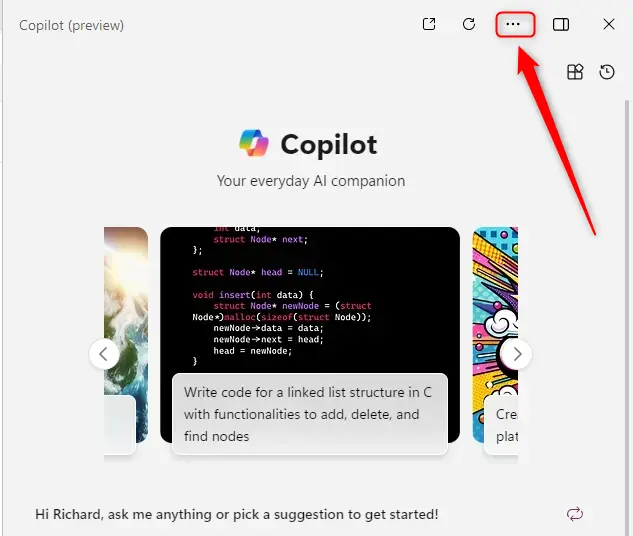
- Click the Settings and more button (the three dots) in the Copilot window. A menu opens.
- Select Dock. This toggles the mode. If Copilot was docked, it becomes a free-floating window. If it was undocked, it snaps back to the side of the screen as a panel.
- To switch back, repeat steps 2 and 3. The change takes effect straight away and you do not need to restart Windows.
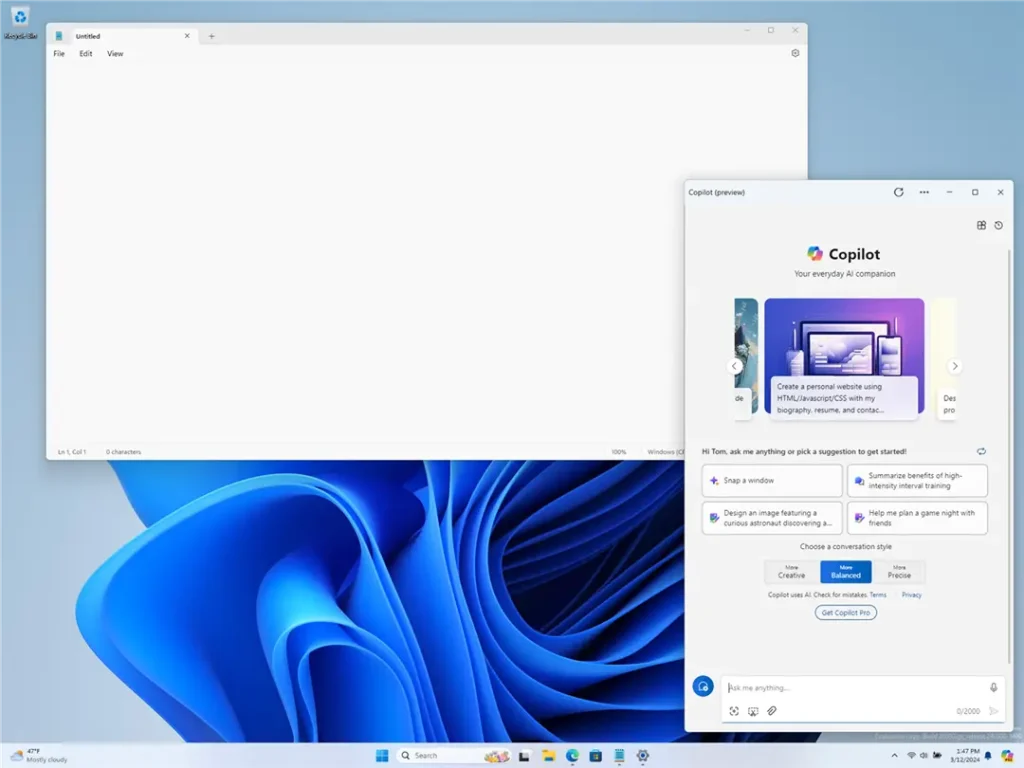
When Copilot is successfully undocked, it looks like a standard app window with its own title area. You can drag it around and resize it. The screen below shows an example.
First, make sure you are on Windows 11 build 26080 or later, because earlier builds do not have this toggle. Second, Microsoft keeps changing Copilot, and some newer versions may not show the option in the same place or at all. In that case, update Windows and Copilot, then look at the menu again.
That completes the setup process.
Conclusion:
- The Copilot in Windows 11 is a generative AI assistance that allows users to interact with the chatbot using natural language to change system settings and work across multiple applications.
- With the introduction of build 26080 of Windows 11, users can now toggle between the traditional "docked" mode and an app mode, offering greater flexibility and control over the Copilot window.
- To dock or undock the Copilot window, users can open Copilot or use the keyboard shortcut Windows key + C, click the Settings and more button, and select Dock.
- This enhancement allows users to manage the Copilot window according to their preferences, making it more adaptable to their workflow and desktop setup.
Have a question about this guide?
Answered by AI from this guide. Good questions may be added to this page — please don't include personal details.
Did this guide fix your problem?

About the Author
Richard
Tech Writer, IT Professional
Richard is a writer at Geek Rewind who turns complex IT tasks into clear, step-by-step guides. He draws on years of hands-on experience in system administration and enterprise IT operations, focusing on Windows, Linux and WordPress: the problems people actually run into, and the fixes that work. His server and WordPress guides come from systems he runs himself. Richard builds and maintains the platform behind Geek Rewind, from its Ubuntu servers and Nginx configuration to its custom WordPress plugins. Many new tutorials start with readers' questions, and he's always glad to answer them in the comments.
No comments yet — be the first to share your thoughts!