Copilot PC Diagnostics in Windows 11: Announced, Not Released Yet

Copilot local PC diagnostics is a Windows 11 feature that Microsoft announced on November 17, 2026, at Microsoft Ignite 2026. It is not in Windows yet. Microsoft says these local capabilities are “coming soon” and has not given a date.
Microsoft describes it as a read-only scan of your system. Copilot will look for the underlying cause of errors or performance issues, such as Bluetooth audio or slow network problems, and explain what it found. This post covers what Microsoft has said so far, what is still unknown, and how to prepare your PC now.
Copilot’s local PC diagnostics are not available in Windows 11 yet. Microsoft announced the feature at Ignite 2026 on November 17, 2026, describing a read-only scan that finds the root cause of problems such as Bluetooth audio and slow networks. Microsoft says it is “coming soon” and has not given a release date or menu path.
What Microsoft has announced
The announcement is short. Copilot will be able to run a read-only scan of the system to help find the root cause of errors or performance issues. It will then explain the results. Microsoft gave Bluetooth audio and slow network problems as examples.
Three points in that description matter for how you use the feature:
- It runs locally. Microsoft calls these “local capabilities”, so the scan looks at the PC in front of you rather than at general advice.
- It is read-only. A read-only scan checks your settings and how the system is running right now, without changing anything. It should not alter your configuration while it looks.
- It explains the results. Microsoft’s wording covers finding the cause and explaining it. The announcement does not say Copilot will apply fixes, so plan to make any changes yourself.
The details come from Microsoft’s Ignite 2026 post on the Windows Experience Blog. They can change before the feature reaches your PC.
What is not known yet
Microsoft has not published the details most readers want. Treat each of these as unconfirmed until Microsoft documents it:
- The release date. “Coming soon” is the only timing given.
- Which Windows 11 version or update will carry the feature.
- Which editions get it, including whether Windows 11 Home and Pro are treated differently.
- Where it appears in Copilot, and what you type or click to start a scan.
- Which problems beyond Bluetooth audio and slow networks it can analyze.
- Exactly what information the scan collects, and whether any of it leaves your PC.
- Whether it works on work or school PCs, where an administrator controls Copilot.
This post does not describe menus, buttons or commands for the scan itself. Those are not in any released version of Windows yet, and guessing them would send you looking for options that are not there.
Who this will affect
The feature targets anyone who uses Windows 11 and hits a fault that is hard to pin down. Intermittent Bluetooth audio, a network that feels slow, and recurring error messages are typical examples. The people who benefit most are those who do not know which log or setting to check first.
IT staff should pay attention for a different reason. A read-only scan that explains results in plain language may change what users bring to the help desk. It also raises questions about data handling and about which PCs allow Copilot at all. Microsoft has not answered those questions yet.
How to prepare your PC for Copilot diagnostics
Microsoft has not said which update will deliver the feature. You can still put your PC in the best position to receive new Windows features early and clear out existing faults. To get ready for Copilot to diagnose PC problems in Windows 11, and to use the tools that work today, follow these steps.
- Open Settings. Press Win+I, or right-click Start and select Settings.
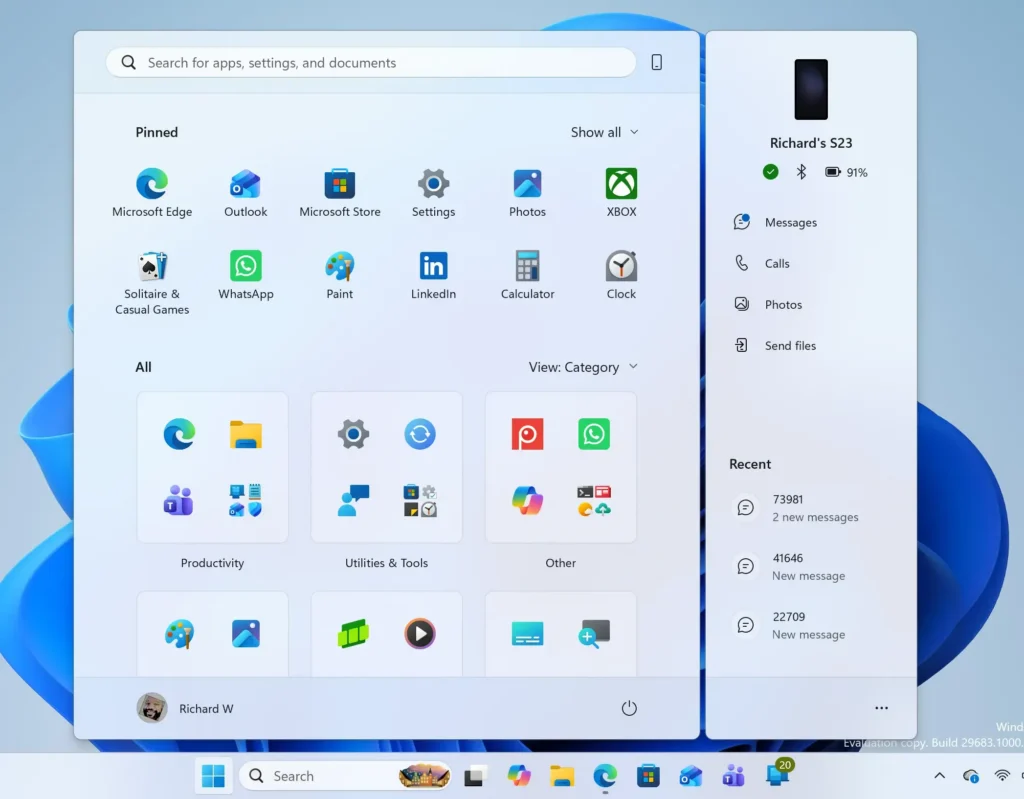
Windows 11 Start menu search panel for opening OpenSSH Client settings - Select Windows Update. It is in the left pane of Settings. The page shows your current update status.
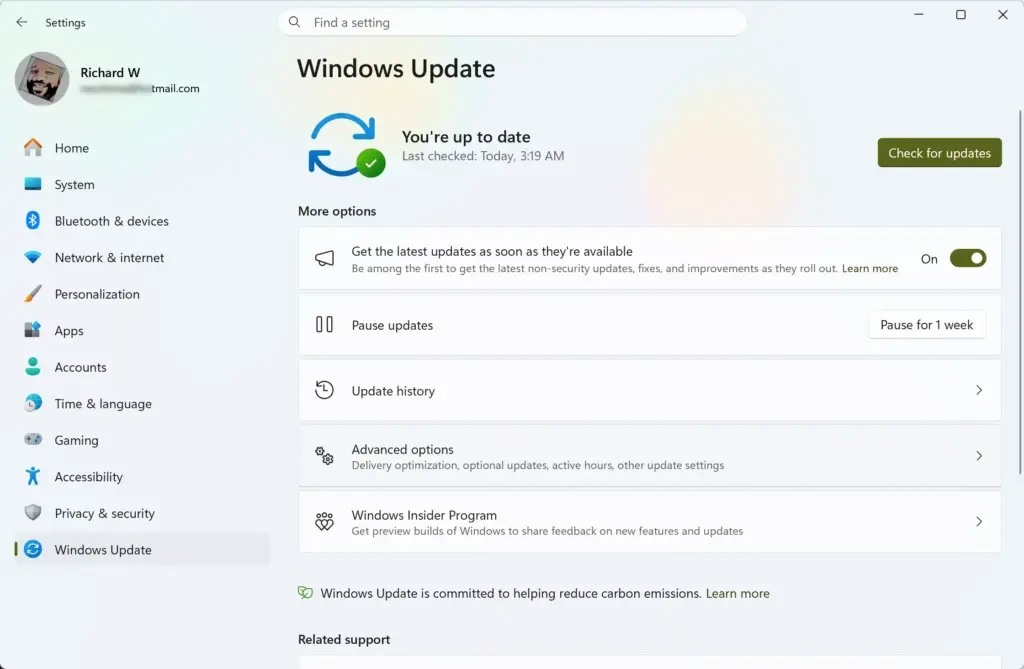
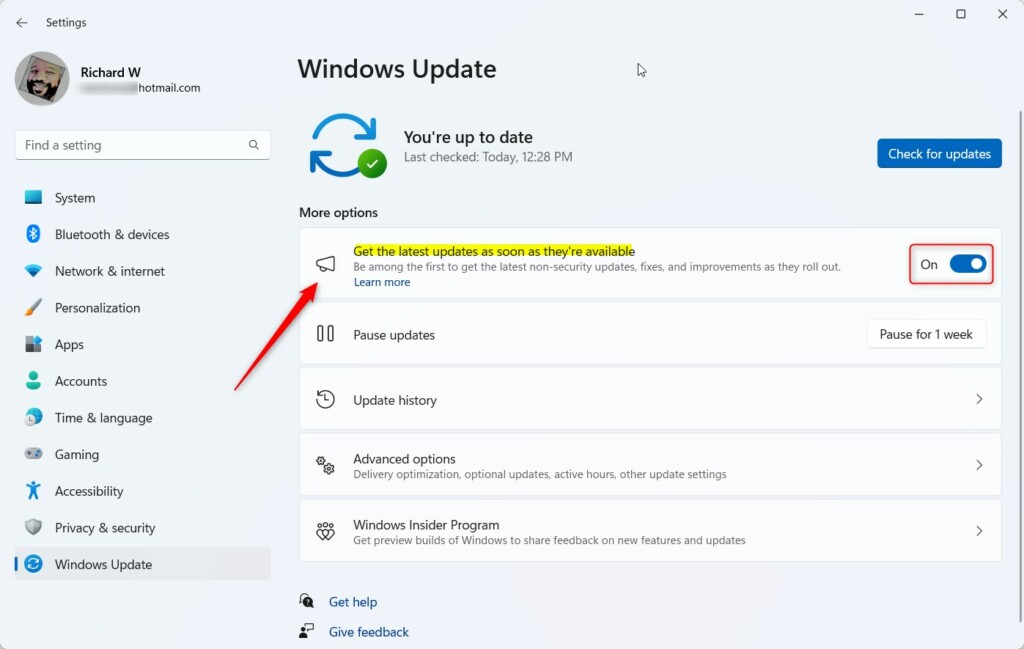
Settings › Windows Update - Turn on Get the latest updates as soon as they’re available. Microsoft says this switch puts you among the first to get version 26H2, which carries the newest features. Microsoft has not said that 26H2 includes Copilot diagnostics, so the switch improves your odds without guaranteeing anything.
Windows 11 get the latest as soon as they're available. - Select Check for updates. Windows looks for and downloads anything pending. If it asks you to restart, restart before you continue.
- Open Settings System Troubleshoot Other troubleshooters. This is where the Get Help troubleshooters live on current Windows 11. Microsoft is retiring the older MSDT troubleshooters (the Microsoft Support Diagnostic Tool, the legacy troubleshooting wizards).
- Run the troubleshooter that matches your symptom. Select Run next to it and follow the prompts. The list varies by PC and Windows version, so a match for your problem may not appear.
- Open Diagnostics & feedback in Settings. Review how much diagnostic data (information Windows sends to Microsoft about how the PC performs) your PC shares.
Check your diagnostic data settings
Diagnostic data (the usage and error information Windows sends to Microsoft) is worth reviewing now, because Microsoft has not said whether local diagnostics will depend on it. In Settings, under Diagnostics & feedback, you can lower the level to required-only. Deleting diagnostic data is hard to undo, so decide first. You can also delete the diagnostic data Microsoft holds for your device with the Delete button.
On Home and Pro editions, the lowest level Settings offers is Required diagnostic data. That means the Send optional diagnostic data switch is off. Diagnostic data cannot be set to fully off on those editions.
To undo a level change later, turn the switch back on.
What to use until Copilot diagnostics arrives
Waiting for an unreleased feature does not fix a PC that has a problem today. These tools work now and cover the same two examples Microsoft named.
Run the built-in troubleshooters
The Get Help troubleshooters under Settings System Troubleshoot Other troubleshooters are the closest working equivalent. Each one tests a specific area, applies a fix if it finds a known cause, and reports what it did. Start with the one that matches your symptom.
For Bluetooth audio dropouts, look for a Bluetooth or audio entry. For slow web pages or dropped connections, look for a network entry.
If a troubleshooter reports that it found nothing, the problem is not one it knows how to detect. That is a normal result. It does not mean your PC is healthy.
Check what is using your resources
For slowness, open Task Manager by pressing Ctrl+Shift+Esc. The Processes tab shows which apps use the most CPU, memory, disk and network. Sort a column by selecting its heading. If one app sits at the top of a column while the PC feels slow, check that app first.
If you suspect Copilot itself is part of the slowdown, read What Windows 11 Copilot Actually Does to Your RAM before you change anything.
Describe the problem clearly to Copilot today
You can already ask Copilot about a problem by typing it in. This is not the announced local scan. Copilot only knows what you tell it, so it cannot see your PC’s settings or logs. Give it specific details to get a useful answer:
- The exact wording of any error message, including error codes.
- What you were doing when the problem started, and whether it began after an update or a new device.
- Whether it happens all the time or only with one app, one device or one network.
- Your Windows 11 version and edition.
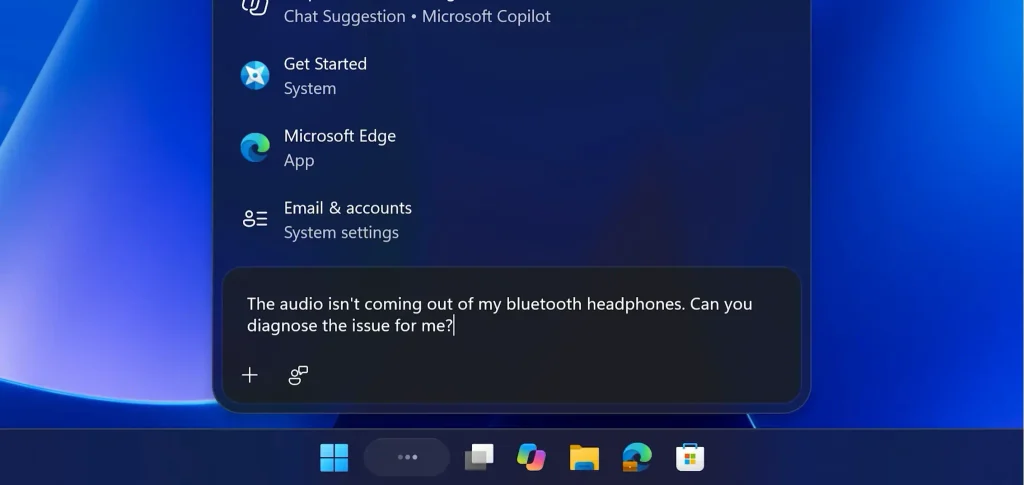
Treat the answer as a lead to check, not a verified diagnosis. For setup and the features Copilot has today, see How to Use Windows 11 Copilot: Setup & Features. If the Copilot pane behaves oddly or stops responding, How to Refresh Copilot on Windows 11 covers the reset.
Why you may not see the feature when it arrives
New Windows features usually reach PCs in stages. When Microsoft starts delivering local diagnostics, expect some PCs to receive it before others even if they run the same Windows version. Microsoft has not described this rollout, so this is a general pattern and not a confirmed plan for this feature.
Other reasons the option might be missing are worth knowing in advance:
- Copilot is turned off or removed. Microsoft has not said whether the scan works without Copilot installed or enabled. If you have disabled or removed Copilot, assume you will need it back to use the feature. What Breaks When You Turn Off Copilot in Windows 11 explains what else depends on it.
- Your organization controls Copilot. On a work or school PC, an administrator decides what is available.
- Your PC has not installed the update yet. Run Check for updates in Settings Windows Update and restart if asked.
If you removed the app earlier, How to Uninstalling and Reinstalling Copilot on Windows 11 shows how to bring it back.
Plan for a read-only scan
A read-only scan looks but does not touch. That is a safety feature, and it sets expectations. Copilot can tell you where it thinks the fault is. Acting on that finding is your job.
Also keep in mind that an explanation is only as good as the scan behind it. A confident-sounding answer can still be wrong. If a suggested fix does not help, undo it and move on to the next lead rather than stacking changes.
What to do next
Watch the Windows Experience Blog and your Settings Windows Update page for Microsoft’s rollout details, since no version or date is confirmed. Until then, the troubleshooters under Settings System Troubleshoot Other troubleshooters are the quickest working option. If you would rather not have Copilot on your PC at all, How to Disable Windows 11 Copilot covers that. You can reverse it later if the diagnostics feature changes your mind.
Have a question about this guide?
Answered by AI from this guide. Good questions may be added to this page — please don't include personal details.
Did this guide fix your problem?

About the Author
Richard
Tech Writer, IT Professional
Richard is a writer at Geek Rewind who turns complex IT tasks into clear, step-by-step guides. He draws on years of hands-on experience in system administration and enterprise IT operations, focusing on Windows, Linux and WordPress: the problems people actually run into, and the fixes that work. His server and WordPress guides come from systems he runs himself. Richard builds and maintains the platform behind Geek Rewind, from its Ubuntu servers and Nginx configuration to its custom WordPress plugins. Many new tutorials start with readers' questions, and he's always glad to answer them in the comments.
No comments yet — be the first to share your thoughts!