Enable or Disable Search Suggestions in Windows 11 Copilot


- 8 steps
- Needs administrator rights
Search suggestions in Windows 11 Copilot show you quick prompt ideas while you type questions into the built-in AI assistant. Copilot is a tool you open by pressing the Win+C on your keyboard. This feature is turned on by default in Windows 11 version 23H2 and later, but you can turn it off anytime to keep your screen clean and private.
The setting lives inside the Copilot app, not in the Windows Settings app. It works the same on Windows 11 Home and Pro, and you don’t need administrator rights or a restart.
To turn off Windows 11 Copilot search suggestions, open the Copilot app, click your profile picture at the top right, select Settings, then click More. Clear the “See search suggestions as you type” checkbox and click Save. The change takes effect immediately and needs no restart or administrator rights.
Turn on or off search suggestions in the Copilot app
You can turn Windows 11 Copilot search suggestions on or off directly in the Copilot app settings. You change a single checkbox in the app menu. The whole job takes less than a minute. Once suggestions are off, Copilot stops showing automated queries as you type, and your chat window stays clean.
If you can’t find an option, update the Copilot app from the Microsoft Store and try again.
- Open the Copilot app. You can press the Win+C, or search for Copilot in the Start menu .
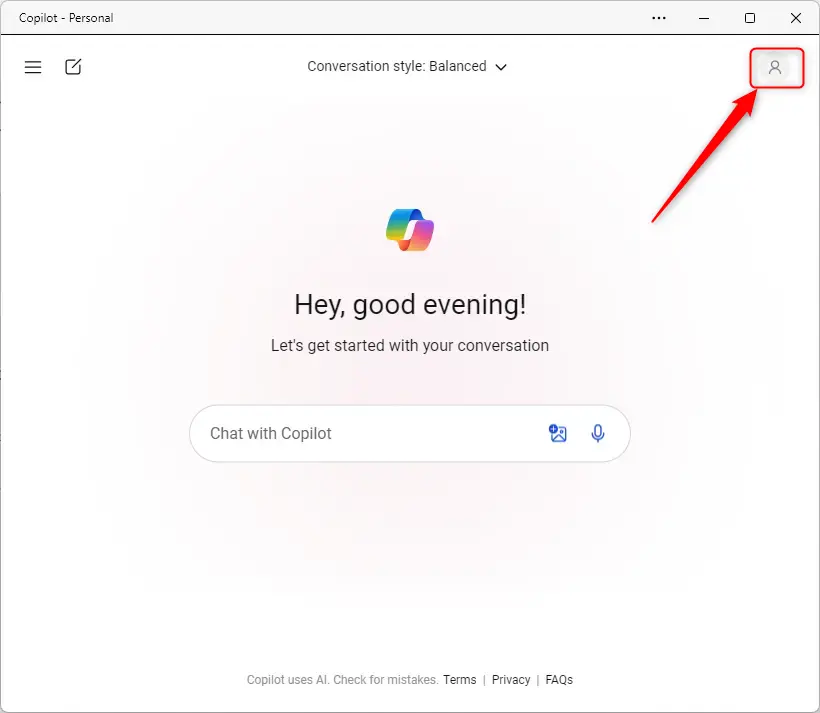
- Click your profile picture, or the Sign in icon if you are not signed in, at the top right corner of the window.
A drop-down menu should open below your profile picture.
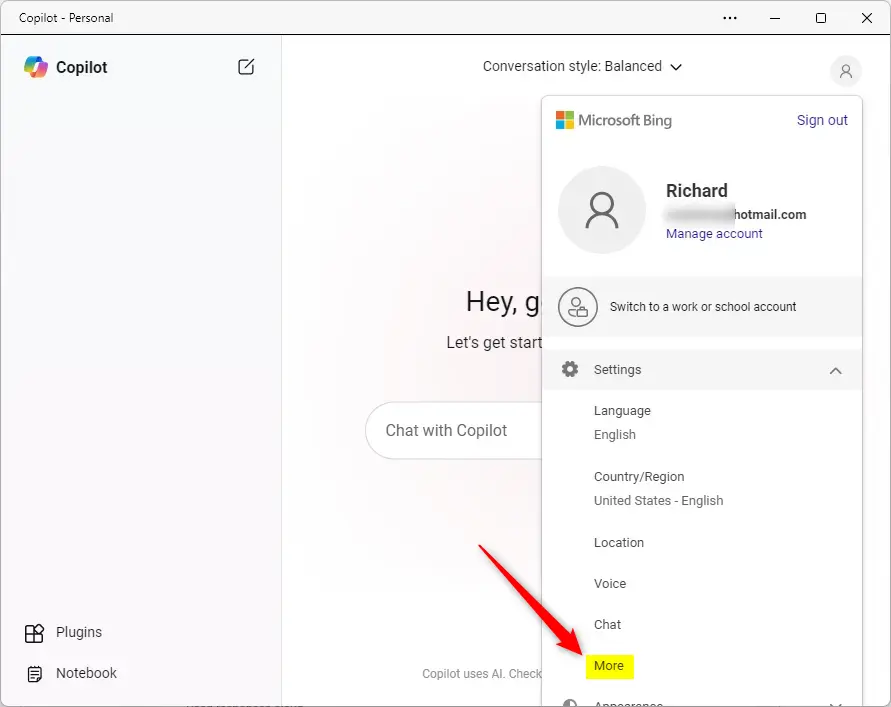
- In the drop-down menu, select and expand Settings.
- Click More.
The Settings page should now open.
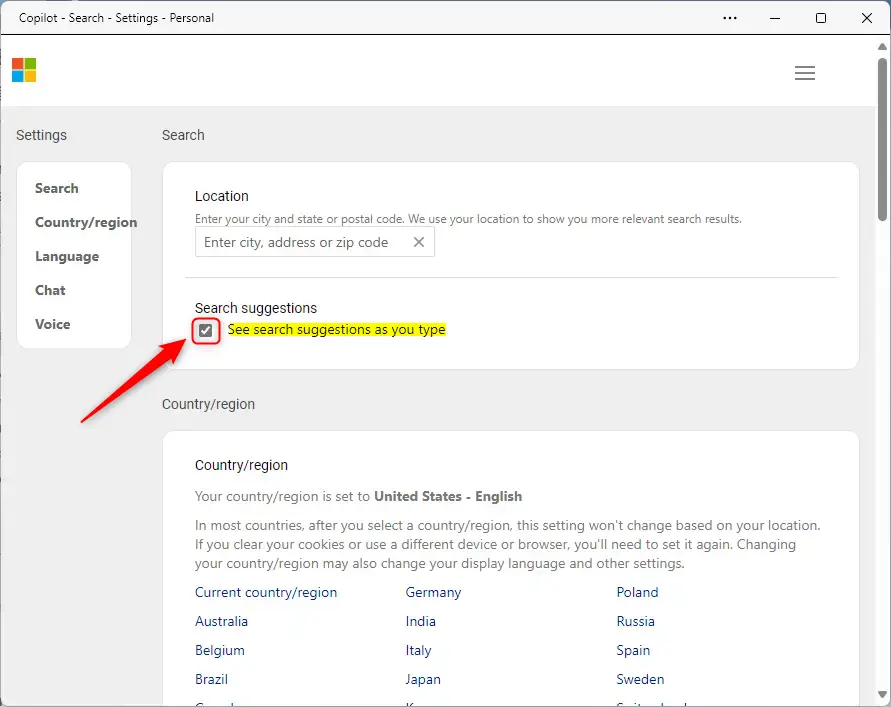
- On the Settings page, find the Search suggestions section.
- To enable the feature, check the box next to “See search suggestions as you type“.
- To disable the feature, clear that checkbox instead.
- Click the Save button to apply your change.
Your changes apply immediately. To check, go back to the Copilot chat box and start typing a question. With the feature on, prompt ideas appear as you type. With it off, they don’t.
To undo the change, repeat the steps above, set the checkbox the other way, and click Save again.
Conclusion:
- The Copilot app in Windows 11 provides generative AI assistance and allows users to interact using natural language.
- The app can suggest search results as users type, with the option to enable or disable this feature in the settings.
- Users can access the settings to enable or disable search suggestions by opening the Copilot app, clicking the profile picture, navigating to "More" in the drop-down menu, and adjusting the "See search suggestions as you type" checkbox.
- After making the desired change, users can apply it by clicking the Save button and customizing their Copilot app experience.
Have a question about this guide?
Answered by AI from this guide. Good questions may be added to this page — please don't include personal details.
Did this guide fix your problem?

About the Author
Richard
Tech Writer, IT Professional
Richard is a writer at Geek Rewind who turns complex IT tasks into clear, step-by-step guides. He draws on years of hands-on experience in system administration and enterprise IT operations, focusing on Windows, Linux and WordPress: the problems people actually run into, and the fixes that work. His server and WordPress guides come from systems he runs himself. Richard builds and maintains the platform behind Geek Rewind, from its Ubuntu servers and Nginx configuration to its custom WordPress plugins. Many new tutorials start with readers' questions, and he's always glad to answer them in the comments.
No comments yet — be the first to share your thoughts!