How to Enable or Disable Video Transcript for Copilot Web Browsing in Windows 11

Turn video transcripts on or off for web browsing in the Copilot app on Windows 11.
The Copilot app connects to the Microsoft 365 apps and content you use every day and creates documents, spreadsheets, and presentations.
Your Copilot experience depends on the account you sign in with. A work or school account gets a licensed version of Copilot with enterprise data protection (controls that keep company data within your organisation’s management). A personal account gets an experience for individuals, with or without a Microsoft 365 Personal, Family, or Premium subscription.
The Copilot app supports in-app web browsing on Windows 11. You open websites side by side with your chat, manage tabs, switch to full screen, or open links in an external browser. The Copilot app stores your browsing data on your PC, the same way Microsoft Edge does.
In Copilot app version 159.0.4402.13 or later, Copilot can give you video highlights with timestamps. It builds them from the video’s transcript when you browse a video in Copilot. The Video transcript setting controls this feature. To turn it on or off, follow the steps below.
To turn Copilot video transcript on or off, open the Copilot app, open Copilot Chat settings, click Web browsing on the left, and switch Video transcript on or off. Off is the default. The setting applies only to the account you are signed in with, and it needs Copilot app version 159.0.4402.13 or later.
Here’s How:
- Open the Copilot app.
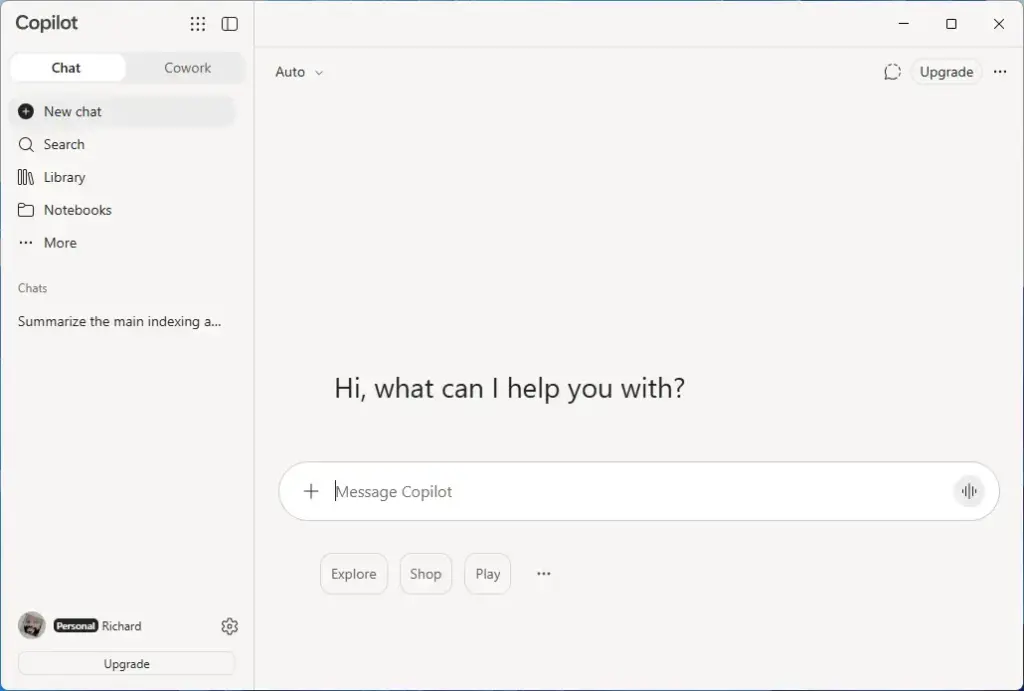
Copilot - Open Copilot Chat settings.
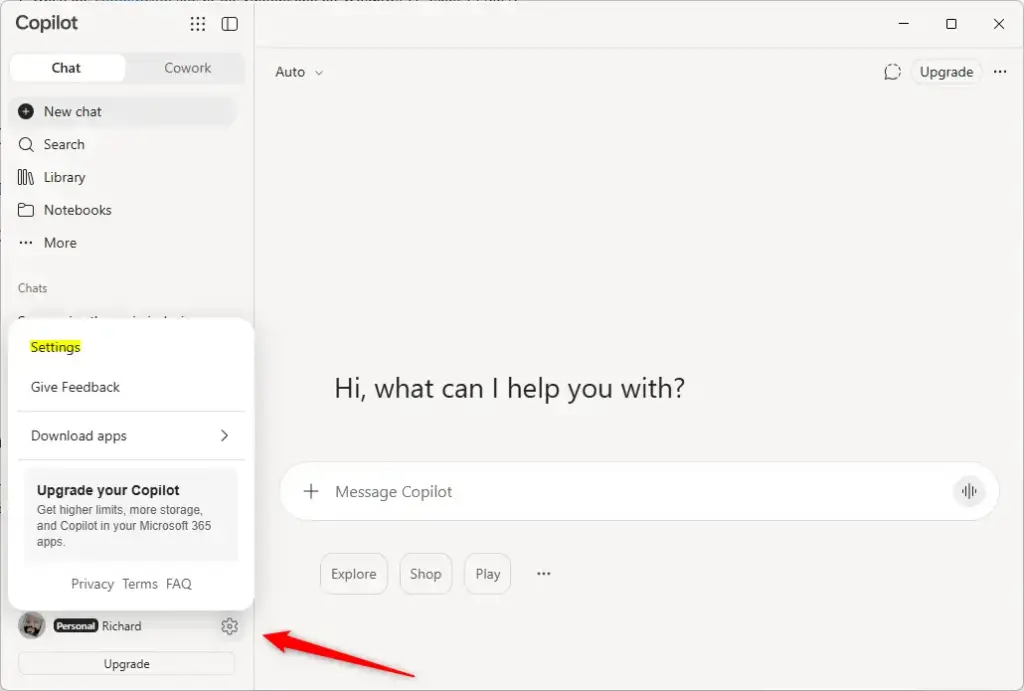
Copilot - Click or tap Web browsing on the left side.
- Turn Video transcript on or off. Off is the default.
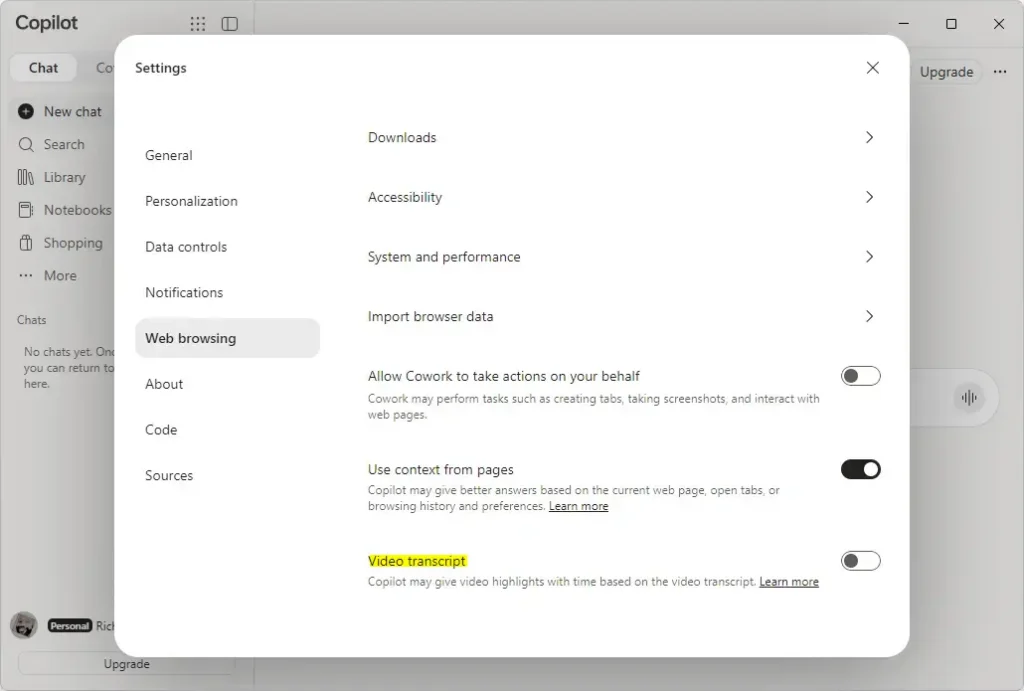
Copilot
What to do next
To undo the change, go back to Web browsing in Copilot Chat settings and set Video transcript back to its previous state. The change affects only the account you are signed in with.
Have a question about this guide?
Answered by AI from this guide. Good questions may be added to this page — please don't include personal details.
Did this guide fix your problem?

About the Author
Richard
Tech Writer, IT Professional
Richard is a writer at Geek Rewind who turns complex IT tasks into clear, step-by-step guides. He draws on years of hands-on experience in system administration and enterprise IT operations, focusing on Windows, Linux and WordPress: the problems people actually run into, and the fixes that work. His server and WordPress guides come from systems he runs himself. Richard builds and maintains the platform behind Geek Rewind, from its Ubuntu servers and Nginx configuration to its custom WordPress plugins. Many new tutorials start with readers' questions, and he's always glad to answer them in the comments.
No comments yet — be the first to share your thoughts!