How to Check for Software Updates in Windows 11

- 14 steps
- Needs administrator rights
- Includes a restart or sign-out
Software updates fix bugs and close security holes in Windows, its drivers, and your apps. Here is how to check for them. The quickest way to check is Settings Windows Update, where you select Check for updates.
Windows 11 checks for updates on its own in the background. A manual check is useful when you hear about an important fix or want to confirm a problem is patched. This guide covers the full check from start to finish, then the other places software updates come from: optional updates, Microsoft Store apps, and Microsoft Edge. For a shorter walkthrough of the Windows part alone, see How to Check for Windows 11 Updates.
To check for software updates in Windows 11, open Settings, select Windows Update, then select Check for updates. Windows downloads anything it finds, and you select Download & install to apply it. Some updates need a restart before they take effect, so save your open work first. Microsoft Store apps and Edge update separately.
How to check for software updates in Windows 11
- Open Settings. Press the Win+I, or right-click the Start button and select Settings. The Settings app opens with a list of categories on the left.
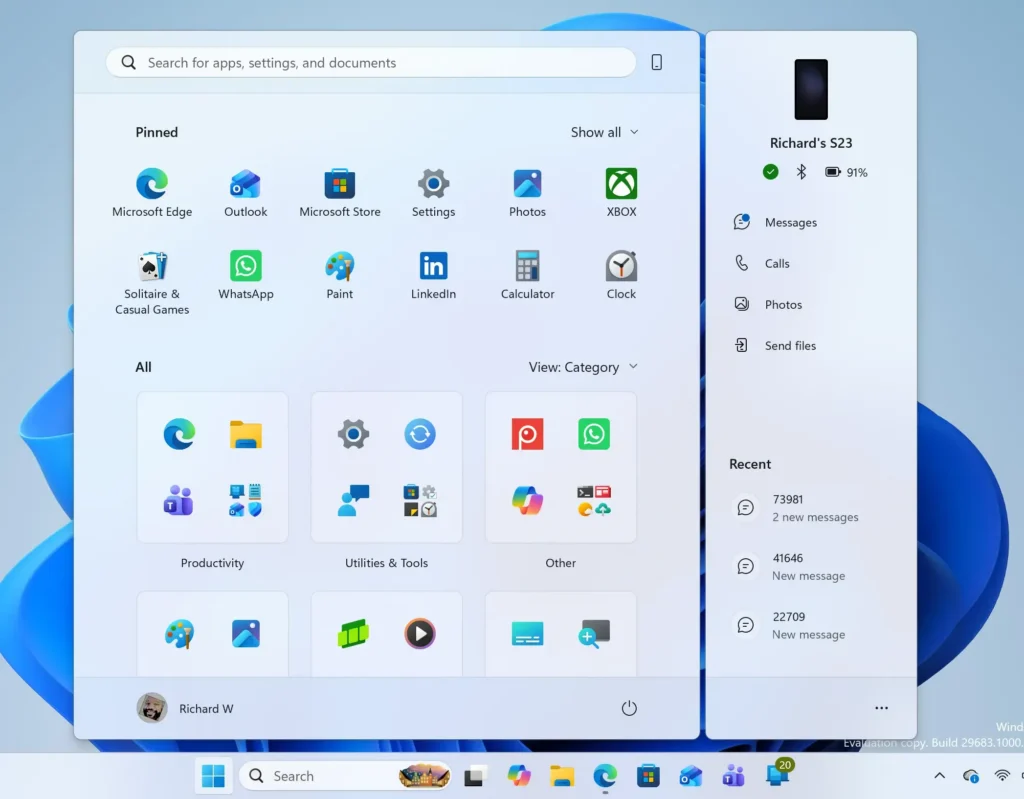
Windows 11 Start menu search panel for opening OpenSSH Client settings - Select Windows Update. It is the last item in the left-hand list. The right pane shows the current update status.
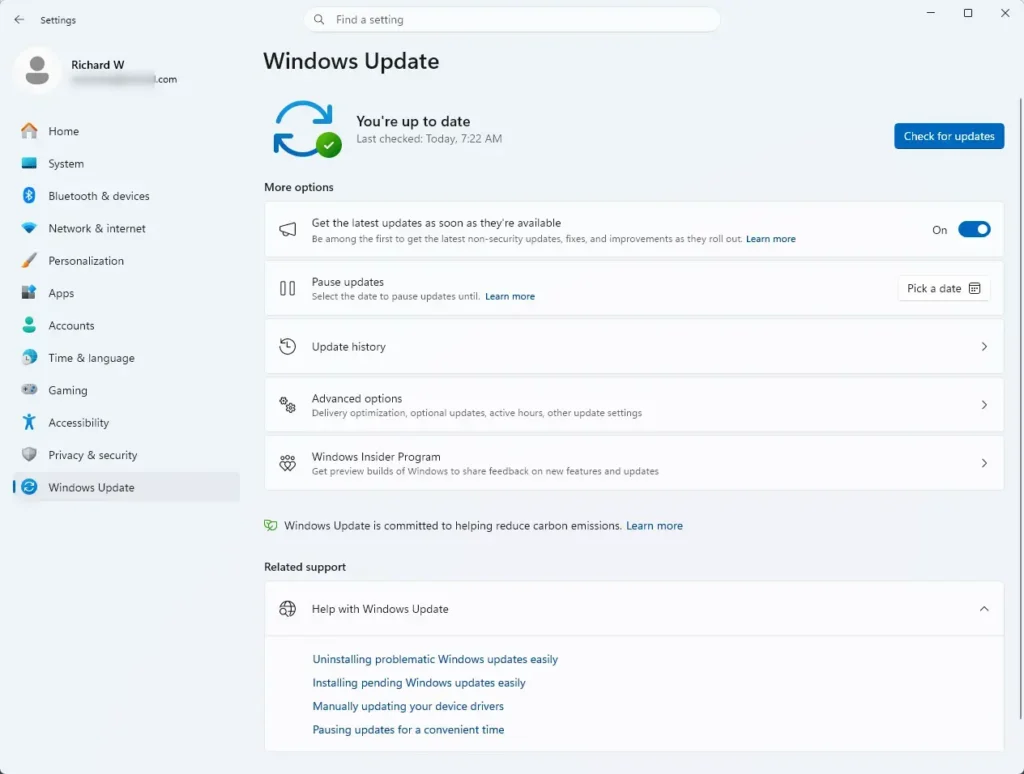
Settings > Windows Update - Select Check for updates. The button sits at the top right of the pane. The status line changes to “Checking for updates” while Windows contacts Microsoft’s servers.
- Wait for the check to finish. This usually takes a few seconds to a couple of minutes. If it runs for much longer, see the troubleshooting section below.
- Read the result. “You’re up to date” means nothing is waiting, and you can stop here. If updates are listed, Windows names each one, such as a cumulative update (a monthly bundle of fixes) or a .NET Framework update.
- Select Download & install. If several updates are listed, the button may read Download & install all. Windows downloads each update and shows a percentage next to it.
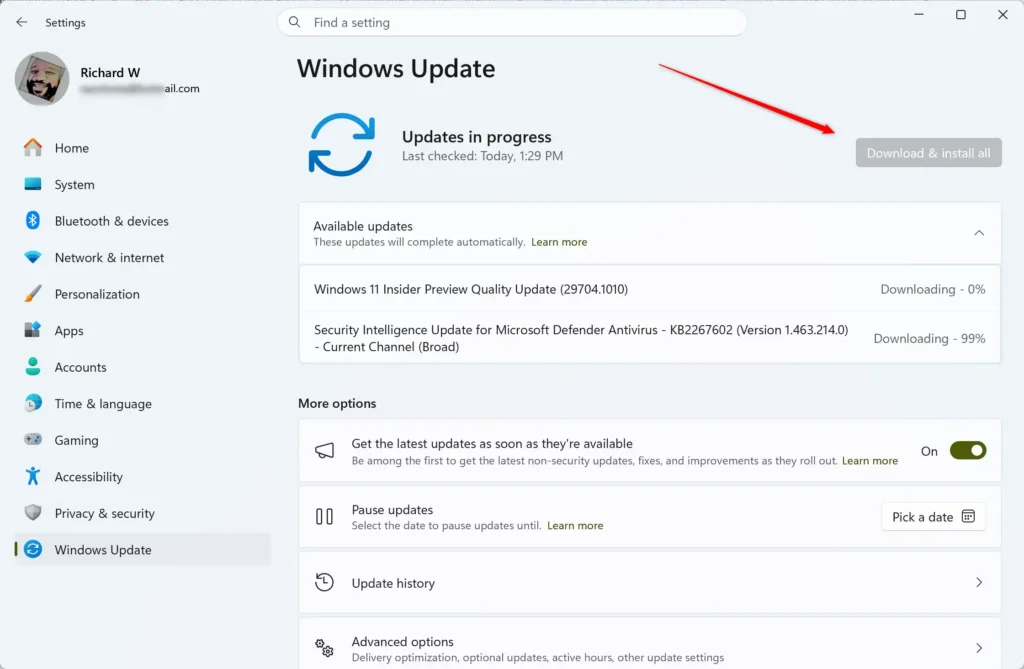
Settings > Windows Update - Wait for the installation to finish. You can keep working while it runs. Some updates finish with a status such as “Restart required” or “Pending restart”.
- Select Restart now. Windows closes your apps, installs the final parts of the update, and restarts. The screen may show a progress percentage and take several minutes. Do not switch the PC off during this stage.
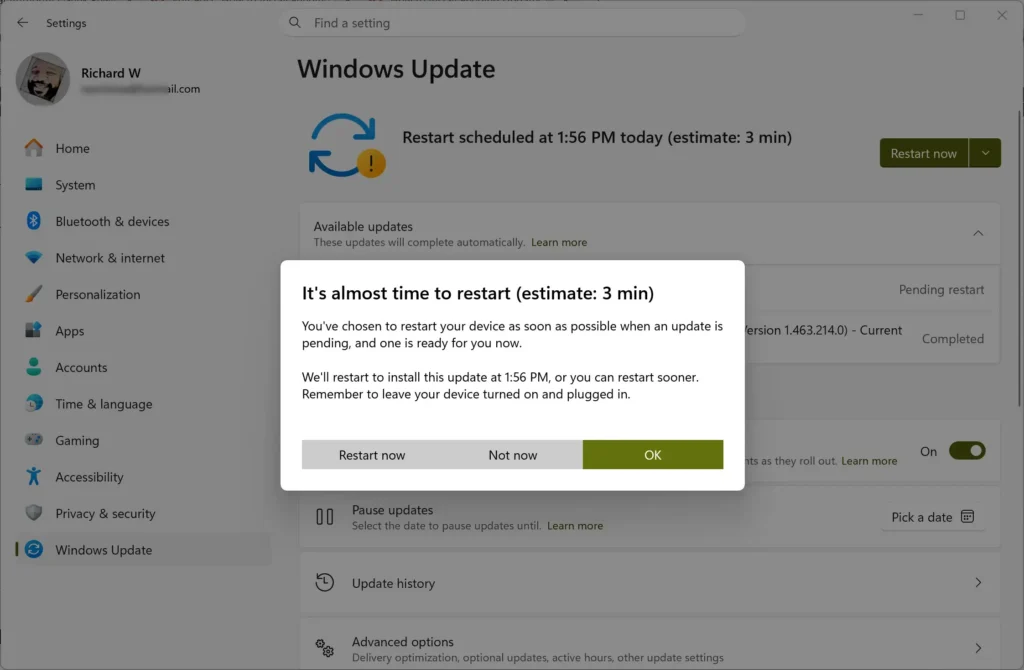
Settings > Windows Update - Sign in and open Windows Update again. Repeat Settings Windows Update and select Check for updates. Some updates install in stages, so a second check often finds a follow-up item.
- Select Update history. It is under More options on the Windows Update page. Each entry shows the update name and “Successfully installed” with a date. Any entry marked “Failed to install” needs attention.
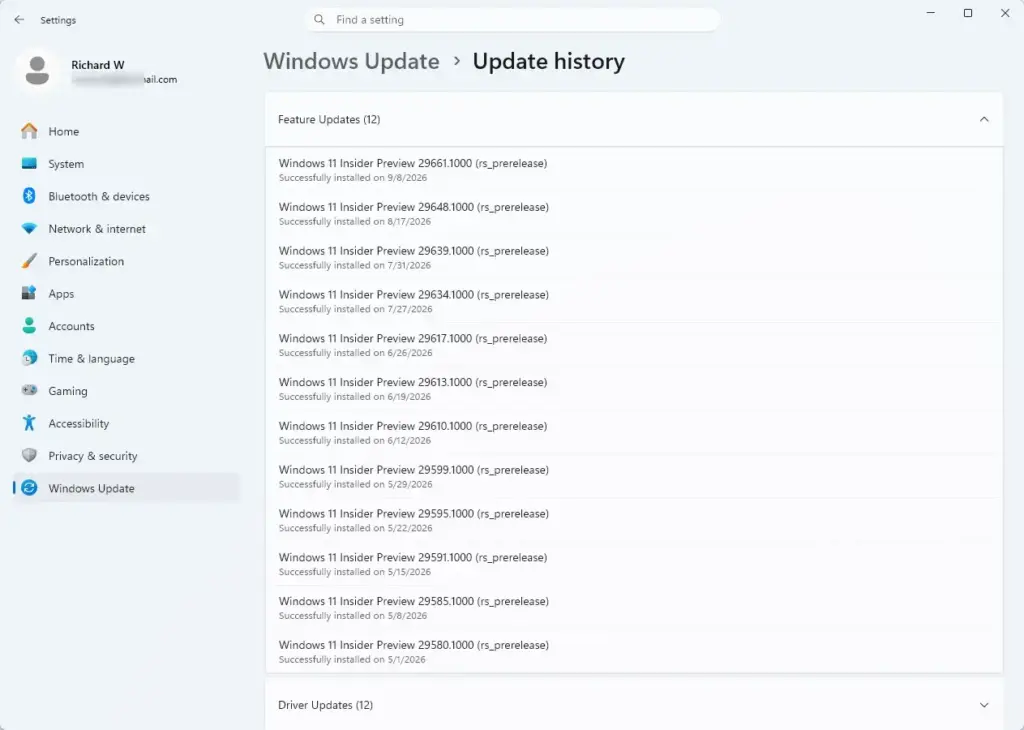
Settings › Windows Update › Update history
What the Windows Update page tells you
The status line under the page title is the fastest way to read your update state. “You’re up to date” with a “Last checked” time means Windows found nothing new at that moment. “Updates available” means a download is ready. A restart prompt means files are installed but not yet active.
Check the “Last checked” time. If it shows a date from weeks ago, run the check manually, because automatic checks may be blocked or delayed on that PC.
Current Windows 11 versions also show a toggle labelled Get the latest updates as soon as they’re available. When it is on, you receive non-security fixes and new features earlier, and when it is off, those arrive later in the normal rollout. The toggle does not stop security updates, and you can leave it in either position. If you do not see it, your version of Windows 11 or your organization’s settings may not offer it.
Optional updates and driver updates
Some updates never install on their own, so check for them separately. Windows lists them separately as optional updates, and they often include drivers (software that lets Windows work with hardware such as a Wi-Fi adapter or printer). To look for them, open Settings Windows Update Advanced options Optional updates. If the Optional updates entry is missing, Windows has none to offer at that moment.
Select the checkbox next to the items you want, then select Download & install. Install an optional driver only if it fixes a problem you have, or if the manufacturer recommends it. For the full walkthrough, see How to Check for and Install Optional Updates in Windows 11.
How to check for Microsoft Store app updates
Windows Update does not update every app. Apps installed from the Microsoft Store update through the Store itself. The steps below check them.
- Open the Microsoft Store. Select Start, type Microsoft Store, and press Enter.
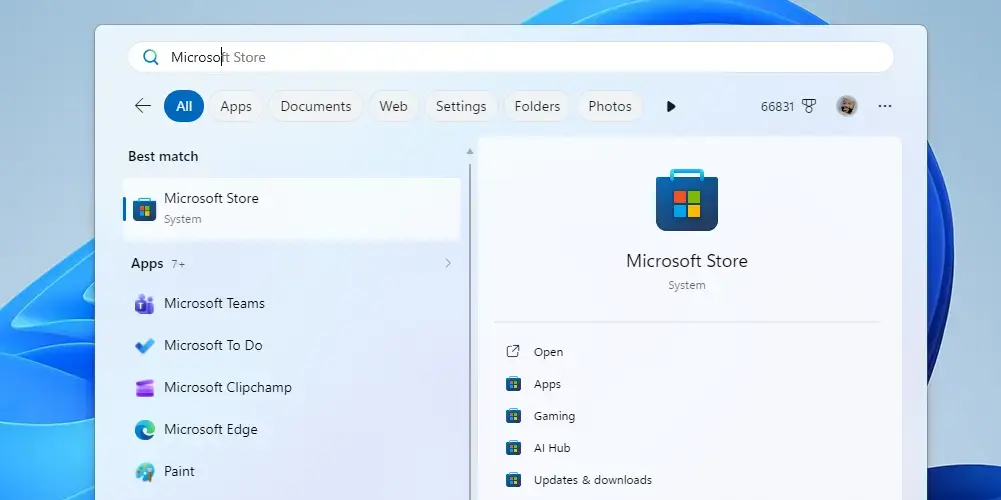
Start Menu - Select Library. It is at the bottom of the left-hand bar. The Library page lists your installed Store apps.
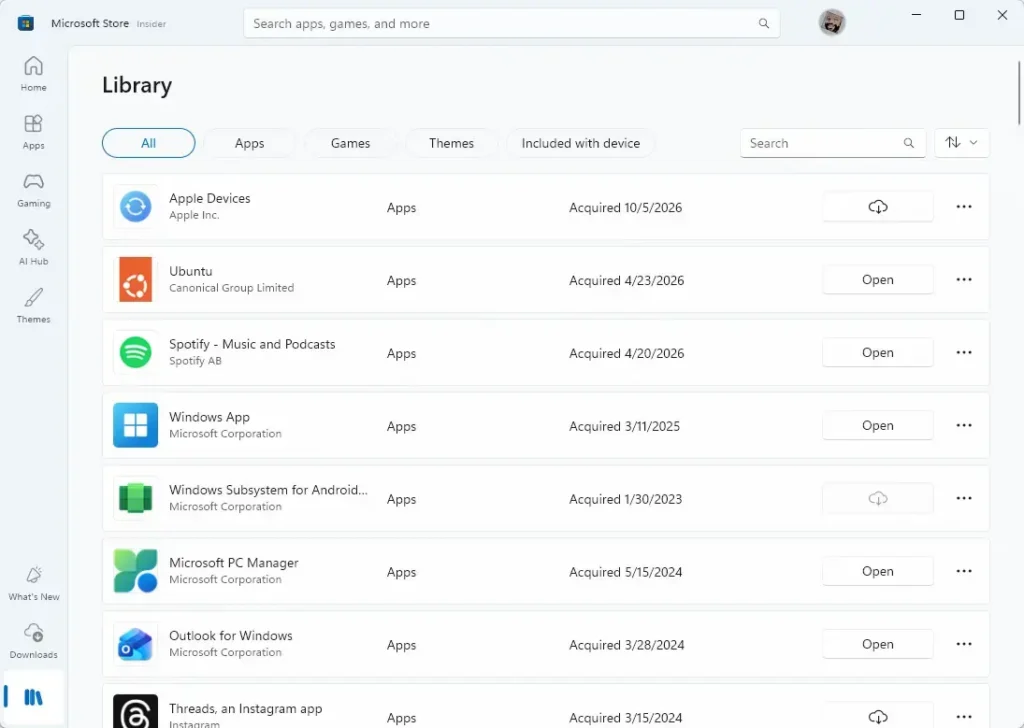
- Select Get updates. The button is at the top right of the Library page. The Store checks each app and lists the ones it is updating.
- Wait for the list to finish. Each app shows “Updating” and then the date it was last updated. An app that is already current shows no update progress.
If the Library page shows no apps, or the Get updates button does nothing, sign in to the Store with your Microsoft account and try again. For more detail, read How to Check for App Updates Using Windows Update in Windows 11.
How to check that Microsoft Edge is up to date
Microsoft Edge updates itself automatically, so current Windows 11 installs run a recent Edge version. To see the version and trigger a check, open Edge, type the address edge://settings/help into the address bar, and press Enter. The page shows the version number and either “Microsoft Edge is up to date” or starts downloading an update. If an update downloads, select Restart when the page asks, and Edge reopens your tabs.
Why Check for updates is missing, greyed out, or not working
Most update problems fall into a few groups. Find the message you see below, then read the cause listed under it.
The page says “Some settings are managed by your organization”
This message appears on a work or school PC, or on a home PC that has had policies applied to it. An administrator controls update timing, and Windows sometimes hides or locks the Check for updates button. If this is a work or school PC, ask your IT team before you change anything. On a personal PC, an old setting left by a tweaking tool or a previous work account can cause the same message.
The check never finishes
If “Checking for updates” stays on screen for many minutes, the update service may be stuck or the connection may be failing. Restart the PC and try the check again, because that clears a stalled check more often than anything else. If it still hangs, follow What to Do When Windows Update Gets Stuck Checking for Updates.
An update downloads but fails to install
A failed update shows “Failed to install” with an error code in Update history, and Windows Update often retries it. The same update failing repeatedly points to a deeper problem such as damaged system files or low disk space. Windows 11 Update Stuck? 10 Ways to Fix Failed Updates lists the fixes in order.
The PC is offline or on a metered connection
Windows cannot check for updates without an internet connection. On a metered connection (one set up to limit data use), Windows may delay large downloads until you allow them. Check the Wi-Fi or Ethernet icon in the taskbar, and look at the connection’s properties in Settings Network & internet if downloads wait for approval.
How to check which version of Windows 11 you have
Knowing your version helps when you read an update note that applies to a specific release, and two quick ways show it. Press the Win+R, type winver, and press Enter. A small window shows the Windows version and build number. You can also open Settings System About and read the Windows specifications section.
The version number there tells you which feature release you run. After a feature update (a larger yearly release with new features), the version number changes. A monthly cumulative update (a bundle of fixes that includes all earlier monthly fixes) changes the build number, the last set of digits after the version, but not the version.
How to pause or undo an update
Pausing is useful if you want to delay updates for a short time, such as before a deadline. On the Windows Update page, open the Pause updates dropdown and pick a period. Windows then stops checking until that period ends. To undo a pause, select Resume updates in the same place, then select Check for updates.
Removing an installed update is harder to reverse, since Windows may reinstall it on the next check. This step needs administrator privileges, and Windows may ask for approval. Open Settings Windows Update Update history, scroll to Related settings, and select Uninstall updates, then select the update and choose Uninstall. For the full steps and the risks, see How to Uninstall Windows Updates in Windows 11.
What to do next
If Windows Update shows an update that is downloaded but waiting, How to Install Pending Updates in Windows 11 covers finishing it. Run the check again after your next restart, because Windows can offer a second update once the first is active. Come back to Settings Windows Update Update history afterwards to confirm each item reads “Successfully installed”.
Frequently asked questions
How to install optional Windows 11 updates?
Open Settings Windows Update Advanced options Optional updates. Select the checkbox next to each item you want, then select Download & install. Optional updates often include drivers, so install one only if it fixes a problem you have or the manufacturer recommends it.
How to download software updates on metered data?
Windows may delay large downloads on a metered connection, which is one set up to limit data use, until you allow them. If downloads wait for approval, check the connection's properties in Settings Network & internet. Windows cannot check for updates at all without an internet connection.
How to disable automatic updates in Windows 11?
Pause them rather than turn them off. Open the Pause updates dropdown on the Windows Update page and pick a period, and Windows stops checking until that period ends. This guide has no permanent switch to disable automatic checks, and pausing is temporary, so resume updates afterwards.
How to schedule automatic updates in Windows 11?
Look for the Schedule the restart option on the Windows Update page and pick a time. Windows keeps the update pending until then, and the fix is not active until the PC restarts. This option sets the restart time, so save your open work before that time arrives.
How to schedule updates in Windows 11?
Use the Schedule the restart option on the Windows Update page to pick a time for the restart. Windows holds the update until then, so the fix is not active until the PC restarts. To stop checks for a set period instead, use the Pause updates dropdown on the same page.
Still have a question?
Answered by AI from this guide. Good questions may be added to this page — please don't include personal details.
Did this guide fix your problem?

About the Author
Richard
Tech Writer, IT Professional
Richard is a writer at Geek Rewind who turns complex IT tasks into clear, step-by-step guides. He draws on years of hands-on experience in system administration and enterprise IT operations, focusing on Windows, Linux and WordPress: the problems people actually run into, and the fixes that work. His server and WordPress guides come from systems he runs himself. Richard builds and maintains the platform behind Geek Rewind, from its Ubuntu servers and Nginx configuration to its custom WordPress plugins. Many new tutorials start with readers' questions, and he's always glad to answer them in the comments.
No comments yet — be the first to share your thoughts!