How to Pause and Resume Updates for Windows 11

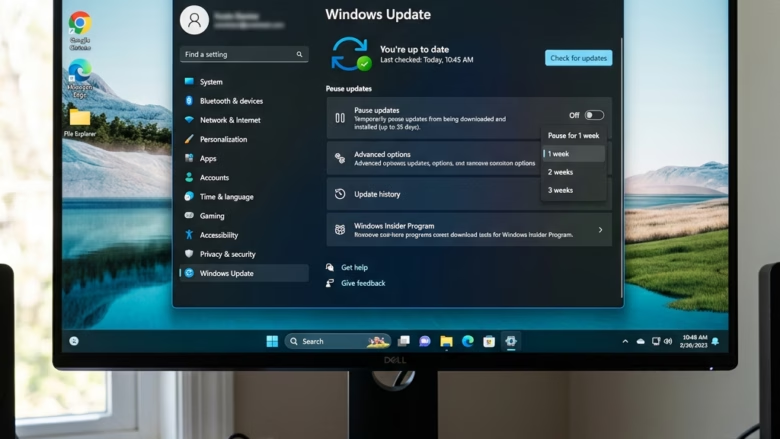
Pausing updates in Windows 11 puts automatic software downloads and installations on hold for up to 35 days. That keeps your PC from rebooting suddenly in the middle of important work. The hold also gives you a buffer if a patch is causing problems for other people, since you can wait before installing it. When the pause ends or you resume it, Windows goes back to the normal update cycle.
Press Win+I to open Settings, click Windows Update on the left, then click the Pause updates button or select a longer pause period from the drop-down menu, up to 5 weeks. Updates stop downloading and installing until you resume or the pause expires.
Why pause updates?
Heavy workloads, limited internet data, and badly timed reboots are the usual reasons to pause updates. A few common cases:
- You are rendering video, running a long backup, or finishing a presentation and cannot afford a restart.
- You are on a metered or slow connection and want to avoid large downloads.
- A new update has been reported to cause problems and you want to wait for a fix.
What happens when you pause?
Pausing stops your PC from downloading and installing new system software and feature updates for the time you choose. According to the original guide, essential security patches for Microsoft Defender still install automatically, so the PC is not left completely unprotected while updates are on hold. Even so, a pause is a short-term measure. Do not leave a PC paused longer than you need to.
The pause option is available in both Windows 11 Home and Pro. The longest pause is 5 weeks (35 days). Once a pause runs out, Windows installs the pending updates before it lets you pause again.
If you are on a work or school PC, your organization may manage updates, and the pause options may be missing or greyed out. In that case, ask your IT administrator.
Reference: Pause updates in Windows – Microsoft Support
Option 1Pause Updates in Settings
You can pause Windows 11 updates from the Settings app without any extra tools. Once you pick a time frame, Windows stops fetching new update packages until the pause ends or you resume.
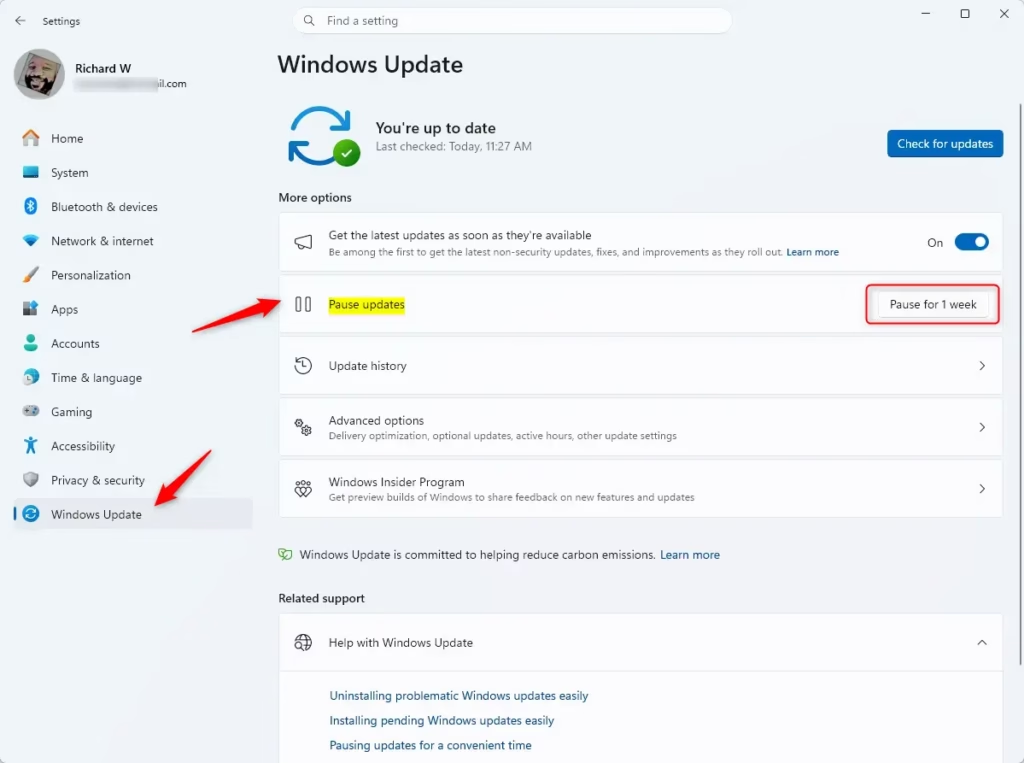
- Press the Windows key + I to open Settings. The Settings window opens with the list of categories on the left.
- Click Windows Update on the left side of the window. The update status and options appear on the right. Open Windows Update Settings
- Find the Pause updates section on the right. Click the button to pause for one week, or open the drop-down menu next to it and pick a longer time, up to 5 weeks.
- Check the Windows Update page. It should now show a message that updates are paused until a date, with Resume updates available.
- If you need more time, click Extend to add to the pause. This only works while the 5-week maximum has not been reached.
If Pause updates is greyed out or missing, check three things. Your account may not have administrator rights. The PC may be managed by an organization. Or you may have already used the full pause and need to install pending updates first.
Option 2Resume Updates in Settings
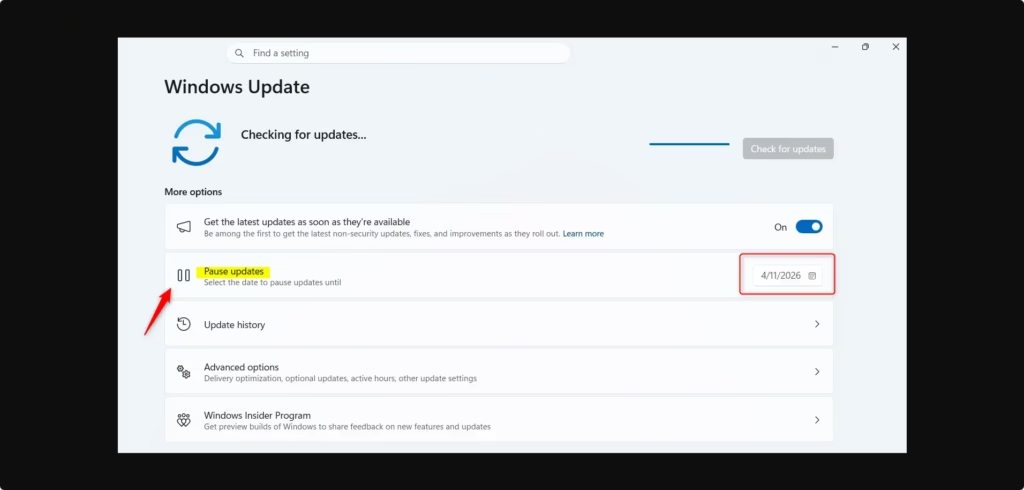
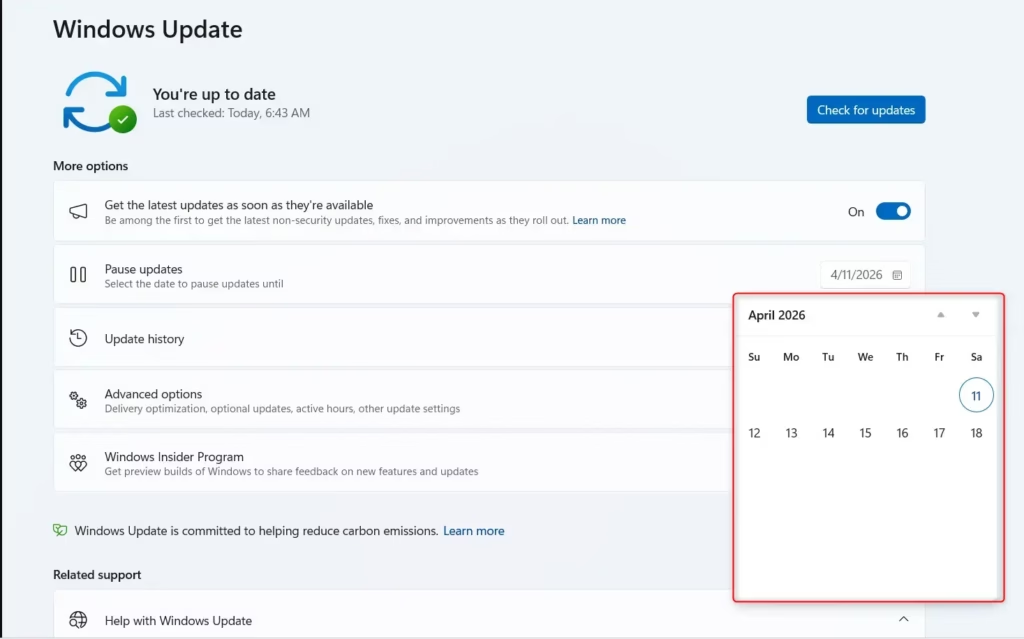
You can resume Windows 11 updates before the pause timer runs out by using the Settings app. Choosing the resume option makes your computer check Microsoft's servers right away for any updates or security patches it missed. This also undoes the pause, so use it whenever you want to get back on the normal schedule early.
- Press the Windows key + I to open Settings, then click Windows Update. Open Windows Update Settings
- Click the Resume updates button on the right. The paused message disappears and Windows begins checking for updates.
- Wait for the status to change to Checking for updates, then to a list of downloads or You're up to date.
If Windows asks you to restart after installing, you can schedule it for a time that suits you instead of restarting right away.
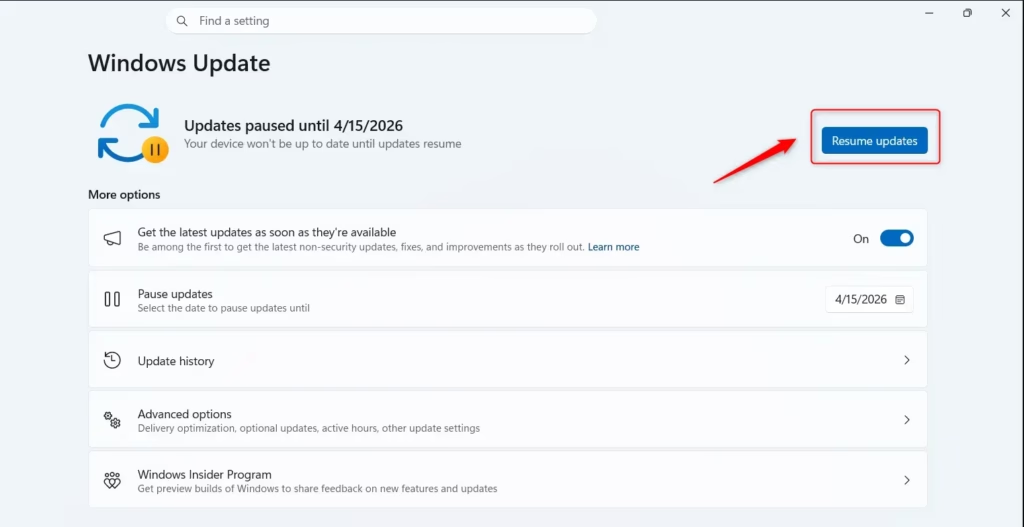
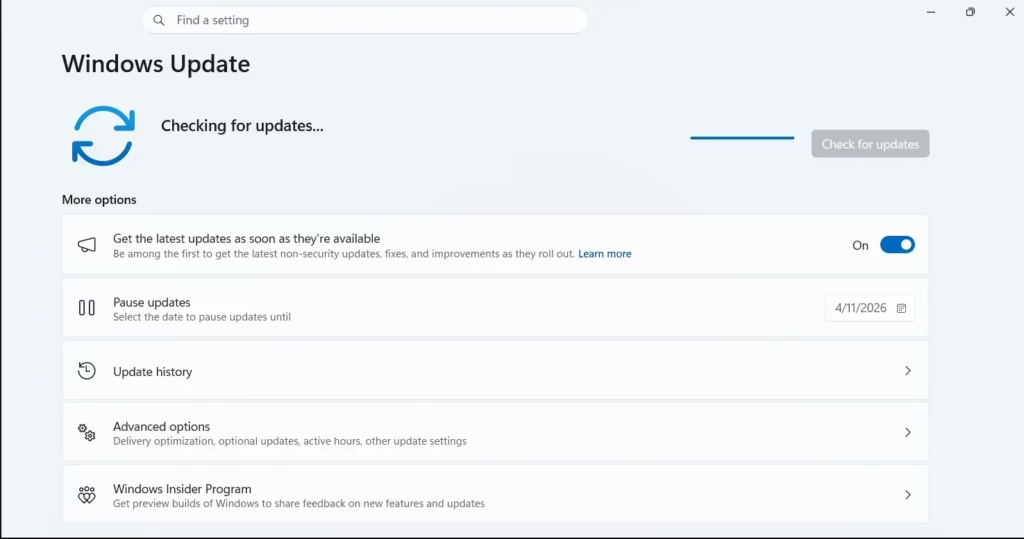
After you resume, background tasks query Microsoft's servers immediately for pending data. You do not need to do anything else. Downloads can take a few minutes, depending on how many updates piled up during the pause.
Option 3Resume Updates using Registry
If the Settings menus fail, you can resume Windows 11 updates from the command line. The commands below clear the pause settings from the registry and make your system start downloading missing updates again. Use this only when the Resume updates button does not work or is missing.
- Right-click the Start button and choose Terminal (Admin). If Windows asks Do you want to allow this app to make changes to your device?, click Yes.
- Run the commands shown in the code blocks below, one block at a time. Copy them exactly as written.
- When they finish, open Settings Windows Update and check that the pause message is gone and the page checks for updates.
If the pause message is still there, restart the PC and look again.
reg add "HKLM\SOFTWARE\Microsoft\WindowsUpdate\UpdatePolicy\Settings" /v PausedFeatureStatus /t REG_DWORD /d 0 /f
reg add "HKLM\SOFTWARE\Microsoft\WindowsUpdate\UpdatePolicy\Settings" /v PausedQualityStatus /t REG_DWORD /d 0 /f
reg delete "HKLM\SOFTWARE\Microsoft\WindowsUpdate\UX\Settings" /v PauseFeatureUpdatesStartTime /f
reg delete "HKLM\SOFTWARE\Microsoft\WindowsUpdate\UX\Settings" /v PauseFeatureUpdatesEndTime /f
reg delete "HKLM\SOFTWARE\Microsoft\WindowsUpdate\UX\Settings" /v PauseQualityUpdatesStartTime /f
reg delete "HKLM\SOFTWARE\Microsoft\WindowsUpdate\UX\Settings" /v PauseQualityUpdatesEndTime /f
reg delete "HKLM\SOFTWARE\Microsoft\WindowsUpdate\UX\Settings" /v PauseUpdatesStartTime /f
reg delete "HKLM\SOFTWARE\Microsoft\WindowsUpdate\UX\Settings" /v PauseUpdatesExpiryTime /f
Summary
The Windows Update page in Settings controls this behavior. Resume updates once your work is done, or let the pause expire, so that security patches keep installing as they should. Always install updates before the next time you need a pause.
Have a question about this guide?
Answered by AI from this guide. Good questions may be added to this page — please don't include personal details.
Did this guide fix your problem?

About the Author
Richard
Tech Writer, IT Professional
Richard is a writer at Geek Rewind who turns complex IT tasks into clear, step-by-step guides. He draws on years of hands-on experience in system administration and enterprise IT operations, focusing on Windows, Linux and WordPress: the problems people actually run into, and the fixes that work. His server and WordPress guides come from systems he runs himself. Richard builds and maintains the platform behind Geek Rewind, from its Ubuntu servers and Nginx configuration to its custom WordPress plugins. Many new tutorials start with readers' questions, and he's always glad to answer them in the comments.
No comments yet — be the first to share your thoughts!