How to Update to Windows 11 26H2

- 10 steps
- Needs administrator rights
The Windows 11 26H2 update installs through Windows Update as an enablement package (a small update that switches on features your PC already received in earlier monthly updates). It applies to eligible PCs running Windows 11 version 24H2 or 25H2. The quickest route is Settings Windows Update Check for updates, followed by one restart.
Microsoft made version 26H2 generally available in October 2026. This guide covers how to check your version, install the update, and fix the common cases where the update does not appear.
The Windows 11 26H2 update installs through Windows Update as a small enablement package on PCs running version 24H2 or 25H2. Open Settings Windows Update, select Check for updates, then Download & install on the 26H2 entry. The PC needs one restart, and the update has been generally available since October 2026.
What the Windows 11 26H2 update is and how it installs
Windows 11, version 26H2 is a feature update, which is Microsoft’s name for a yearly-style version change of Windows. Most feature updates are large downloads that rebuild the operating system. On eligible PCs, 26H2 works differently.
If your PC runs version 25H2 or 24H2, 26H2 arrives as a lightweight enablement package. This is a small update that switches on code already on your PC. The code for the new version is already on your PC from earlier monthly updates, and the package turns it on. The download is small, the install resembles a monthly quality update, and it usually finishes faster than a traditional feature update. It needs a single restart.
To see what the new version switches on, read which features are turned on by default in Windows 11 version 26H2.
Check what you need before you start
A few minutes of checking up front tells you whether the update will appear and avoids a lot of guessing later.
Confirm your current Windows version
The enablement package only applies to PCs on version 24H2 or 25H2. Check which version you run before you look for the update.
Open Settings, select System, then select About. Scroll to the Windows specifications section and read the Version line. It shows 24H2, 25H2, or 26H2 if you already have the update.
If it already says 26H2, you have nothing to install. If it says 24H2 or 25H2, continue with the steps below. If it shows any other version, this route will not work. Read the section “Why the Windows 11 26H2 update does not appear” below.
Install pending updates and save your work
The enablement package activates features delivered through earlier monthly updates. Your PC therefore needs to be current on those updates before 26H2 can switch on. Install anything Windows Update already lists as waiting.
How to update to Windows 11 26H2
These steps install the Windows 11 26H2 update from Windows Update on a PC running version 24H2 or 25H2.
- Open Settings. Press the Win+I, or right-click Start and select Settings.
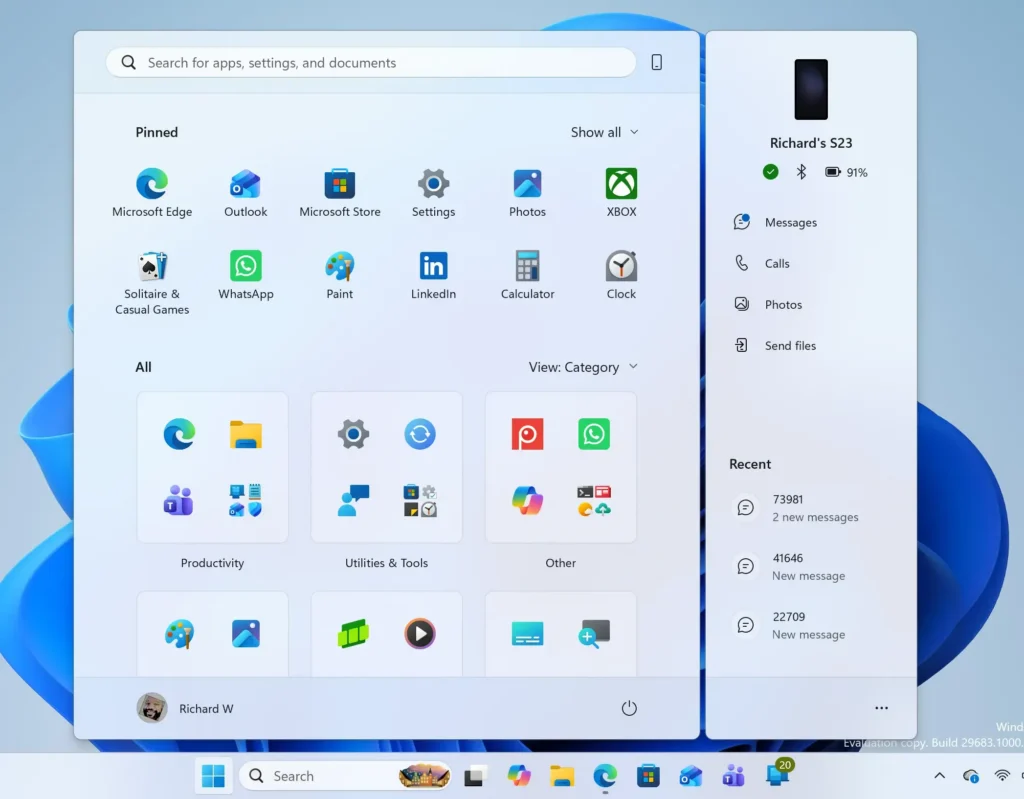
Windows 11 Start menu search panel for opening OpenSSH Client settings - Select System, then About. Check the Version line under Windows specifications. It should read 24H2 or 25H2. If it already reads 26H2, stop here.
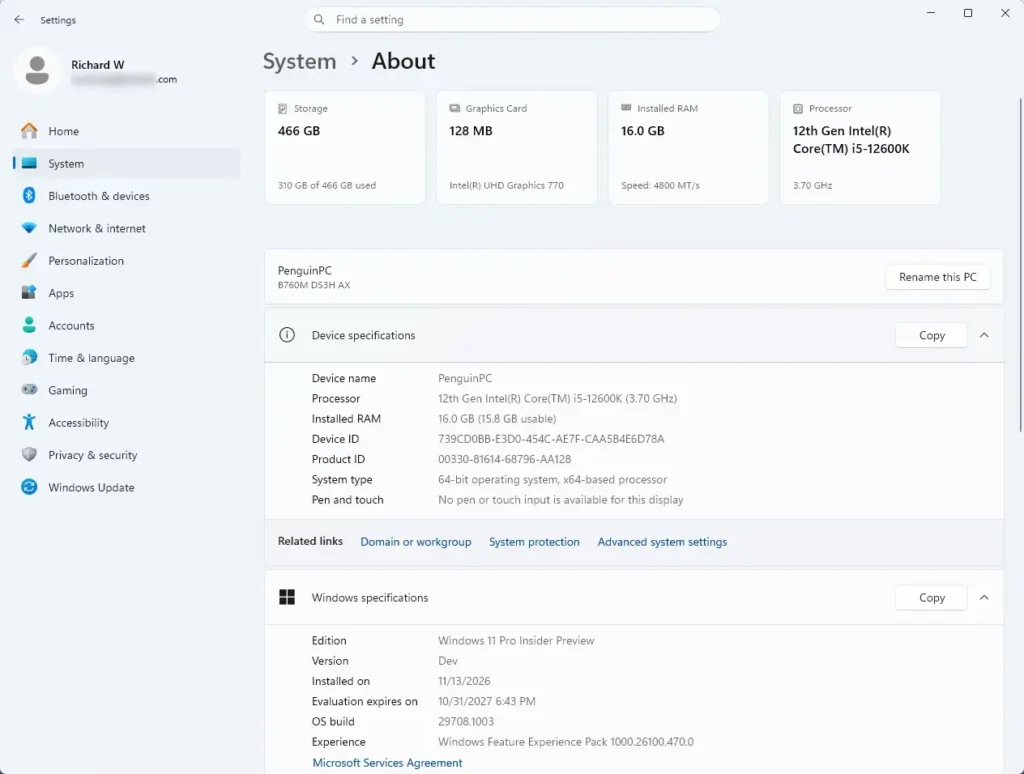
Settings > System > About - Save your work and close your apps. The update needs one restart, so anything unsaved is at risk.
- Select Windows Update. It sits in the left pane of Settings. The page that opens shows your update status and the date of the last check.
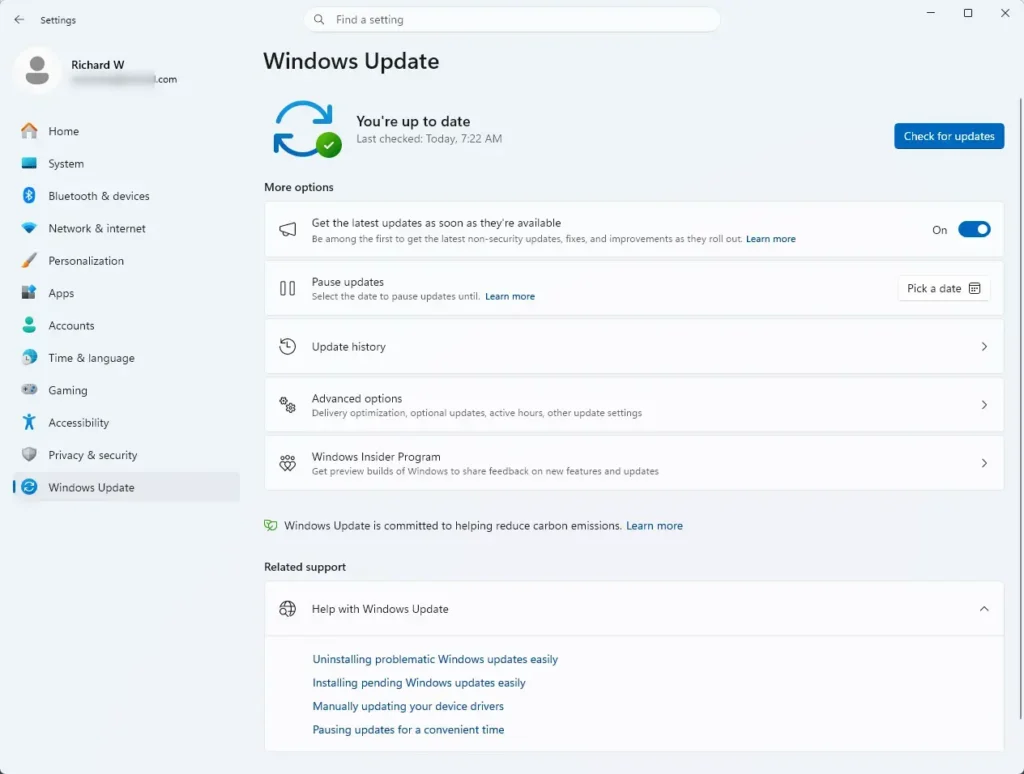
Settings > Windows Update - Select Check for updates. Windows contacts Microsoft and lists whatever is available. The button reads Check for updates in the top right of the page.
- Install any pending monthly updates first. If the page lists updates other than 26H2, let them download and install. Restart if Windows asks, then return to Windows Update and select Check for updates again.
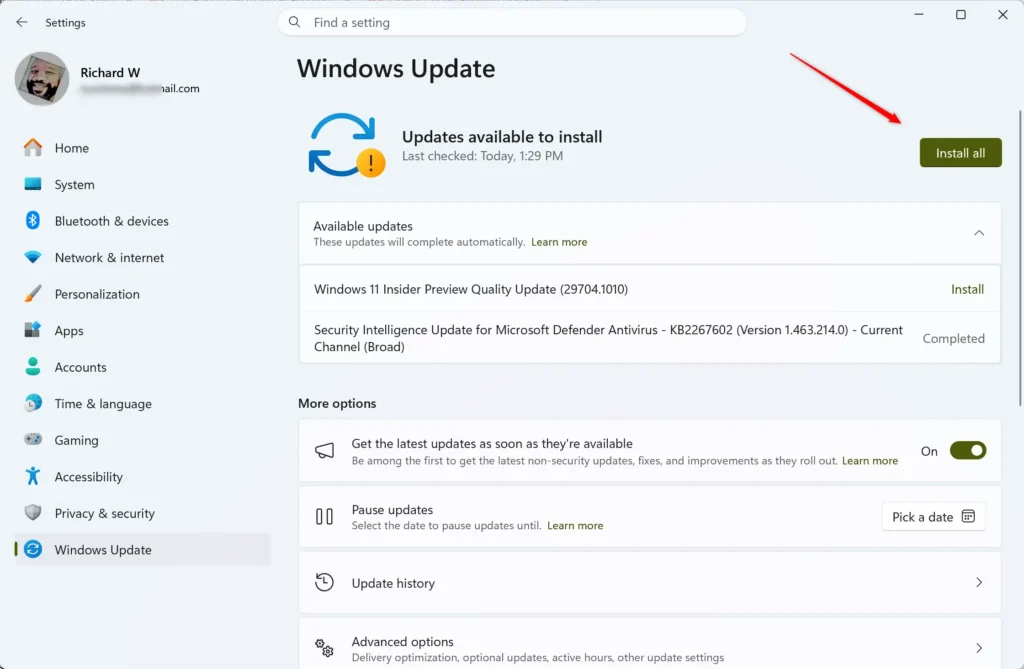
Settings > Windows Update - Find the Windows 11, version 26H2 entry. It appears as a feature update near the top of the page. A Download & install button usually sits next to it, though the label can vary.
- Select Download & install. The download is small. The page shows progress, and the status changes to installing, then to a pending restart.
- Select Restart now. The PC restarts once. The screen can show a percentage while Windows finishes the update, and the sign-in screen returns afterward.
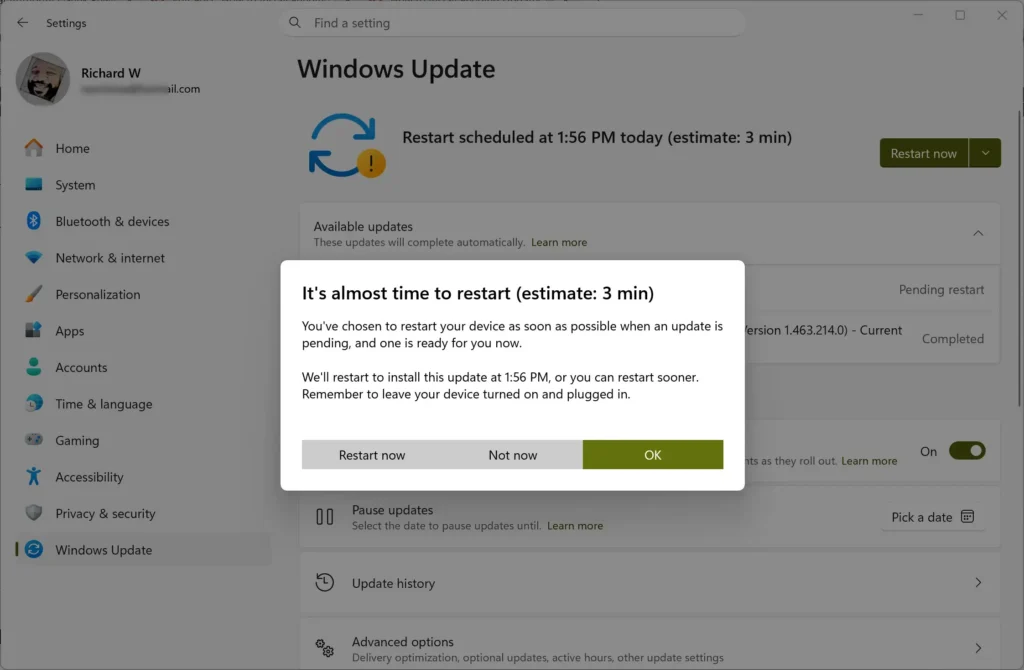
Settings > Windows Update - Sign in and open Settings System About. The Version line under Windows specifications now reads 26H2.
If Windows Update shows no 26H2 entry, nothing is broken. Work through the next sections to find out why.
Other ways to get Windows 11 26H2
Use the Windows 11 Installation Assistant
Microsoft publishes a Windows 11 Installation Assistant for 26H2 on the Microsoft Download Center. It is a downloadable tool that runs the update on your PC when Windows Update has not offered it yet. Search the Microsoft Download Center for “Windows 11 Installation Assistant 26H2” and download it from the official Microsoft page only.
Run the tool from an administrator account, because it changes system files. This guide does not list the tool’s screens, because they can change between releases. Follow the tool’s on-screen prompts. If they differ from this page, the tool’s prompts take priority.
Try the Windows Update route first. It uses the small enablement package, which is the lighter option, and it keeps the process inside Settings.
Why the Windows 11 26H2 update does not appear
When you select Check for updates and see no 26H2 entry, one of the causes below usually explains it.
Your PC runs an older version of Windows 11
The enablement package applies to eligible PCs on version 25H2 or 24H2. A PC on an older version of Windows 11 cannot use that route. This page does not cover the upgrade path for older versions. Check what Windows Update offers, or use the Installation Assistant described above.
Version 24H2 matters for another reason too. Microsoft ended updates for 24H2 Home and Pro on October 13, 2026, and tells those users to move to 26H2 or 25H2. If you run 24H2, install 26H2 soon to keep receiving security updates.
Monthly updates are still pending
Because the package activates features that arrive through earlier monthly updates, a PC that is behind on them may not be offered 26H2. Install every pending update, restart, and select Check for updates again. Repeat until Windows Update reports that your device is up to date.
Your PC is managed by an organization
On a work or school PC, IT (information technology) staff can control when feature updates arrive. If Windows Update shows a message that some settings are managed by your organization, you cannot choose the timing yourself. Ask your IT team about their schedule for 26H2.
Your PC still runs Windows 10
Version 26H2 belongs to Windows 11, so a Windows 10 PC cannot receive it directly. It must move to Windows 11 first, and only a PC that meets the Windows 11 requirements can do that.
Microsoft says Windows 10 22H2 PCs can enroll in consumer Extended Security Updates (ESU) from the Windows Update page in Settings until October 12, 2027. ESU is a paid or program-based way to keep getting security fixes after support ends. That buys time to plan the move. This guide cannot confirm what options exist for a PC that fails the Windows 11 requirements.
What changes in support when you install 26H2
Installing version 26H2 resets your support lifecycle, which is the period during which Microsoft provides security and quality updates for that version. Home and Pro editions receive 24 months of support. Enterprise and Education editions receive 36 months.
The reset is one reason to take the update rather than stay on an older version. A PC on 25H2 is still current. Its support period runs from the 25H2 release date. Installing 26H2 starts a new support period.
Not sure which edition you run? Open Settings System About and read the Edition line under Windows specifications. It shows Home, Pro, Enterprise, or Education.
Can you undo the 26H2 update
The package is small. It does not replace the whole operating system, so the undo options may differ from a full upgrade. To see what your PC offers, open Settings System Recovery and look at the recovery options listed there.
If you want a safe way back, create a backup before you install. Restoring from a backup is the one method that does not depend on how Windows handles the update.
What to do next
Once Settings System About shows version 26H2, review which features are turned on by default in Windows 11 version 26H2 to see what is now active on your PC. Return to Settings Windows Update regularly, because monthly updates continue to arrive after the version change. If the update still does not appear after you install all pending updates, try the Windows 11 Installation Assistant from the Microsoft Download Center.
Have a question about this guide?
Answered by AI from this guide. Good questions may be added to this page — please don't include personal details.
Did this guide fix your problem?

About the Author
Richard
Tech Writer, IT Professional
Richard is a writer at Geek Rewind who turns complex IT tasks into clear, step-by-step guides. He draws on years of hands-on experience in system administration and enterprise IT operations, focusing on Windows, Linux and WordPress: the problems people actually run into, and the fixes that work. His server and WordPress guides come from systems he runs himself. Richard builds and maintains the platform behind Geek Rewind, from its Ubuntu servers and Nginx configuration to its custom WordPress plugins. Many new tutorials start with readers' questions, and he's always glad to answer them in the comments.
No comments yet — be the first to share your thoughts!