How to Enable or Disable Windows Update Delivery Optimization


- 25 steps
- Needs administrator rights
- Includes a restart or sign-out
Windows Update Delivery Optimization lets your PC download parts of Windows updates and Microsoft Store apps from other computers, not only from Microsoft’s servers. Those computers can be on your local network or, depending on the setting, on the internet.
It uses peer-to-peer (P2P) technology. Your Windows 10 or Windows 11 PC can fetch pieces of an update from a nearby PC and put them together into the full update. Your PC can also send pieces it has already downloaded to other devices.
This can save bandwidth and download time, especially if you manage several Windows computers on one network. Delivery Optimization is normally turned on by default. On current Windows 11 builds the default is usually to share only with PCs on your local network, but check the setting on your own machine.
Enable or disable Windows Update Delivery Optimization by going to Settings, then Windows Update, Advanced options, and toggling “Allow downloads from other PCs” on or off. This setting controls whether your PC shares update files with other devices on your network or the internet.
Security and Privacy Implications
Delivery Optimization is generally safe. Windows checks the downloaded pieces against information from Microsoft, so an altered or fake file should be rejected. It only shares update and app files, not your personal documents.
Some people still turn it off to stop background data sharing, to keep upload traffic down, or to keep tighter control on a metered or slow connection. Turning it off does not stop updates. Your PC just downloads everything from Microsoft instead.
Bandwidth Throttling and Network Impact
Yes. When sharing is allowed, your PC can upload update pieces to other PCs and use some of your internet bandwidth to do it. On a fast home connection you will rarely notice. On a slow or capped connection it can add up. If sharing is limited to your local network, the upload stays inside your LAN and does not use your internet bandwidth.
How to Check if Delivery Optimization is Active
You can get a rough idea of whether Delivery Optimization is active by checking network usage in Task Manager.
- Press Ctrl+Shift+Esc to open Task Manager. If you see a small window with no tabs, click More details first.
- Click the Performance tab.
- Select Ethernet or Wi-Fi, depending on how your PC connects. You will see a live graph of send and receive activity.
If you see steady, high activity while no apps are open, Delivery Optimization might be sharing files. A Windows update download can cause the same pattern, so this is only a hint. For a clearer answer, open Settings Windows Update Advanced options Delivery Optimization Activity monitor. It shows how much data was downloaded from Microsoft and from other PCs, and how much you uploaded.
How to Change Settings in 🪟 Windows 11
- Open the Windows Settings app.
- Select Windows Update on the left side.
- Click on Advanced options.
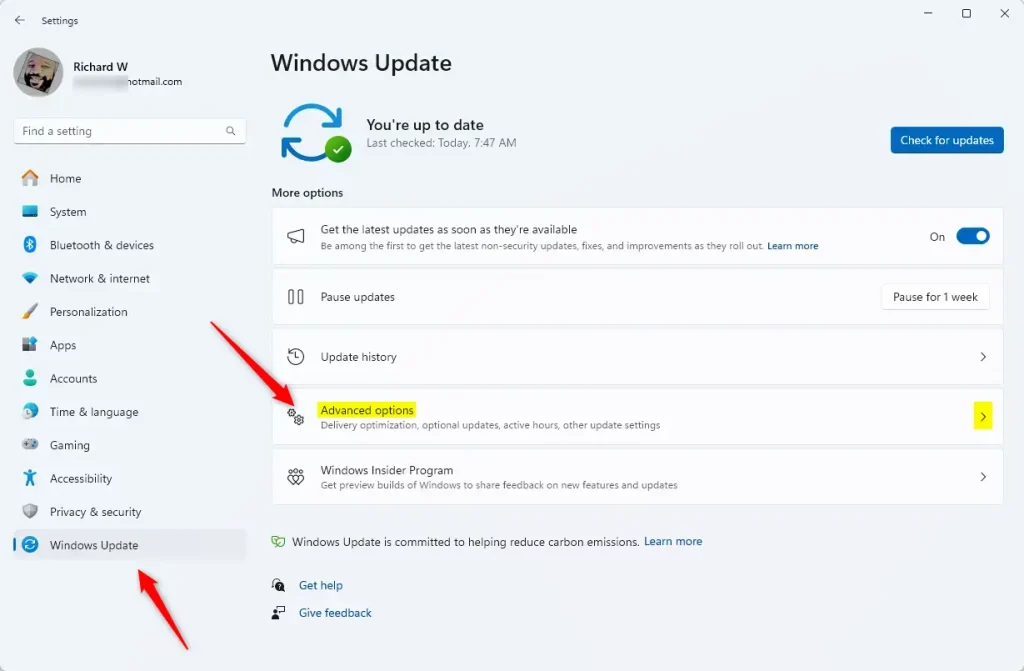
- Look for the Delivery Optimization tile under “Additional options” and click it.
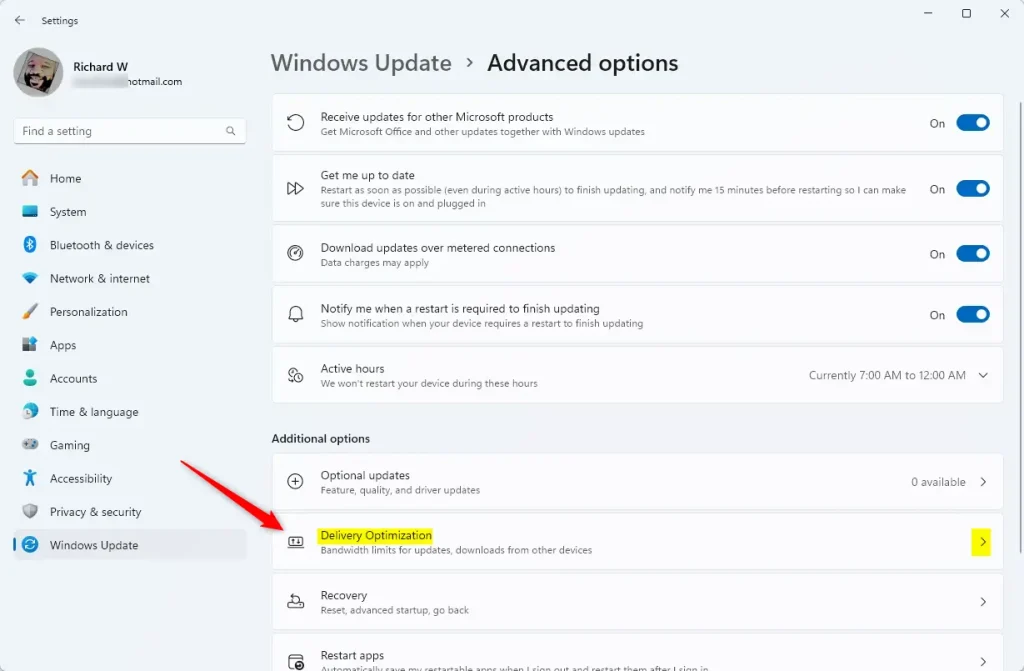
- Click on Allow downloads from other PCs.
- Toggle the switch to On or Off.
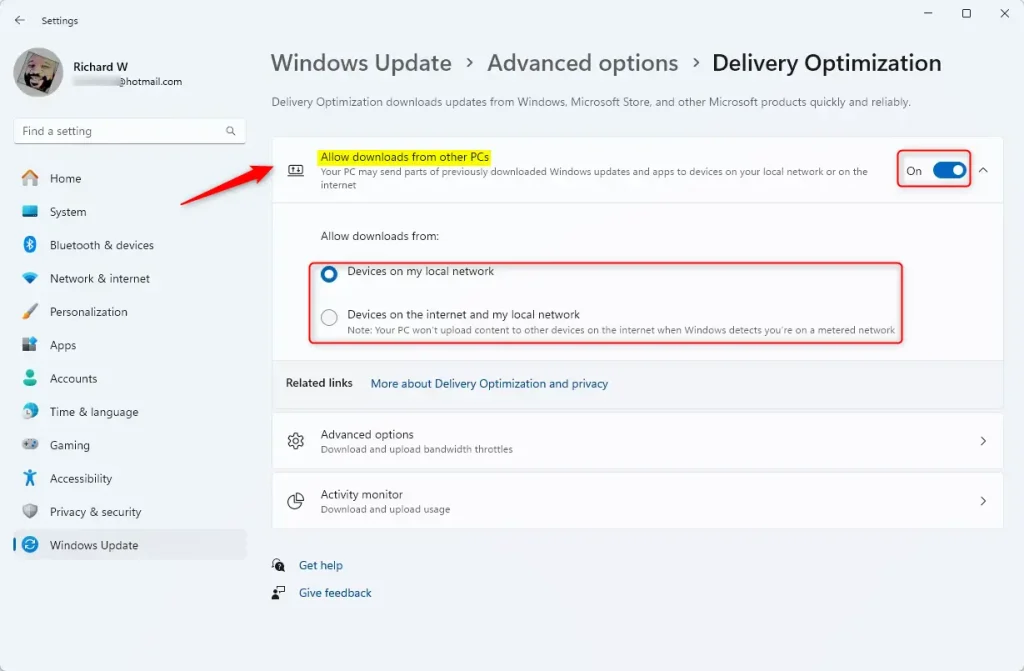
The Settings app is the simplest way to control whether your PC shares update files with other PCs. It works the same on Windows 11 Home and Pro, and the change takes effect right away without a restart. These steps are for Windows 11.
- Open Settings Windows Update.
- Click Advanced options. You will see a list of extra update settings.
- Scroll down and click Delivery Optimization.
- Turn the switch next to Allow downloads from other PCs to On or Off. Off stops your PC from sharing and from downloading parts of updates from other PCs.
- If you leave it on, choose where downloads can come from: PCs on my local network or PCs on my local network and PCs on the internet. Local network only is the safer choice if you want to keep upload traffic off your internet connection.
To undo the change, return to the same page and set the switch back. If you want sharing but with limits, the Advanced options page under Delivery Optimization lets you cap the bandwidth used for downloading and uploading updates.
If the setting is greyed out or missing, a work or school policy is probably controlling it. On a managed PC, ask your administrator, because Settings cannot override that policy.
Advanced Method: Using the Registry Editor
You can also change Delivery Optimization with the Registry Editor, a tool for viewing and changing low-level system settings. This is useful if you prefer not to use the Settings app or you want to apply the change by script. Be careful with it. A wrong edit can cause serious Windows problems.
Before you start, back up the registry. In Registry Editor, use File Export to save a copy, or create a system restore point. To open the tool, type regedit in the search bar and press Enter. Click Yes if User Account Control asks for permission. You need an administrator account to make these changes. Then go to the registry path and values shown in the steps below.
- Press the Win, type
regedit, and press Enter. - Navigate to:
HKEY_LOCAL_MACHINE\SOFTWARE\Policies\Microsoft\Windows\DeliveryOptimization - Look for
DODownloadMode. If it is not there, right-click, select New DWORD (32-bit) Value, and name itDODownloadMode. - Double-click
DODownloadModeand enter:- 0Disable Delivery Optimization.
- 1Enable for local network only.
- 3Enable for local network and the internet.
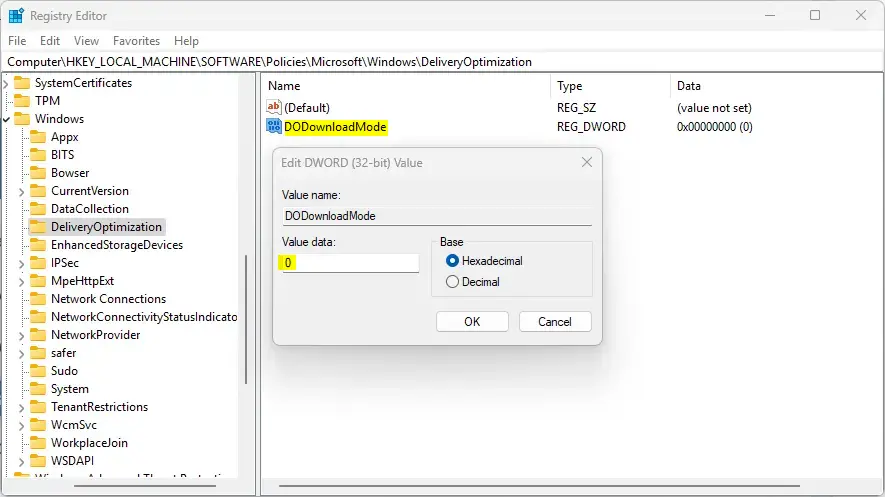
Restart your computer to apply the registry changes. Changes made in the Settings app do not need a restart. If you made a mistake in the registry, you can import the backup you exported (File Import in Registry Editor) or restore from your restore point.
How to Clear the Delivery Optimization Cache
Delivery Optimization keeps a cache of update files so it can share them. If you are short on disk space, you can clear that cache.
- Open Settings System Storage.
- Click Temporary files. Windows scans for files it can remove, which can take a few moments.
- Tick the box next to Delivery Optimization Files. Untick anything else you want to keep.
- Click Remove files. Windows deletes the cached files and the list updates.
This only removes cached copies, so it is safe. Windows may download some update files again later if it needs them.
Summary
Windows Update Delivery Optimization speeds up updates by using P2P technology. It is efficient, but it can use your upload bandwidth and some disk space for its cache. You can manage it in the Windows Settings app, which is the easiest route and applies immediately, or through the Registry Editor, which needs a backup and a restart. Always monitor your data usage if you have a limited internet plan, and limit sharing to your local network or turn it off if bandwidth is tight.
Frequently asked questions
Should delivery optimization be on or off?
Keep it on for most people. It saves download time and bandwidth, and Windows checks every piece it receives. Turn it off if you use a metered or slow connection, want to stop uploading update files to other PCs, or need tighter control over background data use.
What is Windows delivery optimization?
Delivery Optimization is a Windows feature that downloads parts of updates and Microsoft Store apps from other PCs, not only from Microsoft's servers. Those PCs can be on your local network or on the internet. Your PC can also send pieces it has already downloaded to other devices.
How do I disable the bandwidth limit in 🪟 Windows 11?
Open Settings, then go to Windows Update Advanced options Delivery Optimization Advanced options. Under Download settings, uncheck the Absolute bandwidth boxes for both foreground and background downloads. Choose Percentage of measured bandwidth or leave the limits off to remove the cap.
Is it okay to remove delivery optimization files?
Yes, it is safe. These files are temporary copies of update pieces, and Windows downloads new ones when it needs them. Deleting them frees disk space. Open Storage Sense or Disk Cleanup and select Delivery Optimization Files to remove them.
Still have a question?
Answered by AI from this guide. Good questions may be added to this page — please don't include personal details.
Did this guide fix your problem?

About the Author
Richard
Tech Writer, IT Professional
Richard is a writer at Geek Rewind who turns complex IT tasks into clear, step-by-step guides. He draws on years of hands-on experience in system administration and enterprise IT operations, focusing on Windows, Linux and WordPress: the problems people actually run into, and the fixes that work. His server and WordPress guides come from systems he runs himself. Richard builds and maintains the platform behind Geek Rewind, from its Ubuntu servers and Nginx configuration to its custom WordPress plugins. Many new tutorials start with readers' questions, and he's always glad to answer them in the comments.
Absolutely DOES NOT WORK.,
it is not working