How to Disable Driver Signature Enforcement in Windows 11

Driver signature enforcement in Windows 11 is a built-in security check. It blocks any kernel-mode driver that lacks a valid digital signature from Microsoft. Turning it off lets you install older, custom, or test drivers that Windows normally rejects.
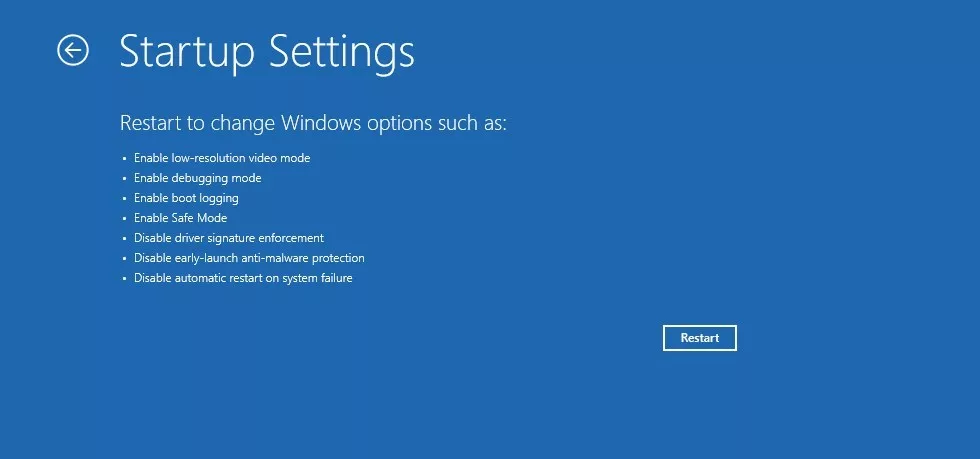
The usual way is the Startup Settings menu. Hold down the Shift key while you click Restart. Your PC reboots into a blue recovery screen. There you choose Troubleshoot, then Advanced options, then Startup Settings. The change lasts for one session only, and the next normal restart turns enforcement back on.
Restart into Advanced Startup by going to Settings System Recovery, clicking Restart now under Advanced startup, then selecting Troubleshoot Advanced options Startup Settings. Press 7 when the numbered menu appears. Driver signature enforcement turns off for that session only; restart normally to re-enable it.
What is Driver Signature Enforcement?
Driver signature enforcement only lets device drivers that are digitally signed and approved by Microsoft run on your PC. This blocks untrusted code and a lot of malware. It also gets in the way if you own older hardware, or if you are building or testing a driver, and the driver has no Microsoft signature. In that case you need to turn enforcement off temporarily.
Typical examples are a scanner or lab device whose maker stopped publishing updates, or a driver you compiled yourself. Windows refuses to install these with an error about the driver not being digitally signed. Switching enforcement off for one session gets you past that error.
Important Note
- Disabling driver signature enforcement makes your computer less secure. An unsigned driver runs with full kernel access, so a bad one can crash the system or hide malware.
- Only disable it if you trust the driver you want to install and you know where it came from.
- The setting works for Home and Pro editions alike.
How to Turn Off Driver Signature Enforcement in 🪟 Windows 11
It bypasses Microsoft’s driver checks for that one session so you can install unsigned software. Do this only if you completely trust the driver you plan to add. Save your work first, because you will restart the PC.
- Turn off BitLocker and Secure Boot (if enabled).
- BitLocker is a security feature that encrypts your drive. Secure Boot protects your PC from malicious software during startup. Either one can get in the way of changing startup behavior.
- If your drive is encrypted, keep your BitLocker recovery key handy. Changing startup settings can make Windows ask for it.
- You can read how to turn off BitLocker here and how to disable Secure Boot here.
- Restart Windows into Advanced Startup mode.
- Click Start > Settings > System > Recovery.
- Under Recovery options, click the Restart now button next to Advanced startup.
- Windows may warn you that it is about to restart. Click Restart now again to confirm.
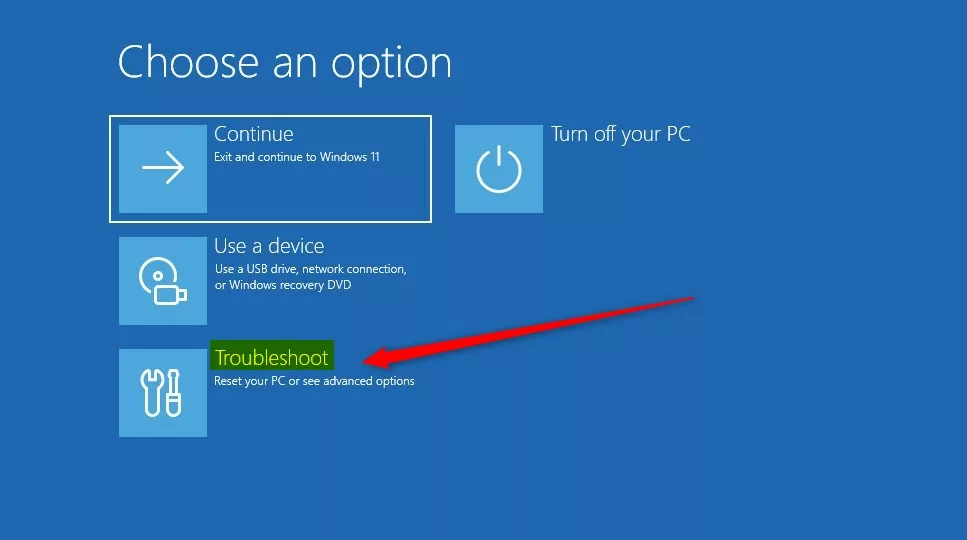
- When Windows restarts, select Troubleshoot. You should see a blue screen with a short list of options.
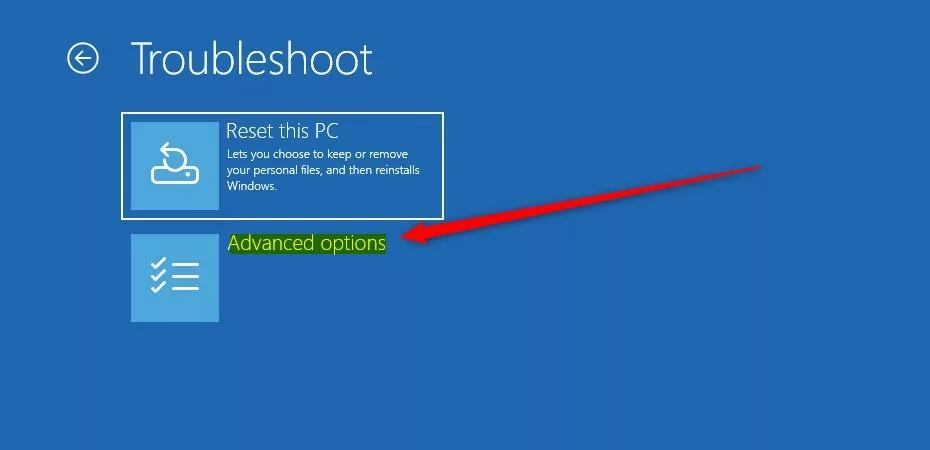
- Click Advanced options.
- Select Startup Settings. If you don’t see it, look under the advanced options list. It only appears when Windows can boot into recovery in the normal way.
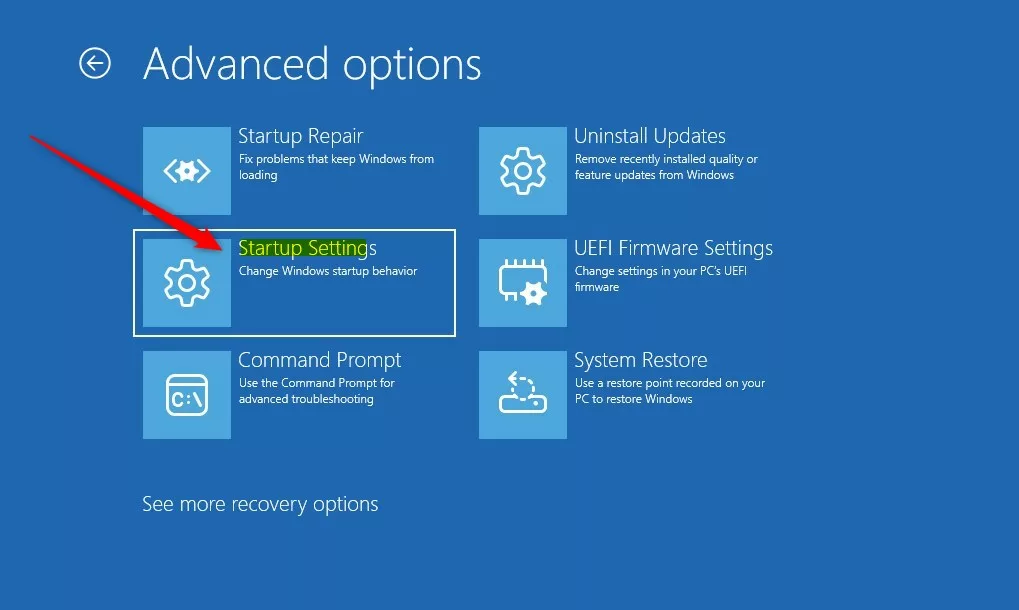
- Click Restart. The PC reboots again and shows a numbered list of startup settings.
- After your PC restarts, press 7 or F7 on your keyboard to choose Disable driver signature enforcement. Windows then continues to boot.
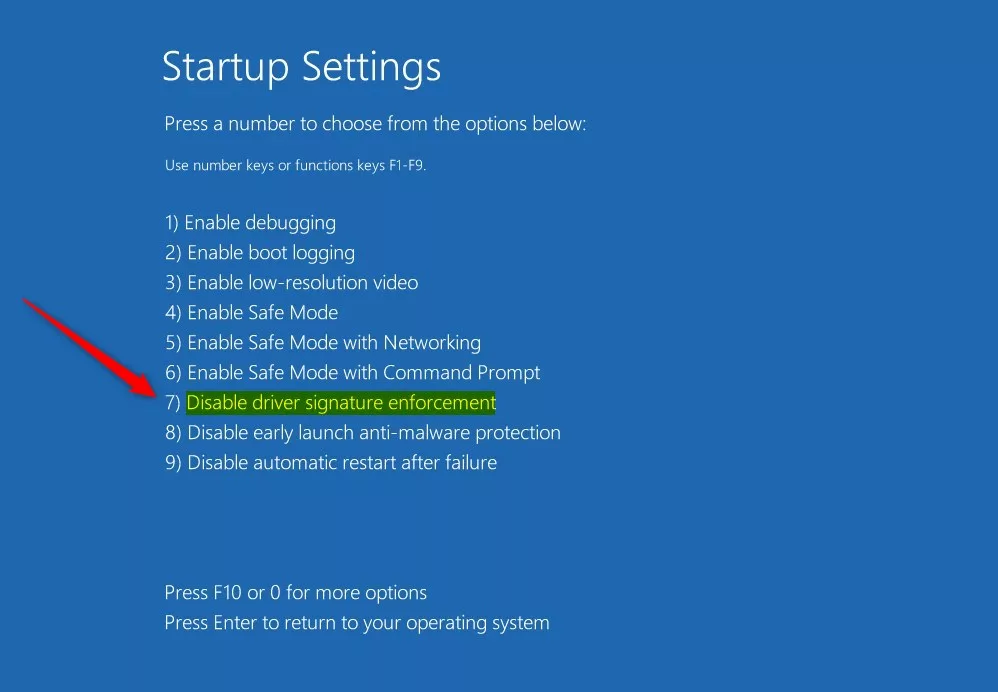
Your PC will now start normally, but driver signature enforcement is turned off for this session. You can install your unsigned drivers while this mode is active. Do the install right away, before you restart again.
To turn driver signature enforcement back on: restart your PC normally. You don't need to change anything. If you go through the Startup Settings screen again, don't press 7 or F7. Just let Windows boot, and the check is active again. Drivers you already installed usually keep working, but Windows may refuse to load an unsigned one after a later update.
How to Enable or Disable Driver Signature Enforcement Using Command Prompt
It is a quick alternative to the graphical startup menu if you are comfortable in a terminal. Unlike the Startup Settings method, this change stays in place until you reverse it. It may also be ignored on PCs with Secure Boot turned on, so use the menu method if the command has no effect.
- Make sure BitLocker is off and Secure Boot is disabled (see the links above).
- Open Windows Terminal as an Administrator. You can read how to open Windows Terminal as admin here. If Windows asks whether to allow the app to make changes, click Yes.
- Switch to the Command Prompt tab inside Windows Terminal. The prompt should show a path like C:\Windows\system32.
- To disable driver signature enforcement, type this command and press Enter:You should see a message that the operation completed successfully.Code
bcdedit /set nointegritychecks on
- To enable driver signature enforcement again, type this command and press Enter:Code
bcdedit /set nointegritychecks off
- Restart your computer to apply the change.
Note that the original version of this guide had the two commands the wrong way round. The setting is called "no integrity checks", so on turns the checks off and off turns them back on.
Summary
- Driver signature enforcement keeps your Windows 11 PC safe by only allowing trusted, signed drivers.
- You can turn this feature off to install unsigned drivers when you need to.
- Use the Advanced Startup menu for a one-session change, or Command Prompt for a change that stays until you reverse it.
- Only install drivers from sources you trust.
Driver signature enforcement protects your system by blocking unsigned software. You can turn it off through the Advanced Startup menu or Command Prompt when you need to install a trusted custom driver. Once the install is done, turn the protection back on. Also turn BitLocker and Secure Boot back on if you disabled them, so your Windows 11 computer is fully protected again.
Have a question about this guide?
Answered by AI from this guide. Good questions may be added to this page — please don't include personal details.
Did this guide fix your problem?

About the Author
Richard
Tech Writer, IT Professional
Richard is a writer at Geek Rewind who turns complex IT tasks into clear, step-by-step guides. He draws on years of hands-on experience in system administration and enterprise IT operations, focusing on Windows, Linux and WordPress: the problems people actually run into, and the fixes that work. His server and WordPress guides come from systems he runs himself. Richard builds and maintains the platform behind Geek Rewind, from its Ubuntu servers and Nginx configuration to its custom WordPress plugins. Many new tutorials start with readers' questions, and he's always glad to answer them in the comments.
No comments yet — be the first to share your thoughts!