How to Start Windows 11 in Safe Mode

- 4 ways to do it
- Needs administrator rights
- Includes a restart or sign-out
Safe Mode starts Windows 11 with a minimal set of basic drivers and services. It helps you track down and fix stubborn problems. When apps keep crashing or the screen goes black, Safe Mode loads a clean version of Windows without extra software getting in the way.
Use it to remove stubborn malware, track down a bad driver, or back out a broken Windows update. If the PC runs normally in Safe Mode, a recent app or hardware driver is the likely cause. The next step is to uninstall or roll back whatever you changed last.
Access advanced startup options by holding Shift while clicking Restart from the Power menu. Then, navigate to Troubleshoot Advanced options Startup Settings and press the corresponding number key for your desired Safe Mode.
Types of Safe Mode:
- Safe Mode: Starts Windows with only basic drivers and no internet.
- Safe Mode with Networking: Starts Windows with basic drivers plus internet and network access.
- Safe Mode with Command Prompt: Starts Windows with basic drivers and opens a command window instead of the normal desktop. This is for advanced users.
Pick the variant based on the job. Standard Safe Mode is the right choice for most fixes, such as uninstalling a driver or app. Choose Networking if you need to download a driver, run an online scanner, or reach a network share. Command Prompt is for command-line repair work when you can’t or don’t want to use the desktop. You will see the words “Safe Mode” in the screen corners, and the display will look low resolution. That is normal.
How to Start Safe Mode in 🪟 Windows 11
Option 1Use Advanced Startup Settings
Advanced Startup gets you into Safe Mode even when Windows refuses to boot normally. Holding the Shift key while you restart brings up a blue recovery screen with troubleshooting tools. From there you go through Startup Settings to pick the Safe Mode you want. This works on both Windows 11 Home and Pro. You can also do it from the sign-in screen by clicking the Power icon in the lower-right corner.
- Click the Start button, then click the Power icon.
- Hold the Shift key and click Restart. Keep holding the key until the blue screen appears.
- Wait for the PC to restart. You should see a blue screen titled “Choose an option”. Click Troubleshoot.
- Click Advanced options.
- Click Startup Settings. If you don’t see it, click See more recovery options first.
- Click Restart.
- When your PC restarts, you will see a numbered list of startup options. Press the number key or function key for the Safe Mode you want:
| Key to Press | Mode |
|---|---|
| 4 or F4 | Safe Mode |
| 5 or F5 | Safe Mode with Networking |
| 6 or F6 | Safe Mode with Command Prompt |
Windows then boots into the Safe Mode you picked. If the drive is encrypted with BitLocker, you may be asked for your recovery key at this point, so have it ready. To leave Safe Mode with this method, just restart the PC normally.
Option 2Use System Configuration (msconfig)
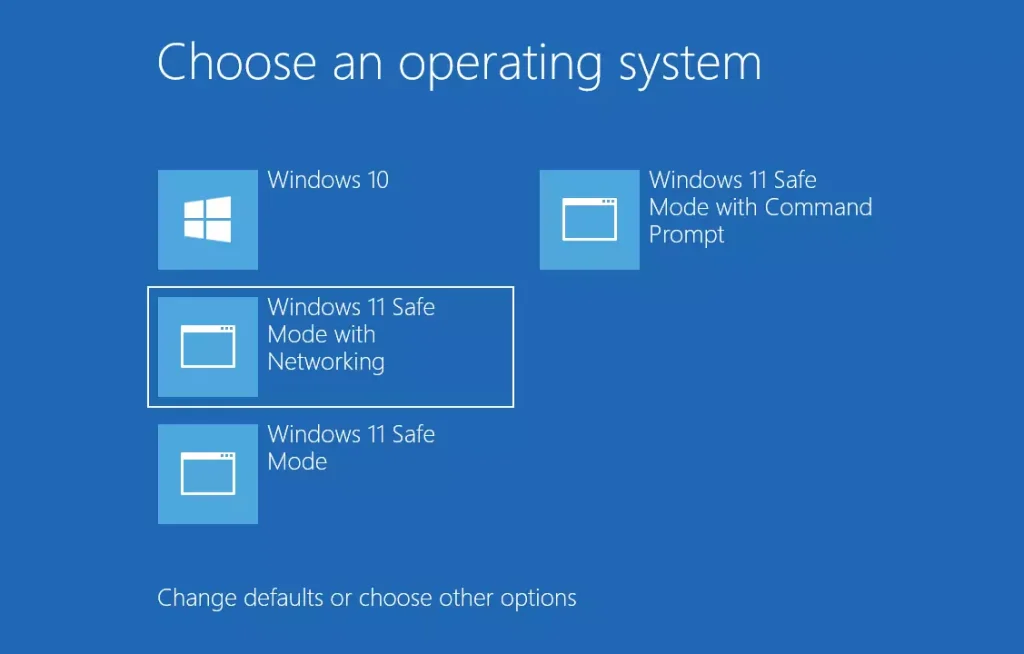
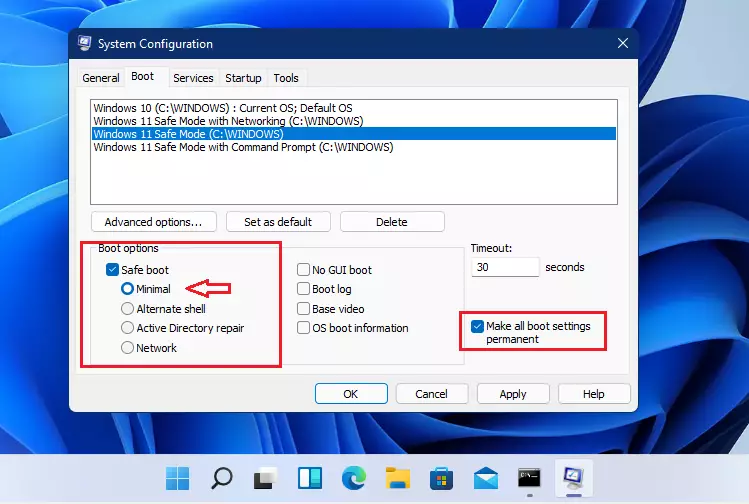
System Configuration (msconfig) lets you set Safe Mode from your normal desktop before you restart. It is useful when you want the next reboot to go straight into a specific Safe Mode. It is available on both Home and Pro. You need an administrator account.
- Press Windows + R, type
msconfig, and press Enter. The System Configuration window opens. - Click the Boot tab.
- Under Boot options, check Safe boot. The options beneath it become available.
- Choose the type of Safe Mode you want:
- MinimalStandard Safe Mode
- NetworkSafe Mode with Networking
- Alternate shellSafe Mode with Command Prompt
- Click OK.
- When asked to restart, click Restart to enter Safe Mode. Choose Exit without restart if you want to finish other work first. The setting stays in place until the next reboot.
Option 3Use Command Prompt
Command Prompt is another way into Safe Mode. You run a command that tells Windows to start in a diagnostic state on the next reboot. It needs administrator rights, because it changes the boot configuration.
- Right-click the Start button and select Windows Terminal (Admin). You can also open Command Prompt as an administrator. Click Yes if User Account Control asks for permission.
- Type one of the following commands and press Enter. The command should report that the operation completed successfully.
| Command | What it Does |
|---|---|
bcdedit /set {current} safeboot minimal | Start in Safe Mode |
bcdedit /set {current} safeboot network | Start in Safe Mode with Networking |
bcdedit /set {current} safeboot minimalbcdedit /set {current} safebootalternateshell yes
| Start in Safe Mode with Command Prompt |
bcdedit /deletevalue {current} safebootbcdedit /deletevalue {current} safebootalternateshell
| Return to Normal Mode |
Restart your computer to apply the changes. As with msconfig, the PC will keep booting into Safe Mode until you reverse the setting. The simplest way to undo it is to open msconfig, clear Safe boot on the Boot tab, and restart.
Option 4Use Command Prompt at Boot
If you are working from a pre-boot command line, such as the Command Prompt in the recovery environment, the default identifier may not point at your Windows installation. Look it up first:
- Type
bcdeditand press Enter. This lists the boot entries on the PC. - Look for the identifier under the Windows Boot Loader section (usually
{default}). - Use the same commands as Option 3, but replace
{current}with your identifier (for example,{default}). - Restart your computer to apply changes.
Important Tips
- Use Safe Mode to find and fix problems by running only essential parts of Windows.
- Choose the Safe Mode version that fits your needs (with or without internet or command prompt).
- After fixing your problem, make sure to restart your computer normally.
Safe Mode helps you isolate software conflicts quickly because only the essential parts of the system are running. Choose the variant that matches the job, and use Networking only when you really need the internet. If you set Safe Mode through msconfig or Command Prompt, undo that setting before your final restart. Otherwise the PC will keep coming back up in Safe Mode.

Have a question about this guide?
Answered by AI from this guide. Good questions may be added to this page — please don't include personal details.
Did this guide fix your problem?

About the Author
Richard
Tech Writer, IT Professional
Richard is a writer at Geek Rewind who turns complex IT tasks into clear, step-by-step guides. He draws on years of hands-on experience in system administration and enterprise IT operations, focusing on Windows, Linux and WordPress: the problems people actually run into, and the fixes that work. His server and WordPress guides come from systems he runs himself. Richard builds and maintains the platform behind Geek Rewind, from its Ubuntu servers and Nginx configuration to its custom WordPress plugins. Many new tutorials start with readers' questions, and he's always glad to answer them in the comments.
No comments yet — be the first to share your thoughts!