How to Update Apps in Windows 11

- 32 steps
- Needs administrator rights
Updating apps in Windows 11 takes a few clicks in the Microsoft Store (the built-in app where Windows downloads and updates apps). Open the Store, select Library, then select Get updates. Windows then downloads every pending update for your Store apps.
Windows Update does not do this job. It patches Windows itself, while Store apps update through the Store, and desktop programs you installed from a website usually update themselves. This guide covers all three, plus how to turn on automatic app updates.
The steps match current Windows 11 versions, including 23H2, 24H2 and 25H2. The Store menus look the same on Home and Pro editions.
Open the Microsoft Store, select Library in the bottom-left sidebar, then select Get updates in the top-right corner. Windows downloads and installs every pending update for your Store apps, with no restart needed. Windows Update does not handle these, and desktop programs installed from websites usually update themselves.
Before You Update Apps
Check three things first so the update does not stall partway.
- Connect the PC to the internet. A metered connection (a connection you have told Windows to treat as limited-data) may pause large downloads.
- Sign in to the Microsoft Store with your Microsoft account. Some updates and purchased apps need it, so sign in before you start.
- Save your work in any open app. The Store sometimes asks you to close an app before it can replace its files.
Updating apps does not delete your documents or app settings. If an update breaks an app, see the guide to resetting apps in Windows 11.
How to Update Apps in Windows 11 from the Microsoft Store
These steps check for and install every available update for apps from the Microsoft Store. This is the fastest way to update them.
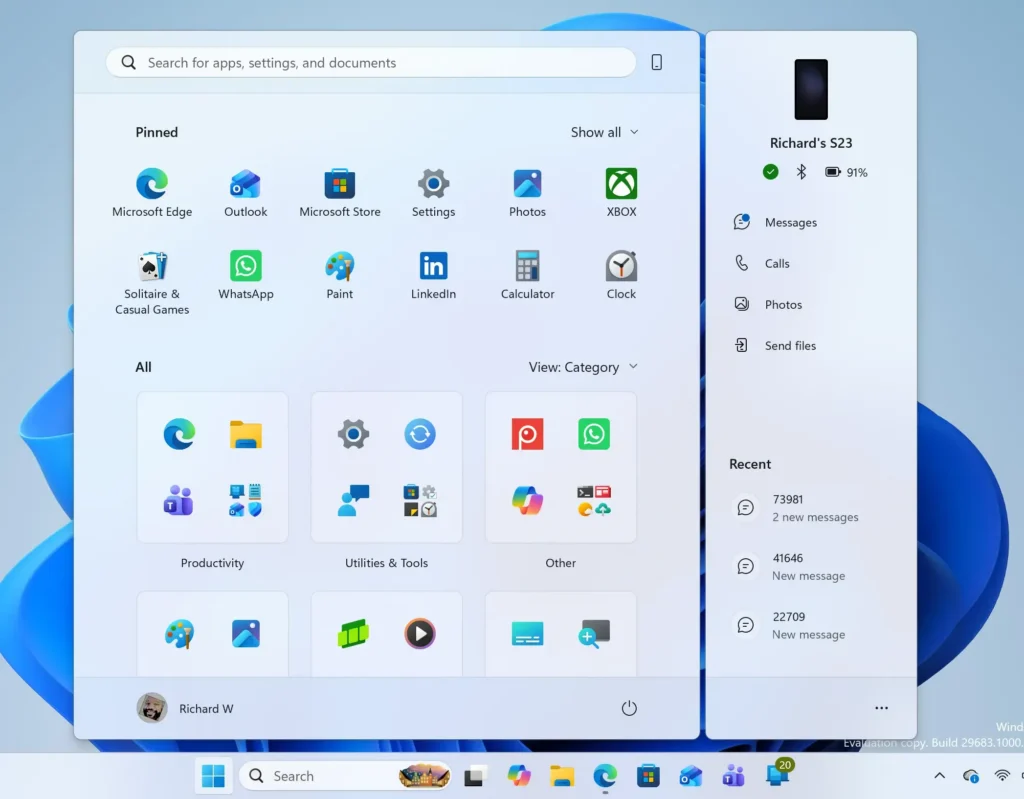
- Open the Start menu. Select the Start button on the taskbar, or press the Win.
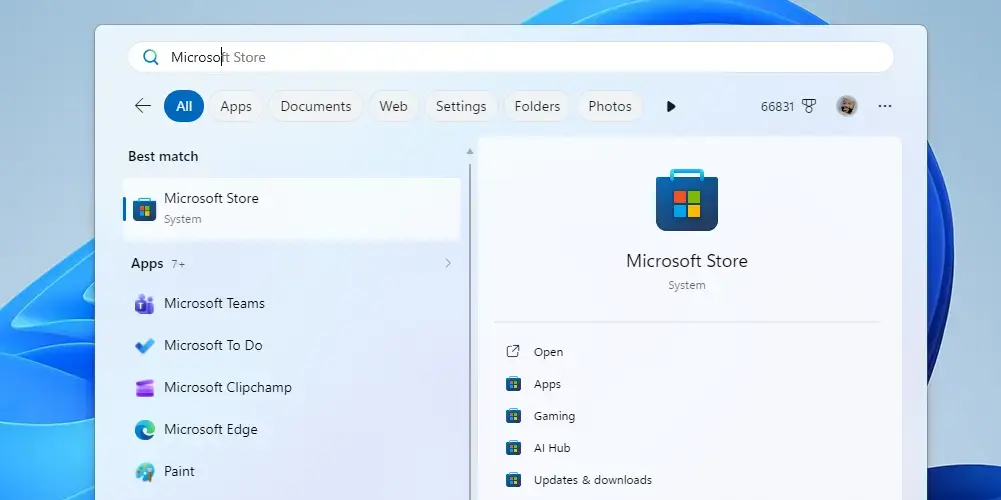
Windows 11 Start menu search panel for opening OpenSSH Client settings - Type “Microsoft Store” and open the result. The Store window opens on its Home page, with a left sidebar of icons.
Start Menu - Select Library. It sits at the bottom of the left sidebar. The page lists the apps installed on your PC.
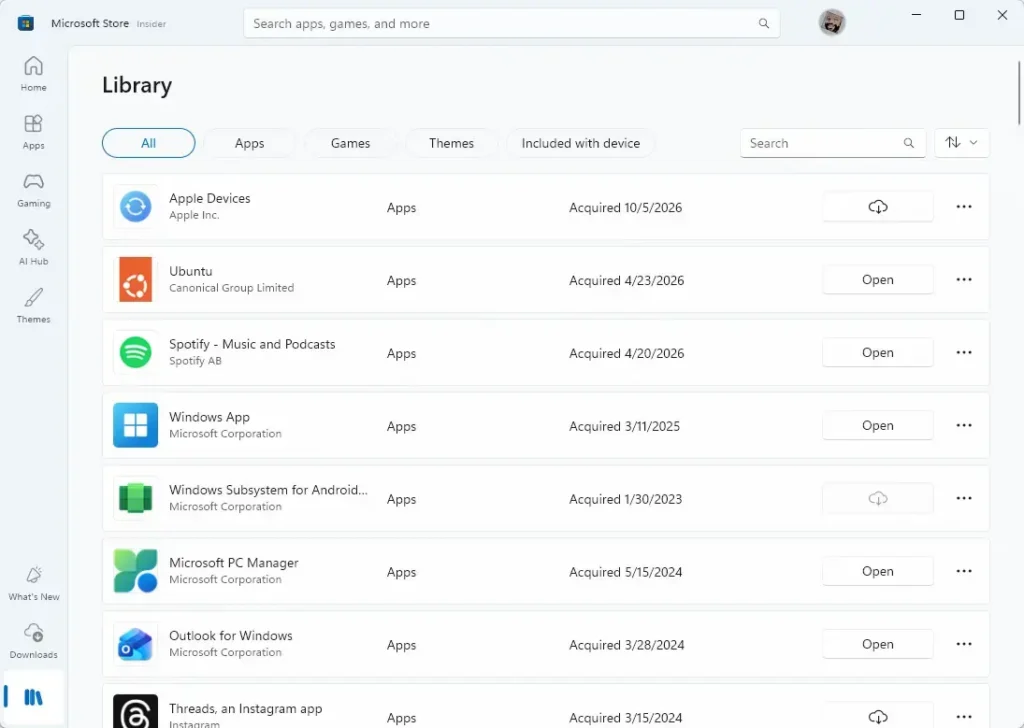
- Select Get updates. The button is in the top-right corner of the Library page. The Store checks every app it manages.
- Wait for the list to refresh. Apps with a pending update show an Update button or a progress bar, and apps that are current show Open.
- Select Update all if the Store shows it. The Store downloads and installs each update in turn. Each row shows a progress bar and then the app returns to Open.
- Select Update next to any app that did not start by itself. Wait for the button to change to Open.
- Close the Store when every row shows Open. Your apps are now on their latest Store versions.
You do not need to restart Windows. If an app was open during its update, close it and reopen it to run the new version.
If the Library page is empty, or Get updates does nothing, jump to the troubleshooting section below. The longer walkthrough in How to Update Microsoft Store Apps on Windows 11 covers the same task in more depth.
How to Update One App Only
Updating a single app saves bandwidth and avoids touching apps that work fine. It is also quicker when you need a fix for one specific app.
- Open the Microsoft Store.
- Select Library.
- Find the app in the list. Scroll down, or use the search box at the top of the Store window.
- Select Update beside the app. If the button says Open instead, the app is already current.
The app’s row shows a progress bar, then changes to Open when the update finishes. If the app was running, the Store may ask you to close it first.
How to Turn On Automatic App Updates
Automatic updates let the Store install new versions in the background, so you rarely need to open the Library. The setting is on by default on most PCs, but check it if your apps fall behind.
- Open the Microsoft Store.
- Select your profile picture. It sits in the top-right corner, next to the search box.
- Select App settings. The settings page opens.
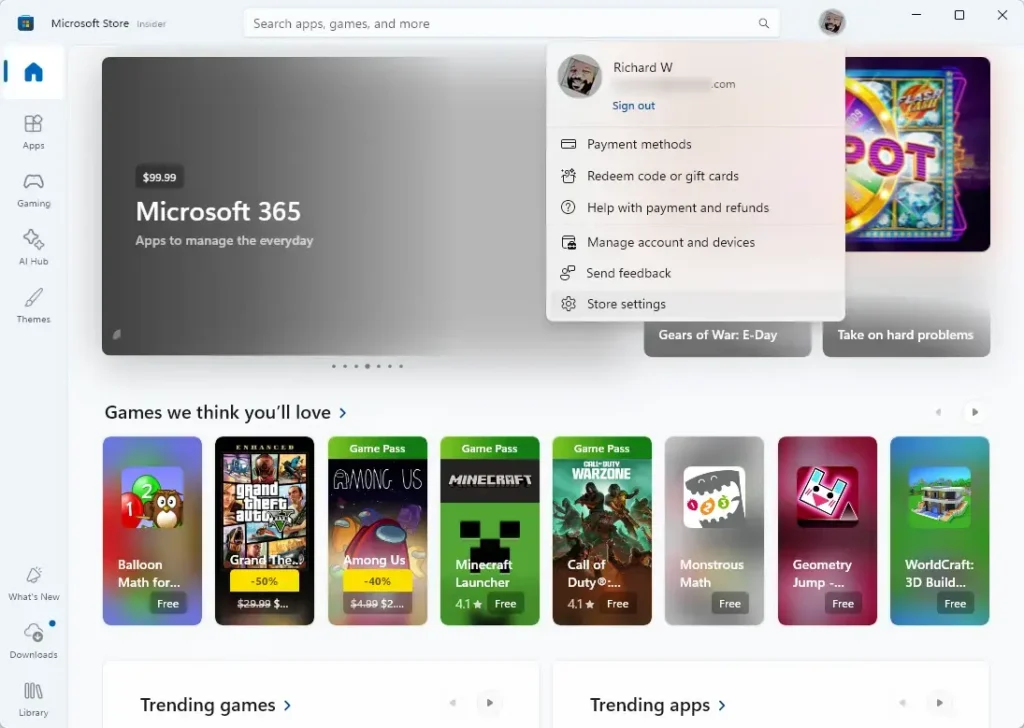
- Find App updates. The toggle may read Update apps automatically.
- Set the toggle to On. The Store then updates your apps in the background whenever it can.
To undo this, set the same toggle to Off. You then update apps by hand with Get updates in the Library.
Some PCs show only part of this page. A work or school PC may hide the setting, because the organization’s IT team controls Store behavior. In that case ask your IT team instead of looking for a workaround.
How to Update Apps Not Installed from the Microsoft Store
Programs you downloaded from a website, such as a browser or a PDF reader, do not appear in the Store Library. Each one updates in its own way. Here are the three most common routes.
Use the App’s Own Update Option
Most desktop apps have an update check in their menus. Look for Help, About, or Settings.
- Microsoft Edge: open the Settings and more menu (the three dots), then select Help and feedback and then About Microsoft Edge. Edge checks for an update. It applies the update when you restart the browser.
- Google Chrome: open the menu, then select Help and then About Google Chrome.
- Microsoft 365 apps such as Word or Excel: open the app, select File, then Account, then Update Options, then Update Now. Office apps installed from the Store update through the Store instead.
If an app has no update menu, download the latest installer from the publisher’s website and run it over the existing version. Your settings normally stay.
Update Many Apps at Once with winget
The Windows Package Manager, called winget, is a command-line tool built into current Windows 11 that finds and updates many installed apps in one go. Use it when you have a lot of desktop programs to bring up to date.
Some installers ask for administrator approval. The steps below flag where a User Account Control prompt (the Windows box that asks “Do you want to allow this app to make changes?”) may appear.
- Right-click the Start button.
- Select Terminal. On some PCs the entry reads Terminal (Admin) or Windows PowerShell (a command-line tool built into Windows). Either works, and administrator rights are needed only for apps that ask for them.
- Type the command below and press Enter. This lists every app that has a newer version available.Command Prompt
winget upgrade - Read the list. The columns show the app name, its current version and the available version.
- Type the command below and press Enter. This installs every update on the list. Some apps need administrator privileges, so approve the User Account Control prompt when it appears.Command Prompt
winget upgrade --all - Wait for each update to finish. The terminal prints progress for each app.
Some apps cannot update while they are open. Close them first and run the command again. If winget lists an app but cannot update it, the app usually needs its own installer or update menu.
How Windows Update Fits In
Windows Update patches the operating system, security fixes and some drivers. It is a separate tool from the Store. To check it, open Settings Windows Update and select Check for updates.
Run both when you want a fully current PC. Install Windows updates first, then update your apps. This order matters if the Store itself needs a newer Windows component before it can update an app.
How to Fix App Updates That Will Not Install
Most failed updates come from a stuck Store, a full drive or a blocked connection. Work down this list in order. Each fix is small and none removes your apps.
Get Updates Does Nothing or the List Stays Empty
Close the Store completely, then open it again and select Library and Get updates. Check that you are online and that the clock is correct. Wrong date or time settings can stop the Store from connecting to Microsoft’s servers.
If the list is still empty, sign out of the Store and sign in again. Select your profile picture in the top-right corner and choose Sign out, then sign back in.
An Update Sits on Pending or Will Not Finish
Check free space on drive C: first. Large updates need room to download and unpack. Open Settings System Storage to see how much space is left.
Next, close the app being updated. Check Task Manager (press Ctrl+Shift+Esc) if the app seems closed but is still running in the background. The Store cannot replace files that an app is using.
Clear the Store Cache with wsreset
The wsreset command clears the Store’s cache (temporary data it keeps). It does not remove apps or your account. This step does not need administrator rights.
- Press Win+R. The Run box opens.
- Type
wsreset.exein the Run box and press Enter. A blank Command Prompt window (a text-based window for typed commands) opens. - Wait. The window closes by itself and the Microsoft Store opens.
- Select Library, then Get updates, and try the update again.
Repair or Reset the Microsoft Store App
- Open Settings Apps Installed apps.
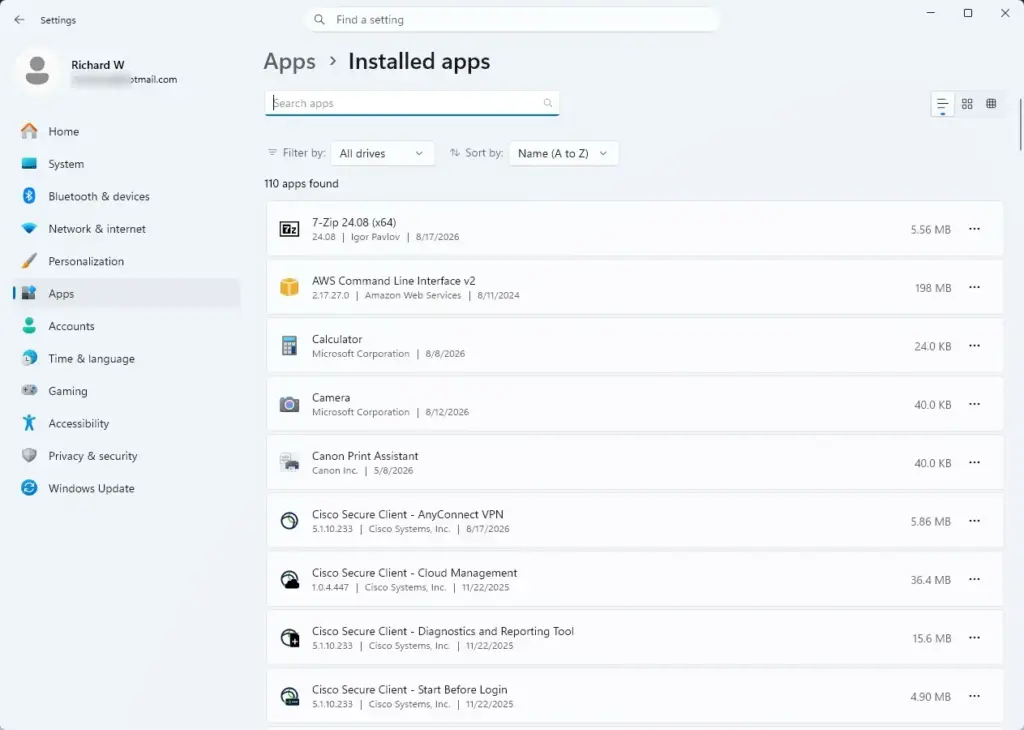
Settings › Apps › Installed apps - Find Microsoft Store in the list.
- Select the three-dot menu beside it, then select Advanced options.
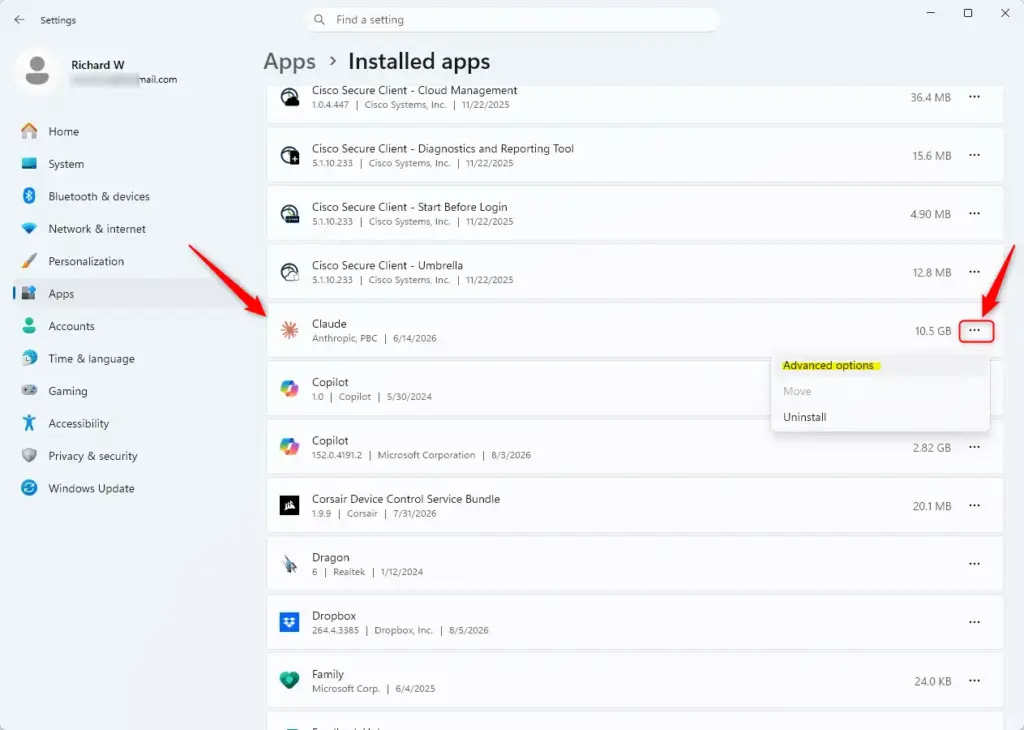
Settings > Update > Advanced options - Select Repair and wait for the check mark to appear.
- Select Reset only if Repair did not help, then confirm.
The same Repair and Reset options exist for other apps, which is covered in the guide to resetting apps in Windows 11.
The Store Is Blocked or Missing Options on a Work PC
Organizations can restrict the Microsoft Store or turn off automatic updates. If the Store shows a message that your administrator has blocked it, or the App updates setting is missing, the restriction comes from your organization. Your account cannot turn the Store back on. Contact your IT team.
The Store may also refuse to install apps from sources you have restricted. To review that choice, see How to Choose Where to Get Apps in Windows 11.
Keep Your Apps Tidy Between Updates
Updates add up over time, so a few housekeeping habits help. Remove apps you no longer use with the steps in How to Uninstall Apps in Windows 11. Fewer apps means fewer updates to download.
If your system drive runs low on space, you can move where new apps install. The guide on changing where new apps will save to in Windows 11 explains the setting. You can also turn Archive apps on or off to let Windows shrink apps you rarely open.
If This Didn’t Work
Your account keeps its purchases, and the Store downloads the newest version. Follow How to Uninstall Apps in Windows 11 to remove it cleanly. To stop automatic updates later, return to App settings in the Store and turn App updates off.
Frequently asked questions
How to pin apps to Windows 11 taskbar efficiently?
Right-click an app's icon and choose the option to pin it to the taskbar. A pinned app stays on the taskbar after you close it and after a restart, so one click opens it. Pin only the few apps you use every day, since a crowded taskbar makes the one you want harder to find.
How to update to the latest build of Windows 11 preview?
Preview builds come from the Windows Insider Program, which lets you opt in to early versions of Windows before they reach everyone. Previews can have bugs, and moving back to a stable release is not always easy. Back up your files first, and use a spare or test PC if you can.
How to pin apps to start menu in Windows 11?
Pin an app to the Start menu by right-clicking it and choosing the option to pin it, either from search results or from the Start menu itself. Pinned apps stay in Start for quick access. You can remove a pin the same way you added it.
How to set default apps in Windows 11?
Set default apps in Windows 11 from Settings, where you choose which app opens a file type, such as PDFs, or a link type, such as web pages. Pick the app you want, and Windows uses it from then on. Some apps, like browsers, may ask you to confirm the change inside the app itself.
How to uninstall apps in Windows 11?
Uninstall an app from the Installed apps list in Settings, found under Settings Apps Installed apps. Find the app, open its menu, and choose Uninstall. Microsoft Store apps can be reinstalled later, and your account keeps their purchases. For programs that will not remove cleanly, see How to Uninstall Apps in Windows 11.
How to change default apps in Windows 11?
Change the default app by choosing a different app for a file type in Settings. If a file opens in the wrong program, find its file type, such as .pdf, and pick the app you prefer. Windows applies the new choice to every file of that type. Browsers and some other apps may ask you to confirm the switch.
Still have a question?
Answered by AI from this guide. Good questions may be added to this page — please don't include personal details.
Did this guide fix your problem?

About the Author
Richard
Tech Writer, IT Professional
Richard is a writer at Geek Rewind who turns complex IT tasks into clear, step-by-step guides. He draws on years of hands-on experience in system administration and enterprise IT operations, focusing on Windows, Linux and WordPress: the problems people actually run into, and the fixes that work. His server and WordPress guides come from systems he runs himself. Richard builds and maintains the platform behind Geek Rewind, from its Ubuntu servers and Nginx configuration to its custom WordPress plugins. Many new tutorials start with readers' questions, and he's always glad to answer them in the comments.
No comments yet — be the first to share your thoughts!