How to Uninstall Apps in Windows 11

Uninstalling apps in Windows 11 removes software you no longer use, which frees up storage space and can cut down on background activity. You can do it from the modern Settings app or from the classic Control Panel . The right choice depends on how the program was installed.
Apps from the Microsoft Store come off cleanest through the Installed apps page in Settings. Older desktop programs, the kind you installed from an .exe or .msi file, are often best removed with Programs and Features in Control Panel . That tool runs the program’s own uninstaller, which helps stop leftover files from staying on your drive. Most of the time either route works, so use whichever you find first.
Open Settings , click Apps, then Installed apps, find the program you want to remove, click the three dots next to it, and select Uninstall. Confirm the prompt, and the app is removed from your PC.
Why Uninstall Apps?
Every app takes up disk space, and many also add startup entries, background services or scheduled tasks. Removing software you never open gives a Windows 11 PC more free space, especially on small SSDs. It can also shorten boot time and cut background activity, which helps on older or low-memory machines.
It is also good security housekeeping. Old programs that no longer get updates are a common weak spot, so fewer installed apps means fewer things to keep patched.
Types of Apps in 🪟 Windows 11
Windows 11 splits your software into two types: desktop apps and Windows apps. Desktop apps are traditional programs you download from the internet or install from a disc. Windows apps come pre-installed with Windows or download through the Microsoft Store. Knowing which type you have tells you which uninstall method to try first.
- Desktop apps: These are traditional programs like web browsers, games, or tools. You usually download them from the internet or the Microsoft Store. Each one normally comes with its own uninstaller, and that is what Windows runs when you remove it. You may see a User Account Control prompt asking for administrator approval.
- Windows apps: These apps come built-in or are downloaded from the Microsoft Store. All users on your PC can access them. Some built-in apps are part of the system, so their Uninstall option may be greyed out or missing. You can’t remove those through the normal menus.
How to Uninstall Apps Using Settings
The Settings method works like this: open Settings, go to the apps list, and choose Uninstall from the menu next to the program you want gone. This one page handles both standard desktop programs and Microsoft Store software, so it is the best place to start. The steps below match current Windows 11 (22H2 and later). The page is called Installed apps there. In the original 21H2 release it was called Apps & features.
Step 1: Open Settings. Press Win + I on your keyboard, or click Start and select Settings. The Settings window opens with a list of categories down the left side.
The Apps section of Settings lists every program installed on the computer. Once you find the app you want in that list, its uninstall option is a click or two away.

You should now see the Settings window open, with the category list on the left.
Step 2: In the Settings window, click Apps in the list on the left side. The right-hand pane changes to show app-related options.
Step 3: Click Apps & features on the right side. On newer builds of Windows 11 this entry is named Installed apps. It is the same page under a newer name. You should now see a long list of installed programs with their sizes and install dates.
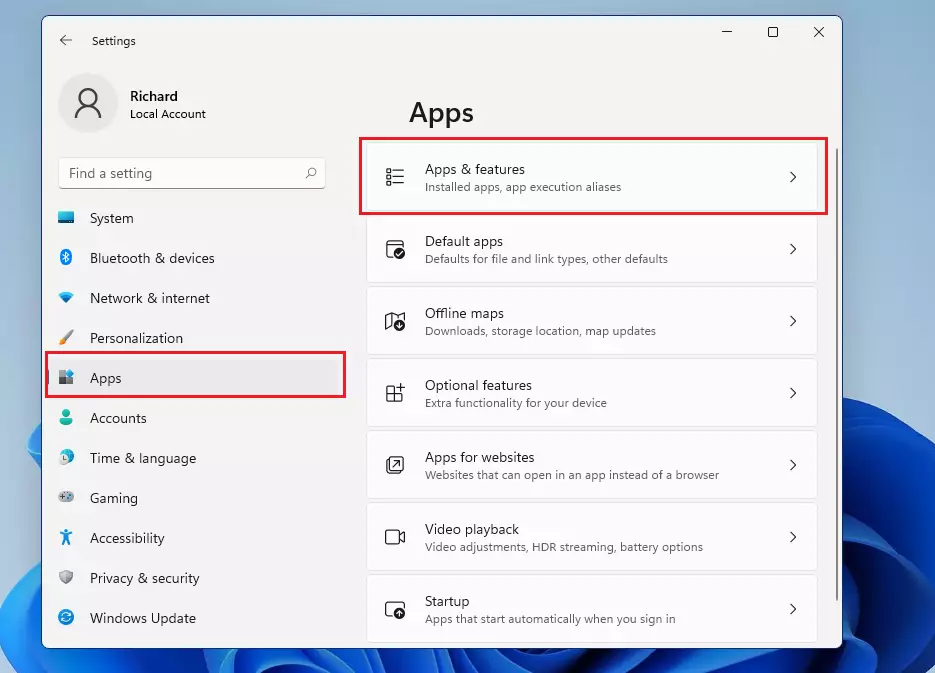
This is the list you will work from. If the page looks different on your PC, check which Windows 11 version you are running.
On a PC with many apps, it is faster to type the app's name into the search box at the top of the list. You can also change the sort order to Size to see which apps take up the most space.
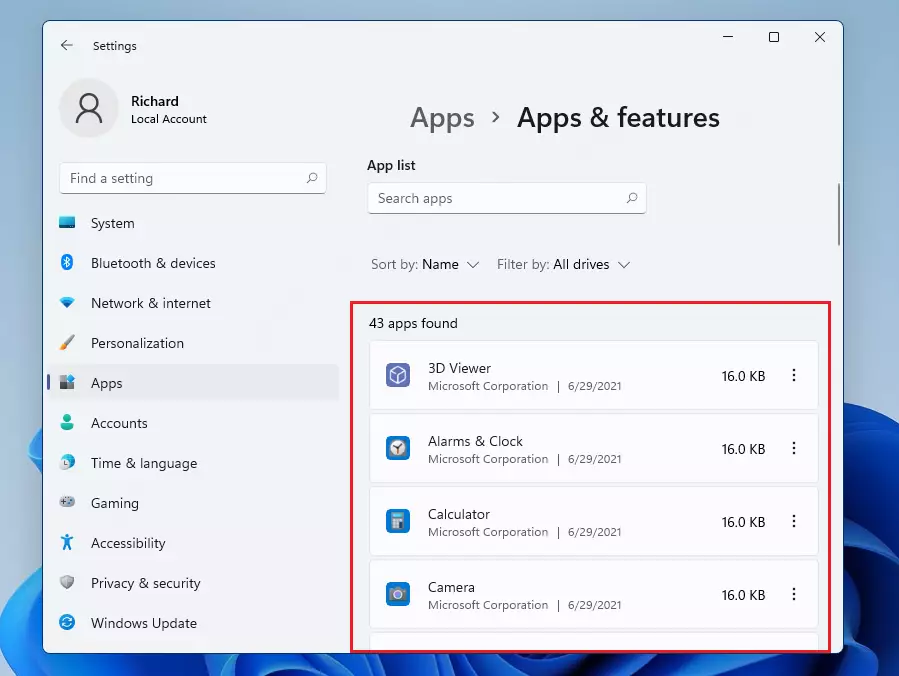
Some entries have similar names, such as multiple Microsoft Visual C++ packages, and removing the wrong one can break other programs.
Step 5: Click the three dots next to the app name. A small menu opens. Click Uninstall, then click Uninstall again in the confirmation pop-up if Windows asks. If Uninstall is greyed out, the app is a protected system component and Windows won't let you remove it here.
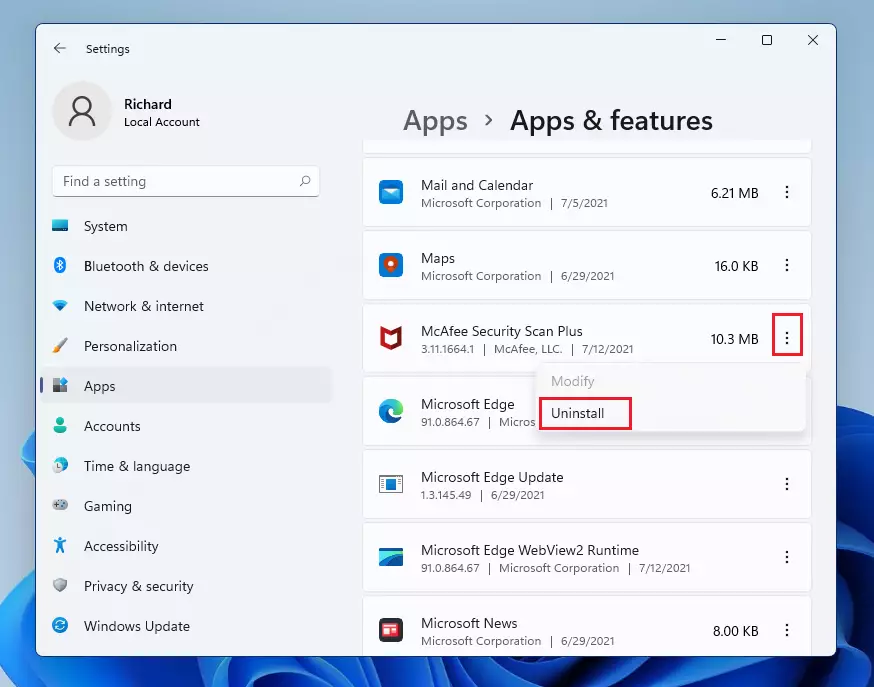
The menu should now show Uninstall. Some apps also offer Advanced options or Modify.
Follow the prompts appearing on screen to complete the removal. Desktop programs may open their own uninstall wizard and ask for administrator approval. What happens? The system removes the application from storage and it disappears from the list. Some programs ask for a restart to finish cleaning up, so save your work first. Documents and settings the app stored in your own folders may stay behind, and you can delete them by hand if you don't need them. To get the app back, reinstall it from the Microsoft Store or from the original installer.
How to Uninstall Apps Using Control Panel
You can also uninstall apps from Control Panel by searching for the classic tool in the Start menu and opening the programs list. This older interface is a reliable fallback when Settings fails to remove stubborn legacy software. It lists desktop programs only, so Microsoft Store apps won't appear in it. Control Panel is the same on Windows 11 Home and Pro.
Step 1: Click the Start button. Type "Control Panel" into the search box. Then click the Control Panel result to open it. The Control Panel window opens, usually in Category view.
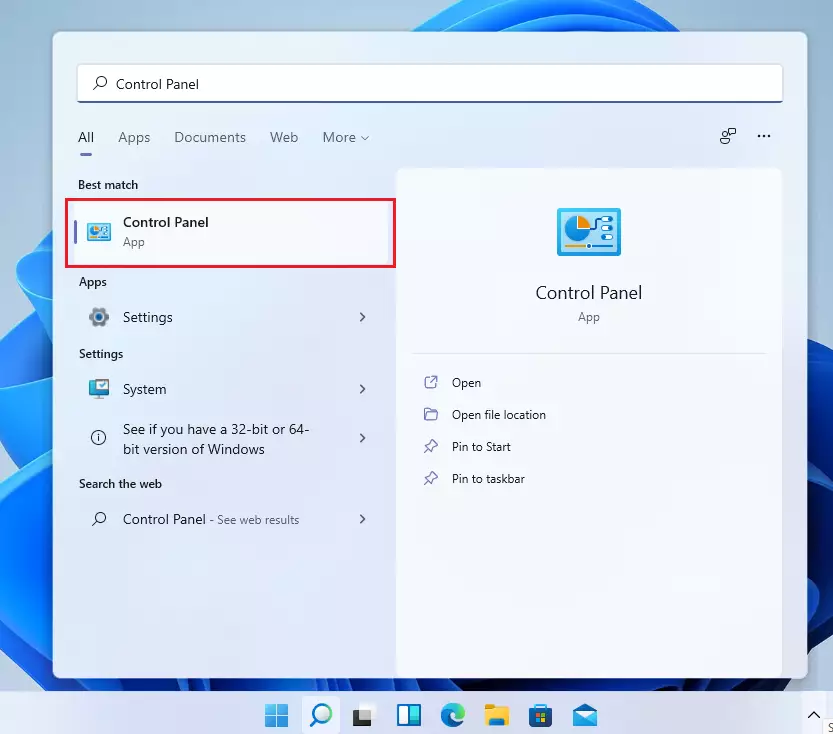
If your Control Panel shows many small icons instead of categories, the Programs and Features entry is right on the main screen. You can click it directly.
Step 2: In Control Panel, click Programs. Then click Programs and Features (or "Uninstall a program"). A list of installed desktop programs appears.
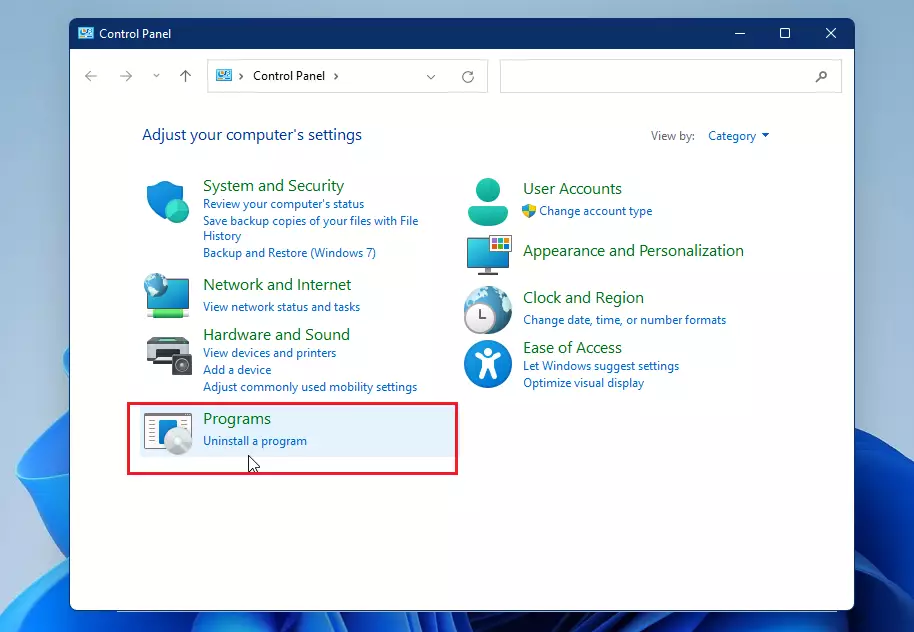
The list shows each program's name, publisher, install date and size. Click the Name or Size column header to sort it.
Step 3: Find the program to remove in the list and select it. Then click Uninstall/Change at the top. Right-clicking the app and selecting Uninstall/Change works equally well. For some programs the button reads just Uninstall. For others it also offers Change or Repair, which is useful if the program is misbehaving and you only want to fix it.
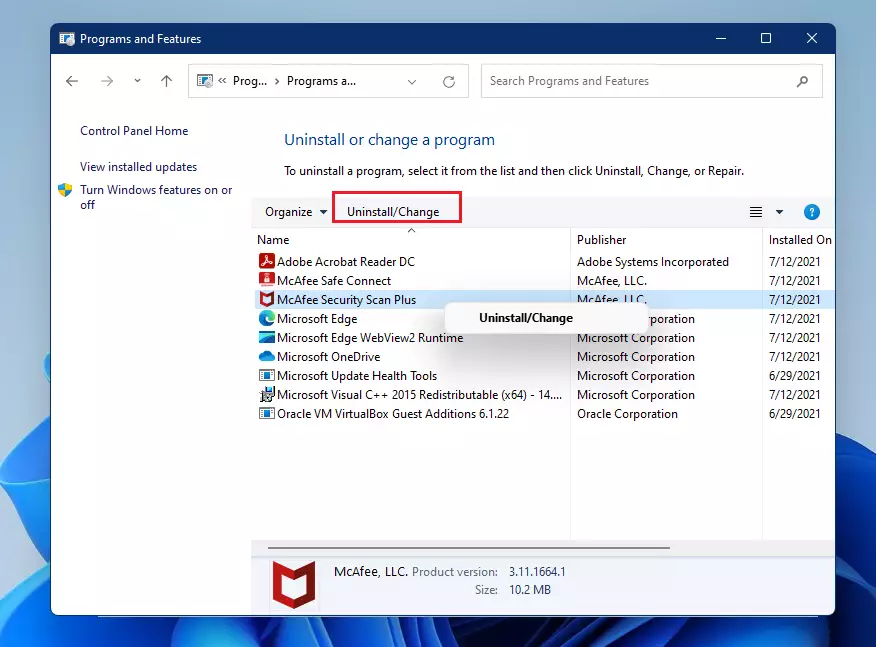
An uninstall wizard or a confirmation prompt should now open. Approve the User Account Control prompt if one appears.
Follow the uninstall instructions that appear. What happens? The program is removed from the computer and drops off the list. Click away and back to Programs and Features to refresh the list if it still shows. If the program asks for a restart, do it before you reinstall the same software, because leftover files can cause problems.
How to Uninstall Desktop Apps from the Start Menu
If you don't want to open Settings or Control Panel, you can remove apps straight from the Start menu. This is the fastest method for apps you can already see in Start. Here is how:
- Click the Start button and find the app you want to remove. If you don't see it under Pinned, click All apps or just start typing its name.
- Right-click the app. A context menu opens.
- Select Uninstall. For a Microsoft Store app, Windows asks you to confirm. For a classic desktop program, this opens the Programs and Features list in Control Panel, where you pick the program and click Uninstall.
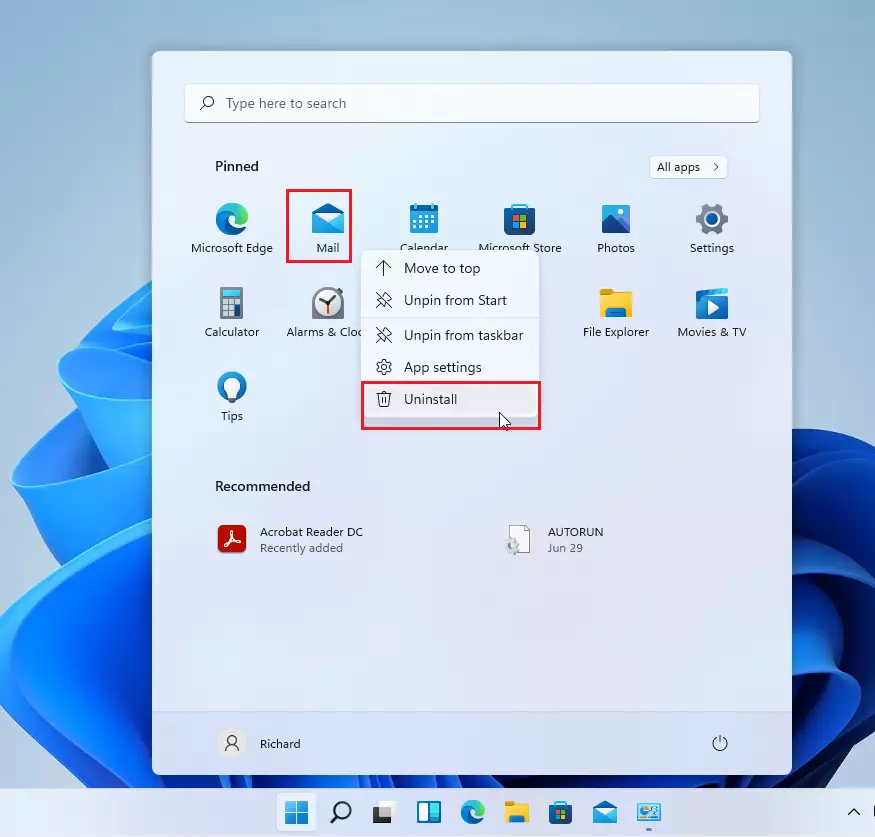
If you only see Unpin from Start and no Uninstall option, the app is protected or a system component. Unpinning only removes the shortcut. It does not remove the app.
Follow the on-screen prompts to finalize the process. What happens? The app disappears from the Start menu and from your installed apps lists. Restart the PC if the app or its uninstaller asks you to.
Summary
Uninstalling apps in Windows 11 frees up storage space and helps keep your computer running smoothly. Use the Settings app for most programs and Microsoft Store apps. Use Control Panel when an older desktop program won't go away any other way. Check what an app is before you remove it, and reinstall it later if you find you still need it.
- Uninstalling apps frees up space and helps your computer run better.
- Windows 11 has two types of apps: Desktop apps and Windows apps.
- You can uninstall apps from Settings or Control Panel.
- Right-clicking apps in the Start menu is the quickest way to uninstall desktop apps.
- Regularly removing apps you don't use keeps your PC clean and fast.
- For more help with Windows 11, visit the official Microsoft Support page: https://support.microsoft.com/en-us/windows
Have a question about this guide?
Answered by AI from this guide. Good questions may be added to this page — please don't include personal details.
Did this guide fix your problem?

About the Author
Richard
Tech Writer, IT Professional
Richard is a writer at Geek Rewind who turns complex IT tasks into clear, step-by-step guides. He draws on years of hands-on experience in system administration and enterprise IT operations, focusing on Windows, Linux and WordPress: the problems people actually run into, and the fixes that work. His server and WordPress guides come from systems he runs himself. Richard builds and maintains the platform behind Geek Rewind, from its Ubuntu servers and Nginx configuration to its custom WordPress plugins. Many new tutorials start with readers' questions, and he's always glad to answer them in the comments.
No comments yet — be the first to share your thoughts!