How to Move the Windows 11 Taskbar to the Left or Center

Windows 11 lets you move the taskbar from the bottom of your screen to the left side or center it instead. By default, the taskbar sits at the bottom with the Start button and app icons on the left, but the Taskbar alignment setting lets you reposition everything in seconds.
The change takes effect immediately and requires no restart or administrator rights. Moving the taskbar is a cosmetic change only — it doesn’t affect how your apps or system work, so you can switch back anytime if you prefer the original layout.
Right-click an empty part of the taskbar and select Taskbar settings. Under Taskbar behaviors, open the Taskbar alignment drop-down menu and select Left. The Start button and your pinned apps move to the left edge immediately, with no restart needed. The system tray stays on the right.
Move the Taskbar to the Left
This section covers the two ways to reach the setting. Both end at the same Taskbar alignment menu, so pick whichever is quicker for you.
Open Taskbar settings from the taskbar
This is the fastest route. It takes you straight to the right page.
- Right-click an empty area of the taskbar . Avoid right-clicking an icon, because that opens a menu for the app instead.
- Select Taskbar settings. The Settings app opens on Personalization Taskbar.
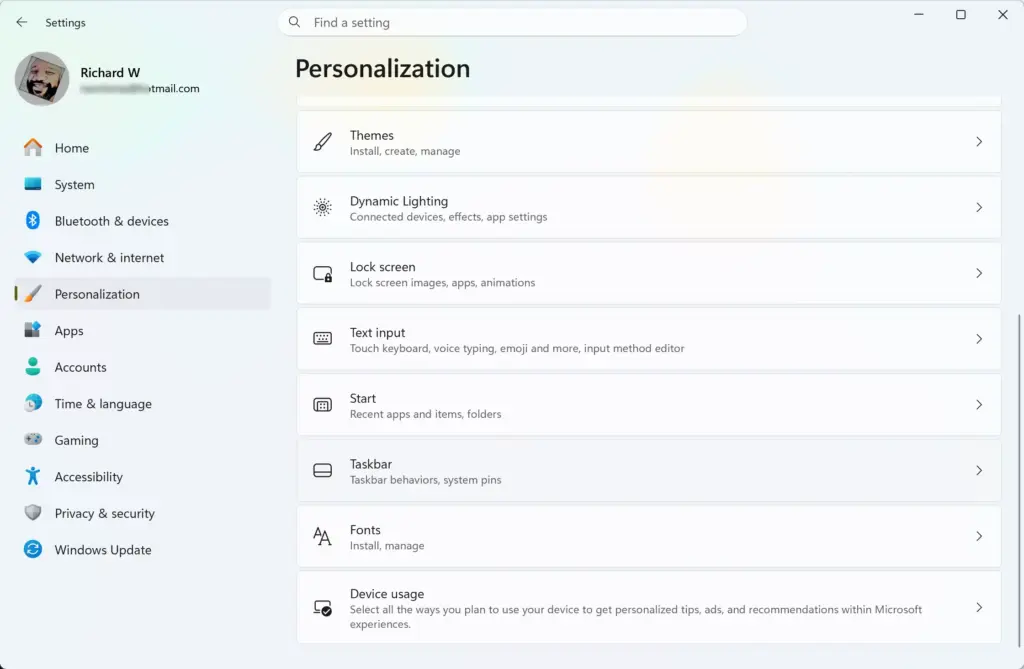
Settings › Personalization › Taskbar - Scroll to the bottom of the page and select Taskbar behaviors. The section expands and shows a list of options.
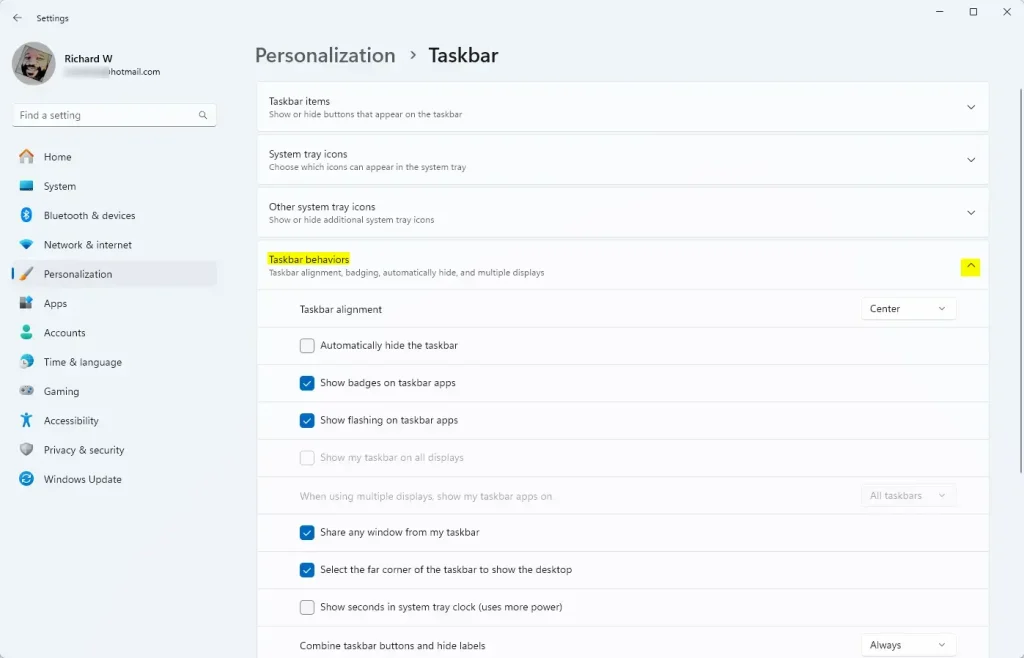
Expand Taskbar behaviors in Windows 11 Personalization settings. - Find Taskbar alignment at the top of that list and open the drop-down menu next to it.
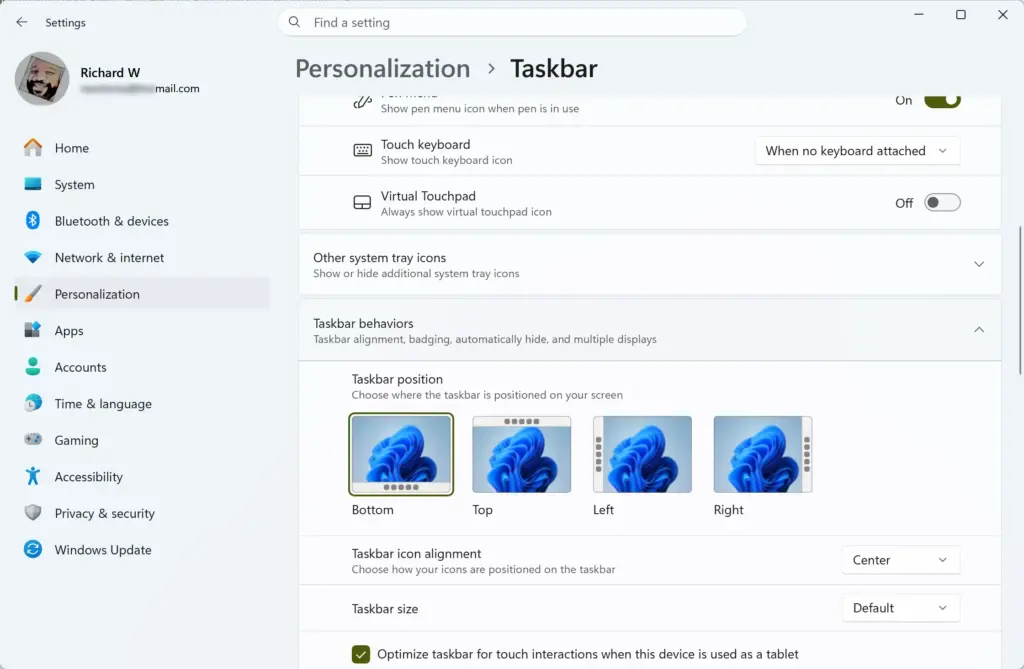
- Select Left. The Start button and your pinned and open apps jump to the left edge of the taskbar .
- Close Settings. The change is already saved.
If the right-click menu does not show Taskbar settings, use the Settings route below.
Open Taskbar settings from the Settings app
Use this route if the right-click menu does not work or you prefer to navigate from Settings.
- Press Win+I to open Settings .
- Select Personalization in the left pane.
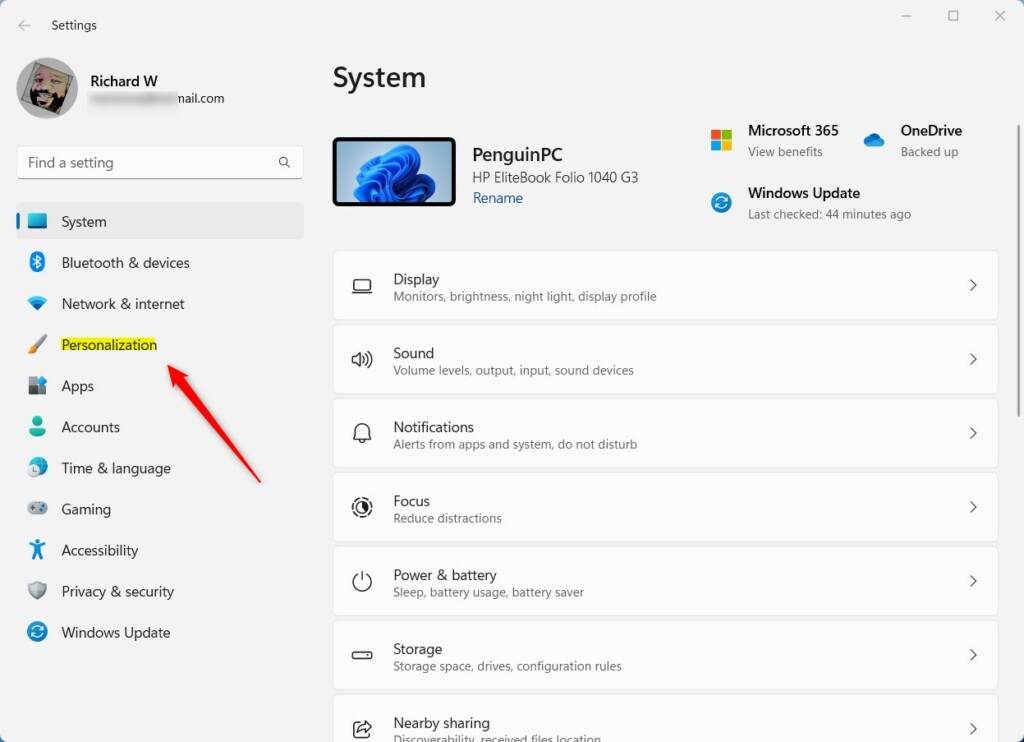
Windows 11 Personalization in the Settings app - Select Taskbar. The page lists sections such as Taskbar items and Taskbar behaviors.
- Select Taskbar behaviors to expand it.
- Open the Taskbar alignment drop-down menu and select Left.
The taskbar updates as soon as you pick the option. If it stays centered, see the troubleshooting section further down.
Move the Taskbar Back to the Center
The change is fully reversible, and nothing is lost by switching back. Your pinned apps stay in the same order.
- Right-click an empty area of the taskbar and select Taskbar settings.
- Select Taskbar behaviors to expand the section.
- Open the Taskbar alignment drop-down menu and select Center. The icons move back to the middle of the taskbar .
The drop-down offers only two choices, Left and Center. You cannot place the icons on the right.
What Changes When You Left-Align the Taskbar
Alignment affects the position of the app icons, not the taskbar itself. This matters because some things move and others don’t.
- The Start button moves to the far left corner. This is where it sat in Windows 10, so the layout feels familiar.
- The Start menu follows the button. When the taskbar is left-aligned, the Start menu opens from the left edge instead of the middle of the screen.
- The system tray stays on the right. The system tray —the icons next to the clock showing volume, network and battery status—stays on the right.
- Your pinned apps keep their order. Only their position on the bar changes.
- The setting applies to your user account. Other people who sign in to the same PC have their own taskbar alignment.
If the Taskbar Alignment Option Is Missing or Greyed Out
On a normal, activated copy of Windows 11, Taskbar alignment works the same on Home and Pro. If you cannot change it, one of the causes below is almost always the reason.
Windows is not activated
On an unactivated PC, the Personalization pages show a message that you need to activate Windows before you can personalize your PC, and the options are greyed out. Activating Windows removes the restriction.
- Press Win+I to open Settings .
- Select System, then select Activation.
- Check the Activation state line. If it says Windows is not active, follow the prompts on that page to activate it with a valid product key or a digital license linked to your Microsoft account.
Activation may require administrator rights, so sign in with an administrator account if Windows asks for approval. When activation completes, go back to Personalization Taskbar and try again.
Your PC is managed by a work or school
If Taskbar alignment is greyed out, or the page shows a message such as “Some settings are managed by your organization”, you cannot override it from your account. Ask your IT department whether the alignment can be changed on your device. Do not try to work around a managed setting on a company PC.
You are on 🪟 Windows 10
Windows 10 has no Taskbar alignment option because its taskbar icons already sit on the left. If you do not see Taskbar behaviors in Settings, check your version. Press Win+R, type winver, and press Enter. The window that opens names your Windows version. This guide applies to Windows 11.
The setting changes but the taskbar does not
Very occasionally the taskbar fails to redraw after you pick a new alignment. Restarting Windows Explorer —the system process that draws the taskbar and desktop—fixes it. It does not close your apps, although the taskbar and desktop flicker for a moment.
- Press Ctrl+Shift+Esc to open Task Manager .
- Select the Processes tab if it is not already open.
- Find Windows Explorer in the list and right-click it.
- Select Restart. The taskbar disappears for a second or two and then returns with the alignment you chose.
If the taskbar still looks wrong, restart the PC and check Taskbar alignment again.
Can You Move the Taskbar to the Top or the Side?
Left alignment moves the icons along the bottom of the screen. It does not move the taskbar to the left edge. Windows 11 has no setting in Personalization Taskbar that places the taskbar at the top, left or right of the screen. If you came here to put the taskbar on a vertical edge, the options in Settings do not support it, and I cannot confirm a supported method for current Windows 11 releases.
If your goal is more vertical space, Taskbar behaviors has an Automatically hide the taskbar option. The taskbar then stays hidden until you move the pointer to the bottom edge of the screen.
Will the Setting Stay?
Your choice is saved to your account and survives restarts and sign-outs. A few situations can bring back the default center layout:
- A new user profile. A new account starts with the default alignment, so set it again after signing in for the first time.
- A reset or reinstall of Windows. A reset returns personalization settings to their defaults.
- A feature update. Updates normally keep your alignment. If yours reverts after one, repeat the steps above.
What to Do Next
If the taskbar still will not change, check your Activation state first, because that is the most common cause of a greyed-out option. To undo the change at any time, set Taskbar alignment back to Center. Once the taskbar sits where you want it, the other options under Taskbar items let you hide buttons such as Search, Task view and Widgets, so the left edge holds only what you use.
Frequently asked questions
How do I drag the taskbar?
You can't drag the Windows 11 taskbar directly. Instead, open Settings, go to Personalization Taskbar Taskbar behaviors, and look for Taskbar alignment. Select Left or Center from the dropdown menu. The change happens instantly.
How do I move windows to the left side?
To move a window to the left side, click and drag its title bar to the left edge of your screen, or use keyboard shortcuts: Win+Left arrow snaps it to the left half, Win+Up/Down arrow adjusts size. You can also drag windows freely anywhere on screen.
Can you move the taskbar to the side in 🪟 Windows 11?
Not the taskbar itself. Open Settings Personalization Taskbar Taskbar behaviors and find Taskbar alignment. Select Left to move the icons to the left side of the taskbar. The taskbar stays at the bottom of the screen, and the icons can be Left or Center only.
How do I change the 🪟 Windows 11 taskbar to classic view?
Windows 11 doesn't have a classic taskbar view option. You can customize it with alignment (left or center) and toggle features like widgets and search in Settings Personalization Taskbar, but the overall design stays modern.
Still have a question?
Answered by AI from this guide. Good questions may be added to this page — please don't include personal details.
Did this guide fix your problem?

About the Author
Richard
Tech Writer, IT Professional
Richard is a writer at Geek Rewind who turns complex IT tasks into clear, step-by-step guides. He draws on years of hands-on experience in system administration and enterprise IT operations, focusing on Windows, Linux and WordPress: the problems people actually run into, and the fixes that work. His server and WordPress guides come from systems he runs himself. Richard builds and maintains the platform behind Geek Rewind, from its Ubuntu servers and Nginx configuration to its custom WordPress plugins. Many new tutorials start with readers' questions, and he's always glad to answer them in the comments.
No comments yet — be the first to share your thoughts!