How to Restore File Explorer Windows at Logon

- 2 ways to do it
- Needs administrator rights
- Includes a restart or sign-out
Restoring File Explorer windows at logon reopens the folders you had open before you shut down or restarted, as soon as you sign back into Windows 10 or Windows 11. Without it, Windows starts with a clean desktop and you have to browse back to each folder yourself.
It is a built-in setting with one checkbox inside File Explorer. You don’t need extra tools or system file edits. The checkbox works the same on Home and Pro. A registry alternative is covered further down for the rare case where the checkbox doesn’t stick.
Access File Explorer Folder Options, go to the View tab, and check the “Restore previous folder windows at logon” box. This setting automatically reopens your File Explorer windows when you sign back into Windows.
Why Use This Feature?
If you work in the same project folders every day, this saves a few clicks each morning. Every window comes back where it was, so you can pick up where you stopped instead of rebuilding your workspace after each restart.
What Happens When You Enable It?
When this setting is on, Windows remembers which File Explorer windows and tabs are open when you sign out, shut down or restart. The next time you log in, it reopens them automatically.
When it is off, which is the default on most installations, File Explorer opens nothing until you launch it yourself. Turning the setting on changes only that behavior. It does not move or change your files.
Method 1Use File Explorer Settings
You turn this on from the Folder Options window in File Explorer. Open any folder, go to Folder Options, click the View tab, and check the box named “Restore previous folder windows at logon”. Windows then reopens the folders you had open before you shut down your PC.
The steps below show the full path to that window on both Windows 10 and Windows 11. You don’t need administrator rights for this method, because the setting applies only to your own account.
- Open File Explorer Folder Options. Pressing the Win plus E also works. A File Explorer window should appear.
- Click the View tab at the top. On Windows 10, click Options at the right end of the ribbon, then Change folder and search options. On Windows 11, click the See more button (the three dots) in the toolbar, then click Options. The Folder Options window opens. Click its View tab.
- Scroll through the Advanced settings list until you see the box next to “Restore previous folder windows at logon”. The list is long and sorted roughly alphabetically, so the option is a fair way down.
- Check the box to turn the feature on. Uncheck it to turn it off. A tick in the box means Windows will restore your windows.
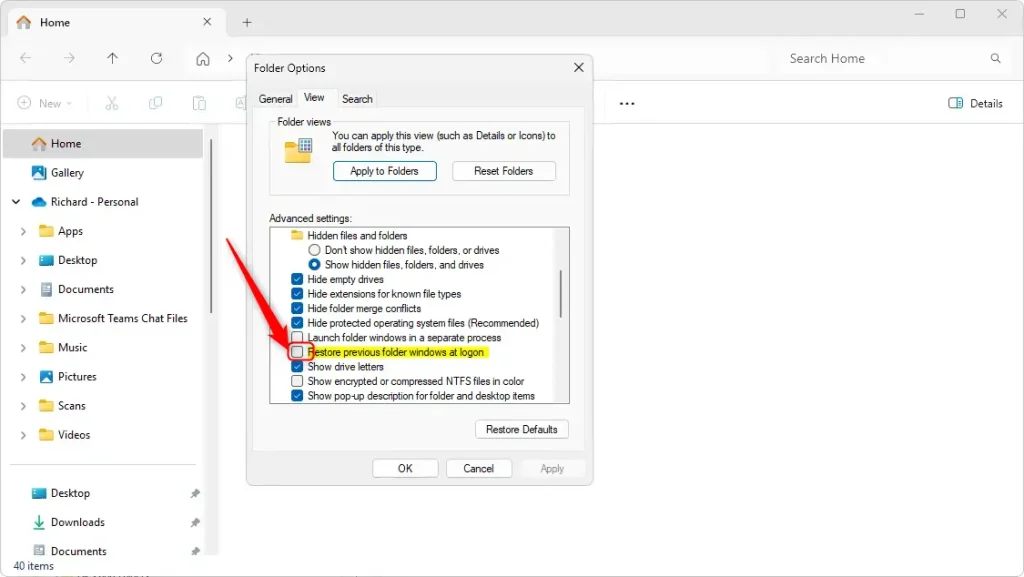
- Click OK to save your changes. The Folder Options window closes.
To test it, leave a couple of folders open, restart your PC and sign in. Those folders should reopen on their own after you reach the desktop. To undo the change, open the same window again and uncheck the box.
Method 2Use Windows Registry Editor
If the checkbox is missing, won’t stay ticked, or a policy keeps resetting it, you can set the same option in the Registry Editor. This method requires admin access. You work in 🗝️HKEY_CURRENT_USER\
The registry works on Windows 10 and 11, including Home.
⚠️ ADMIN PRIVILEGES REQUIRED: Administrator access is mandatory for editing the registry.
Before making any changes, back up your registry or create a System Restore point to remain secure. If something goes wrong, you can then return to a known good state instead of fixing it by hand.
- Open the Windows Registry (search for “regedit” in Windows). Approve the User Account Control prompt if it appears. The Registry Editor window opens.
- Navigate to this folder path, using the tree on the left or by pasting it into the address bar at the top of the editor:
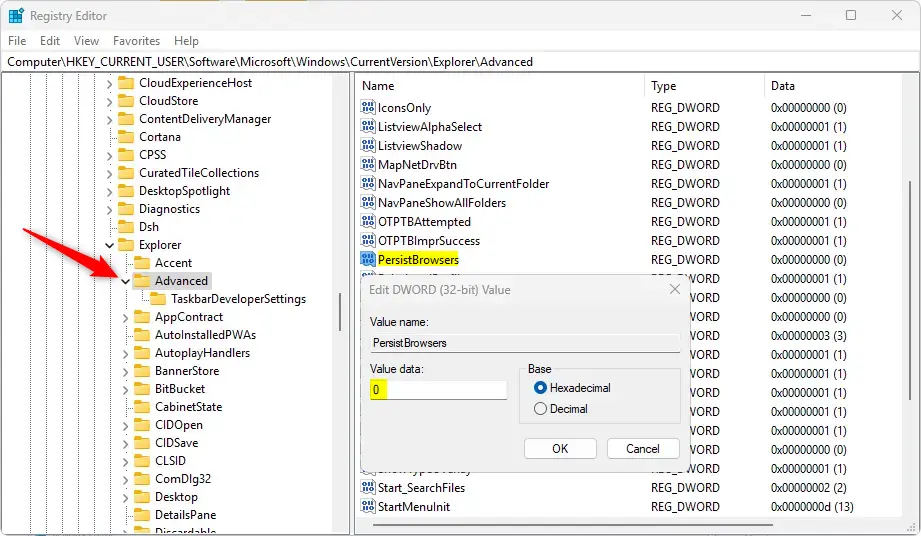
Computer\HKEY_CURRENT_USER\Software\Microsoft\Windows\CurrentVersion\Explorer\Advanced - Right-click on Advanced and choose New DWORD (32-bit) Value. A new entry appears in the right pane with its name ready to edit.
- Name the new entry
PersistBrowsers. Press Enter to confirm the name. If an entry with this name already exists in the right pane, skip the creation and use the existing one. - Double-click
PersistBrowsersand set the value to1to turn on the feature. Use0to turn it off. Click OK and close the Registry Editor.
To undo the change later, return to the same entry and set it to the off value.
System reboots may be necessary for changes to take effect. If the folders don’t come back after the next sign-in, restart the PC once and check the setting again.
Summary
You can restore previous folder windows at logon with either the built-in Folder Options menu or the Registry Editor. Use the Folder Options method first, since it is quick and safe to undo. Turn to the registry if the checkbox is unavailable or doesn’t hold. Either way, your open folders reappear after a reboot.
- Easy method: Use the File Explorer Folder Options menu to enable or disable the feature in just a few clicks.
- Advanced method: Edit the Windows Registry to control this setting. Remember to back up your registry first.
- Always create a System Restore point before making registry changes for extra safety.
- Your computer may need to restart for changes to work properly.
- This feature helps you work faster by remembering where you left off.
Have a question about this guide?
Answered by AI from this guide. Good questions may be added to this page — please don't include personal details.
Did this guide fix your problem?

About the Author
Richard
Tech Writer, IT Professional
Richard is a writer at Geek Rewind who turns complex IT tasks into clear, step-by-step guides. He draws on years of hands-on experience in system administration and enterprise IT operations, focusing on Windows, Linux and WordPress: the problems people actually run into, and the fixes that work. His server and WordPress guides come from systems he runs himself. Richard builds and maintains the platform behind Geek Rewind, from its Ubuntu servers and Nginx configuration to its custom WordPress plugins. Many new tutorials start with readers' questions, and he's always glad to answer them in the comments.
No comments yet — be the first to share your thoughts!