How to Open the System Tools Menu in Windows 11

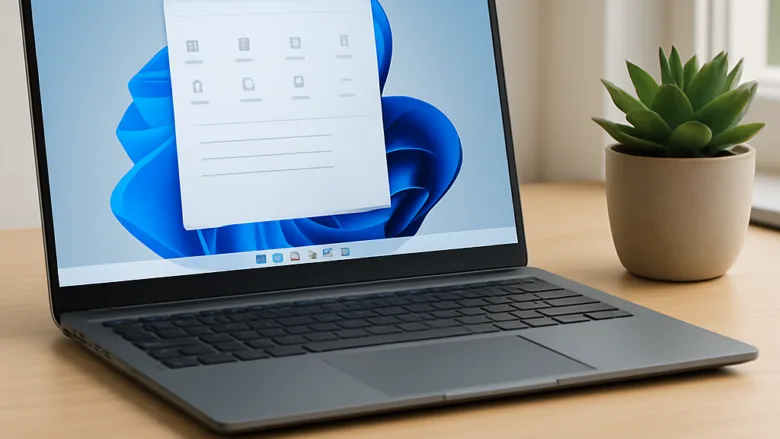
The system tools menu in Windows 11 (a hidden power user menu that opens with Win+X) gives you fast access to core utilities like Device Manager, Disk Management, and Task Manager .
Pressing the Win+X or right-clicking the Start button opens this menu instantly from any screen. It works the same way on Windows 11 Home and Pro.
Press Win+X, or right-click the Start button , to open the system tools menu in Windows 11. It lists Device Manager, Disk Management, Task Manager , Terminal (Admin) and Settings, and it works the same on Windows 11 Home and Pro. Press the underlined letter next to an entry, such as M for Device Manager, to launch it without the mouse.
Using the Power User Quick Link Menu
The system tools menu is a hidden menu in Windows 11 that gives you quick access to advanced settings and utilities like Device Manager and Task Manager . Press the Win+X on your keyboard at the same time to open this menu instantly from anywhere on your computer, without searching through the normal Settings app . It appears as a small list at the bottom-left of the screen, just above the Start button .
- Press the Win+X on your keyboard. You can also right-click the Start button. A list of system utilities should appear near the bottom-left corner.
- Click the utility you want to open, such as Device Manager (a utility that lets you view and control your hardware devices), Disk Management, or Task Manager . The tool opens in its own window, and the menu closes.
With the menu open, press that letter to launch the entry without the mouse. For example, M opens Device Manager, K opens Disk Management, T opens Task Manager , and A opens Terminal (Admin). If you are unsure of a letter, look for the underlined one in the menu.
On current Windows 11 builds, the menu lists Terminal and Terminal (Admin) where older versions of Windows showed Command Prompt or PowerShell. The Settings app is also listed here. Early Windows 11 builds may still show Windows PowerShell instead of Terminal. Terminal (Admin) is the easiest way to get an elevated command line (one running with administrator rights).
If you want a full list of the built-in admin tools, open Start All apps and scroll to the Windows Tools folder. It collects utilities such as Event Viewer, Services, and Task Scheduler in one window.
Accessing Legacy Administrative Tools
Many deep-level diagnostic tools remain inside the classic control panels rather than the modern Settings interface.
- Open the Start menu, type
control panel, and press Enter. Control Panel opens in its own window. - Click System and Security to view system-level maintenance links and administrative options. If your Control Panel shows icons instead of categories, switch View by in the top-right corner to Category first.
Mastering Command-Line Diagnostics
Command-line diagnostics let you fix broken Windows files and network problems using text commands instead of menus. This step requires administrator privileges, because most repair and reset commands will not run without them.
The fastest route is the Win + X menu. Press Windows Key + X, then press A. This opens Terminal (Admin) directly, which is quicker than searching for cmd. Windows asks you to confirm with a User Account Control prompt. Click Yes, and a Terminal window opens with administrator rights. If your account is not an administrator, you will be asked for an administrator password.
You can also use the older route with Command Prompt:
- Open the Start menu, type
cmd, right-click Command Prompt, and select Run as administrator. - Click Yes on the User Account Control prompt. A black window opens with "Administrator" in its title bar.
Only run commands you understand, and only from sources you trust, such as Microsoft's own documentation. Well-known examples are sfc /scannow, which checks and repairs protected system files, and DISM, which repairs the Windows image. Both are safe when typed correctly, but do not paste in commands from random forum posts or videos if you cannot explain what they do.
- Type your diagnostic command and press Enter to execute system scans or network resets. Wait for the command to finish before you close the window. Scans can take several minutes, and a restart may be needed afterward if the tool tells you so.
Automating System Maintenance
Windows includes automated background maintenance routines that defragment drives, check for updates, and clear obsolete cache files during idle hours.
- Open Control Panel, select Security and Maintenance, and expand Maintenance (automatic maintenance settings are also under Settings System Troubleshoot / Windows Update). In Control Panel, Security and Maintenance sits under System and Security.
- Expand the Maintenance section to review automated task schedules and run manual optimization checks. You should see the status of automatic maintenance and a link to start it manually. You can also change the time it runs from the same section.
What to do next
You should now be able to locate and open any diagnostic or management utility across the Windows operating system. The Win + X menu covers most daily needs, Control Panel and the Windows Tools folder cover the rest, and Terminal (Admin) handles command-line repairs. From here, you can proceed to configure scheduled maintenance tasks or troubleshoot specific hardware conflicts using Device Manager.
Have a question about this guide?
Answered by AI from this guide. Good questions may be added to this page — please don't include personal details.
Did this guide fix your problem?

About the Author
Richard
Tech Writer, IT Professional
Richard is a writer at Geek Rewind who turns complex IT tasks into clear, step-by-step guides. He draws on years of hands-on experience in system administration and enterprise IT operations, focusing on Windows, Linux and WordPress: the problems people actually run into, and the fixes that work. His server and WordPress guides come from systems he runs himself. Richard builds and maintains the platform behind Geek Rewind, from its Ubuntu servers and Nginx configuration to its custom WordPress plugins. Many new tutorials start with readers' questions, and he's always glad to answer them in the comments.
No comments yet — be the first to share your thoughts!