What Windows 11 Device Usage Settings Actually Track and Share

Windows 11 Device Usage settings are a group of privacy and personalization options. They ask which of six categories describe how you use your PC: Gaming, Family, Creativity, School, Entertainment, and Business. Microsoft uses your answers to suggest tips, tools, and apps that fit your habits.
Turning these options on lets Microsoft use what you chose, plus basic signals about how you interact with suggestions and built-in features, to tailor what you see. You can turn them off at any time in the Settings app, and nothing breaks when you do. This guide covers what they do, what they don’t touch, and how to switch them off.
Windows 11 Device Usage settings track which of six categories you select—Gaming, Family, Creativity, School, Entertainment, or Business—plus basic patterns in how you interact with app suggestions and tips. They do not track your files, web history, or passwords. Microsoft uses this data to personalize recommendations and suggestions shown on your device.
What Are 🪟 Windows 11 Device Usage Settings?
Device Usage settings are built-in options that ask how you plan to use your computer, for example gaming, schoolwork, or business. You usually see the question during setup on a new PC or after a fresh install. You can also revisit it later in Settings.
When you pick a category, Windows adjusts some features behind the scenes to match. The main effect is on app suggestions and tips, which are meant to fit your everyday routine. You can pick more than one category, and you can pick none.
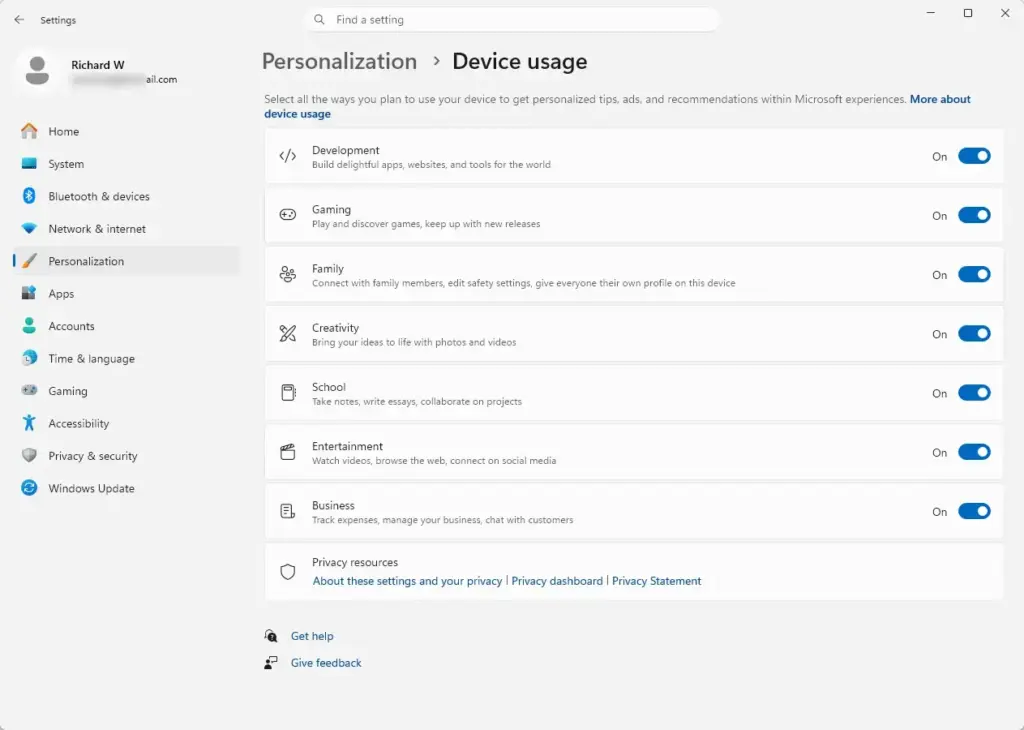
When you choose one or more categories, Windows 11 changes certain personalization settings to match. The changes are small and mostly affect what Windows recommends, not how the system is built.
- Gaming: Windows may lean toward performance-related suggestions and show gaming apps in your Start menu .
- Business: Windows may suggest work tools.
- The other categories work the same way. Each one nudges tips and recommendations toward that kind of activity.
The goal is personalization. Windows tries to shape the screen and the tool recommendations around what you actually do on the PC.
What Information Does Device Usage Actually Track?
Device Usage settings track the broad lifestyle categories you pick. They also track basic patterns in how you interact with built-in features such as app suggestions and Start menu tips. They do not track your private files, web browsing history, or passwords. The focus is general usage habits that help personalize your screen.
It helps to be clear about what this tool is not. It is not a diagnostic utility, and it does not check system health or performance. It does not record your personal documents, private messages, or the exact websites you visit.
What it does notice:
- Which built-in apps you open often.
- Whether you use the computer mostly for work or for play.
- How you respond to feature recommendations.
The system uses this to decide which tips and shortcuts to show you.
Where Does Your Data Go? Understanding Sharing and Privacy
Windows 11 stores your Device Usage choices on your computer, so the customization happens locally. Related features, such as app suggestions and tips, may still connect to Microsoft cloud services. How much they do depends on your diagnostic data choices and your other privacy settings.
Those cloud connections are how relevant content reaches you. Microsoft states that data collected through personalization features is used only to improve your experience, give you useful recommendations, and make the operating system easier to navigate. Microsoft also says this information is not sold to outside advertisers.
If you want to review your broader privacy settings, look at related features like Windows activity history and your privacy. They show how past actions are stored or cleared on your device.
How to Change Your Device Usage Settings in 🪟 Windows 11
You can change or turn off Device Usage settings at any time in the Settings app. No restart is needed, and you can turn the options back on later if you change your mind.
- Click the Start button on your taskbar and select the Settings app (the gear icon). The Settings window opens.

Taskbar - In the Settings window, click Personalization in the left-hand menu. The personalization options appear on the right.

Settings › Personalization - Scroll down the right side of the screen and click Device usage. The path is Settings Personalization Device usage
- Look at the list of categories, such as Gaming, Family, Creativity, and Business. Turn off the switch next to each category you no longer want Windows to use for tailoring. The switch should move to the Off position.
If you don't see Device usage, scroll further down the page first. Microsoft moves settings around between Windows 11 versions, so your build may place it differently or may not include it. Once the switches are off, Windows stops using those categories to personalize your tips, app suggestions, and built-in features. To undo this, come back to the same page and turn the switches on again.
How Your Everyday Experience Will Change
These settings change how Windows 11 talks to you through the day. Keeping them on brings tips and app shortcuts that match your habits. Turning them off gives you a standard, neutral experience.
If you turn them off:
- You will see fewer personalized tips.
- Your Start menu will show a standard layout instead of apps picked for your hobbies or work habits.
- Your computer's core performance, web browsing, and installed programs keep working normally.
Nothing is uninstalled or disabled, so turning them off carries no real risk.
Going Beyond Device Usage: Managing Activity History
Activity history is a separate feature from Device Usage. It records the files you open, the websites you visit in Microsoft Edge, and the apps you use. Managing it goes further toward keeping your device private than changing Device Usage alone.
Microsoft has updated newer versions of Windows 11 to remove the feature that sends activity history to the cloud. Your computer may still save a history locally, so it is worth checking.
To clear your local activity history:
- Open the Settings app from your Start menu.

Settings - Click Privacy & security on the left side.
- Select Activity history from the list of options.
- Click the Clear button next to "Clear activity history". This removes past records stored on your computer.
Clearing history cannot be undone, so be sure you want the records gone first. If the Activity history page is missing on your build, Microsoft has likely changed or removed it in that version.
Unique Expert Tips: Minimizing Unwanted Data Collection
Adjusting Device Usage and activity history helps protect your privacy. A few extra steps keep Windows 11 cleaner and cut down on unwanted tracking. Many everyday users miss them.
Tip 1Review Suggested Content During Setup and Updates
These screens often ask whether you want to turn on personalized experiences. It is easy to click through them and agree by default, so slow down.
- Read each setup screen carefully when it appears after an update.
- Choose to decline or skip any optional personalization feature you don't want.
This keeps an update from quietly turning back on options you had already disabled. It is also worth rechecking Settings Personalization Device usage after a major update.
Tip 2Turn Off Tailored Experiences in Privacy Settings
Tailored experiences use your diagnostic data to suggest tips and recommendations. You can turn them off in your privacy settings to cut down on data sharing further.
- Open the Settings app.
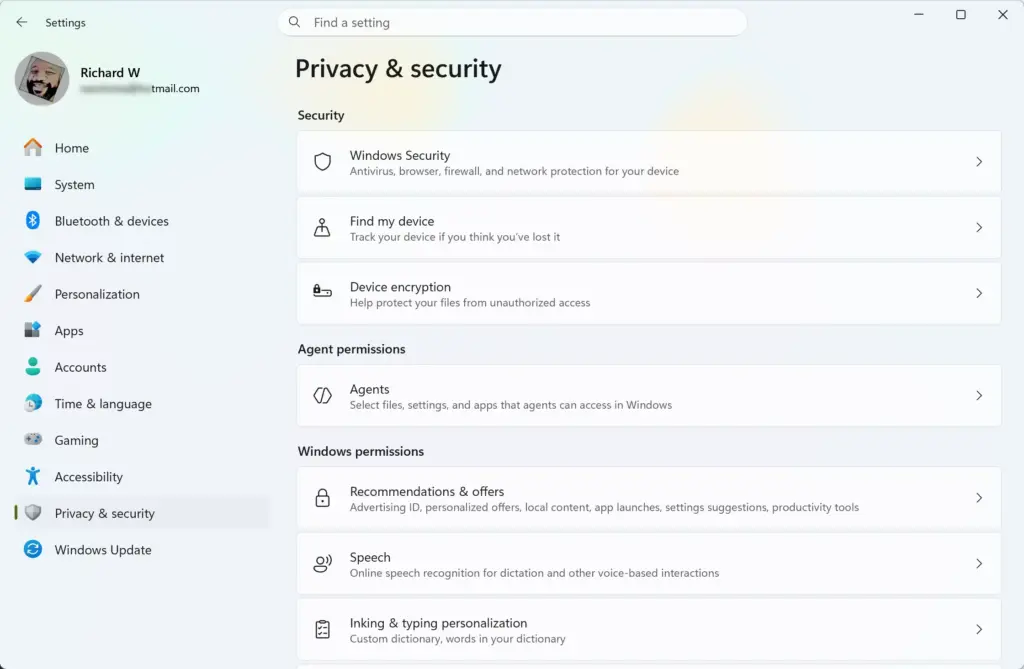
- Click Privacy & security.
- Click Diagnostics & feedback. The diagnostic options appear on the right.
- Find the tailored experiences option and turn off the switch that lets Microsoft use your data for tailored tips and recommendations. On some builds you may need to expand a section on the page to see it.
The switch should now show Off. To reverse this, return to the same page and turn it on again.
For a deeper look at overall data privacy, see guides like Personalize Your Windows Experience With Device Usage Settings, which links to official Microsoft documentation.
Summary
Windows 11 Device Usage settings personalize your computer by tailoring tips, app recommendations, and features to lifestyle choices like gaming or business. They track only broad categories and basic interaction patterns, not your private files, browsing history, or passwords. If you prefer a neutral experience, you can turn them off in Settings at any time, with no restart and no loss of functionality.
Have a question about this guide?
Answered by AI from this guide. Good questions may be added to this page — please don't include personal details.
Did this guide fix your problem?

About the Author
Richard
Tech Writer, IT Professional
Richard is a writer at Geek Rewind who turns complex IT tasks into clear, step-by-step guides. He draws on years of hands-on experience in system administration and enterprise IT operations, focusing on Windows, Linux and WordPress: the problems people actually run into, and the fixes that work. His server and WordPress guides come from systems he runs himself. Richard builds and maintains the platform behind Geek Rewind, from its Ubuntu servers and Nginx configuration to its custom WordPress plugins. Many new tutorials start with readers' questions, and he's always glad to answer them in the comments.
No comments yet — be the first to share your thoughts!