What Breaks When You Disable Recommended Content Delivery in Windows 11 Privacy Settings

Recommended content delivery in Windows 11 is a group of settings that let Microsoft use your app habits to show personalized suggestions in the Start menu , File Explorer , Search and the Settings app. Turning these toggles off stops that tracking for ads and tips. It also changes how your desktop looks and works day to day.
You lose quick app recommendations and tips across several built-in features. Nothing here breaks your PC. Still, know what changes before you decide whether extra privacy is worth losing the personal suggestions. Every change below can be undone by switching the same toggle back on.
Disabling recommended content delivery in Windows 11 removes recent files and newly installed apps from the Start menu , hides recent files and frequent folders from File Explorer , stops trending searches and web suggestions in Windows Search, and removes promotional banners and tips from the Settings app. No system functions break—only personalized suggestion lists disappear.
What Changes in the Start Menu
When you turn off recommended content in the Start menu settings, the lower half of the Start menu stops showing recent files, newly installed apps and suggested programs from the Microsoft Store. Windows removes the automatic lists meant to help you jump back into your work. The result is fewer suggestions and a cleaner layout.

Here is what you will notice after turning off content delivery and tailored recommendations:
- Fewer Suggestions: The Start menu stops showing newly installed apps or files you opened recently on other devices.
- Blank Space: Depending on your exact configuration, the area reserved for recommendations may show empty space or default icons instead of dynamic lists. The gap is normal. Nothing is wrong with Start.
- Manual Control: You rely entirely on your pinned apps and the full app list to find what you need. If you want more room for pinned apps, you can change the Start layout under Personalization Start.
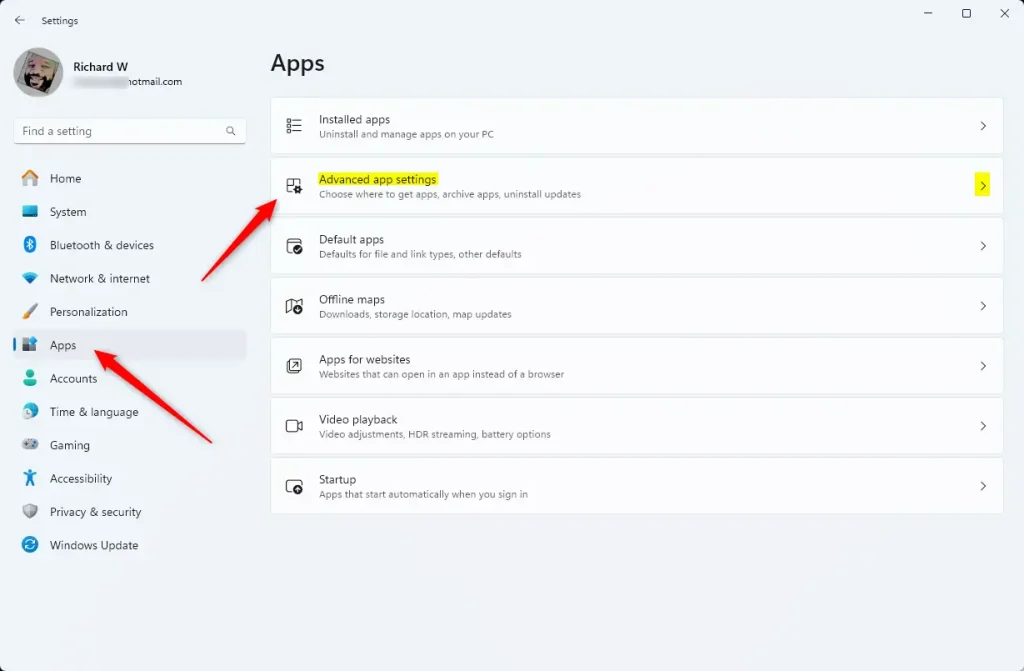
Windows 11 advanced app settings screen showing app recommendations.
Many people prefer this layout. It removes the app suggestions and tips that behave like advertisements, and it leaves a simpler Start menu built around the apps you chose to pin.
Impact on File Explorer and Search
Turning off the recommendation features can make recent files and frequent folders disappear from the File Explorer home view. Documents, photos and folders you opened recently no longer show up there automatically. Windows Search may also stop showing trending searches and web suggestions as you type. Which toggle controls which item can vary between Windows 11 builds, so check each one if something is still showing.

- Recent Files Disappear: The list of documents, photos and folders you opened recently may no longer appear automatically in your home view.
- Search Suggestions: Windows Search might stop showing trending searches or web-based suggestions from the internet. It focuses on the files and apps stored on your computer instead.
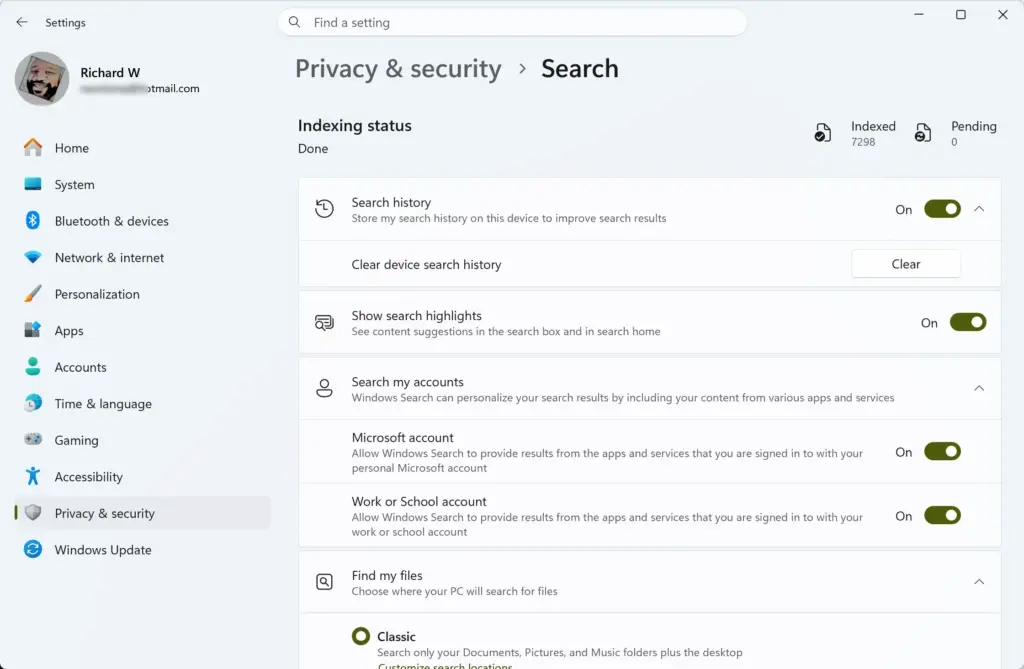
Settings › Privacy & security › Search
If you like seeing your latest work as soon as File Explorer opens, you will miss this. If you do not want anyone walking past your screen to see which files you opened last, this change is a welcome relief. Your files are not deleted. Only the shortcut lists are hidden.
Changes to the Settings App and Tips
Disabling tailored content delivery stops banners, promotional prompts and hints from appearing in the Settings app. You no longer see pop-ups steering you toward features like cloud backup or subscription services, so the interface is much quieter.
When you disable tailored content delivery:
- No More Helpful Hints: You stop seeing banners and prompts in the Settings app suggesting you try new features or finish setting up your user profile.
- Quieter Notifications: Windows sends fewer promotional notifications encouraging you to use specific Microsoft services.
Nothing crucial breaks here. You lose the unsolicited advice and promotional banners that Microsoft places throughout the operating system. Security and update notifications are separate and keep working.
Step-by-Step Guide: How to Turn Off Recommended Content in 🪟 Windows 11
You can turn off recommended content in Windows 11 with a few clicks in the Settings app. You do not need special technical skills. The steps below stop Windows from tracking your app usage for suggestions and cut down the unwanted prompts across the system.
If a toggle is greyed out, you are probably signed in with a standard account, or your work or school has locked it with a policy. Home and Pro editions both have these toggles. Some options may be missing or locked on managed devices.
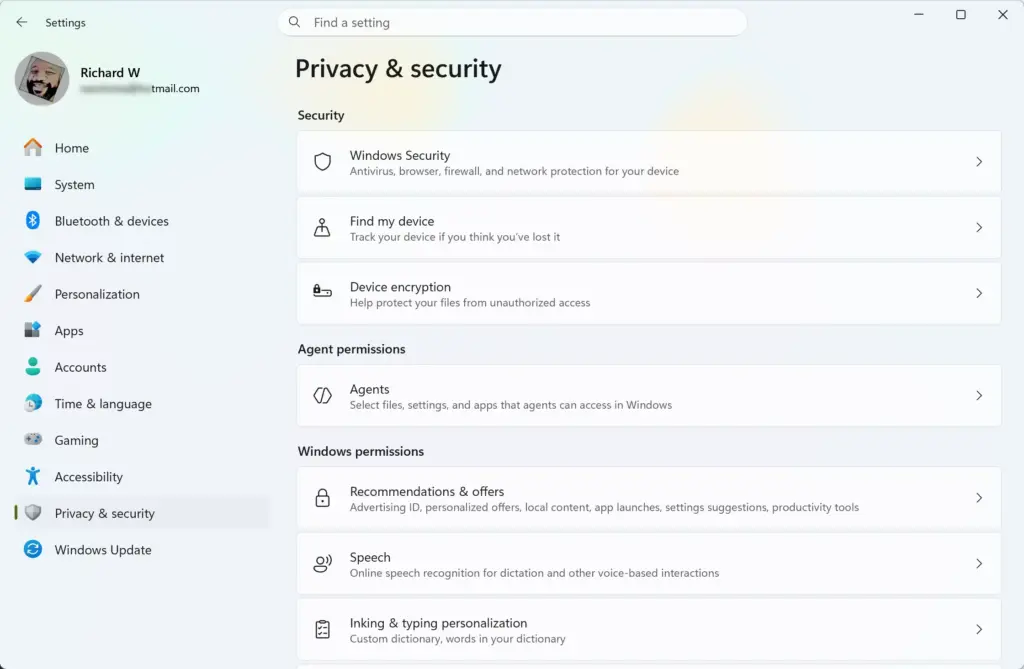
- Click the Start button and open the Settings app (the gear icon). The Settings window opens with a list of categories on the left.

Settings - Click Privacy & security in the menu on the left side. The privacy categories appear on the right.
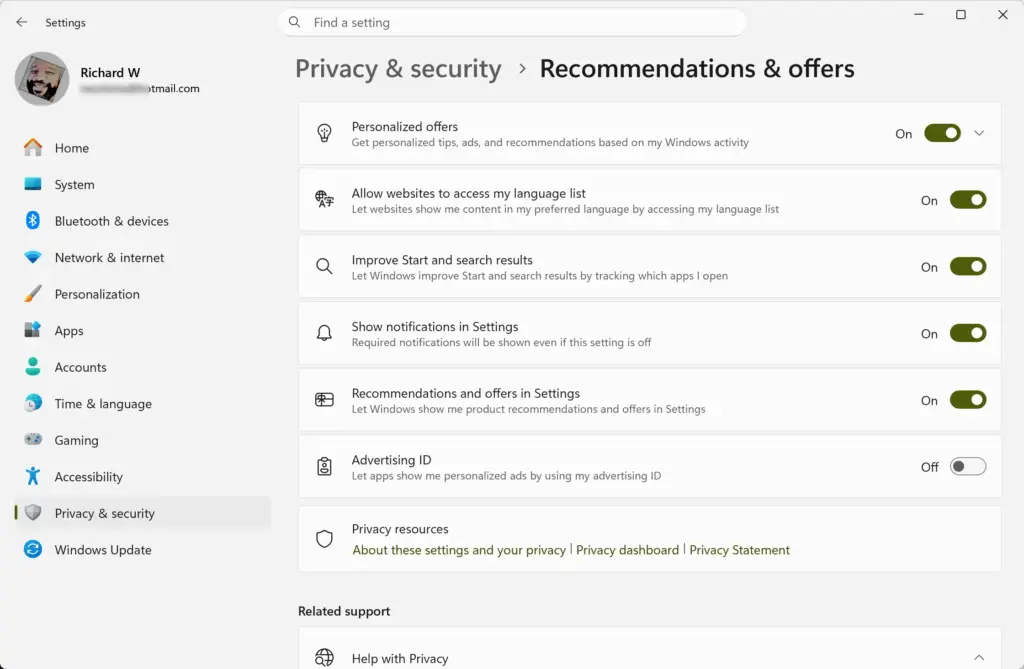
Settings › Privacy & security › Recommendations & offers - Click General under the Windows permissions section. A short list of toggle switches appears.
- Turn off the toggles for options such as Let apps show me personalized ads by using my advertising ID and Show me suggested content in the Settings app. If you see a toggle for tracking app launches to improve Start and search results, you can turn that off too. Each switch should now read Off.
- Go back to the main Privacy & security page and click Diagnostics & feedback.
- Review your diagnostic data settings and set them to the minimum if you want. Turning off Send optional diagnostic data leaves only the required data. You can also turn off Tailored experiences here, which stops Windows using your diagnostic data to suggest tips and offers.
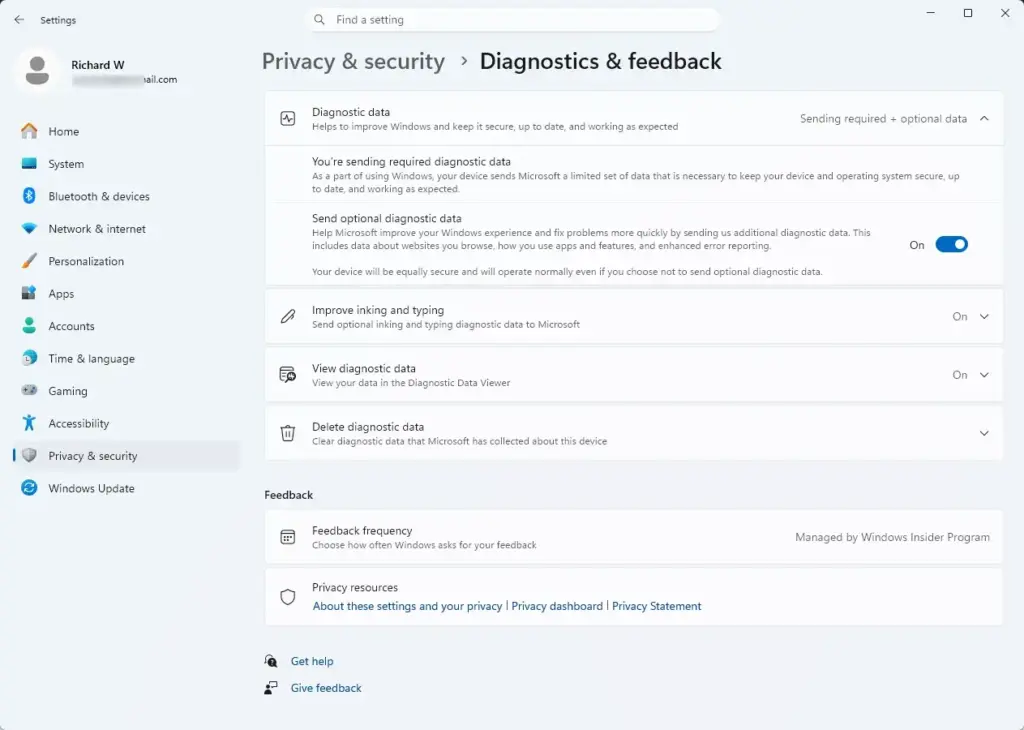
Settings › Privacy › Diagnostics - Go to Personalization in the left menu and click Start. Turn off the switches for showing recently added apps, most used apps, and recommendations for tips and shortcuts. Open the Start menu afterward to confirm the lists are gone. You do not need to restart Windows for these changes, although signing out and back in can help if something still shows.

Settings › Personalization
To undo any of this, return to the same page and switch the toggle back to On.
Unique Angle: What Happens to Third-Party Apps and Cloud Sync?
With tailored experiences restricted, your devices may no longer sync certain custom settings. That can affect how third-party programs and cloud services interact with your main computer.
For example, say you use a laptop and a desktop, both signed in with USERNAME@example.com. Your recent file history might no longer match between the two devices. Files themselves stay where they are, and only the shortcut lists can differ.
Third-party apps from the Microsoft Store that rely on Windows personalization APIs might load generic interfaces instead of customized layouts. Turning off recommended content delivery rarely makes third-party apps crash. They simply lose a small amount of context that helps tailor your experience.
Expert Tip: Fixing Broken Search Bars and Blank Start Menus
Restarting the Windows Explorer process often fixes a broken search bar or a blank Start menu after a privacy change. Turning off recommendations can occasionally leave the interface frozen or slow to open. Task Manager lets you reset it in a few seconds without a full reboot.
If your Start menu stops responding after you change your privacy settings, restart the Windows Explorer process:
- Press Ctrl + Shift + Esc on your keyboard to open Task Manager.
- Click the Processes tab if you are not already there.
- Scroll down until you find Windows Explorer in the list.
- Right-click Windows Explorer and select Restart.
Your screen and taskbar flash for a second as the interface reloads. This usually clears any temporary glitch caused by the settings change. If the problem comes back, restart the PC. If the Start menu is still wrong after that, re-enable the last toggle you changed to see whether it is the cause.

Summary
Disabling recommended content delivery in Windows 11 breaks only minor convenience features, such as recent file lists and promotional tips. Your core programs and hardware keep working normally. You lose app suggestions in the Start menu and quick file views in File Explorer. For most people, that is a fair trade for a cleaner, quieter system.
Have a question about this guide?
Answered by AI from this guide. Good questions may be added to this page — please don't include personal details.
Did this guide fix your problem?

About the Author
Richard
Tech Writer, IT Professional
Richard is a writer at Geek Rewind who turns complex IT tasks into clear, step-by-step guides. He draws on years of hands-on experience in system administration and enterprise IT operations, focusing on Windows, Linux and WordPress: the problems people actually run into, and the fixes that work. His server and WordPress guides come from systems he runs himself. Richard builds and maintains the platform behind Geek Rewind, from its Ubuntu servers and Nginx configuration to its custom WordPress plugins. Many new tutorials start with readers' questions, and he's always glad to answer them in the comments.
No comments yet — be the first to share your thoughts!