Set Different Lock Screen and Desktop Wallpapers in Windows 11

- 17 steps
- Needs administrator rights
Windows 11 lets you show one picture on the lock screen and a different picture on the desktop. The quickest route is Settings Personalization, where Lock screen and Background are two separate pages with their own picture settings.
The lock screen is the full-screen image you see before you sign in, along with the clock and date. The desktop wallpaper is what sits behind your icons after you sign in. The two use different settings, so changing one does not change the other. The steps below work the same on Windows 11 Home and Pro, need no administrator rights, and need no restart.
To set different lock screen and desktop wallpapers in Windows 11, open Settings (Win+I) and go to Personalization. Choose Lock screen, set Personalize your lock screen to Picture, and click Browse photos. Then open Background, choose Picture, and pick a second image. The two pictures are stored separately, so changing one does not affect the other.
Before You Start
Pick two image files and save them somewhere you can find again, such as the Pictures folder. Windows 11 accepts common formats like JPG, PNG and BMP. Choose images at least as large as your screen resolution (the number of pixels across and down your screen). Smaller images look soft when stretched.
The lock screen and some desktop monitors have different proportions. A tall photo that looks good on a phone may crop badly on a wide monitor. Preview each image full-screen before you commit.
Set Different Lock Screen and Desktop Wallpapers in 🪟 Windows 11
The numbered steps below set a different lock screen and desktop wallpaper in Windows 11, starting with the lock screen and finishing with the desktop. Follow them in order from start to finish.
- Open Settings. Press Win+I, or right-click the Start button and choose Settings. The Settings window opens.

Start Menu - Click Personalization in the left menu. The right side shows a preview of your current desktop and options such as Background, Colors and Themes.

Settings › Personalization - Click Lock screen. The page opens with a preview of your current lock screen at the top.
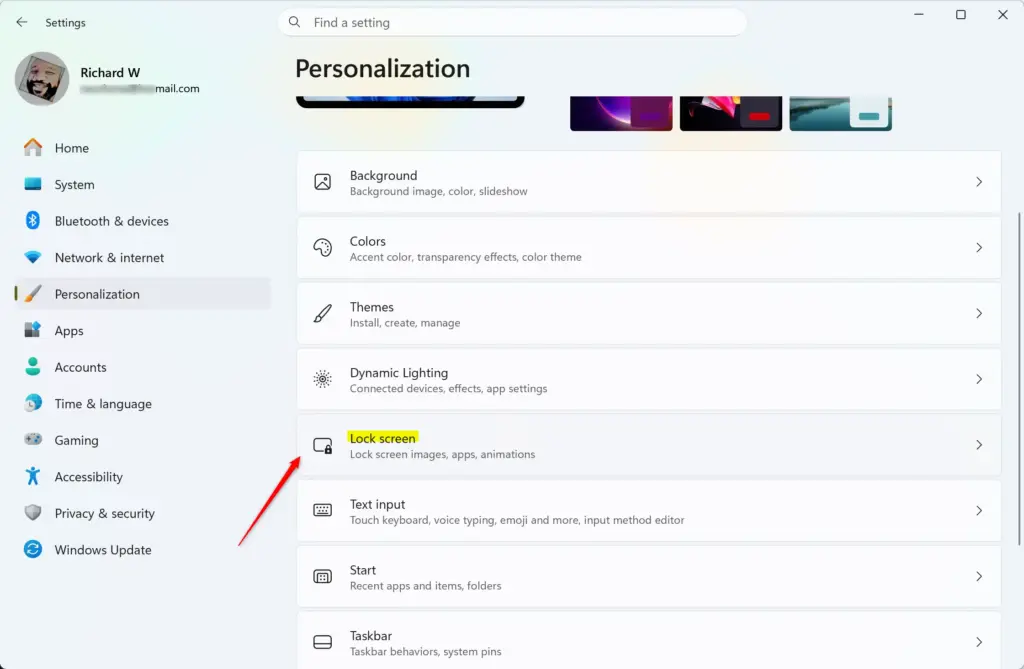
Settings › Personalization › Lock screen - Open the Personalize your lock screen list. The choices are Windows spotlight (rotating photos that Windows downloads from Microsoft), Picture and Slideshow.
- Choose Picture. A Choose a photo row appears with thumbnails of recent images and a Browse photos button.
- Click Browse photos. A file picker window opens.
Settings > Personalization - Select your lock screen image. Click Choose picture. The preview at the top of the page changes to your image straight away.
- Set the Show the lock screen background picture on the sign-in screen switch. Leave it On to show the same picture behind the password box. Turn it Off if you want the sign-in screen to stop using that picture.
- Click Personalization at the top of the page to go back. The link sits in the page title, which reads Personalization Lock screen.
- Click Background. This page controls the desktop wallpaper only.
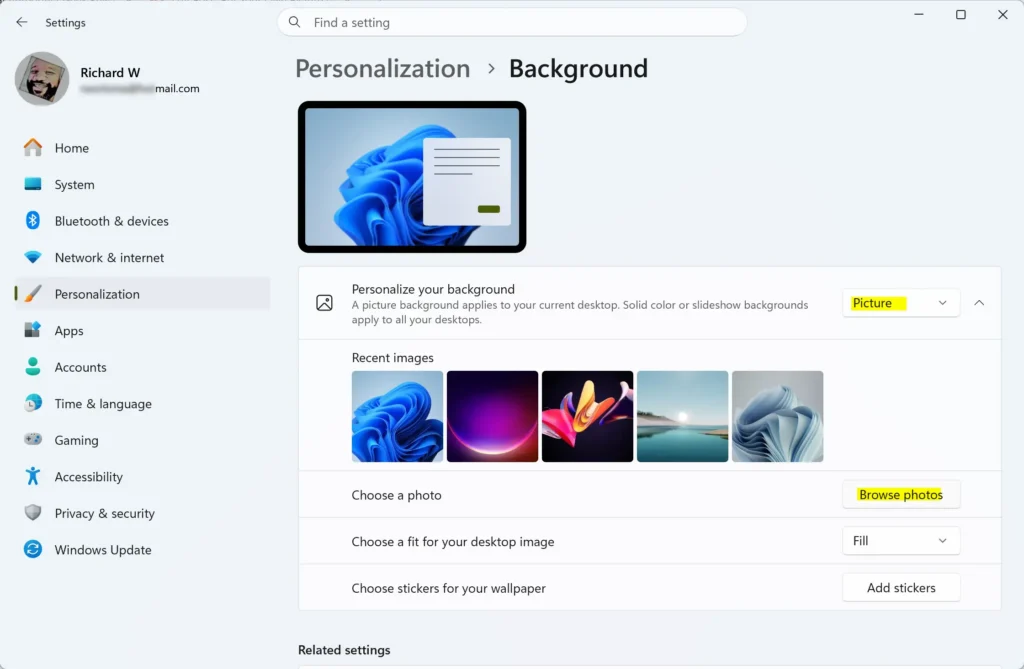
- Open the Personalize your background list and choose Picture. The options are Picture, Solid color, Slideshow and, on recent Windows 11 versions, Windows spotlight.
- Click Browse photos next to Choose a photo. Select a different image from your lock screen picture, then click Choose picture. Your desktop changes to the new wallpaper.
- Open the Choose a fit for your desktop image list and pick a fit. Fill covers the whole screen and crops the edges if the shapes differ. Fit shows the whole image and leaves bars at the sides or top. The other options are Stretch, Tile, Center and Span.
- Press Win+L to check the result. The lock screen appears with your lock screen picture. Press any key or click, sign in, and the desktop shows your other picture.
If you want to change only the lock screen later, this guide to changing the lock screen wallpaper in Windows 11 covers that page on its own. Another walkthrough, changing the Windows 11 lock screen background, shows the same task with different screenshots.
Understanding the Two Settings Pages
Windows 11 keeps the two images apart on purpose. Here is how the two pages work. Settings Personalization Background stores the desktop wallpaper. Settings Personalization Lock screen stores the picture for the lock screen and, optionally, the sign-in screen. Neither page copies from the other.
The sign-in screen is the screen where you type your password or PIN. It normally shows the lock screen picture behind the box. That is why a changed lock screen picture also changes the background you see when you sign in.
Another Way to Set the Desktop Wallpaper
File Explorer can set a desktop wallpaper without opening Settings. This method changes the desktop only, which suits you if the lock screen is already how you want it.
- Open File Explorer. Press Win+E, then browse to the folder that holds your image.
- Right-click the image. A menu opens.
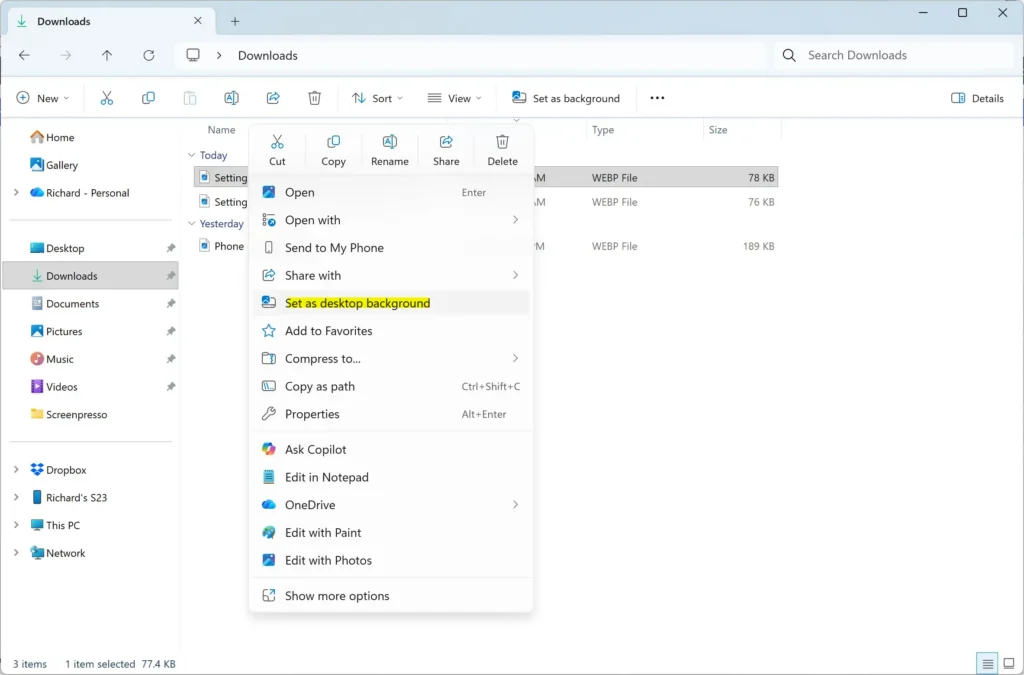
Settings > Personalization > Background - Choose Set as desktop background. The desktop changes right away. On some Windows 11 builds you may need to click Show more options first to see the entry.
The Photos app can also set wallpaper, but its menu names change between versions. If you use Photos, look for a Set as background option on the picture, then check the result in Settings. Settings is the reliable way to reach the lock screen, so use it when you want to be sure which image goes where.
Use a Slideshow on One Screen but Not the Other
You can keep one fixed picture on the desktop and let the lock screen cycle through several. Go to Settings Personalization Lock screen, open Personalize your lock screen, and choose Slideshow. Windows shows folder choices, including an Add a folder button, so you can point it at a folder of images.
The reverse also works. Open Settings Personalization Background, choose Slideshow, and select a folder. Windows rotates the desktop wallpaper, and the lock screen keeps whatever you set on its own page.
A lock screen slideshow can change when the screen turns off. If the lock screen vanishes too fast, read why the lock screen times out too soon in Windows 11 and check the timeout setting.
Troubleshooting: When the Wallpapers Do Not Stay Different
The Lock Screen Keeps Changing Pictures
If Personalize your lock screen is set to Windows spotlight, Windows rotates pictures on its own. It also adds tips and fun facts. Switch the list to Picture to keep one fixed image. If you turn on spotlight for the desktop as well, both screens receive Microsoft-chosen images that can change independently.
The Personalization Options Are Greyed Out or Locked
Two causes are common. First, an unactivated copy of Windows 11 blocks personalization. Settings shows a message that you must activate Windows before you can personalize your PC. Open Settings System Activation to check whether Windows is activated. If it is not, follow the activation prompts on that page.
Second, a work or school PC may enforce a lock screen or wallpaper through a policy (a rule set by the admin of the PC). In that case the page says some settings are managed by your organization, and your changes revert. Ask your IT department to change the policy, because a personal setting cannot override it.
The Lock Screen Does Not Appear at All
If your PC skips straight to the sign-in box, the lock screen may be turned off on the system. The post on turning the lock screen on or off in Windows 11 shows how to bring it back. Once it returns, your chosen picture shows again.
The Picture Looks Stretched or Cropped
The desktop has a fit setting, so go back to Settings Personalization Background and try Fit or Fill under Choose a fit for your desktop image. The lock screen has no fit list. If the lock screen picture looks cropped, use a different image with the same shape as your display.
Wallpapers Change After Signing In on Another PC
If you sign in with a Microsoft account on several PCs, Windows can sync some personalization settings between them. A change on one machine may then appear on another. Check Settings Accounts Windows backup to review what Windows remembers for your account. The wording of that page differs between Windows 11 versions, so look for the preferences or personalization options.
How to Undo the Change
To go back to the original lock screen, set Personalize your lock screen back to Windows spotlight. The guide on how to restore the default Windows lock screen in Windows 11 covers this in detail.
To undo the desktop wallpaper, go to Settings Personalization Background and pick any other picture from the Recent images row. Applying a theme from Settings Personalization Themes also replaces the desktop wallpaper with the theme’s own image. Neither change touches your lock screen.
What to Do Next
With the pictures set, you can change what the lock screen shows on top of them. Choose which app shows details on the lock screen by following the lock screen status settings. You find this under the lock screen settings. You can also hide alerts by following how to disable lock screen notifications in Windows 11.
Have a question about this guide?
Answered by AI from this guide. Good questions may be added to this page — please don't include personal details.
Did this guide fix your problem?

About the Author
Richard
Tech Writer, IT Professional
Richard is a writer at Geek Rewind who turns complex IT tasks into clear, step-by-step guides. He draws on years of hands-on experience in system administration and enterprise IT operations, focusing on Windows, Linux and WordPress: the problems people actually run into, and the fixes that work. His server and WordPress guides come from systems he runs himself. Richard builds and maintains the platform behind Geek Rewind, from its Ubuntu servers and Nginx configuration to its custom WordPress plugins. Many new tutorials start with readers' questions, and he's always glad to answer them in the comments.
No comments yet — be the first to share your thoughts!