How to Change Your Screen Resolution in Windows 11

Screen resolution is the total number of pixels your display shows. It controls how sharp text looks and how much room you have on the desktop. A standard 1080p screen uses 1920 by 1080 pixels. A 4K display packs in many more pixels, so images and text look much clearer.
If text looks too small to read, or icons take up too much room, right-click any empty space on your desktop and select Display settings. From there you can pick the size that works best for your eyes. The steps below cover the Settings app, the advanced display options, and the NVIDIA and Intel control panels.
Open Settings by pressing Win+I, then navigate to System Display. Select your desired screen resolution from the drop-down menu under Display resolution and click Keep changes. Your screen will revert to the previous setting if you don’t confirm within 15 seconds.
What is Screen Resolution?
Screen resolution is the number of individual dots, called pixels, that make up the image on your display. More pixels on the panel give you a sharper picture, but text and icons get smaller. Fewer pixels make items larger, but you lose some clarity. The right resolution balances readable text against workspace size.
For example:
- 1600 x 1200 pixels: Clear and sharp, but items look smaller.
- 800 x 600 pixels: Items look bigger but less sharp.
Your monitor can only use certain resolutions, depending on its type:
- Old monitors (CRT) usually work well at 800×600 or 1024×768.
- Newer monitors (LCD, LED) and laptops often support higher resolutions like 4K. They look best at their “native” resolution, the one the panel was built for.
If your goal is just bigger text and icons, you do not have to lower the resolution. A lower resolution blurs everything on an LCD panel. Use the Scale setting on the same Display page instead, and keep the native resolution.
How to Change Screen Resolution in 🪟 Windows 11 Settings
- Press
Win + Ion your keyboard to open Settings. The Settings window opens. - Click System on the left, then select Display on the right. You now see the display options for your PC.
- If you have more than one screen, click the display number you want to change. The numbered boxes at the top of the page represent your screens. If you are not sure which is which, click Identify and a number appears on each screen.
- Under Display resolution, click the drop-down menu and pick the resolution you want. The screen flickers, and the new resolution is applied for a moment.
- Click Keep changes if the new resolution looks good. If not, click Revert, or do nothing. After 15 seconds Windows switches back to the old setting automatically.
If the Display resolution list is greyed out or only offers a few low options, the usual cause is a missing or generic graphics driver. Install the latest driver from your PC maker or from NVIDIA, AMD or Intel, then try again. A remote desktop session can also limit your choices. To undo a change later, repeat the same steps and choose the old resolution. You do not need to restart.
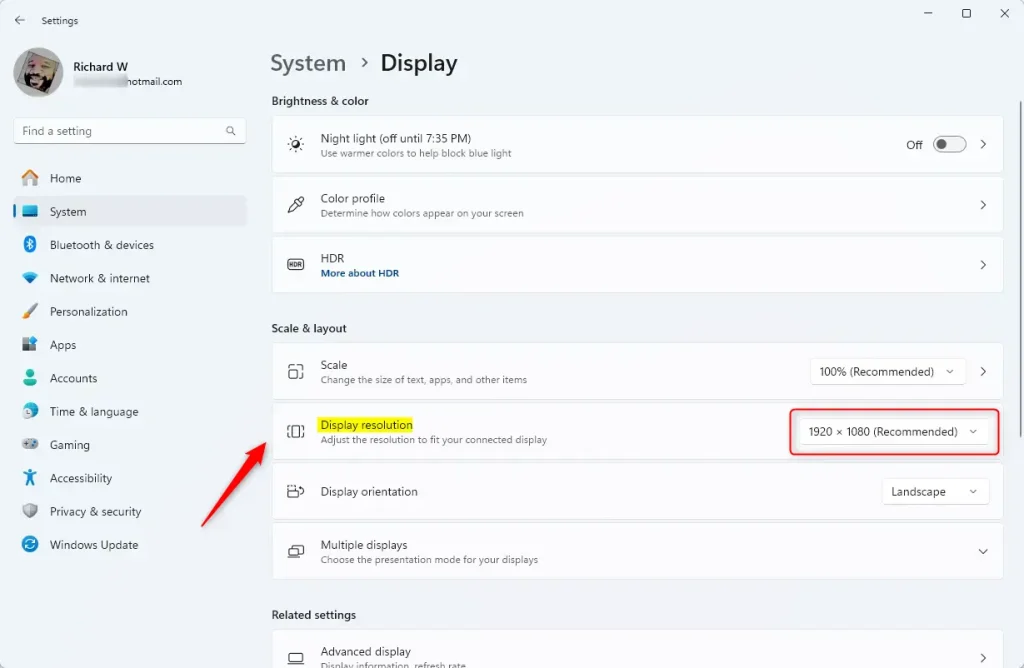
The main Settings app is the quickest way to change screen resolution in Windows 11. Press Win+I to open Settings, go to System, and click Display. Find the Display resolution drop-down menu and pick the size that looks best on your monitor. Confirm the change before the countdown ends. The steps are the same on Windows 11 Home and Pro.
More Ways to Change Resolution
1Using Advanced Display Settings
- Open Settings (
Win + I) and go to System Display. - Scroll down to the related settings and click Advanced display. A page opens with details about your screen, such as its current refresh rate.
- Select your display if you have more than one, then click Display adapter properties. A properties window for your graphics adapter opens.
- In the new window, go to the Adapter tab and click List All Modes. A list of resolution, color depth and refresh rate combinations appears.
- Choose the resolution and refresh rate you want, then click OK twice. The screen flickers as the new mode is applied.
- Click Keep changes if it looks good. If you do nothing, it reverts in 15 seconds.
Only modes your graphics driver reports appear in this list. If a mode you expect is missing, the driver is likely out of date or generic. To go back, repeat the steps and pick your earlier mode.
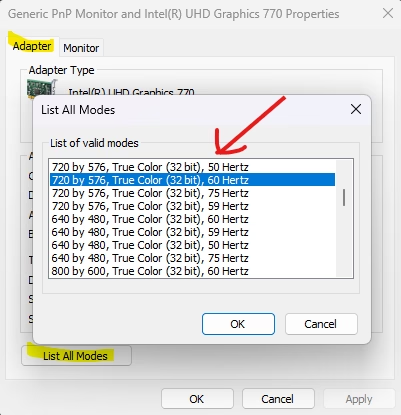
Use the advanced display settings when the standard drop-down does not show the mode you need. Open Settings, go to System Display, and open Advanced display. From there you can open the adapter properties and see every resolution and refresh rate your graphics card supports. This is also the place to pick a specific refresh rate together with a resolution in one step.
2Using NVIDIA Control Panel (if you have NVIDIA Graphics)
If your computer has an NVIDIA graphics card, you can change the resolution in the NVIDIA Control Panel. Open it from the Start menu, click Change resolution under Display on the left, select your monitor, and apply your settings. If you cannot find it in the Start menu, try right-clicking the desktop and choosing Show more options. If it is not there either, the NVIDIA driver may not be installed.
- Open the NVIDIA Control Panel from the Start menu. The control panel window opens with a list of tasks on the left.
- Click Change resolution under Display on the left side. The resolution options appear on the right.
- Select your display, pick a resolution from the Resolution list, and click Apply. The screen flickers and a confirmation box appears.
- Click Yes within 20 seconds to keep the change. If you do nothing, it reverts.
To undo a change later, open the same page and choose your old resolution.
3Using Intel Graphics Control Panel (if you have Intel Graphics)
If your computer uses Intel graphics, you can change the resolution in the Intel Graphics Control Panel. Open it by right-clicking your desktop or by launching the app. Click the Display icon, then choose a resolution for your monitor. On some newer PCs, Intel has replaced this panel with a different app, so the layout may look a little different.
- Open the Intel Graphics Control Panel Intel Graphics Control Panel.
- Click the Display icon. The display settings page opens.
- If you have multiple displays, select the one you want to change from the drop-down menu.
- Choose a resolution from the list and click Apply. The screen flickers and a confirmation box appears.
- Click Yes within 15 seconds to keep the change. If you do nothing, the old resolution returns.
Helpful Tips
You should try different settings when you change screen resolution to see what looks clearest on your monitor. Your screen’s native resolution almost always offers the sharpest picture, and you do not need to worry if a new setting looks wrong because Windows automatically reverts the change after a few seconds.- Try different resolutions to find what looks best for you.
- If your screen goes blank or looks wrong, don’t worry! Windows will automatically go back to the old settings after a few seconds.
- Use the native resolution for the sharpest and clearest screen.
- Remember: Higher resolutions fit more on the screen, but items look smaller.
Need More Help?
If you want to learn more about screen resolution and display settings, check out the official Microsoft guide here: Change your screen resolution and layout in Windows – Microsoft Support
Summary
Changing your screen resolution in Windows 11 affects how clear and large things appear on your screen.
Have a question about this guide?
Answered by AI from this guide. Good questions may be added to this page — please don't include personal details.
Did this guide fix your problem?

About the Author
Richard
Tech Writer, IT Professional
Richard is a writer at Geek Rewind who turns complex IT tasks into clear, step-by-step guides. He draws on years of hands-on experience in system administration and enterprise IT operations, focusing on Windows, Linux and WordPress: the problems people actually run into, and the fixes that work. His server and WordPress guides come from systems he runs himself. Richard builds and maintains the platform behind Geek Rewind, from its Ubuntu servers and Nginx configuration to its custom WordPress plugins. Many new tutorials start with readers' questions, and he's always glad to answer them in the comments.
No comments yet — be the first to share your thoughts!