How to Choose the Right Fit for Windows 11 Desktop Background Image

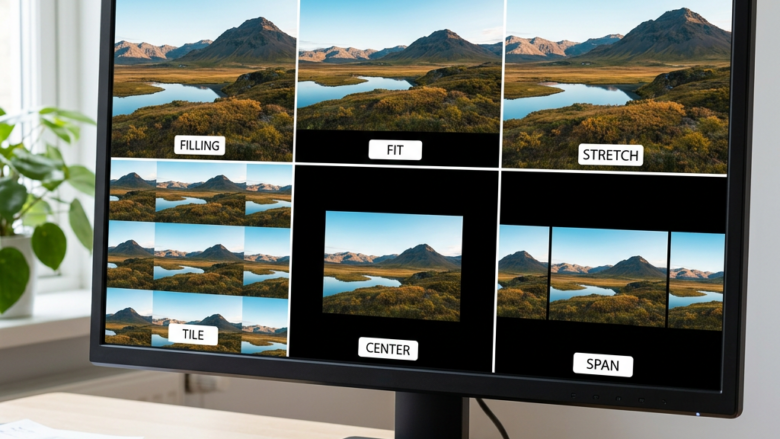
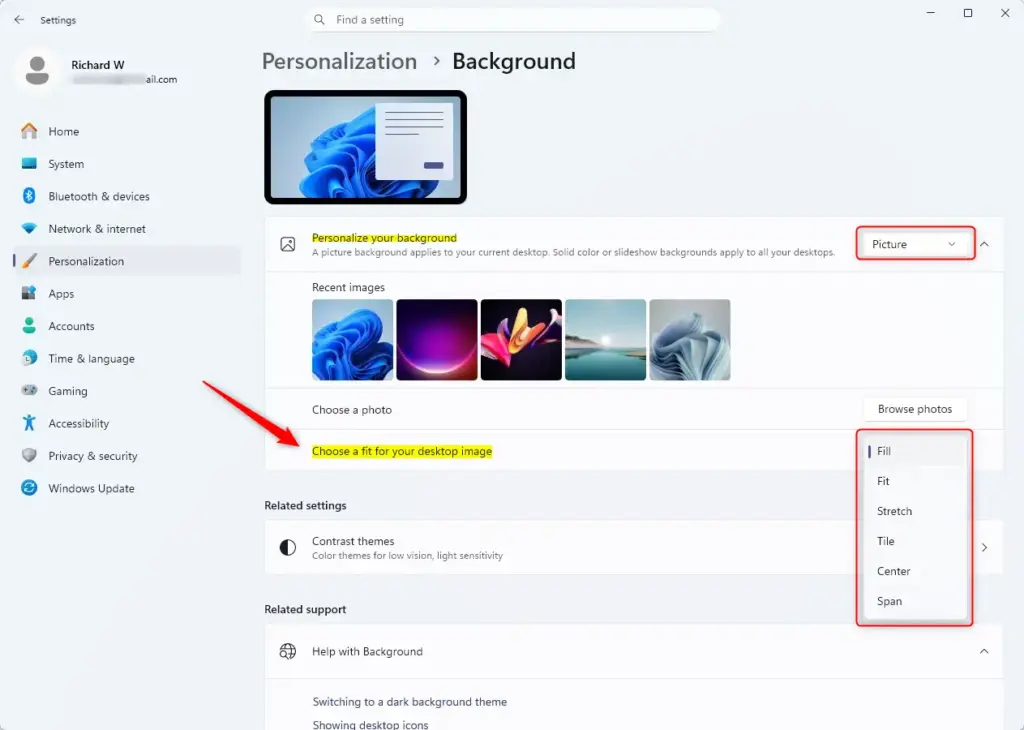
Desktop background fit settings in Windows 11 control how a picture is scaled, cropped, or repeated so it matches your monitor. There are six choices: Fill, Fit, Stretch, Tile, Center, and Span. You pick one in Settings Personalization Background
The right fit keeps your photo from being cut off at the edges, stretched out of shape, or surrounded by bars you didn’t plan for. The wrong one is the usual reason a good photo looks “off” as a wallpaper. The fix is a single drop-down, and you can change it as often as you like.
Open Settings Personalization Background, select Picture or Slideshow as the background type, then choose your fit option from the dropdown menu. Fill covers the full screen with possible cropping, Fit shows the entire image with bars, Stretch distorts the image to fill the screen, and Tile repeats the image as a pattern.
Understanding Your Image Fit Options
When you set a picture or a slideshow as your background, Windows lets you choose how that image is displayed. Each option changes how the image is scaled and where it sits on the screen. The result depends on the image’s shape (its aspect ratio) compared with your screen’s shape. A 16:9 photo on a 16:9 monitor looks fine with almost any setting. A square photo or an ultra-wide panorama will look very different from one setting to the next.
The fit setting only appears when the background type is Picture or Slideshow. It does not appear for Solid color or Windows spotlight, because those don’t use a picture you control.
Fill: The Full-Screen Experience
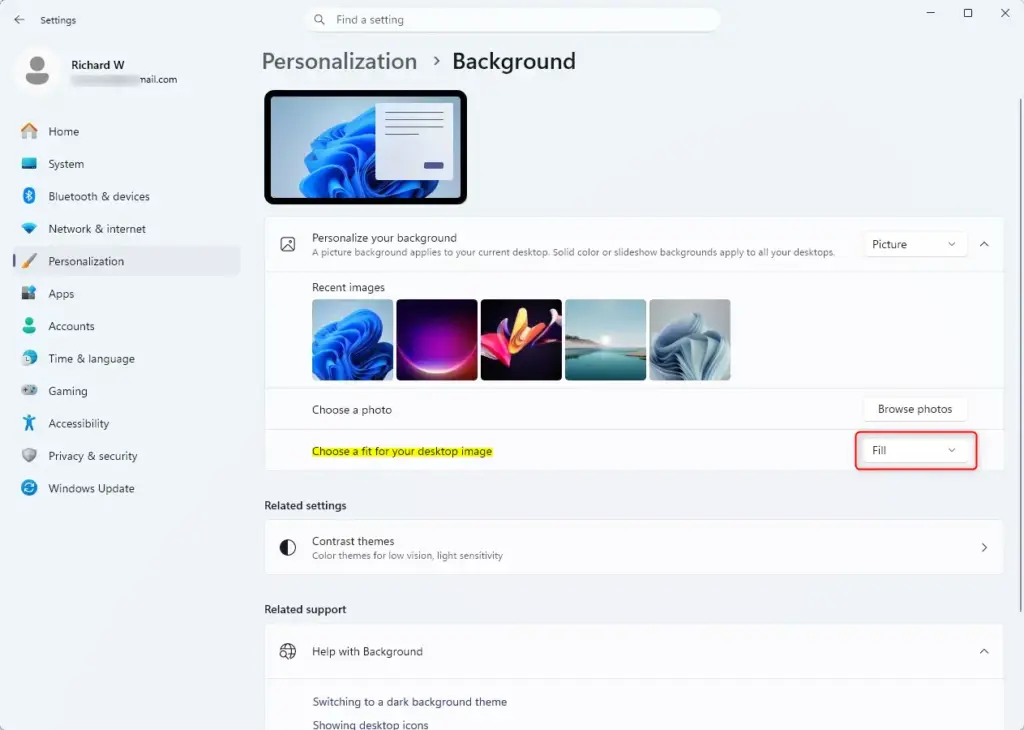
The Fill fit enlarges or shrinks your picture until it covers the whole screen. It keeps the original proportions, so nothing is distorted and there are no black bars. The trade-off is that anything that doesn’t fit gets cropped. If the image and the screen have different shapes, you lose part of the top and bottom, or part of the left and right sides.
Fill is the default for most Windows 11 installs. It is a safe choice for photos and wallpapers that are close to your screen’s shape.
What it does: It scales your picture up (or down) until the whole screen is covered, then trims whatever hangs over the edges.
Just know that you might not see the very top, bottom, or sides of your picture. Keep the important part of the image, such as a face or a logo, near the middle. If something you care about gets cut off, switch to Fit.
Fit: Preserving the Whole Picture
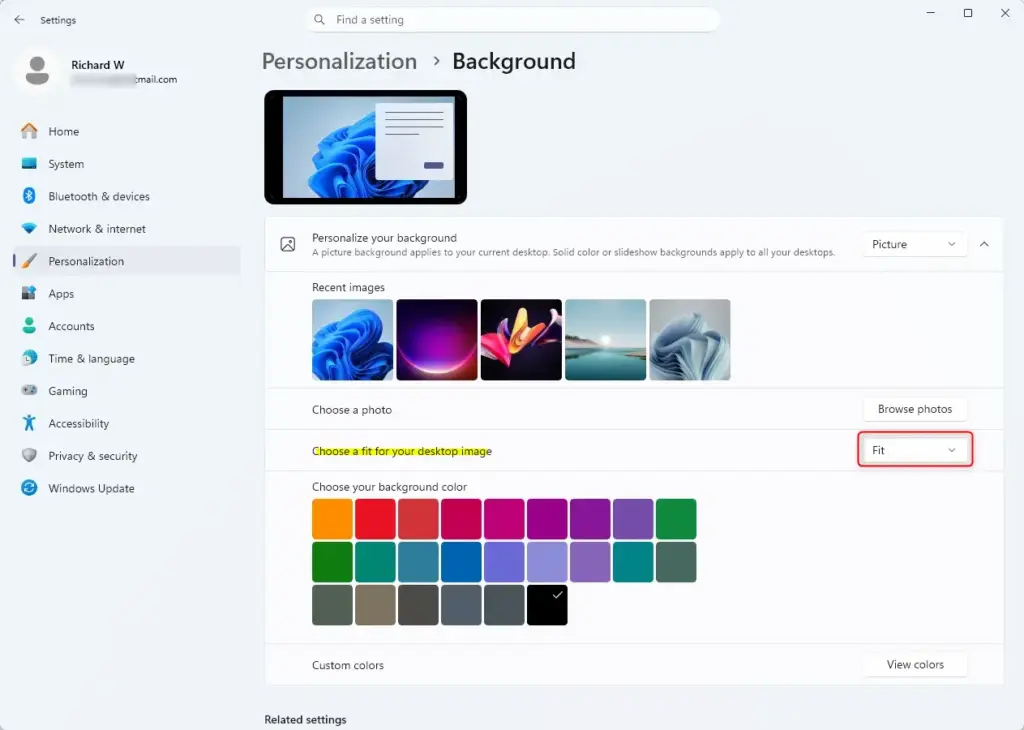
The Fit option shows your entire picture on screen and keeps its original shape and proportions. Windows scales the image up or down until one dimension touches the edges of the screen. Nothing is stretched, squished, or cropped.
If the image and your screen have different shapes, you will see empty bars on the sides or at the top and bottom. Fit is the right pick when you want to see every detail of the image and don't mind that trade-off.
This prevents the wallpaper from looking distorted while keeping every detail visible.
That includes graphics with text, logos, charts, or a group photo where someone stands near the border. Every part of the image stays visible. If the bars bother you, try Fill instead and accept some cropping.
Stretch: Making it Cover, Whatever the Cost
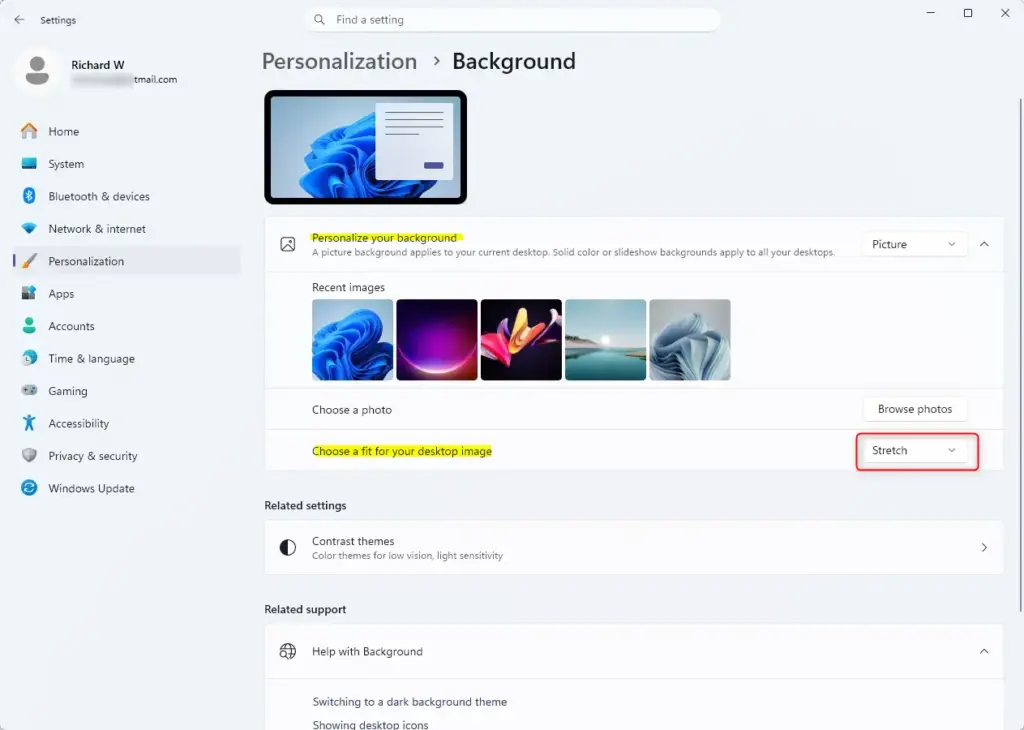
The Stretch fit forces your image to cover the whole screen by changing its width and height independently. That removes any empty space and any cropping, but it ignores the picture's original proportions. If the image's shape doesn't match your screen's, circles turn into ovals and people look wider or taller than normal.
Stretch is only a good choice when the image already has almost exactly the same aspect ratio as your screen. In that case it looks the same as Fill.
This forces the image to cover the entire screen by adjusting its width and height.
The potential downside: If your image's original shape doesn't match your screen's shape, it can look distorted. Subjects in the image might appear too tall and thin, or other elements could look squashed. Stretch ignores the original shape to fill the screen. If a wallpaper looks strange and you can't say why, check whether Stretch is selected.
Tile: Repeating Patterns for Effect
The Tile option repeats your chosen picture over and over across the screen to make a pattern. It keeps the image at its own size and copies it until the whole desktop is covered. That works well for small textures, icons, or patterns you want repeated.
Tile does not suit a normal photo. If the image is as large as your screen or larger, you will only see one copy, or just part of it.
What it does: It takes your image and repeats it everywhere on your desktop.
Best for: This works well for small icons, textures, or patterns. If you have a cool little graphic, tiling can make it a unique background. Seamless pattern images, where the edges line up, give the cleanest result. Otherwise you may see visible seams where the copies meet.
Center: The Classic Portrait Approach
The Center fit places your image in the middle of the screen at its exact original size. It does not scale the picture or distort it. If the image is smaller than your display resolution, you will see empty space around it. If the image is larger than your screen, the edges are cut off and you only see the middle part.
This places the image at its original size in the middle of your screen without stretching or shrinking.
A centered image is never stretched. When the image file is smaller than the screen, Windows 11 fills the area around it with a border, often black. That border prevents distortion and lets you see the image exactly as it was made, at its real pixel size.
Center works best for a single, smaller photo or piece of digital art that you want as the main focus. The image appears without distortion or scaling, which gives the desktop a clean, gallery-like look. Be aware that on a high-resolution monitor, a small image can look tiny in the middle of a large empty screen.
Span: For the Multi-Monitor Masters
The Span option takes a single desktop image and stretches it across all of your connected monitors. Your displays act like one large screen, and the picture flows from your main monitor onto your second or third screen.
Span is meant for multi-monitor setups. The result depends on how your monitors are arranged in Settings System Display, so check that layout if the picture looks misaligned.
The desktop background feature takes one image and spreads it across all connected monitors, treating them as a single large screen.
Ideal scenario: This is great for very wide wallpapers or panoramic images made to be seen across multiple displays. It creates a smooth, immersive experience. For a good result, use an image whose total width is close to the combined width of your monitors. A small image will look blurry when it is spread across two or three screens.
Important Note: The Span option is only for people with multiple physical monitors connected to their PC. You won't see it if you only use one display. If you expect it and it isn't there, check that Windows detects the second monitor in Settings System Display
Putting It All Together: Choosing Your Fit
You change the fit through the Personalization settings, and it takes only a few clicks. The change applies right away and doesn't need a restart. The steps are the same on Windows 11 Home and Pro.
- Open Personalization: Right-click an empty spot on your desktop and choose Personalize. The Settings app opens on the Personalization page. You can also get there from Settings Personalization
- Go to Background: In the Settings window, click Background. You will see a preview of your current wallpaper at the top and a list of options below it.
- Pick Picture or Slideshow: Next to Personalize your background, make sure Picture or Slideshow is selected. A Choose a fit for your desktop image drop-down now appears. If you don't see it, your background type is probably set to Solid color or Windows spotlight, which don't use a fit setting.
- Try each fit: Click the drop-down and choose Fill, Fit, Stretch, Tile, Center, or Span (if you have multiple monitors). The preview and your desktop change as soon as you pick one, so you can compare them with your own image. Stop on the one that looks best.
To undo a change, open the same drop-down and pick the previous option. If the Personalization settings are greyed out or won't change, Windows may not be activated yet. On a work or school PC, an administrator may also have locked the wallpaper settings with a policy.
Reference:
Summary
Windows 11 gives you six background fit options. Fill covers the screen and may crop the edges. Fit shows the whole image and may leave bars. Stretch distorts the image to fill the screen. Tile repeats a small image. Center places the image in the middle at its original size. Span stretches one image across multiple monitors. If you aren't sure, start with Fill for photos and Fit for anything where you can't afford to lose the edges.
Have a question about this guide?
Answered by AI from this guide. Good questions may be added to this page — please don't include personal details.
Did this guide fix your problem?

About the Author
Richard
Tech Writer, IT Professional
Richard is a writer at Geek Rewind who turns complex IT tasks into clear, step-by-step guides. He draws on years of hands-on experience in system administration and enterprise IT operations, focusing on Windows, Linux and WordPress: the problems people actually run into, and the fixes that work. His server and WordPress guides come from systems he runs himself. Richard builds and maintains the platform behind Geek Rewind, from its Ubuntu servers and Nginx configuration to its custom WordPress plugins. Many new tutorials start with readers' questions, and he's always glad to answer them in the comments.
No comments yet — be the first to share your thoughts!