How to Use Different Backgrounds on Each Display or Desktop on Windows 11

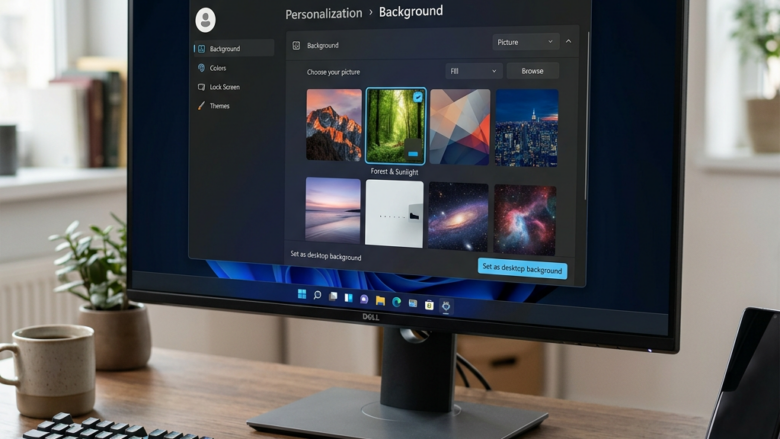
Different backgrounds on each display or desktop in Windows 11 let you set a unique wallpaper on up to 10 separate monitors or virtual desktop spaces. This setup helps you quickly tell your work apps apart from your games or personal windows.
There are two separate features here. Per-monitor wallpaper applies to physical screens. Per-desktop wallpaper applies to virtual desktops. Each is covered in its own section below.
Right-click your desktop, select Personalize Background, set it to Picture, then right-click individual image files in File Explorer and choose Set as desktop background for each monitor. For virtual desktops, open Task View, right-click each desktop, select Personalize this desktop, and assign a different background to each one.
Using Different Backgrounds on Each Screen
Windows 11 lets you use different backgrounds on each connected monitor. You open the Background settings from the desktop right-click menu , then assign a picture to a specific screen. This helps you tell your displays apart at a glance and keeps a multi-monitor workspace organized.
If Windows doesn’t see a screen, it can’t give that screen its own wallpaper.
Why do this? To give each monitor a unique look or to match the task running on that screen.
Windows 11 allows each monitor to show a different background picture. For example, you could put a nature photo on your main work monitor and an art piece on the second one. Windows keeps each choice for its own screen, even after a restart.
The background type must be Picture. A slideshow uses one set of images across all screens, and Windows Spotlight can't be set per monitor. Also, if the Background settings are greyed out or show an activation message, Windows isn't activated yet. Personalization stays locked until you activate it.
- Open Background Settings: Right-click an empty spot on your desktop and choose Personalize. Then select Background. Set Personalize your background to Picture. You should now see a preview of your current wallpaper and a row of recent images.
- Find Your Image: In the Personalize your background section, look through Recent images. If your picture isn't there, click Browse photos and select the file. Note that choosing a file this way applies it to all your screens. That's fine, because you will change the individual screens in the next steps.
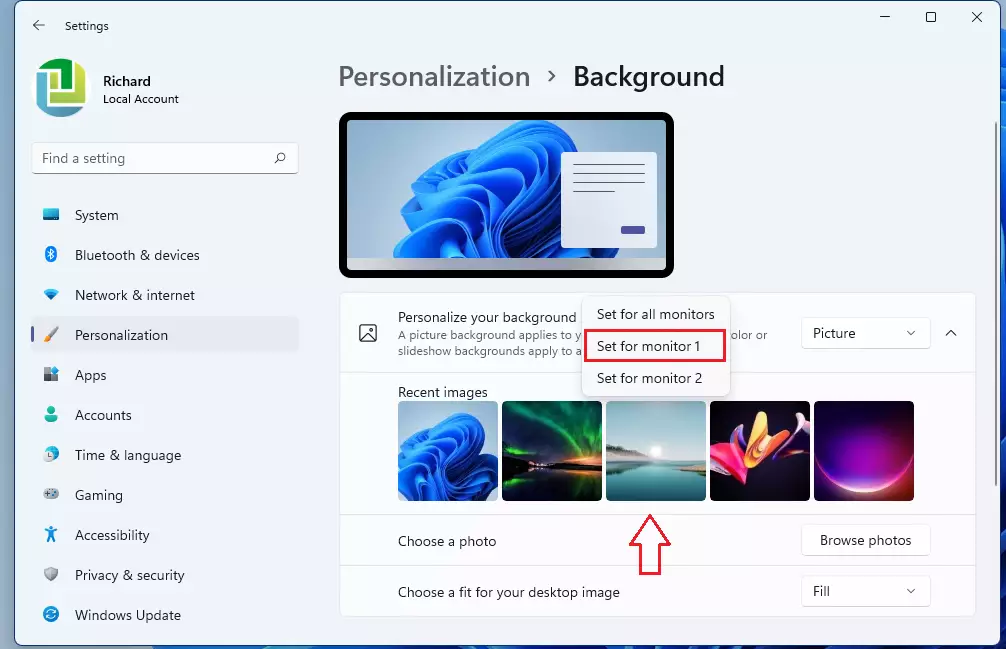
- Assign to a Specific Screen: This is the important step. Find the actual image file on your computer, for example in File Explorer. Right-click the image file (a .jpg or .png) that you want to use. If you prefer to stay in Settings, you can right-click a thumbnail under Recent images instead. That menu lists one entry per monitor, such as Set for monitor 1 and Set for monitor 2.
- Set as Desktop Background: In the menu that appears, click Set as desktop background. The image should now appear on your main screen. If it shows up on every monitor instead, use the thumbnail method from the previous step to target one monitor at a time.
- Repeat for Other Screens: To set a different background for your other monitors, repeat steps 3 and 4 with a different image file. Right-click the second image and choose Set as desktop background. Windows knows you have more than one screen and should place the new image on your second monitor. If it doesn't, use Set for monitor 2 (or the matching number) from the Recent images thumbnail menu. To undo any of this, go back to Settings Personalization Background and pick the original picture for each monitor.
Customizing Backgrounds with Multiple Desktops
The Multiple Desktops feature helps keep tasks organized. You create separate virtual desktops that act as extra workspaces, and each one holds its own set of apps and window arrangements. Giving each desktop its own background makes it obvious which one you're on.
Per-desktop wallpaper only exists in recent builds of Windows 11. If you don't see the options described below, run Windows Update and install the latest feature update. Virtual desktops work the same on Home and Pro.
Assigning Unique Backgrounds to Each Virtual Desktop
Windows 11 lets you apply different backgrounds to separate virtual desktops. You open Task View, pick a desktop, and choose a new picture for it. A unique wallpaper on each virtual desktop lets you recognize your workspace without checking which apps are open.
Virtual desktops (separate workspaces) support independent wallpapers, so you can identify your current environment at a glance. For example, give Desktop 1 a "Work" theme and Desktop 2 a "Personal" theme. Switching between them then feels more natural. The visual cue also prevents confusion when you juggle more than two virtual desktops.
What happens when done? Each virtual desktop will have its own unique background image.
- Open Task View: The easiest way is to click the Task View button on your taskbar (it looks like two overlapping squares). Or press
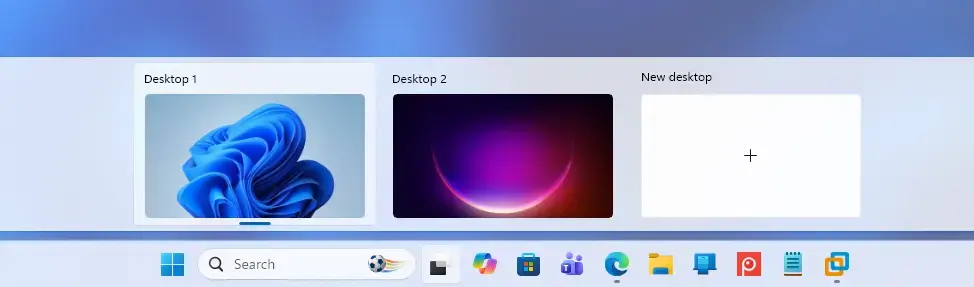
Windows key + Tab. Your open windows appear, with your virtual desktops along the bottom of the screen. - Create New Desktops (If Needed): Look at the small thumbnails of your current desktops. If you need more, click New desktop (the plus sign). A new thumbnail appears next to the existing ones.
- Choose the Desktop to Change: Click the thumbnail of the desktop you want to change. Windows switches to that desktop and you see its current background.
- Change the Background: Open Task View again, right-click the thumbnail of the desktop you are changing, and look for Choose background. If your build has it, this opens the Background settings for that desktop only. If that option is missing, right-click an empty space on the desktop itself, choose Personalize, then go to Background and pick a picture, a solid color, or a slideshow. On builds without per-desktop wallpaper, that change applies to every desktop, which is the sign that you need to update Windows. Either way, check the result: switch to another desktop and confirm its wallpaper didn't change.
- Repeat for Other Desktops: Go back to Task View (
Windows key + Tab). Click another desktop's thumbnail, or right-click it, then repeat step 4 to set a different background. Do this for each virtual desktop you want to set up. To undo a change, choose the original background for that desktop the same way.
Reference:
Summary
Windows 11 lets you change your desktop background in several ways. You can apply one picture across all screens, or pick different ones for each monitor and each virtual desktop. Use the monitor method for physical screens and the Task View method for virtual desktops. If an option is missing or greyed out, check that Windows is activated and up to date.
Have a question about this guide?
Answered by AI from this guide. Good questions may be added to this page — please don't include personal details.
Did this guide fix your problem?

About the Author
Richard
Tech Writer, IT Professional
Richard is a writer at Geek Rewind who turns complex IT tasks into clear, step-by-step guides. He draws on years of hands-on experience in system administration and enterprise IT operations, focusing on Windows, Linux and WordPress: the problems people actually run into, and the fixes that work. His server and WordPress guides come from systems he runs himself. Richard builds and maintains the platform behind Geek Rewind, from its Ubuntu servers and Nginx configuration to its custom WordPress plugins. Many new tutorials start with readers' questions, and he's always glad to answer them in the comments.
… liked this!