How to Change Your Windows 11 Background

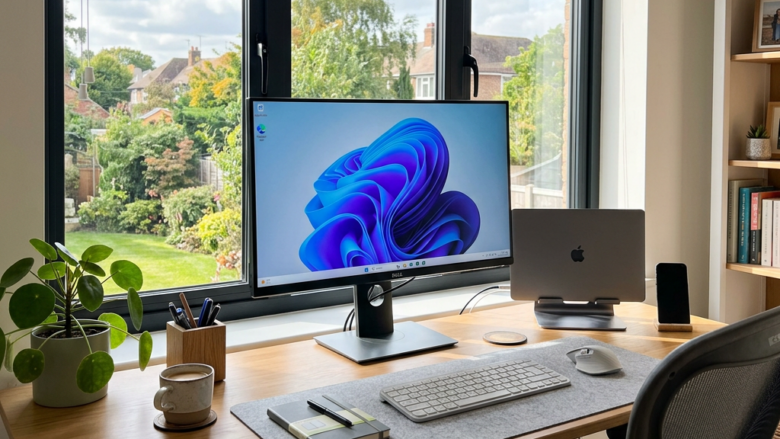
Changing your Windows 11 background lets you set a personal photo, solid color, or daily rotating picture behind your desktop icons in just a few clicks. Windows 11 gives you four main choices for your desktop display: Picture, Solid Color, Slideshow, and Windows Spotlight.
You can pick any saved image file from your computer, choose a clean single color, cycle through a folder of your favorite shots, or let the system download a fresh daily photo.
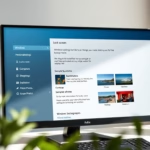
Right-click your desktop, select Personalize, then click Background. Choose Picture, Solid color, Slideshow, or Windows Spotlight from the dropdown menu to set your new background.
Step 1Open Windows Settings
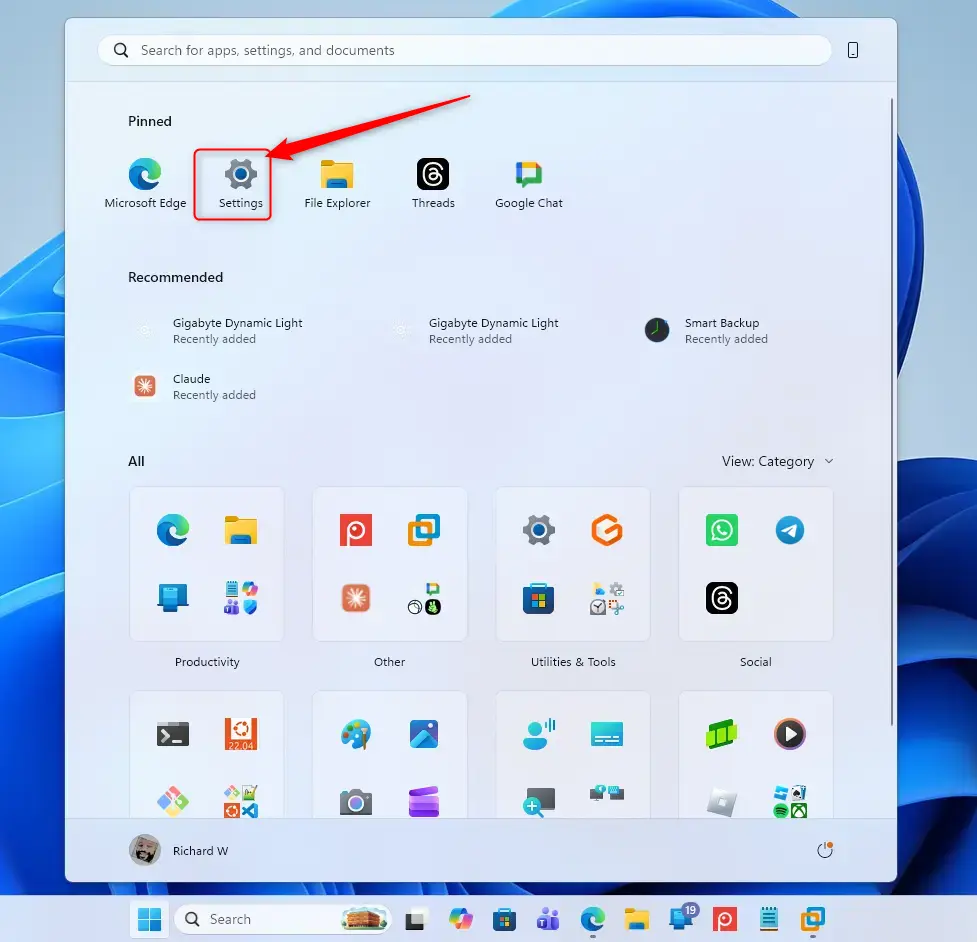
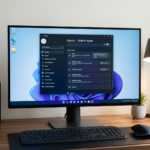
Opening Settings in Windows 11 lets you change your windows 11 background and manage other system preferences. You can open Settings quickly by pressing the Win plus the I key on your keyboard at the same time. Alternatively, click the Windows Start button in the taskbar and select the gear icon to open the main settings menu.
- Using the Start Menu : Click the Windows Start button (it looks like a window) in the bottom-left corner. Then, click the gear icon that says “Settings.”
- Using a Keyboard Shortcut: Press the Win and the I key on your keyboard at the same time. This opens Settings right away.
- From the Desktop: Right-click on any empty spot on your desktop. Then, click on “Personalize.” This takes you straight to the right section.
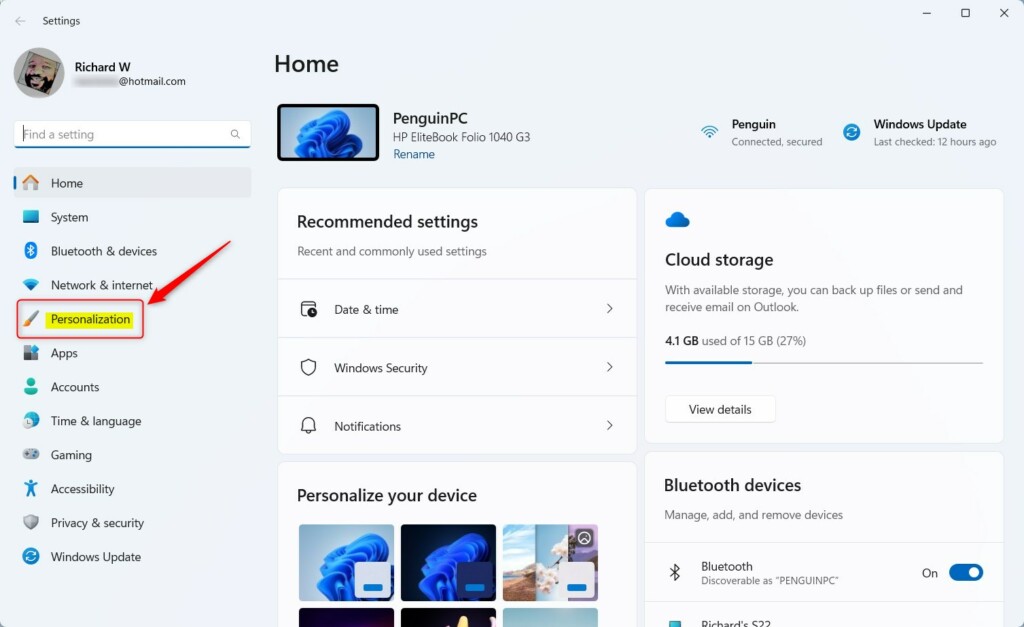
Step 2Go to Personalization
Locate and click Personalization in the left-hand menu once the Settings window appears. This section controls visual appearance, covering the desktop background, accent colors, and overall themes.
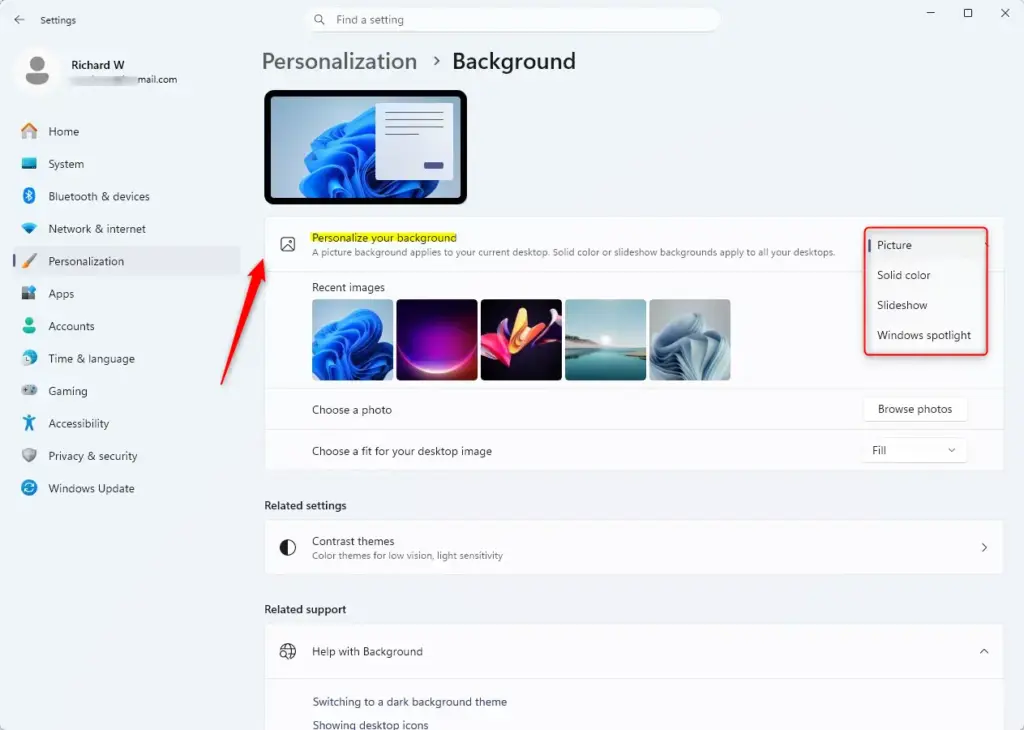
Step 3Pick Your Background Style
Choosing a background style for your windows 11 background lets you pick between a single picture, a solid color, a rotating slideshow, or dynamic Windows spotlight images. Each style changes how your desktop looks and feels, giving you an easy way to personalise your screen with your own photos or preset designs.
Picture
This configuration sets a single image as the background. Windows includes several default images, or custom photographs can be loaded.
- How to do it: Under the "Personalize your background" dropdown, select "Picture." You will see some recent pictures and pictures that come with Windows. Click on one you like. It will show up on your desktop right away.
- To use your own photo: Click the "Browse" button. Find the picture file on your computer and select it.
- Quick Tip: You can also find a picture file in File Explorer, right-click on it, and choose "Set as desktop background." It's that simple!
- Good to know: Make sure your picture is a good size. If it's too small, it might look blurry or blocky when Windows stretches it to fit your screen.
Solid Color
A solid color provides a clean alternative for minimalist desktop setups. This choice removes all imagery, displaying a single, uniform color.
- How to do it: Select "Solid color" from the "Personalize your background" dropdown. Then, click the color box to choose a color. You can pick from the default colors or click "Custom color" to choose any shade you want.
- Helpful Tip: A plain color background can make your icons and widgets stand out more. It's also good if busy backgrounds distract you.
Slideshow
Variety comes from selecting a folder of images for a slideshow. Windows cycles through the pictures in that folder at the time interval you choose.
- How to do it: Choose "Slideshow" from the "Personalize your background" dropdown. Click "Browse" and select the folder with all the pictures you want to use. You can also choose how often the pictures change (like every minute or every hour) and if they show in a random order.
- Smart Idea: Make a special folder just for your slideshow pictures. This makes it easy to manage them. You can even right-click on your desktop and select "Next desktop background" to see the next picture manually.
- Be aware: Make sure the folder you choose doesn't have any pictures you wouldn't want others to see if they use your computer. Also, a background that changes all the time might be distracting for some people.
Windows Spotlight
Windows Spotlight displays stunning, high-quality photographs from around the globe daily as the desktop background. These images often include interesting geographical facts.
- How to do it: Just select "Windows spotlight" from the "Personalize your background" dropdown. Windows does all the work!
- Neat Tip: If you see a picture you really like, you can often right-click on your desktop and choose "Learn more about this picture" (if the option is there) to find out more.
- Note: This feature needs an internet connection to download new pictures.
What Happens When Done?
The Windows 11 desktop background updates immediately following the selection of a new style.
Reference:
Summary
Modifying the Windows 11 background grants the freedom to apply a picture, color, slideshow, or Windows Spotlight.
Was this guide helpful?

About the Author
Richard
Tech Writer, IT Professional
Richard is a writer at Geek Rewind who turns complex IT tasks into clear, step-by-step guides. He draws on years of hands-on experience in system administration and enterprise IT operations, focusing on Windows, Linux and WordPress: the problems people actually run into, and the fixes that work. His server and WordPress guides come from systems he runs himself. Richard builds and maintains the platform behind Geek Rewind, from its Ubuntu servers and Nginx configuration to its custom WordPress plugins. Many new tutorials start with readers' questions, and he's always glad to answer them in the comments.

No comments yet — be the first to share your thoughts!