Optimize Google Chrome Ad Privacy Settings


Google Chrome ad privacy settings let you block tracking tools that follow you across the web to build a profile of your habits. These built-in controls stop websites from sharing your browsing history with outside advertisers.
Tracking protection and third-party cookie blocks work in Chrome version 120 and newer to keep your personal browsing activity private. Limiting this data stops companies from watching what you look at online. These settings are not an ad blocker. You will still see ads, but they depend less on what you have browsed. The steps below are the same on Windows 11 Home and Pro.
To change Chrome ad privacy settings, open Google Chrome, click the three vertical dots in the top-right corner, and select Settings. Type “Ad privacy” in the search box, then click the Ad privacy tile. Set Ad topics, Site-suggested ads, or Ad measurement to Off. You can also type chrome://settings/adPrivacy into the address bar.
Enhance online privacy with Google Chrome
Chrome ad privacy settings let you control how websites track your activity and show you targeted ads. You can find these options by opening Google Chrome, clicking the three vertical dots in the top-right corner, selecting Settings, and searching for ad privacy in the settings menu. The page is also reachable through the Privacy and security section of Settings. Either route ends at the same place, so use whichever is faster for you.
- Open the Google Chrome browser. A normal browser window is fine. You do not need to sign in to a Google account.
- Click the three vertical dots in the top right corner and select Settings. A new Settings tab opens.
- In the search box at the top of the Settings page, type “Ad privacy” for a direct path to the right menu. The matching result is highlighted on the page.
- Click on the Ad privacy tile to expand your options. You should now see the ad controls listed below.
Update it from the three-dot menu under Help About Google Chrome, then relaunch the browser. On a work or school PC, an administrator policy can also hide or lock these settings. In that case Chrome usually shows a “Managed by your organization” note, and you will need to ask your IT team.
This skips the menu clicks and the search box. It is handy if you want to bookmark the page for later.

Ad privacy settings page
The ad privacy settings page manages how websites show you targeted promotions using Google’s tracking tools. These controls let you manage ad topics based on your browsing history, turn off site-suggested ads, and stop advertisers from tracking how well their ads perform. Each of the three has its own page and its own switch, so you can turn off one and leave the others alone.
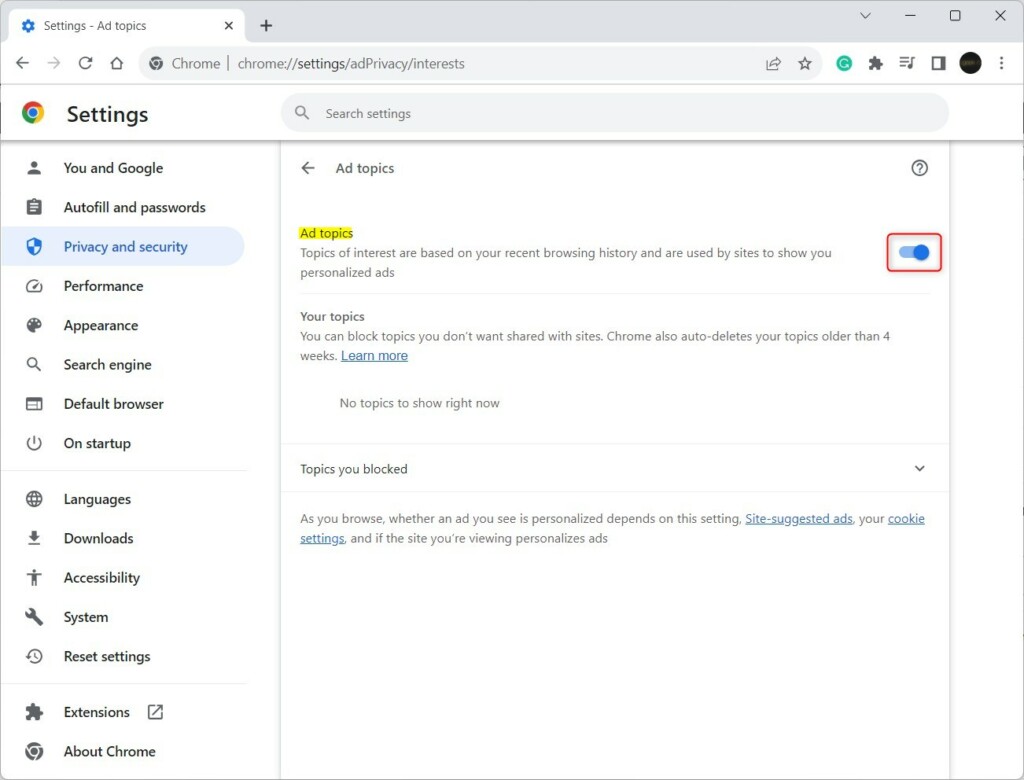
- Ad topics: This tracks the topics you are interested in based on the sites you visit. Sites can use those topics to choose which ads to show you.
- Site-suggested ads: This allows sites to suggest ads based on your recent visits. The ads come from sites you have already been to, rather than from broad interest topics.
- Ad measurement: This lets advertisers see how well their ads are performing. It covers things like whether an ad was seen or led to a visit.
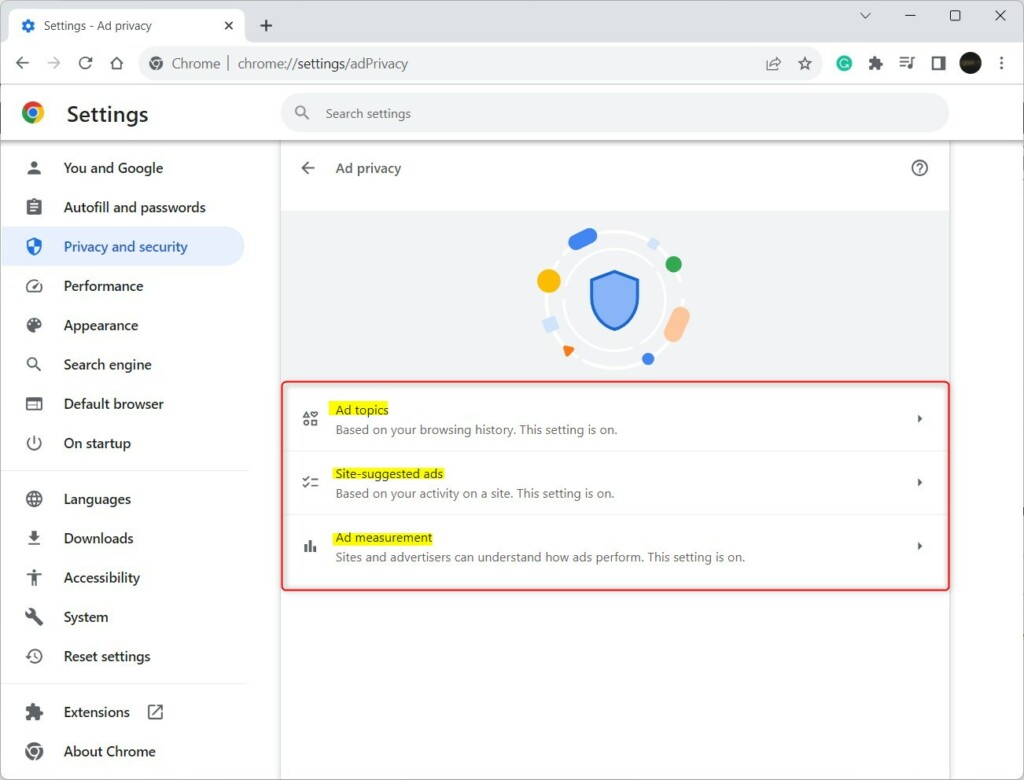
Chrome's ad privacy settings restrict data sharing with advertisers. Toggling the switch to Off stops browsing data from reaching advertisers, preventing companies from building an interest profile. Ads still appear, but browsing history dictates them less.
To turn a feature off, open Settings Ad privacy, click the feature you want to change, and set its switch to Off. The switch should change from blue to grey. The change applies right away and Chrome does not need a restart. To undo it, go back to the same page and switch it to On. Repeat the steps for each of the three features if you want all of them off.
Conclusion
Chrome's ad privacy settings provide control over personal data. Turning off ad privacy features limits advertiser knowledge, making browsing safer and more private.
Keep in mind that these switches only cover Chrome's own ad features. Other trackers, such as third-party cookies, are handled in a separate part of the Privacy and security settings, so check that section as well. Revisit the Ad privacy page after a major Chrome update, since options can be added or reworded.
Have a question about this guide?
Answered by AI from this guide. Good questions may be added to this page — please don't include personal details.
Did this guide fix your problem?

About the Author
Richard
Tech Writer, IT Professional
Richard is a writer at Geek Rewind who turns complex IT tasks into clear, step-by-step guides. He draws on years of hands-on experience in system administration and enterprise IT operations, focusing on Windows, Linux and WordPress: the problems people actually run into, and the fixes that work. His server and WordPress guides come from systems he runs himself. Richard builds and maintains the platform behind Geek Rewind, from its Ubuntu servers and Nginx configuration to its custom WordPress plugins. Many new tutorials start with readers' questions, and he's always glad to answer them in the comments.
No comments yet — be the first to share your thoughts!