Should You Enable Optional Diagnostic Data Sharing in Windows 11

Optional diagnostic data sharing in Windows 11 sends extra information to Microsoft about how you use your apps, which websites you visit, and how your device performs. It goes beyond the basic required data and can include crash dumps, inking and typing data, and browsing activity. Microsoft uses it to find bugs and plan future updates.
No, you should not enable optional diagnostic data in Windows 11 unless you prioritize bug fixes over privacy. Optional diagnostic data sends Microsoft extra information about your app usage, websites you visit, crash dumps, and typing data beyond what’s required to keep Windows secure. If privacy matters more to you, leave it disabled—required diagnostic data alone keeps Windows functioning normally.
You can turn the optional data on or off at any time in the Windows 11 privacy settings. This guide explains what the setting does, the trade-offs, how to change it, and which other privacy settings are worth checking while you are there.
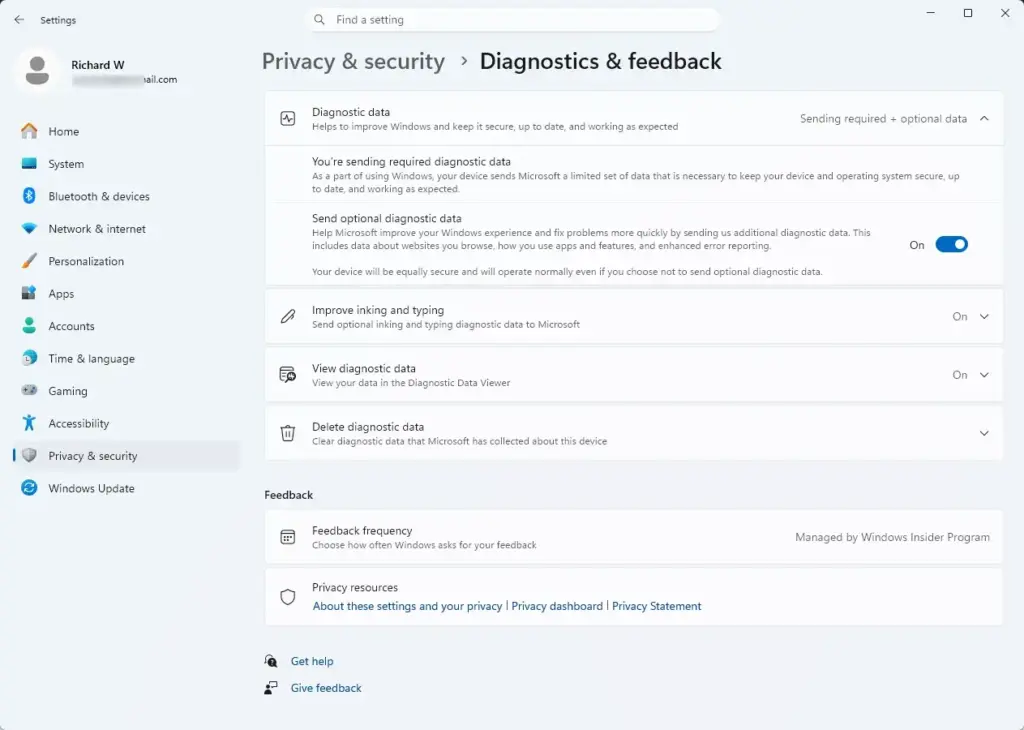
Windows splits diagnostic data into two levels:
- Required diagnostic data: This is the basic information Microsoft needs to keep Windows secure, up to date, and running normally. It covers your device model, basic settings, and whether apps are running correctly. You cannot turn this level off on Windows 11 Home or Pro. Only managed editions, such as Enterprise and Education, let an administrator reduce it further through policy.
- Optional diagnostic data: This is extra information about the websites you visit, how you use apps and features, and enhanced error reports. Microsoft does not need it to keep your computer secure. It uses it to improve its products and fix tricky bugs.
When people ask about turning on data sharing in Windows 11 version 23H2, they usually mean optional diagnostic data. It is the second category of information your computer sends to Microsoft automatically. It includes website details, app usage, and extra crash reports beyond what the required level collects.
The wording of the options can change slightly between builds. On the version you are running, the main toggle is labelled Send optional diagnostic data.
What Does Optional Diagnostic Data Actually Include?
Optional diagnostic data covers more about how you use your computer than Windows strictly needs. Examples are enhanced error reports, app compatibility details, website activity, and memory snapshots taken when programs crash. This helps Microsoft fix bugs and improve its software, but it also shares more about your daily habits.
Here is what it typically includes:
- Enhanced error reports: If a program crashes, your computer may send a snapshot of what was in memory at that moment. Developers use it to track down the cause and fix it in a later update.
- Feature usage data: Microsoft learns which menus, settings, and built-in apps people use most. If very few people use a feature, it may be changed or removed in a later update to simplify the system.
- Inking and typing data: If you use a digital pen or the touch keyboard, Windows may collect snippets of what you write to improve handwriting recognition and spelling dictionaries. On current builds this has its own switch, Improve inking and typing, on the same settings page. Check it separately if you want it off.
For most people, this data is sent quietly in the background. You will not notice any slowdown in your internet connection or in how the computer performs.
Pros and Cons of Enabling Optional Diagnostic Data
Whether to turn on optional diagnostic data comes down to balancing privacy against a better software experience. Neither choice is wrong. It depends on how comfortable you are sharing usage details. The advantages and disadvantages are below.
The Benefits
Sharing optional diagnostic data helps Microsoft spot rare bugs faster. If you hit a strange crash that few other people see, your data may be the clue that lets engineers reproduce and fix it. Over time this makes Windows more stable and reliable for everyone, including you.
It matters most on unusual hardware, older drivers, or less common software setups. Problems there are harder to catch with the required data alone.
The Drawbacks
The main drawback is privacy. Microsoft says it removes personal names and email addresses before looking at the information, but some users are still uncomfortable sharing details about how they use their software and apps. Crash snapshots and website activity can be more revealing than you expect.
Turning it off will not make Windows slower or less secure.
How to Check and Change Your Diagnostic Data Settings
You can check and change the setting in the Settings app under Privacy & security and then Diagnostics & feedback. You can switch optional sharing on or off here. You cannot turn off required data completely on Home or Pro.
- Click the Start button on the taskbar and open Settings (the gear icon). The Settings window opens.
- In the left sidebar, click Privacy & security. The privacy options appear in the main window.
- Scroll down to the Windows permissions section and click Diagnostics & feedback.
- Find the Send optional diagnostic data setting.
- Click the toggle to turn it On or Off, depending on your preference. The label next to the switch updates to show its state.
If the toggle is greyed out, or the page says some settings are managed by your organization, a work or school policy is controlling it. Only your administrator can change it. The same page also has Delete diagnostic data, which asks Microsoft to remove the diagnostic data it already holds for your device. Turning the toggle off only stops further sharing.

Changes take effect immediately. You do not need to restart your computer. To undo a change, go back to the same page and flip the toggle again.
Other Important Privacy Settings to Review in 🪟 Windows 11
Diagnostic data is only one part of Windows 11 privacy. If you want to keep your personal information more private, review the areas below too.
The Advertising ID
The advertising ID is a unique code Windows creates for your user account. Apps use it to track your habits and show you personalized ads. If you want to stop apps from building a profile based on how you use your computer, you can turn it off.
- Open Settings from the Start menu.
- Click Privacy & security in the sidebar.
- Click General. A short list of switches appears.
- Turn off the toggle for letting apps show you personalized ads by using your advertising ID. The exact wording varies slightly between builds, and it is usually the first switch on the page.
You will still see ads in apps afterwards, but they will be generic rather than tailored to your activity. The setting applies per user account, so repeat it for each account on the PC.

Location Tracking
Location access lets apps know where you are, so they can show local weather, maps, and store listings. You can keep your location private by turning off location services completely, or by changing permissions for individual apps so they cannot read your coordinates.
- Open Settings.
- Go to Privacy & security, then click Location.
- Turn the main Location services toggle to Off, or scroll down to control permissions for individual apps.
Turning off the main switch blocks location access for all apps at once. If you want weather or maps to keep working, leave it on and switch off only the apps you do not trust. Turn the main switch back on at any time to undo it.
Activity History
Turn it off if you share your computer or do not want Windows to store your recent actions.
- Open Settings.
- Go to Privacy & security and select Activity history.
- Uncheck the box or toggle off the setting that stores your activity history on this device.
Microsoft has been changing this area of Settings across Windows 11 releases. If you do not see an Activity history entry on your build, that page has been removed or moved, and there is nothing to switch off there.
Managing AI Features and Copilot in 🪟 Windows 11
AI features and Microsoft Copilot can be removed from your taskbar or disabled through Settings. This is worth doing if you do not want these tools processing your personal data, capturing screenshots of your activity, or giving you unwanted suggestions.
If you do not use Copilot or other AI assistants, you can remove them from the taskbar or disable them entirely:
- Open Settings.
- Click Personalization in the sidebar, then select Taskbar.
- Find the Copilot switch and turn it to Off. The Copilot button disappears from the taskbar.
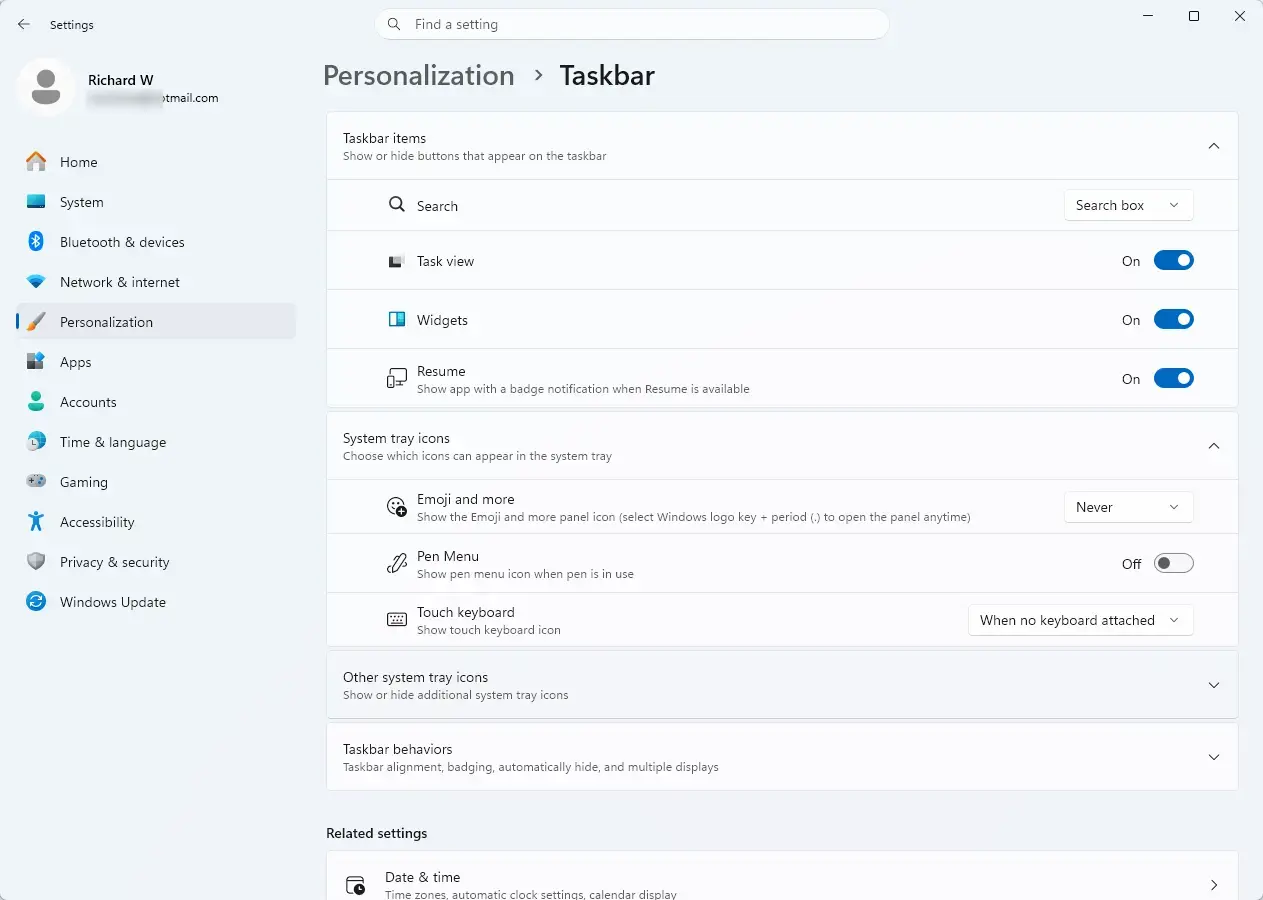
Keeping these AI features off stops your computer from sending conversational queries and screen interactions to Microsoft servers for AI processing. The switch is under Taskbar items on the taskbar page, and its name and location can differ between builds. To bring Copilot back, return to the same page and turn the switch on again.
Browser Privacy: Managing Microsoft Edge
Microsoft Edge privacy settings control how much data your browser collects about your browsing. You can change your tracking prevention level, block third-party cookies, and clear browsing data from the Edge settings menu.
Open Microsoft Edge, click the three dots in the top-right corner, and go to Settings Privacy, search, and services. There you can choose a tracking prevention level (Basic, Balanced, or Strict) that blocks trackers from following you across websites. Strict blocks the most, but it can occasionally break parts of some sites. If a site stops working properly, drop back to Balanced. If you prefer a different browser entirely, you can download and use alternatives such as Firefox or Google Chrome.
Summary
Diagnostic data helps Microsoft find and fix bugs. Required data keeps your system secure, and optional data gives Microsoft extra detail for improvements. You can manage these settings, and protect your privacy, from the Windows Settings app. Changes apply immediately and you can reverse them at any time.
Have a question about this guide?
Answered by AI from this guide. Good questions may be added to this page — please don't include personal details.
Did this guide fix your problem?

About the Author
Richard
Tech Writer, IT Professional
Richard is a writer at Geek Rewind who turns complex IT tasks into clear, step-by-step guides. He draws on years of hands-on experience in system administration and enterprise IT operations, focusing on Windows, Linux and WordPress: the problems people actually run into, and the fixes that work. His server and WordPress guides come from systems he runs himself. Richard builds and maintains the platform behind Geek Rewind, from its Ubuntu servers and Nginx configuration to its custom WordPress plugins. Many new tutorials start with readers' questions, and he's always glad to answer them in the comments.
No comments yet — be the first to share your thoughts!