Why Does Windows 11 Keep Showing Promotional Suggestions in Privacy Settings

- 38 steps
- Needs administrator rights
Promotional suggestions in Windows 11 are built-in ads and tips. Microsoft uses them to recommend extra services such as OneDrive storage or Microsoft 365. Windows uses signals like which apps you launch and what you search for to decide which prompts to show in your menus.
These suggestions take up screen space and rely on tracking your habits. No single switch turns them all off. They are spread across several Settings pages, and this guide covers each one. The names below match current Windows 11 (24H2 and 25H2), and on older builds a label may be worded slightly differently, but the setting is in the same place.
Windows 11 shows promotional suggestions because Microsoft uses your app launches and searches to decide which prompts to display in Settings and Start. To stop them, open Settings, go to Privacy & security General, and turn off “Show me suggested content in the Settings app” and “Let Windows improve Start and search results by tracking app launches.
How to Turn Off Recommendations and Offers in Settings
Most of the controls are on one page: Privacy & security General. Start there. None of these changes need a restart or sign-out, and you can reverse any of them by switching the toggle back on.
- Click the Start button on the taskbar and select Settings. You can also press the Win+I. The Settings window opens.

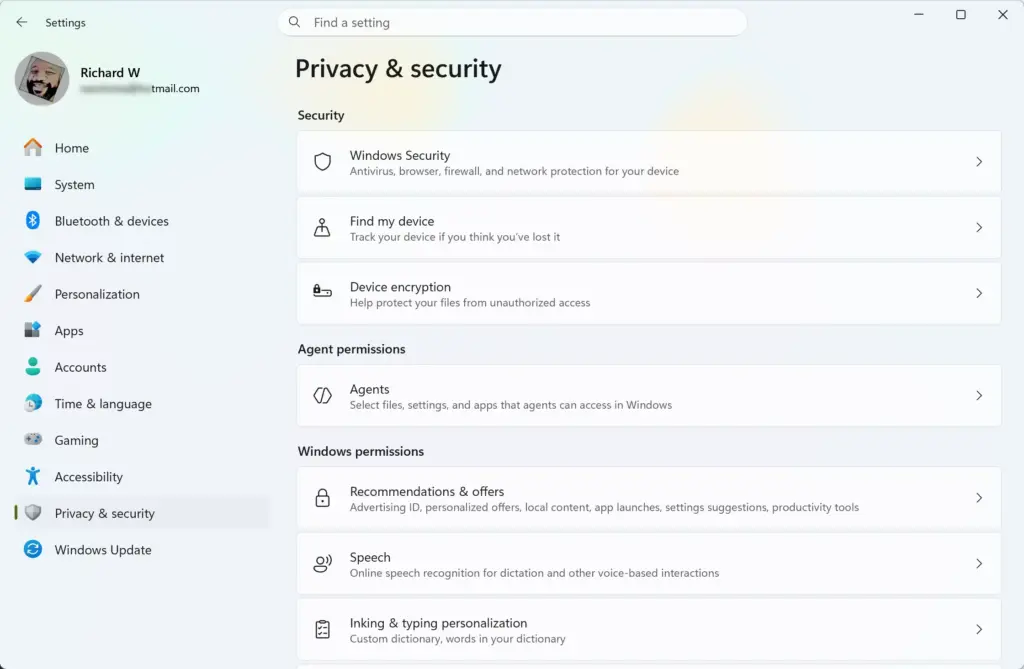
- Click Privacy & security in the left-hand menu. The privacy options appear on the right.
- Click General in the list of privacy options. A short list of toggle switches appears.
- Turn off Show me suggested content in the Settings app. This stops Windows from placing tips and recommended content inside the Settings app itself. The toggle should now read Off.
- Turn off Let Windows improve Start and search results by tracking app launches. Windows uses this tracking to decide which apps and items to promote in Start and search. The toggle should now read Off.
- Look for Show me notifications in the Settings app on this page. If it is there, turn it off too. Only some builds have it, so skip this step if you do not see it.
That’s it. You should now have the main suggestion and tracking toggles on the General page switched off, and Settings itself should stop showing promotional tips.
The tips-and-suggestions toggle, Get tips and suggestions when using Windows, is not on this page. It is in the notification settings, covered further down.
If a toggle is greyed out, or a message says some settings are managed by your organization, an administrator has locked it with policy. That is common on work or school PCs, and more likely on Pro, Enterprise and Education editions than on Home. In that case, ask your IT department.
How to Stop Promotional Content in the Start Menu

The Start menu has its own section, which can show new apps, recent files and tips. You can switch off the promotional parts in the Personalization settings. This keeps Start focused on the programs you actually use.
On many builds this section is called Recommended. On builds with update KB5120998, Microsoft has renamed it Recent, and the labels under Settings Personalization Start now use the word Recent instead of Recommended. The toggles sit in the same place, so the wording on your screen may differ from older screenshots and guides.
If your labels do not match the ones below, look for the toggle that covers tips, shortcuts and new apps. On KB5120998 builds, that toggle uses the Recent wording.
- Open the Settings app by clicking Start and choosing Settings.

- Click Personalization on the left side of the screen.

- Click Start in the list of personalization options. The toggles for the Start menu appear.
- Turn off Show recommendations for tips, shortcuts, new apps, and more. This is the toggle that carries promotional content. On builds with KB5120998, the label uses Recent in place of Recommended, so match it by the tips, shortcuts and new apps wording. The toggle should now read Off.
- If you also want fewer recently added or recently opened items in Start, turn off the other “Show…” toggles on the same page. These are not ads, so this step is optional.
- For further cleanup, open the Layout and Folders options on the same page. Choosing a layout with more pinned apps leaves less room for suggestions.
That’s it. You should now have a Start menu with the promotional tips and suggested apps turned off. To undo any of this, return to the same page and switch the toggles back on.
How to Turn Off the Advertising ID
The advertising ID is a unique tracking code Windows assigns to your account. Apps use it to show you targeted ads. Turning it off does not remove ads completely, but they become less tailored to you. It is also a quick change.
- Open the Settings app.
- Select Privacy & security from the menu.
- Click General near the top of the list.
- Turn off Let apps show me personalized ads by using my advertising ID. The toggle should now read Off.
That’s it. You should now have the advertising ID switched off, so apps can no longer use it to tailor ads. No restart is needed. Switch the toggle back on at any time to undo it.
How to Remove Promotional Suggestions from the Lock Screen
The default lock screen picture, Windows Spotlight, can include tips and suggestions alongside the image. Switching to your own picture or a slideshow removes those prompts.
- Open the Settings app.
- Click Personalization on the left menu.
- Click Lock screen. The lock screen options open.
- Find the dropdown menu next to Personalize your lock screen.
- Change the selection from Windows Spotlight to Picture or Slideshow. Windows asks you to choose an image or folder.
- Uncheck the box Get fun facts, tips, tricks, and more on your lock screen. This box only appears after you leave Windows Spotlight.
That’s it. You should now see your own picture or slideshow on the lock screen, without the tips and fun facts. To go back, set the dropdown to Windows Spotlight again.
How to Disable Notification-Based Ads and Prompts
Windows can also push suggestions as notifications or as a “welcome experience” screen after an update. These switches are on the Notifications page, under a collapsed section at the bottom.
- Open the Settings app.
- Click System on the left menu.
- Click Notifications. The notification settings open.
- Scroll to the very bottom of the page and click to expand Additional settings. A short list of checkboxes appears.
- Uncheck the welcome experience option. Depending on your build, it reads Show the Windows welcome experience after updates and when signed in to show what’s new and suggested, or the older wording Show me the welcome experience after updates and occasionally when I sign in to highlight what’s new and suggested.
- Uncheck Get tips and suggestions when using Windows. Older builds word this as Suggest ways to get the most out of Windows and finish setting up this device.
That’s it. You should now have both boxes cleared, so Windows stops showing the post-update welcome screen and tip notifications. Check the box again to undo either change.
Unique Angle: Managing Diagnostic Data to Reduce Hidden System Prompts
Windows uses diagnostic data, which is information about how your PC and apps behave, to personalize some tips and recommendations. Reducing what it shares limits that. Windows 11 offers two levels: required data, which Windows needs to stay secure and working, and optional data.
The older “full” and “basic” labels from Windows 10 map roughly to optional and required.
- Open the Settings app.
- Click Privacy & security.
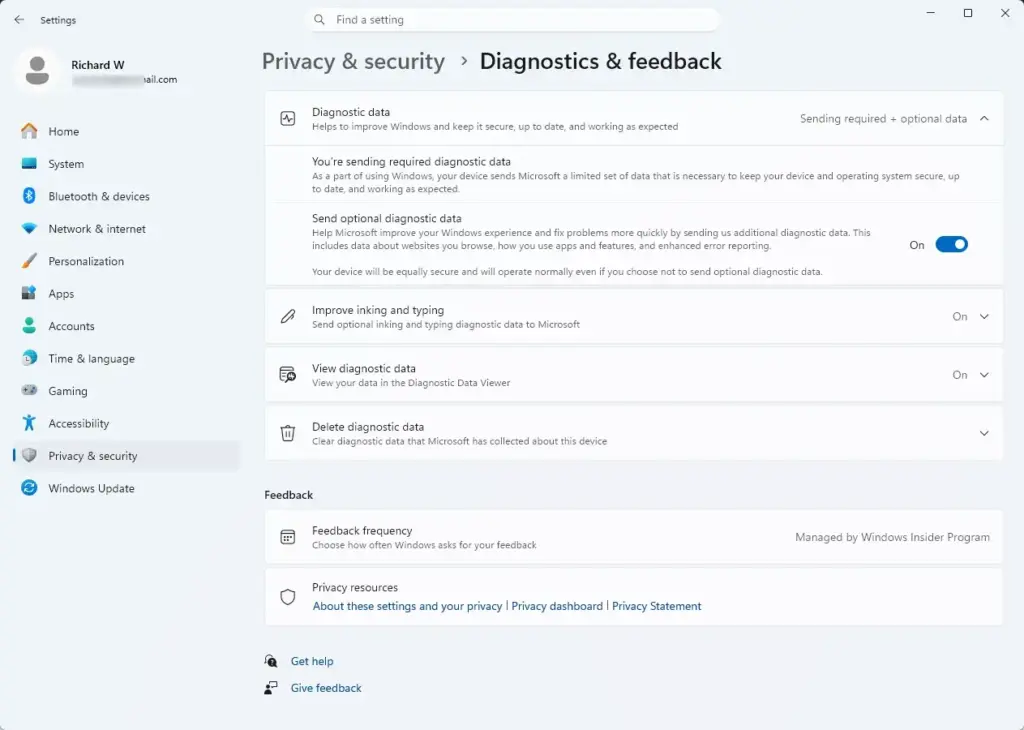
- Click Diagnostics & feedback. The diagnostic options open.
- Under the Diagnostic data section, turn off Send optional diagnostic data. Windows then sends only the required diagnostic data.
- Scroll down and turn off Tailored experiences. This stops Microsoft from using your diagnostic data to offer personalized tips, ads and recommendations.
That’s it. You should now be sending only required diagnostic data, with tailored experiences switched off. This keeps Windows secure and running properly, and it limits what Microsoft can use to target suggestions.
It will not remove every suggestion, so use it together with the other settings in this guide. Switch the toggles back on to undo the change.
Unique Angle: Stopping Browser and Search Engine Suggestions
The search box on the taskbar can show trending topics, “search highlights” and web results. If you want searches that stay on your own PC, turn these off. The steps below use the Search permissions page found in current public Windows 11 builds.
- Open the Settings app.
- Click Privacy & security.
- Scroll down and click Search permissions. The search settings page opens.
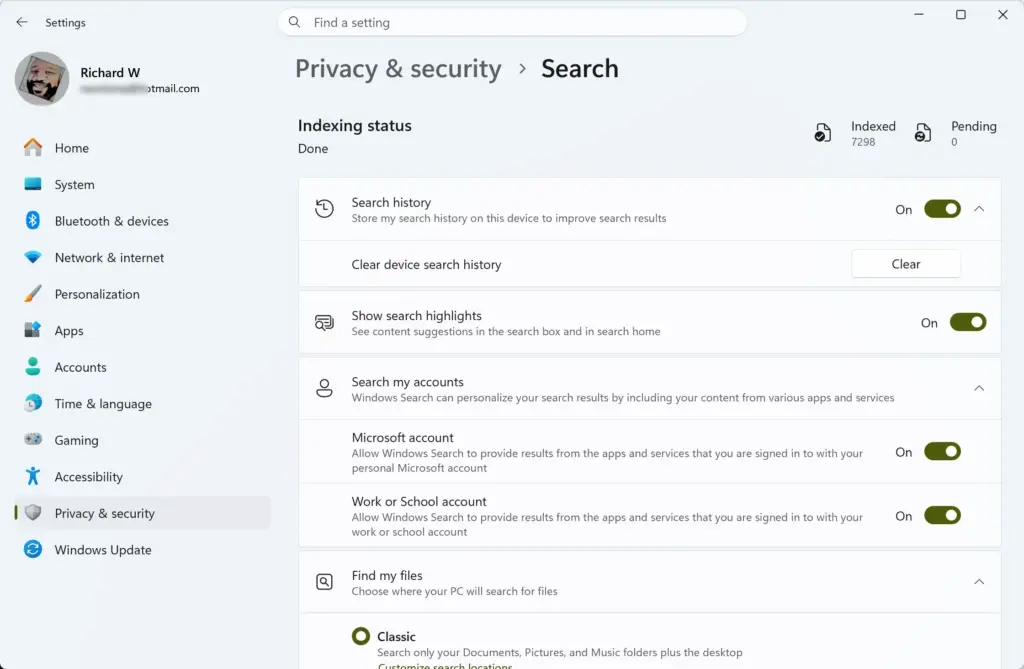
- Scroll to the More settings section and turn off the toggle for Show search highlights. The daily topics and illustrations disappear from the search box.
- Near the top of the page, turn off the cloud content search options for your Microsoft account and your work or school account, if they appear. This keeps the search box focused on files and apps stored on your PC.
That’s it. You should now have a search box without highlights and, where available, without cloud results. These changes take effect right away in Settings. Switch the toggles back on to restore the highlights and cloud results.
Summary
Stopping promotional suggestions in Windows 11 takes a few quick changes across the privacy, Start menu, lock screen, notification and search settings. Work through each section above and your PC will show far fewer ads and tips. If a setting is greyed out on a work or school PC, an administrator has locked it.
Have a question about this guide?
Answered by AI from this guide. Good questions may be added to this page — please don't include personal details.
Did this guide fix your problem?

About the Author
Richard
Tech Writer, IT Professional
Richard is a writer at Geek Rewind who turns complex IT tasks into clear, step-by-step guides. He draws on years of hands-on experience in system administration and enterprise IT operations, focusing on Windows, Linux and WordPress: the problems people actually run into, and the fixes that work. His server and WordPress guides come from systems he runs himself. Richard builds and maintains the platform behind Geek Rewind, from its Ubuntu servers and Nginx configuration to its custom WordPress plugins. Many new tutorials start with readers' questions, and he's always glad to answer them in the comments.
No comments yet — be the first to share your thoughts!