Which Speech Recognition Engine Should You Use in Windows 11 Accessibility Speech Settings

- 14 steps
- Needs administrator rights
Windows 11 includes three built-in speech tools: Voice access, Voice typing and the older Windows Speech Recognition. Voice access controls the whole PC, Voice typing dictates text, and Windows Speech Recognition is the legacy tool from the Control Panel.
The right choice depends on whether you want to navigate the system by voice or only put words on the page. This tutorial compares the three tools, shows how to set up a microphone and turn on Voice access, and covers ways to improve accuracy. Voice access is the best fit for current Windows 11 versions such as 24H2 and 25H2.
Voice Access is the modern speech recognition engine for Windows 11 and works best for full system control—navigating the desktop, opening apps, and controlling your computer hands-free. Voice Typing dictates text into active fields using Win plus H. Windows Speech Recognition is the legacy option, now deprecated. Use Voice Access for complete control or Voice Typing for text dictation only.
Understanding Speech Recognition Options in 🪟 Windows 11
The speech options in Windows 11 split into modern tools and legacy features. Knowing which is which makes it clearer whether you need full system navigation or plain text dictation.
Your settings offer options for typing, dictation and full system control. The question to ask is this: do you want to put text into a box, or do you want to run the whole operating system hands-free?
- Voice accessthe modern, full-control option. It is the one Microsoft is actively developing.
- Voice typingdictation into any text field, started with a keyboard shortcut.
- Windows Speech Recognitionthe classic tool from the Control Panel. Microsoft has deprecated it in favor of Voice access, so it may be missing on newer Windows 11 builds.
What Is Voice Access and How Does It Work?
Voice access is a built-in feature that lets you control your whole computer, open apps and browse the web with your voice. Its value becomes clear once you click buttons, move through menus and type text without touching the keyboard.
Older dictation tools only type what you say. Voice access understands commands, so you can click a button by saying its name. You can also overlay a numbered grid on the screen to click an exact spot, and you can move windows around.
Voice access recognizes speech on the device using on-device speech models. That means it responds quickly and works without an internet connection after the speech files are downloaded.
Voice access is built into current Windows 11 versions (24H2 and 25H2) and is available in Home and Pro. It was introduced in 22H2, but 22H2 and 23H2 Home and Pro are no longer supported. If you cannot find it in Settings, run Windows Update first. It also supports a limited set of languages, so check that yours is covered if the option behaves oddly.
Comparing Voice Access and Older Dictation Tools
The two tools overlap, but they do different jobs. Voice access handles full computer control. Voice typing is designed strictly for writing text. Picking the right one saves frustration, whether you are writing an email or navigating your desktop.
- Voice AccessBest for complete hands-free control of your computer. It lets you navigate the desktop, manage files and control apps entirely by voice.
- Voice TypingBest for quickly writing text. Inside a document, email or search box, press the Win plus H to start typing with your voice. It only works while a text field is active, and it generally needs an internet connection, unlike Voice access.
Voice typing is also available from the dictation key on the touch keyboard. It no longer uses a full-screen overlay, so you can keep the document you are writing in view while you dictate. Use whichever route is closer to hand: the shortcut on a physical keyboard, or the dictation key on a touch screen.
If you need to control the mouse and open menus, use Voice access. If you need to dictate a long letter or message, Voice typing is faster and works better.
How to Set Up Your Microphone for 🪟 Windows 11 Speech Tools
Both tools depend on a good microphone signal. Setting it up means plugging in your hardware and choosing the right input device in your sound settings. Doing this first prevents most recognition errors and makes sure your computer hears every word.
A headset microphone usually beats a laptop’s built-in one. It stays at a steady distance from your mouth and picks up less room noise.
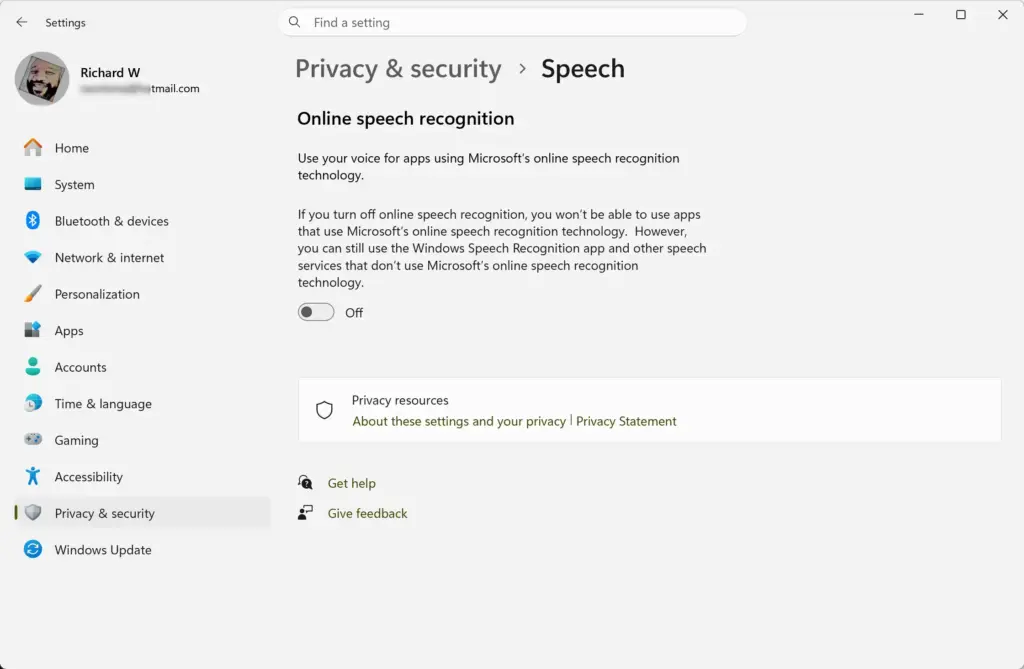
Before you start, know that Windows must be allowed to use the microphone. If the microphone does not work at any point below, check Settings Privacy & security > Microphone. Step 6 covers exactly what to turn on.
- Plug your microphone or headset into your computer. Wait a moment for Windows to detect it.
- Click the Start button and open the Settings app.
- Go to System and select Sound. The list of sound devices and options appears.
- Under the Input section, choose the microphone you want to use. If your headset is not listed, unplug it, plug it back in, and check that it is not disabled.
- Speak into your microphone and watch the volume meter. It should move as you talk. If it stays flat, you have the wrong device selected or the microphone is muted.
- If the meter still does not move, go to Settings Privacy & security > Microphone. Make sure Microphone access is turned on, and make sure access for desktop apps is turned on as well. Then speak again and check the meter.
That’s it. Your microphone is now selected, Windows is allowed to use it, and the volume meter reacts to your voice, so both Voice access and Voice typing can hear you.
How to Turn On Voice Access in 🪟 Windows 11
Turning on Voice access takes a few clicks in the Settings app. Open Accessibility, go to Speech, and switch the feature on. Windows downloads the files it needs the first time.
- Click the Start button and open the Settings app.
- Select Accessibility from the menu on the left side.
- Scroll down and click Speech. The speech options open.
- Find the switch for Voice access and turn it on. A control bar appears at the top of the screen once Voice access is running.
That’s it. Voice access is now running, and its control bar sits at the top of your screen, ready for commands.
If this is your first time using it, Windows prompts you to download speech files and guides you through a short tutorial. Keep the PC online until the download finishes. To stop using Voice access, return to the same page and turn the switch off. No restart is needed either way.
Alternative Setup Methods via Control Panel
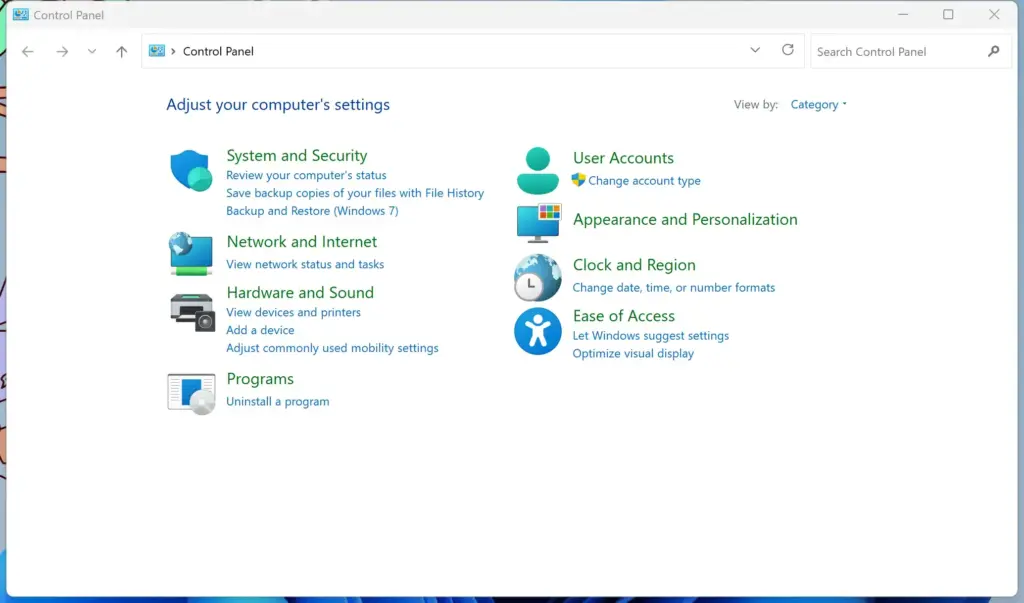
The Control Panel gives you access to the classic speech recognition tools that have been part of Windows for years. You open the classic Control Panel, go to Ease of Access, and launch the traditional setup wizard. This is the legacy engine, so use it only if you have a specific reason to.
If the option is missing, your Windows 11 build has probably removed it. Voice access is the replacement.
- Click the Start button, type Control Panel, and select it from the search results.
- Click Ease of Access.
- Select Speech Recognition.
- Choose options like Start Speech Recognition or Train your computer to be better at understanding you to improve accuracy. The first launch runs a setup wizard that walks you through microphone setup.
That’s it. You have now opened the legacy speech tools and, on first launch, started the wizard that configures your microphone for them.
Note: Administrative privileges are required to change system-wide accessibility features in the classic Control Panel.
Unique Angle: Training Your PC to Understand Your Unique Accent and Voice
Training your PC to understand your accent and voice can improve how accurately Windows recognizes what you say. In the classic tool, this means reading sample text aloud so the system learns your pitch and speaking speed.
Modern engines use artificial intelligence to understand speech without long training sessions, but you can still improve results:
- Spend a few minutes reading sample text aloud when prompted during setup.
- Speak clearly at a normal, steady pace.
- If your computer keeps misunderstanding a specific word, check your microphone placement.
- Work in a quiet room, away from background noise like fans, television or traffic.
Voice access also has a noise filter called Voice Isolation. After a one-time voice setup, it filters out other speakers and background noise, which helps in a shared or noisy room.
You choose the filtering mode under Voice access settings Improve speech recognition. The other two modes are Remove background noise only, which leaves other voices alone, and No filtering, which passes the microphone signal through untouched. If recognition gets worse after you change the mode, switch back to the previous one.
Conclusion
Choosing the right speech recognition engine in Windows 11 depends on whether you need full system control or quick text typing. Pick Voice access for hands-free navigation, and Voice typing (Win plus H, or the dictation key on the touch keyboard) for fast document creation. Use the legacy Windows Speech Recognition only if an older workflow still depends on it.
Have a question about this guide?
Answered by AI from this guide. Good questions may be added to this page — please don't include personal details.
Did this guide fix your problem?

About the Author
Richard
Tech Writer, IT Professional
Richard is a writer at Geek Rewind who turns complex IT tasks into clear, step-by-step guides. He draws on years of hands-on experience in system administration and enterprise IT operations, focusing on Windows, Linux and WordPress: the problems people actually run into, and the fixes that work. His server and WordPress guides come from systems he runs himself. Richard builds and maintains the platform behind Geek Rewind, from its Ubuntu servers and Nginx configuration to its custom WordPress plugins. Many new tutorials start with readers' questions, and he's always glad to answer them in the comments.
No comments yet — be the first to share your thoughts!