What Breaks When You Remove Speech Recognition Packages in Windows 11

- 24 steps
- Needs administrator rights
- Includes a restart or sign-out
Speech recognition packages in Windows 11 are built-in system files that let you type with your voice, control your PC hands-free, and work alongside accessibility tools. Removing the legacy speech files breaks the old Windows Speech Recognition tool and some older apps and games that depend on it. The newer built-in tools, Voice Typing and Voice Access, are separate features and are much less affected.
Windows 11 treats some speech components as language and optional-feature packages. You can find and remove them in Settings, but only from an administrator account. The saving in disk space is small on most drives, so check what depends on these files first. This guide covers what stops working, what keeps working, and how to check your settings before you act.
Removing speech recognition packages in Windows 11 breaks the legacy Windows Speech Recognition tool, traditional voice commands like “Open Microsoft Edge,” dictation in older desktop apps, and third-party voice control software that relies on the Windows speech engine. Newer tools like Voice Typing and Voice Access remain unaffected because they use separate packages.
What Is Windows Speech Recognition and Why Is It Changing?
Windows Speech Recognition is an older built-in tool that lets you control your computer entirely by voice. It can open apps, browse the web, and dictate text. It has been part of Windows since Vista, and it still ships in Windows 11 as a legacy feature, meaning Microsoft keeps it for compatibility but no longer develops it.
Microsoft is moving away from it because the newer tools, Voice Typing and Voice Access, handle dictation and hands-free control faster and more reliably.
Over time, Microsoft built two newer tools to replace the old one:
- Voice Typing lets you speak text into any text box. It uses modern cloud technology, so it needs an internet connection.
- Voice Access gives you full computer control, similar to the old speech recognition tool, but with a better design and more reliable commands. It is available in Windows 11 version 22H2 and later.
Because these tools work better, Microsoft has started removing the legacy Windows Speech Recognition packages from Windows 11. If you are on an older build, your menus may look slightly different from what this guide describes.
What Breaks When You Remove Speech Recognition Packages?
The original speech tool stops responding to commands like “Open Microsoft Edge” or “Click File”. The modern voice features are separate and stay available. Here is what to expect, item by item.
- Traditional Voice Commands and Navigation: The original Windows Speech Recognition tool let you say commands like “Open Microsoft Edge” or “Click File”. Once the underlying speech packages are gone, these commands stop working immediately. If you try to open the old setup wizard or the microphone training tools, Windows shows an error message or fails to open them at all.
- Legacy Dictation Tools in Older Apps: Modern Windows 11 apps use updated typing systems, but older desktop programs relied heavily on the core speech library. Without the speech packages, dictation inside legacy text editors and custom business applications may freeze or grey out. The program can no longer turn your spoken words into typed text. If your office runs old line-of-business software, test it before you remove anything.
- Third-Party Voice Control Software: Many people use external programs to control software by voice, such as gaming macro tools like VoiceAttack. Some of these hook into the Windows speech engine to understand what you say. If the native speech recognition packages are missing, these programs may fail to recognize your commands or refuse to start. Check the program’s documentation, and reinstall the speech pack if it turns out to be required.
- Offline Voice Processing Capabilities: The old Windows Speech Recognition packages processed your voice on your own computer, with no internet needed. Removing them means you lose that offline fallback for the legacy tool. Voice Typing also sends audio to Microsoft’s servers, so if your connection drops, it stops working too. Voice Access downloads its own speech model during setup and can then run on your device, so it can work offline. It is available only in some languages, so check that yours is supported.
Features That Keep Working After Removal
Voice Typing and Voice Access keep working after you remove the old speech packages, because they do not rely on the legacy files. Press the Win plus H and you can still type with your voice in Microsoft Word and other apps. Voice Access sets up its own speech files when you first turn it on.
- Voice Typing: Press the Win plus H to open Voice Typing in apps like Microsoft Word, Notepad, and email programs. It needs an internet connection and a working microphone.
- Voice Access: This modern replacement for speech recognition gives you full control over your desktop, apps, and windows with spoken commands.
- Cortana and Copilot: Modern assistant tools use completely different systems and are not tied to the old speech recognition packages. Cortana has also been retired as a standalone Windows app, so there is little left of it to break.
- Microphone Input: Your physical microphone, headset, and audio recording apps still record sound normally. Removing speech packages does not touch your audio drivers.
How to Check Your Speech and Privacy Settings in 🪟 Windows 11
- Click the Start button and open the Settings app.
- Select Privacy & security from the left sidebar. The privacy categories should now appear on the right.
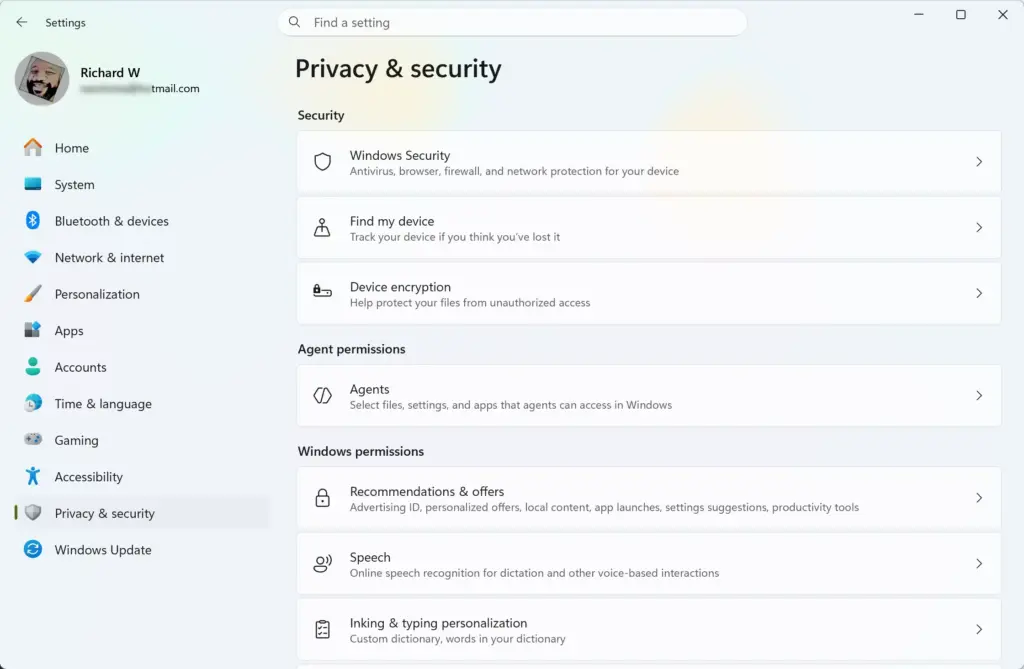
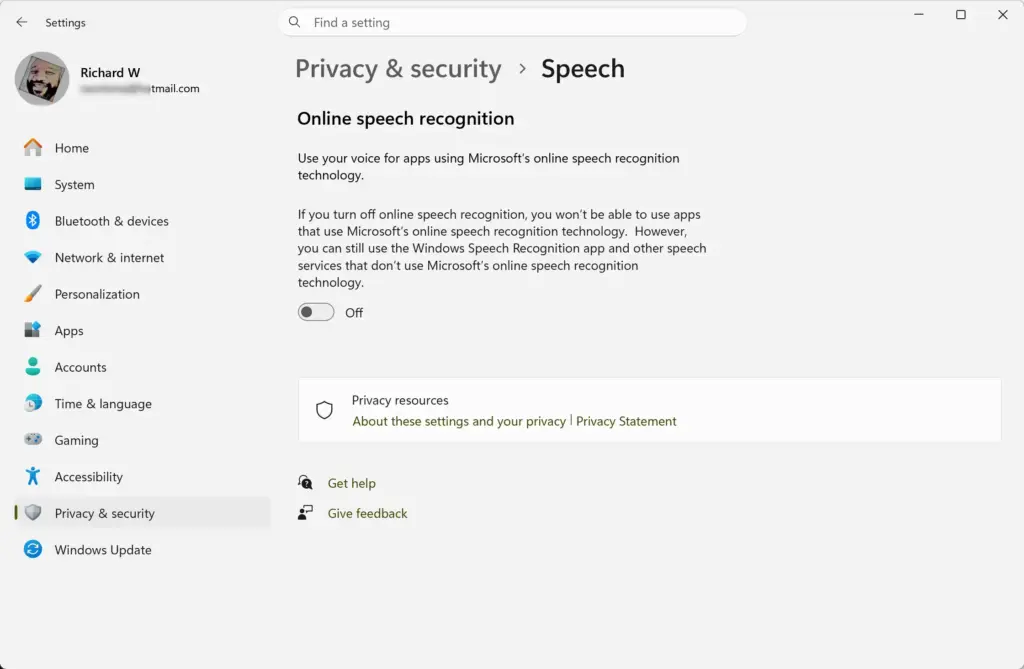
- Click Speech to check your online speech recognition setting. If it is off, Voice Typing and other cloud-based voice features will not work.
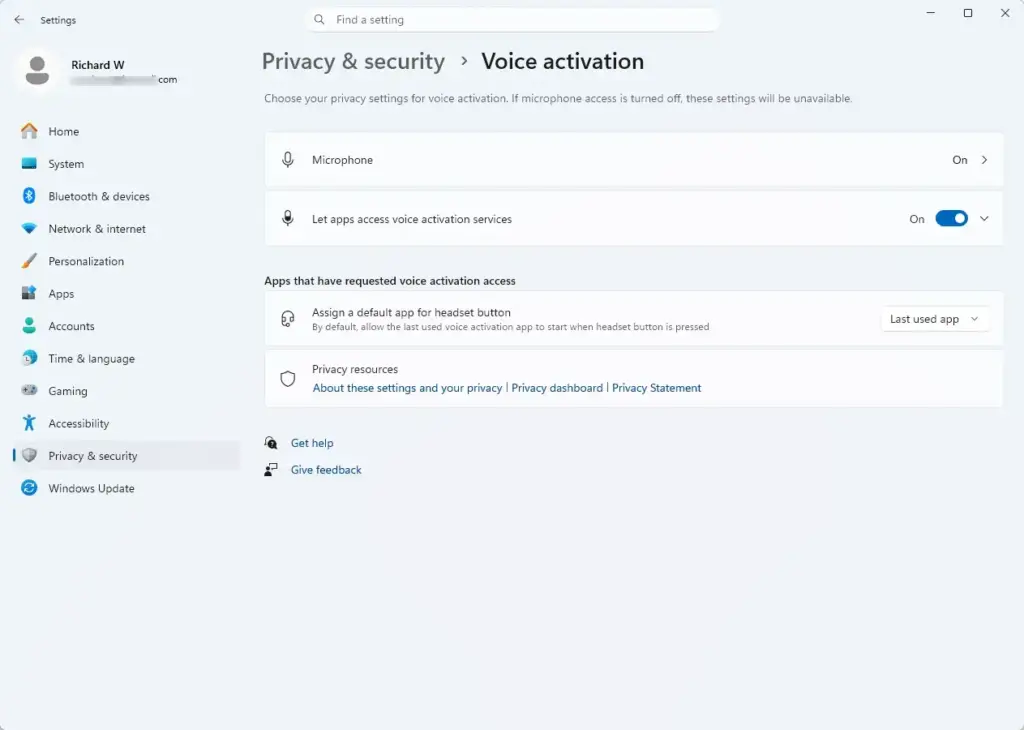
- Go back to the previous menu and select Voice activation. This is where you manage which apps can listen for a wake word, a spoken phrase that starts a voice feature. If you do not see it, your build may be older.
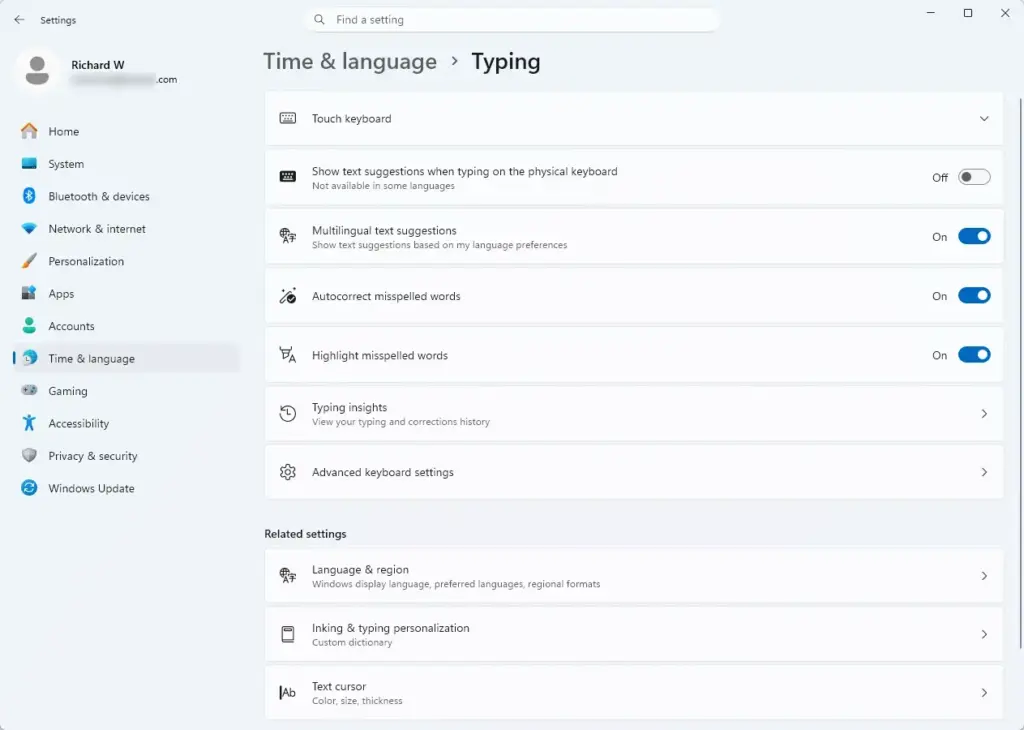
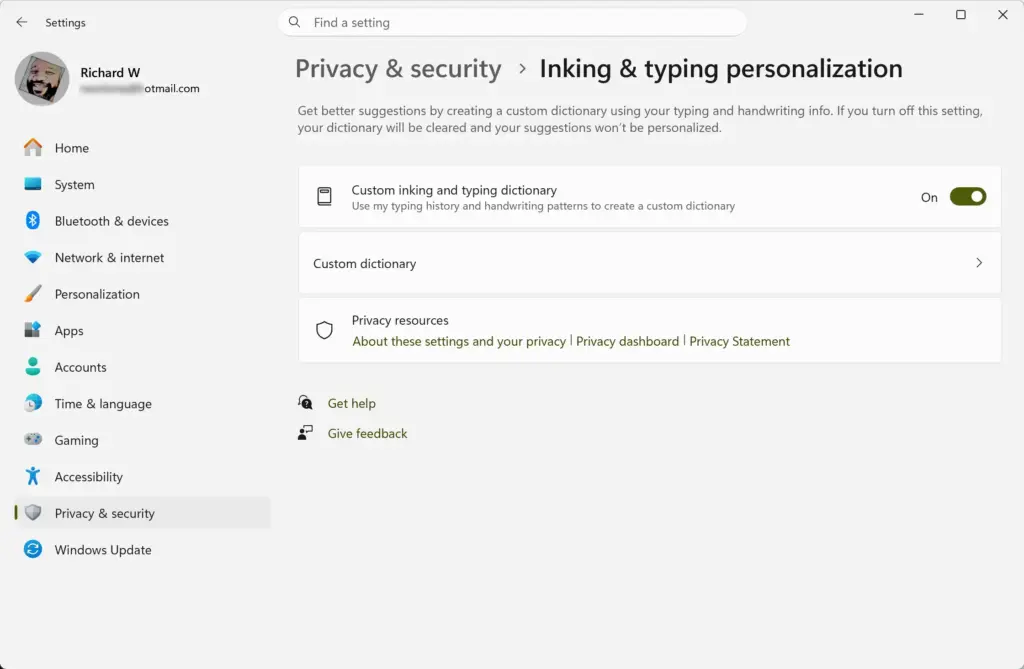
- Click Inking & typing personalization to review how Windows learns your writing and speech habits. Turning this off stops Windows from building a personal word list, but it does not remove any speech packages. Depending on your build, this page may sit in a slightly different place or have a different name.
- Go back to Privacy & security and select Microphone. Make sure microphone access is on at the top of the page.
- Scroll down and check the Let desktop apps access your microphone toggle. Many older voice tools are desktop apps, and if this switch is off, they cannot hear you even when everything else is set up correctly.
That’s it. You now know which voice features are on, which apps can listen, and whether your microphone is reachable by desktop apps, so you can judge what removing the speech packages would affect.
How to Safely Enable or Test Modern Voice Features
Voice Access is the modern replacement for the old tool, so turn it on before you remove the legacy packages. It is faster and more accurate, and it needs Windows 11 version 22H2 or later. You can switch it off again at any time from the same page.
- Open the Settings app from your Start menu.

- Click Accessibility in the left sidebar.
- Scroll down and select Speech. If you do not see Voice access here, your Windows 11 build is probably older than 22H2. Run Windows Update first.
- Turn on the switch for Voice access.
- Follow the on-screen instructions to download the necessary speech files and set up your microphone. You should then see the Voice Access bar at the top of the screen. Keep your internet connection on until the download finishes.
That’s it. Voice Access is now running and has its own speech files, so it does not depend on the legacy packages you may remove later.
If you rely on Voice Access, look at its microphone noise settings, because they affect accuracy. Current builds offer three choices: improve speech recognition with Voice Isolation, remove background noise only, or no filtering. Try Voice Isolation first in a noisy room, and switch to no filtering if your microphone already gives a clean signal.
Summary
Removing speech recognition packages in Windows 11 breaks only the older, legacy voice features. Voice Typing and Voice Access keep working. The risk is mostly with old desktop apps and third-party voice tools that expect the legacy speech engine, so test those first.
Removing or restoring language and speech features from Settings requires an administrator account. If you are signed in with a standard account, Windows asks for administrator credentials or blocks the change. Confirm this before you follow the steps below. Menu names can vary slightly between builds, and the Home and Pro editions use the same pages.
- Open Settings and go to Time & language Language & region.
- Find your language under Preferred languages, select the three dots next to it, and choose Language options. A page listing that language’s features should open.
- Find the speech entry in the list of features and select its Remove option. If the entry offers only a download button, the package is already gone.
- Restart your PC if Windows asks you to.
That’s it. The speech package for that language is removed, and the legacy Windows Speech Recognition tool will no longer work in it. Voice Typing and Voice Access stay available.
If an app or game breaks afterward, you can put the package back at any time:
- Open Settings Time & language Language & region.
- Select the three dots next to your language, then choose Language options.
- Select the download or install button on the speech entry and wait for it to finish. Stay online while it downloads.
- Restart your PC if Windows asks you to, then test the app again.
You should now have the speech package back, and the legacy tool and any apps that need it can work again.
Once you know what depends on the files and have checked your privacy settings, you can clean them up safely.
Have a question about this guide?
Answered by AI from this guide. Good questions may be added to this page — please don't include personal details.
Did this guide fix your problem?

About the Author
Richard
Tech Writer, IT Professional
Richard is a writer at Geek Rewind who turns complex IT tasks into clear, step-by-step guides. He draws on years of hands-on experience in system administration and enterprise IT operations, focusing on Windows, Linux and WordPress: the problems people actually run into, and the fixes that work. His server and WordPress guides come from systems he runs himself. Richard builds and maintains the platform behind Geek Rewind, from its Ubuntu servers and Nginx configuration to its custom WordPress plugins. Many new tutorials start with readers' questions, and he's always glad to answer them in the comments.
No comments yet — be the first to share your thoughts!