How to Change the Default Speech Synthesis Voice in Windows 11 Time and Language

Text-to-speech voices in Windows 11 determine how your computer sounds when it reads text aloud. Windows 11 includes several built-in voices, and you manage them from the Time & language section of the Settings app. The older standard voices sound clearly synthetic. Newer natural voices sound much closer to a person.
Different voices suit different jobs. A plain, formal voice works well for proofreading long documents because every word is clear. Natural voices use more modern audio technology and add realistic pauses, so listening to articles or books is more comfortable. Before you start, know that the voice you pick here is the system default used by apps that rely on Windows speech. Some tools, such as Narrator, keep their own voice setting, which is covered later in this guide.
Open Settings , press Win+I, then navigate to Time & language Speech. Click the Voices dropdown, select a voice from the list, and click Preview to hear a sample. Windows saves your choice immediately without requiring a restart.
How to Access Time and Language Settings in 🪟 Windows 11
The Time & language settings open through the main Settings app . This is where Windows keeps your region, language and speech controls. You can reach it from the Start menu or with a keyboard shortcut.
To open Settings from the Start menu :
- Click the Start button on the taskbar .
- Type Settings into the search box. Windows shows matching results as you type, and the Settings app should be at the top.
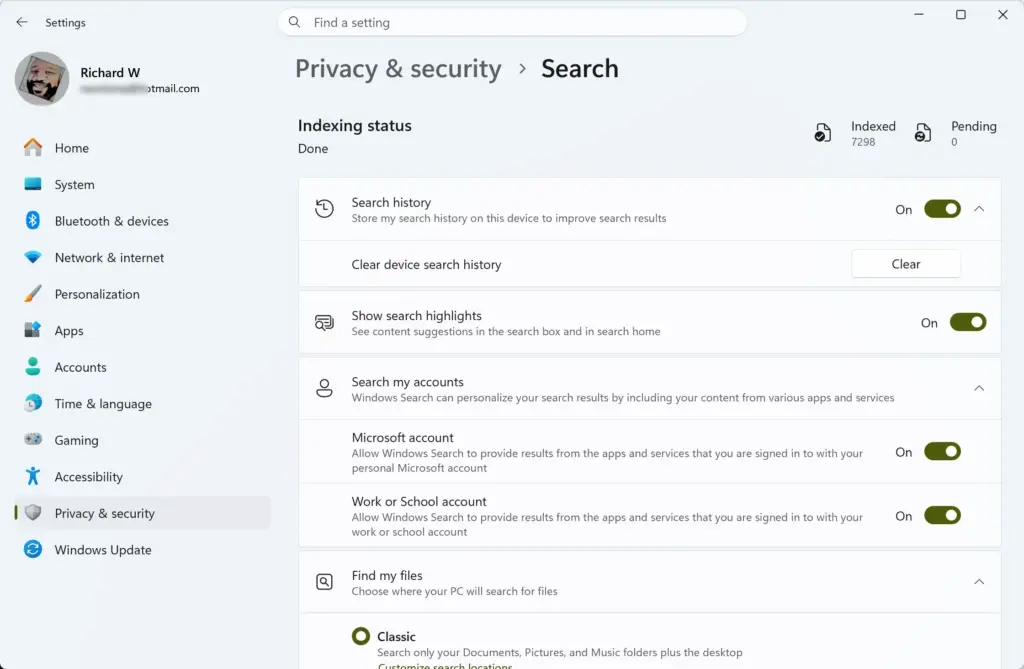
- Click the Settings app icon (the gear) in the search results. The Settings window opens.

This opens Settings straight away and skips the search .
Once Settings is open, use the left sidebar to find the right category:
- Look at the list on the left. You will see categories such as System, Bluetooth & devices and Network & internet.
- Scroll down that list until you see Time & language.
- Click Time & language. The right-hand pane now shows your date, time, language and region options.
Navigating to Speech Settings
The speech settings sit inside Time & language. Depending on your build of Windows 11, there are two ways to reach them. One goes through Language & region and your language options. The other is a direct Speech entry in the Time & language menu.
To reach the speech settings through your language:
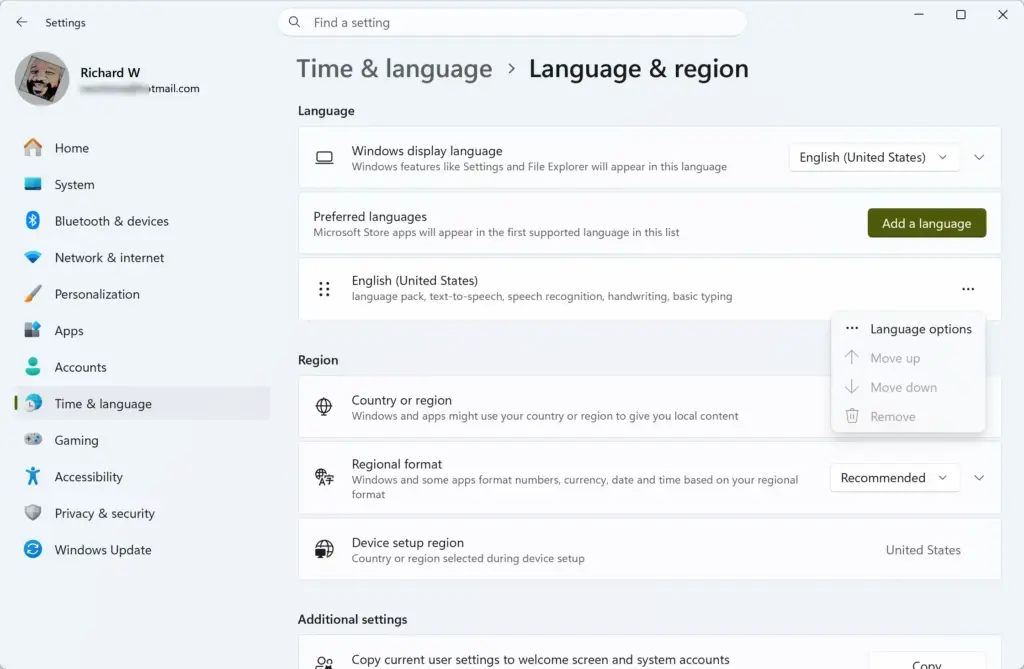
- In the Time & language menu, click Language & region.

- Find your preferred language in the list. If you only have one language installed, it will be the only entry.
- Click the three dots (the menu button) next to the language name.
- Select Language options from the small menu that appears. A new page opens for that language.
- Scroll down the page until you reach the Speech section.
Depending on your version of Windows 11, you may also see a direct entry called Speech in the main Time & language menu. If it is there, click it and skip the steps above. Both paths lead to the place where you manage your computer’s voices.
If you cannot find a voice list on the language page, the speech feature for that language may not be installed yet. The section on adding voices later in this guide covers that. Home and Pro editions of Windows 11 show the same speech options.
Step-by-Step: How to Change the Default Speech Synthesis Voice
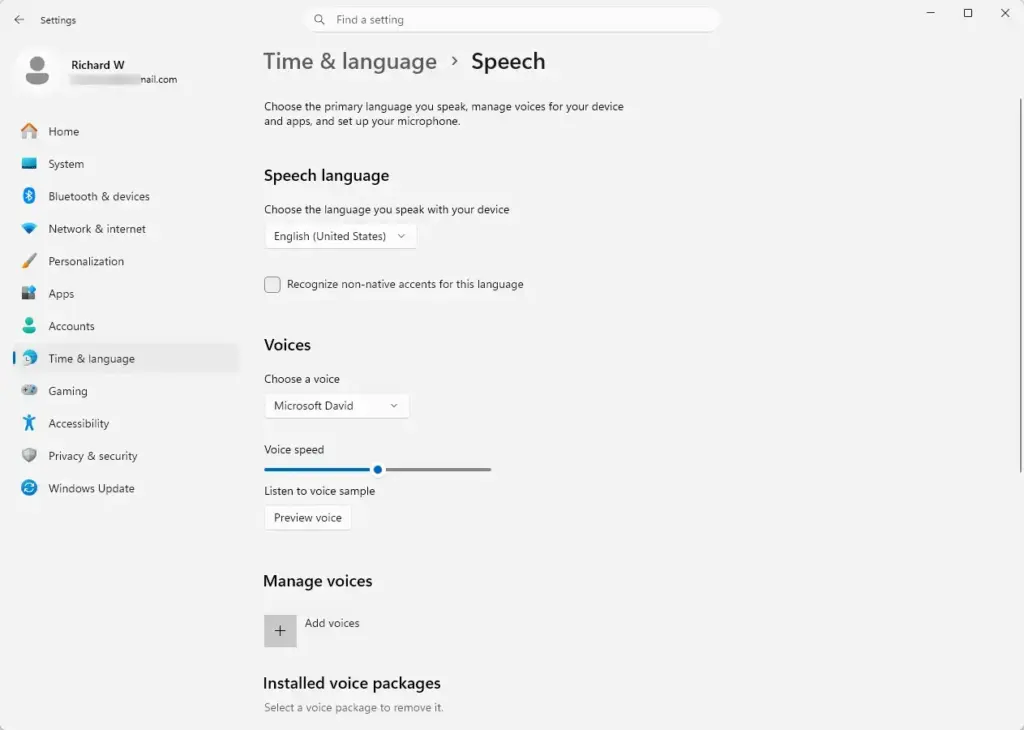
You change the default voice from the speech settings page. Pick a new voice from the dropdown list, and every text-to-speech feature that uses the system default will sound different.
Follow these steps:
- On the speech settings page, find the dropdown for the voice. Depending on your build, it may be labeled Voices or similar.
- Click the dropdown. It lists every voice currently installed on your PC.
- Click a name in the list to select it.
- Click the Preview button next to the menu. Windows reads a sample sentence in the selected voice.
- Listen to the sample. Repeat the steps with other voices until you find one you like.
Windows saves your choice as soon as you pick a voice from the list. There is no separate save button, and you do not need to restart the PC. To undo the change, open the same dropdown and select your previous voice.
Take your time with this step. Try male and female voices, and try regional accents if they are listed. If you use text-to-speech or a screen reader every day, a voice that sounds pleasant to you makes a real difference.
If you use Narrator and the voice does not change, that is expected. Narrator has its own voice setting under Accessibility in Settings, so it does not always follow the default voice chosen here.
Adjusting Speaking Speed and Voice Pitch
Speaking speed is controlled with a slider below your chosen voice. Moving it left slows the voice down, and moving it right speeds it up. Some builds also offer a pitch control, which is covered after the next image.
To adjust the speed:
- Stay on the same speech settings page where you changed the voice.
- Find the Voice speed section. You will see a slider with a circle on it.
- Click and drag the circle left to make the voice slower, or right to make it faster.
- Click Preview again to hear the new speed.
- Keep adjusting and previewing until the reading pace feels comfortable.
As with the voice choice, the speed setting is saved as you change it. To go back to the original pace, drag the slider back to the middle of its range.
Some versions of Windows 11 let you adjust the pitch of the voice. If you see a pitch slider, drag it up for a higher voice or down for a deeper one. Many builds do not show a pitch control at all, so if you cannot find one, that is normal and nothing is wrong with your PC. In that case, choose a different voice to get a higher or lower sound.
Adjust speed and pitch together, previewing each time, until you find a combination that sounds clear and natural to you.
Adding New Speech Voices to 🪟 Windows 11
If the voice you want is not in the list, you can install it . New voices come through Time & language by adding a language that includes text-to-speech. The download needs an active internet connection, and you need administrator permissions on your account.
If you are on a work or school PC, your organization may block these downloads. If you use a standard account, Windows may ask for an administrator password.
To download and install a new voice:
- Go back to the main Time & language settings page.
- Click Language & region.
- Click the Add a language button.
- Type the name of the language or country into the search box. For example, type Spanish, French or a different English dialect.
- Click the language in the search results, then click Next.
- On the installation options screen, make sure the Text-to-speech box is checked. You can uncheck other options, such as handwriting, if you do not need them.
- Click the Install button.
Windows downloads the language pack and the new speech voice in the background. You can keep using the PC while it works, but the download may take a few minutes on a slow connection. When it finishes, go back to your speech settings. The new voice should now appear in the voice dropdown, ready to select and preview.
If the voice does not appear, close and reopen Settings. If it is still missing, restart the PC once and check the dropdown again. Adding a language may also change your display language or keyboard layout. If you only wanted the voice, review those settings afterward. To remove a language you no longer need, use the three dots menu next to it in Language & region.
Summary
You can now choose your preferred computer voice, set the speaking speed, and download extra voices when the built-in ones do not suit you. Take a few minutes to preview several voices, because a voice you enjoy makes long documents and accessibility tools much easier to use.
Have a question about this guide?
Answered by AI from this guide. Good questions may be added to this page — please don't include personal details.
Did this guide fix your problem?

About the Author
Richard
Tech Writer, IT Professional
Richard is a writer at Geek Rewind who turns complex IT tasks into clear, step-by-step guides. He draws on years of hands-on experience in system administration and enterprise IT operations, focusing on Windows, Linux and WordPress: the problems people actually run into, and the fixes that work. His server and WordPress guides come from systems he runs himself. Richard builds and maintains the platform behind Geek Rewind, from its Ubuntu servers and Nginx configuration to its custom WordPress plugins. Many new tutorials start with readers' questions, and he's always glad to answer them in the comments.
No comments yet — be the first to share your thoughts!