How to Enable Voice Typing Launcher in Windows 11


- 7 steps
- Needs administrator rights
- Includes a restart or sign-out
The voice typing launcher in Windows 11 is a small microphone button that appears next to a text box when you click into it. To turn it on, press Win+H, click the gear icon in the voice typing bar, and switch Voice typing launcher to On.
Voice typing is built into Windows 11. It turns your speech into text in Word, Notepad, web browsers, email clients and most other apps, so you do not need a physical keyboard. There are two ways to start it: press the Win+H at any time, or turn on the launcher switch so the microphone icon shows up on its own whenever you select a text field. Both work in every edition of Windows 11, Home and Pro alike. The launcher switch is part of newer builds (22H2 and later). If you do not see it, run Windows Update first.
Press Win+H to open voice typing, click the gear icon in the voice typing bar, and switch Voice typing launcher to On. A microphone icon then appears next to any text box you click into, so you can start dictating without the shortcut. This needs Windows 11 22H2 or later, plus a working microphone and internet connection.
Why use voice typing in 🪟 Windows 11?
Voice typing lets you dictate instead of typing. For many people that is faster, and it takes some strain off the hands and wrists. Windows sends your audio to a cloud speech recognition service, which returns the text. It works in any app, document or email window where you can type.
Because the processing happens online, you need a working microphone and an internet connection. Without them, the tool will open but will not transcribe anything. Nothing extra needs installing, because the feature ships with Windows.
How to enable the voice typing launcher
The launcher is turned on from inside the voice typing panel itself. These steps enable the voice typing launcher so you no longer need the keyboard shortcut to start dictating.
- Click into a text box. A blank Notepad document works well, and it tells Windows where the text should go.
- Press Win+H. A small floating bar with a microphone button should appear.
- Click the Settings gear icon in the voice typing bar. A short list of options opens.
- Switch Voice typing launcher to On. The toggle should move to its on position.
- Click the microphone button and say a short sentence. Your words should appear in the text box.
- Click the microphone button again to stop listening.
- Click out of the text box and back into it. The microphone icon should now appear next to the field.
If you do not see a gear icon or a Voice typing launcher option, your build of Windows 11 is probably older. Install the latest updates and restart the PC. To undo the change later, open the same panel and switch the launcher back to Off. You do not need to restart Windows for either change.
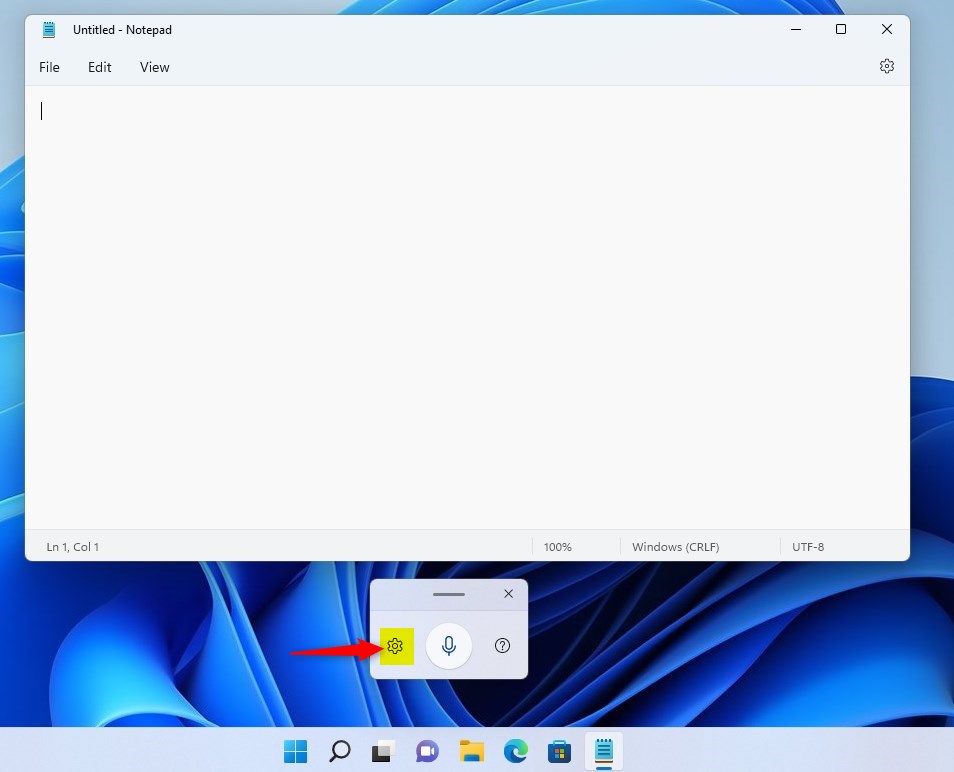
Once the launcher is on, a microphone icon appears whenever you click into a text field. Click that icon and voice typing starts listening. This gives you quick access to speech to text Windows 11 without remembering a shortcut. The Win+H shortcut still works, so use whichever is faster.
A few apps use custom text boxes that Windows cannot detect as a normal input field. In those, the icon may not appear. Press the Win+H instead, and dictation should still work.
Troubleshooting voice typing issues
Voice typing problems usually come from one of three things: the wrong microphone is selected, Windows is blocked from using the microphone, or the internet connection has dropped. Work through the checks below in order.
- Check your microphoneGo to Settings System Sound and make sure the correct input device is selected. Speak and watch the input level bar. If it does not move, Windows is not hearing that device.
- Check internet connectionOnline speech recognition requires an active connection to reach Microsoft servers. Open a web page to confirm you are online. A weak or interrupted connection can make dictation stop or lag.
- PermissionsEnsure your privacy settings allow apps to access your microphone. The microphone setting is under Settings Privacy & security Microphone If microphone access is switched off there, voice typing cannot hear you.
Admin Note: If you are on a managed work computer, you may need Administrator privileges to modify system-wide speech settings or update drivers in 📁C:\
Privacy and data collection
You might wonder: Is voice typing data sent to Microsoft? Yes, when you use online speech recognition, Microsoft receives your voice data to help improve their services. You can manage this in Settings Privacy & security Speech. For more details, visit the official Microsoft privacy documentation.
Check your workplace rules first, and consider typing those parts by hand.
Advanced configuration
To improve accuracy, enable 'Inking and typing personalization.' This setting lets Windows learn your vocabulary, such as names and technical terms you use often. If you prefer to process some data locally, you can toggle 'Device-based speech recognition.' Both options are in the privacy settings, and you can switch them off again at any time.
Accuracy also depends on your setup. A headset or a close microphone usually beats a laptop's built-in mic. Speak in full phrases at a steady pace, and say punctuation such as "period" or "comma" out loud when you need it. In a noisy room, move closer to the microphone before you blame the software.
Supported Languages
Windows 11 supports many languages for voice typing, including English (US/UK), Spanish, French, German, Chinese, and Japanese. Ensure your language pack is downloaded in Settings Time & language Language & region. Voice typing generally follows the language of your active keyboard, so if the output looks wrong, check which language is selected on the taskbar before you start dictating.
Summary
Voice typing in Windows 11 is a handy tool that makes dictating text quick and efficient, especially when you turn on the launcher. If it stops working, check the microphone, the privacy permission and your internet connection first. Those three cause most of the problems.
Have a question about this guide?
Answered by AI from this guide. Good questions may be added to this page — please don't include personal details.
Did this guide fix your problem?

About the Author
Richard
Tech Writer, IT Professional
Richard is a writer at Geek Rewind who turns complex IT tasks into clear, step-by-step guides. He draws on years of hands-on experience in system administration and enterprise IT operations, focusing on Windows, Linux and WordPress: the problems people actually run into, and the fixes that work. His server and WordPress guides come from systems he runs himself. Richard builds and maintains the platform behind Geek Rewind, from its Ubuntu servers and Nginx configuration to its custom WordPress plugins. Many new tutorials start with readers' questions, and he's always glad to answer them in the comments.
No comments yet — be the first to share your thoughts!