How to Turn On or Off Play Sound when Sticky, Filter, or Toggle keys Turned on or off from Keyboard in Windows 11

- 26 steps
- Needs administrator rights
Sticky Keys, Filter Keys, and Toggle Keys each play an alert sound when you switch them on or off with a keyboard shortcut. Use one of the three options below to turn that sound on or off for your account in Windows 11. The sound is on by default.
- Sticky keys lets you press a shortcut that uses several keys, such as Ctrl+S, one key at a time.
- Filter keys is an Accessibility option that ignores repeated keypresses and controls how fast a held key repeats.
- Toggle keys plays a tone when you press Caps⇩, Num Lock, or Scroll Lock.
Open Settings (Win+I), select Accessibility, then select Keyboard. Under Notification preferences, check or uncheck “Play a sound when I turn on or off Sticky, Filter, or Toggle keys from the keyboard” to switch the alert sound on or off. The change takes effect immediately for your account, and the sound is on by default.
Option One
Turn On or Off Play Sound when Sticky, Filter, or Toggle keys turned on/off from Keyboard in Settings
- Open Settings (Win+I).
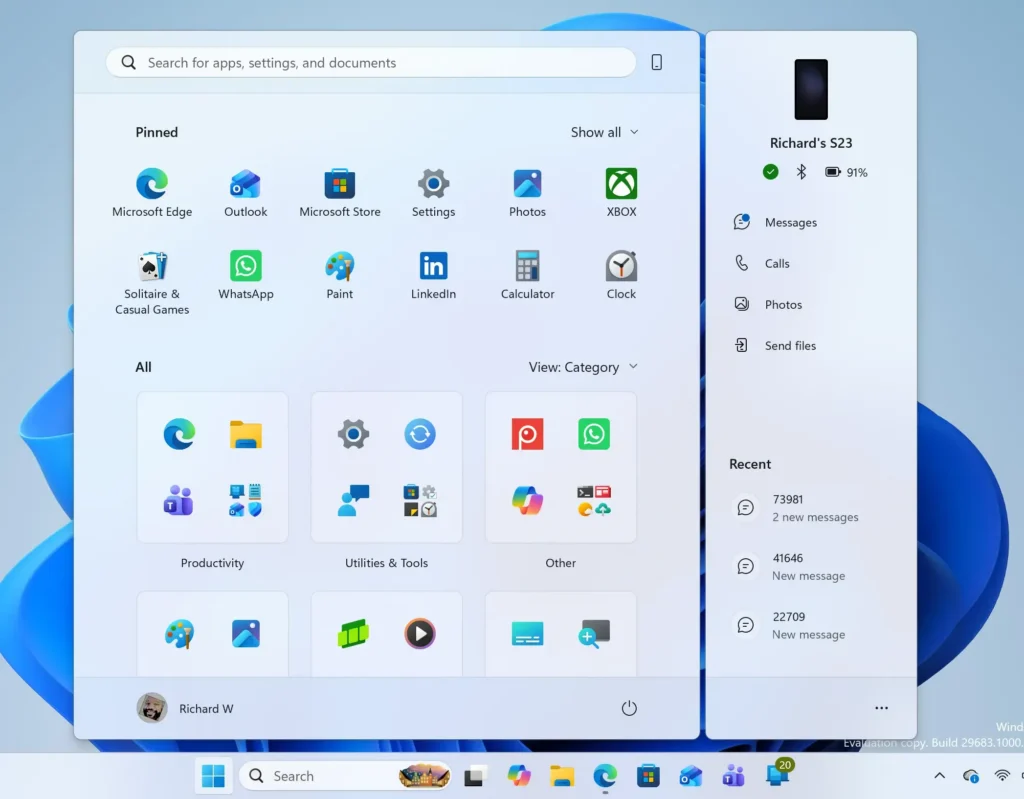
Windows 11 Start menu search panel for opening OpenSSH Client settings - Select Accessibility on the left, then select Keyboard on the right.
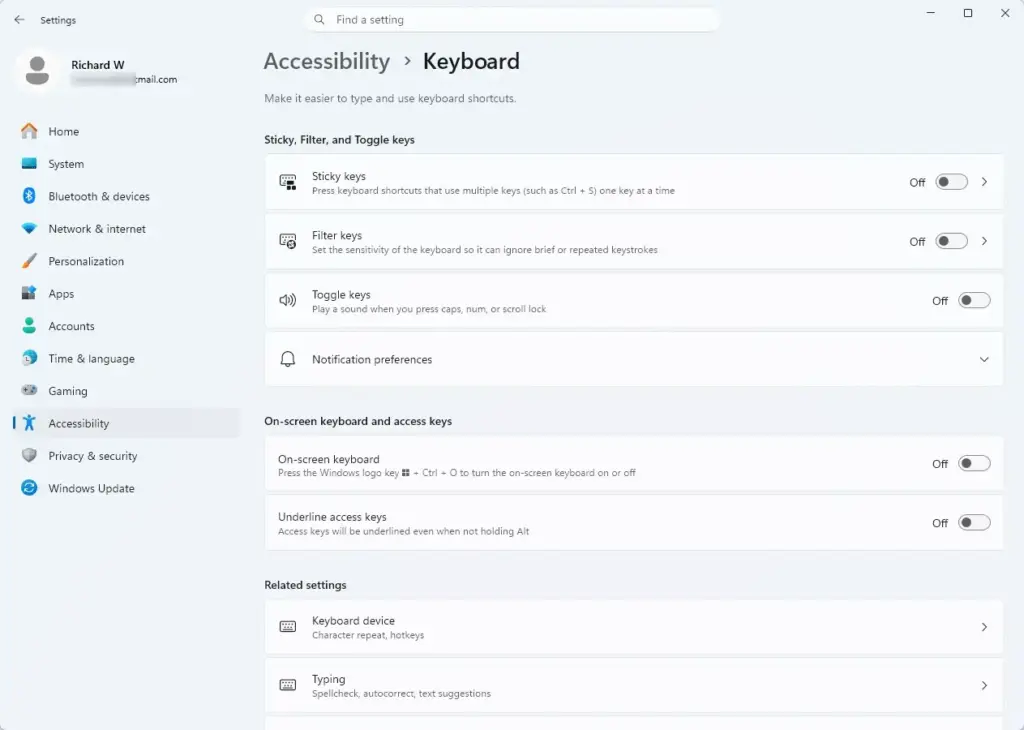
Settings › Accessibility › Keyboard - Select Notification preferences to expand it.
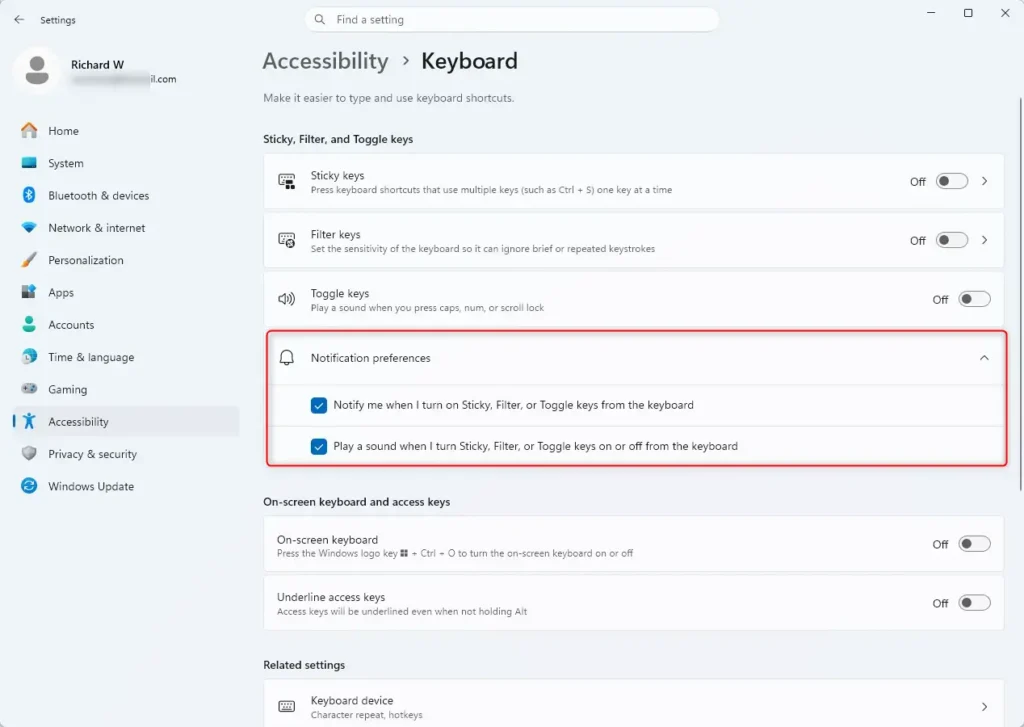
Settings > Accessibility > Keyboard - Check Play a sound when I turn on or off Sticky, Filter, or Toggle keys from the keyboard to turn the sound on (the default). Uncheck it to turn the sound off.
- Close Settings.
Option Two
Turn On or Off Play Sound when Sticky, Filter, or Toggle keys turned on/off from Keyboard in Control Panel
The Ease of Access Center in Control Panel changes the same setting as Settings does.
- Open the Control Panel in icons view, then select the Ease of Access Center icon.
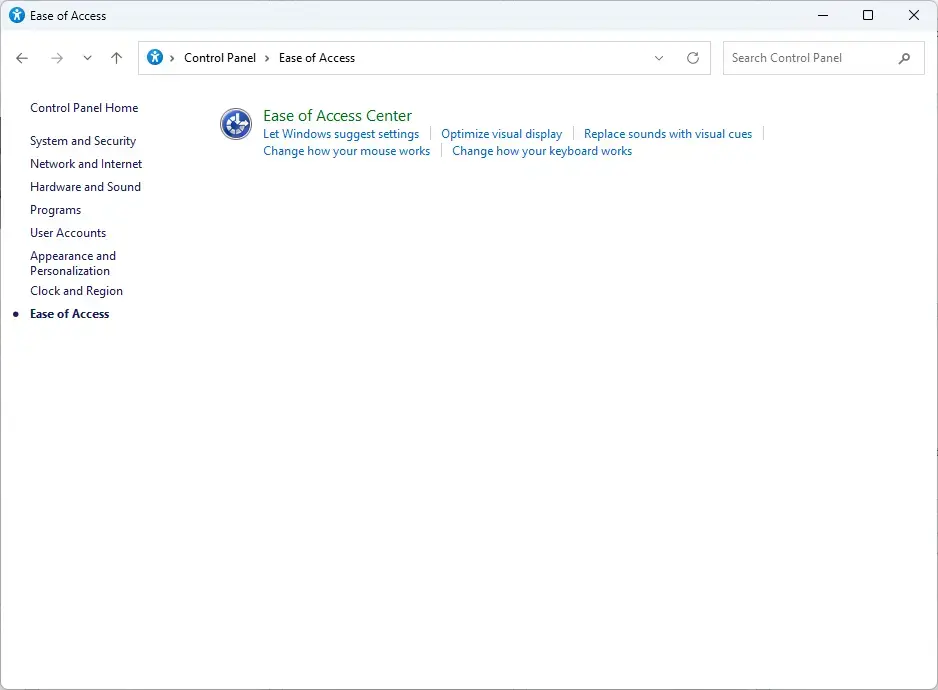
Control Panel › Ease of Access - Select the Make the keyboard easier to use link.
- Select either the Set up Sticky Keys link or the Set up Filter Keys link.
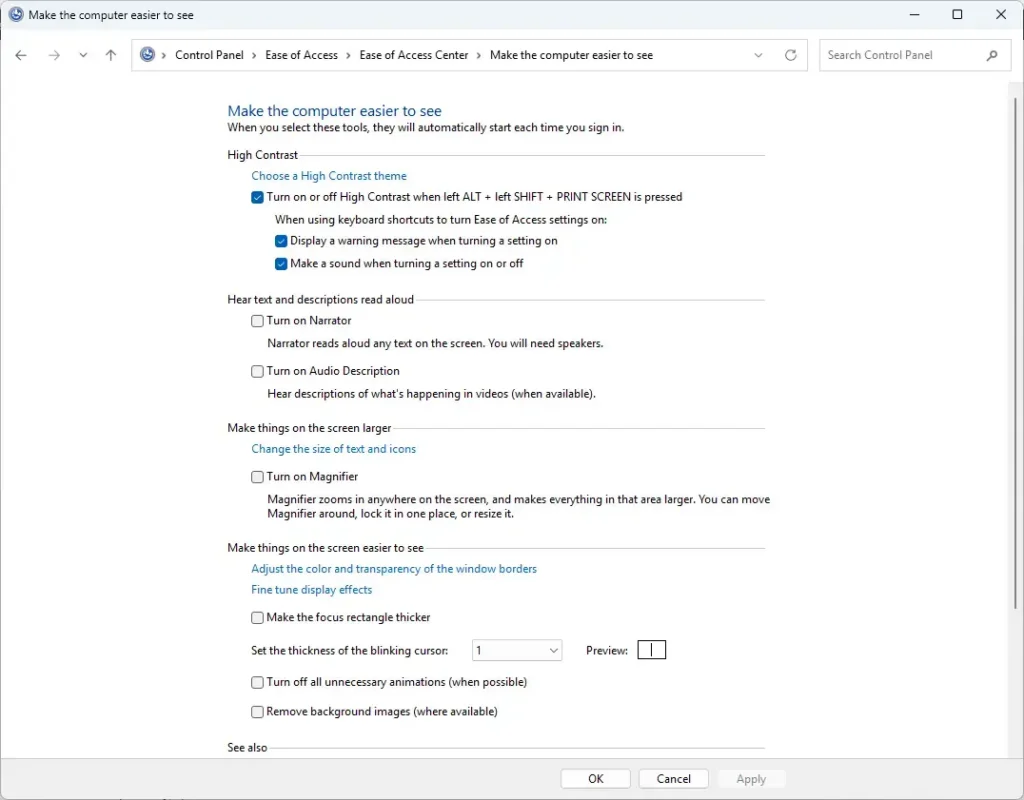
Settings > Accessibility - Under Keyboard shortcut, check Make a sound when turning a setting on or off to turn the sound on (the default). Uncheck it to turn the sound off. Select OK.
- Close the Control Panel.
Option Three
Turn On or Off Play Sound when Sticky, Filter, or Toggle keys turned on/off from Keyboard using Registry
Registry Editor (the Windows tool that stores system settings) makes the same change by editing one value directly. Use the steps under the heading that matches the result you want.
Turn On “Play a sound when I turn on or off Sticky, Filter, or Toggle keys from the keyboard”
- Open Registry Editor.
- Press Win+R, type regedit, and press Enter. Select Yes if the User Account Control prompt appears. This is the Windows prompt that asks you to approve changes that need administrator rights.
- Go to
HKEY_CURRENT_USER\Control Panel\Accessibility. Paste the path into the address bar at the top of Registry Editor and press Enter. - If you do not see an Accessibility key, right-click Control Panel in the left pane, select New Key, name it Accessibility, and select it. Create each missing key in the path using the same steps.
- Right-click an empty area of the right pane, select New DWORD (32-bit) Value, and name it Sound on Activation. If Sound on Activation is already there, skip this step.
- Double-click Sound on Activation.
- Set Base to Hexadecimal, then type 1 in Value data.
- Select OK.
Turn Off “Play a sound when I turn on or off Sticky, Filter, or Toggle keys from the keyboard”
Follow these steps to turn the sound off. Each step matches the Turn On steps above, except the value in step 7, which is 0.
- Open Registry Editor.
- Press Win+R, type regedit, and press Enter. Select Yes if the User Account Control prompt appears. This is the Windows prompt that asks you to approve changes that need administrator rights.
- Go to
HKEY_CURRENT_USER\Control Panel\Accessibility. Paste the path into the address bar at the top of Registry Editor and press Enter. - If you do not see an Accessibility key, right-click Control Panel in the left pane, select New Key, name it Accessibility, and select it. Create each missing key in the path using the same steps.
- Right-click an empty area of the right pane, select New DWORD (32-bit) Value, and name it Sound on Activation. If Sound on Activation is already there, skip this step.
- Double-click Sound on Activation.
- Set Base to Hexadecimal, then type 0 in Value data.
- Select OK.
What to do next
To reverse the change, repeat the same option and choose the opposite setting. If you would rather not edit the registry, use Settings instead. Both methods change the same setting.
Frequently asked questions
How to use sticky notes on 🪟 Windows 11?
Open Sticky Notes from the Start menu by typing its name into the search box. Select the plus sign (+) in the top left to create a new note, then type your text. Notes stay on your desktop after you close the app, and they sync to other devices when you sign in with the same Microsoft account.
How to get help in 🪟 Windows 11 keyboard sound?
To change the sound that plays when you turn Sticky, Filter, or Toggle keys on or off, open Settings and go to Accessibility, then Keyboard. Select Notification preferences, then check or uncheck Play a sound when I turn on or off Sticky, Filter, or Toggle keys from the keyboard.
How to turn off daylight saving on 🪟 Windows 11?
Windows 11 has no separate switch for daylight saving. It follows your time zone. Open Settings, go to Time & language, then Date & time, and turn off Set time zone automatically. Then pick a time zone that does not use daylight saving, such as (UTC-07:00) Arizona.
How to set up the Windows keyboard for 🪟 Windows 11 for english?
Open Settings, select Time & language, then Language & region. Under Preferred languages, select Add a language, choose English, and install it. Select English, choose Set as default, and then open Language options to add or check your English keyboard layout.
How do I make my keyboard bigger I cannot see it on laptop 🪟 Windows 11 10?
Open the On-screen keyboard from the Start menu, or turn it on in Settings under Accessibility and then Keyboard. Drag a corner or edge of the keyboard window to make it larger. To make text on the screen bigger, go to Settings, then Accessibility, then Text size.
How to turn off sticky keys?
Open Settings, select Accessibility, then select Keyboard. Turn off the Sticky Keys switch. If Sticky Keys keeps turning on when you press Shift five times, also uncheck Turn on Sticky Keys when I press the Shift key 5 times in the same section.
Still have a question?
Answered by AI from this guide. Good questions may be added to this page — please don't include personal details.
Did this guide fix your problem?

About the Author
Richard
Tech Writer, IT Professional
Richard is a writer at Geek Rewind who turns complex IT tasks into clear, step-by-step guides. He draws on years of hands-on experience in system administration and enterprise IT operations, focusing on Windows, Linux and WordPress: the problems people actually run into, and the fixes that work. His server and WordPress guides come from systems he runs himself. Richard builds and maintains the platform behind Geek Rewind, from its Ubuntu servers and Nginx configuration to its custom WordPress plugins. Many new tutorials start with readers' questions, and he's always glad to answer them in the comments.
No comments yet — be the first to share your thoughts!