How to Change Keyboard Repeat Rate in Windows 11

The keyboard repeat rate in Windows 11 controls how fast characters appear when you hold down a key. The repeat delay is the pause before that repeating starts. Changing these two settings can help you type faster, or stop accidental double letters when you rest a finger on a key a little too long.
The easiest way to change them is the classic Control Panel , which still works in Windows 11. It has two sliders, and both Home and Pro editions include it. The Registry Editor is a second route that edits the same values directly. Either way, you can undo your change at any time by setting the values back.
Open Control Panel , set the view to Large icons, click Keyboard, go to the Speed tab, then move the Repeat rate slider left for slower or right for faster repeat. Click OK to save. Changes take effect immediately without restarting.
Why Change Your Keyboard Repeat Rate?
If you type a lot, or you play games where you hold a key down, a faster repeat rate can feel better. If you often rest a finger on a key too long and get strings of repeated letters, a slower rate or a longer repeat delay can fix that. Neither setting is right for everyone, so expect to try a couple of positions before you settle on one.
Change Keyboard Repeat Rate Using Control Panel
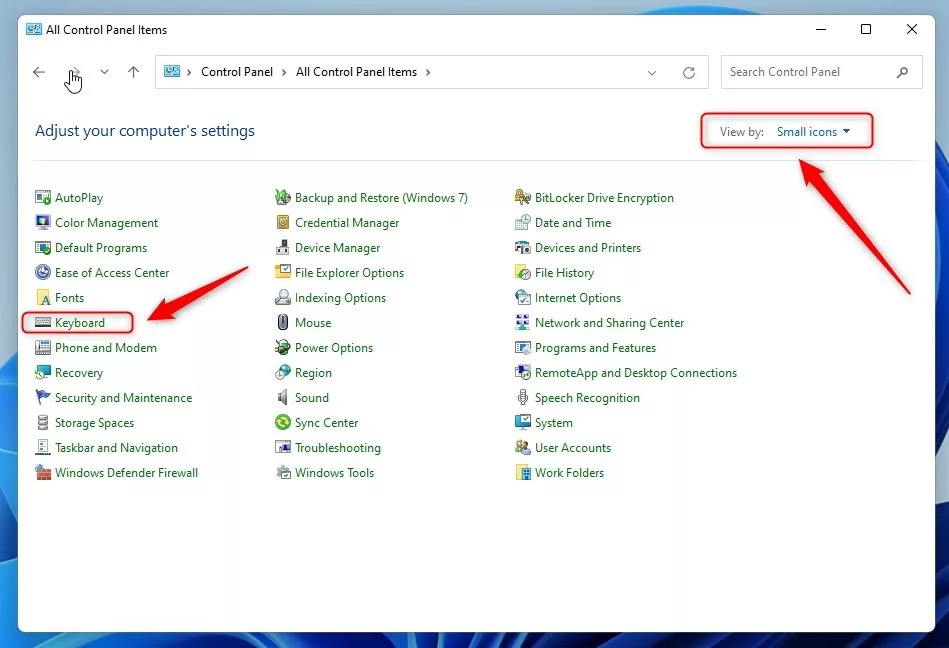
To change the keyboard repeat rate with Control Panel , open the classic Control Panel app from the Start menu search bar and switch the view to large or small icons. Click Keyboard to open its properties window, then adjust the repeat delay and repeat rate sliders to match how fast you want characters to repeat when you hold a key. The change takes effect straight away and does not need a restart.
- Open Control Panel Open the Control Panel on your Windows 11 PC. You can also click Start , type Control Panel and press Enter. The Control Panel window should open, most likely in Category view.
- Set View by: (top right) to Large icons or Small icons, not Category. The Category view hides the Keyboard icon. Once you switch, you should see a long list of single icons.
- Find and click Keyboard. The icons are in alphabetical order, so it sits roughly in the middle of the list. The Keyboard Properties window should open.
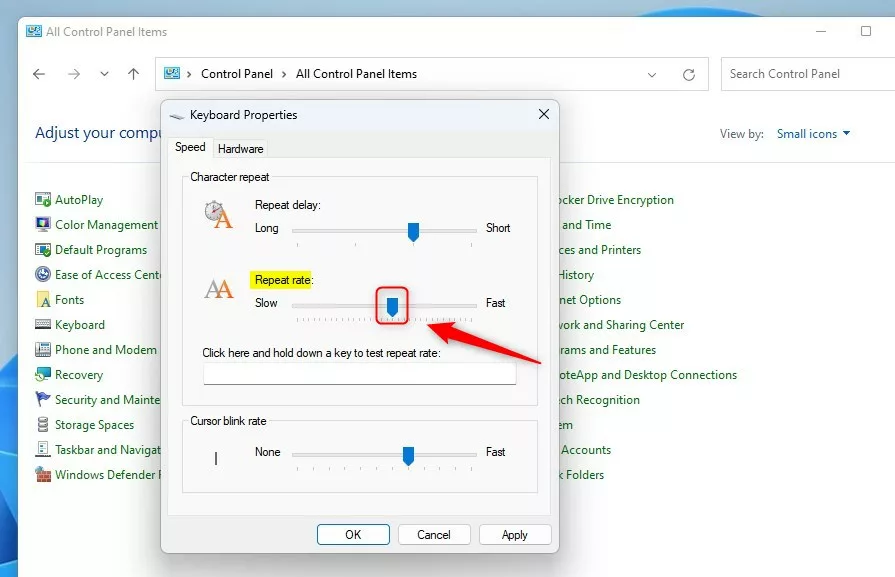
- In the Keyboard Properties window, go to the Speed tab. It is normally the tab that opens first.
- Under Character repeat, move the Repeat rate slider to the left (Slow) for slower repeat or to the right (Fast) for faster repeat.
- If you want, adjust the Repeat delay slider as well. It sets how long you hold a key before it starts repeating. Move it toward Long if you get unwanted repeated letters, or toward Short if repeating feels slow to start.
- Click in the test box labelled Click here and hold down a key to test repeat rate and hold down a letter. Adjust the sliders until the speed feels right, then click OK to save your changes. The window closes and the new speed is active.
Change Keyboard Repeat Rate Using Windows Registry (Advanced Users)
Go to 🗝️HKEY_CURRENT_USER\
Wrong changes can cause problems with your PC. Back up first: in Registry Editor, click File, then Export, choose a location, and save the file. To restore it later, double-click the saved .reg file. Because these values sit under 🗝️HKEY_CURRENT_USER, the change only affects your own user account.
- [ADMIN REQUIRED] Open Registry Editor Open the Windows Registry Editor. You can also click Start , type regedit and press Enter. Click Yes if User Account Control asks for permission. Registry Editor is available in both Home and Pro.
- Go to this folder path:
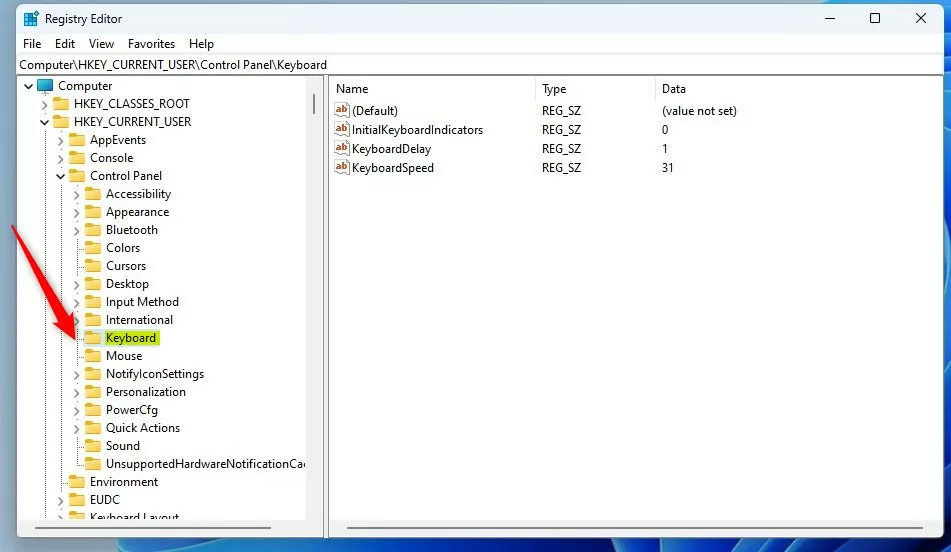
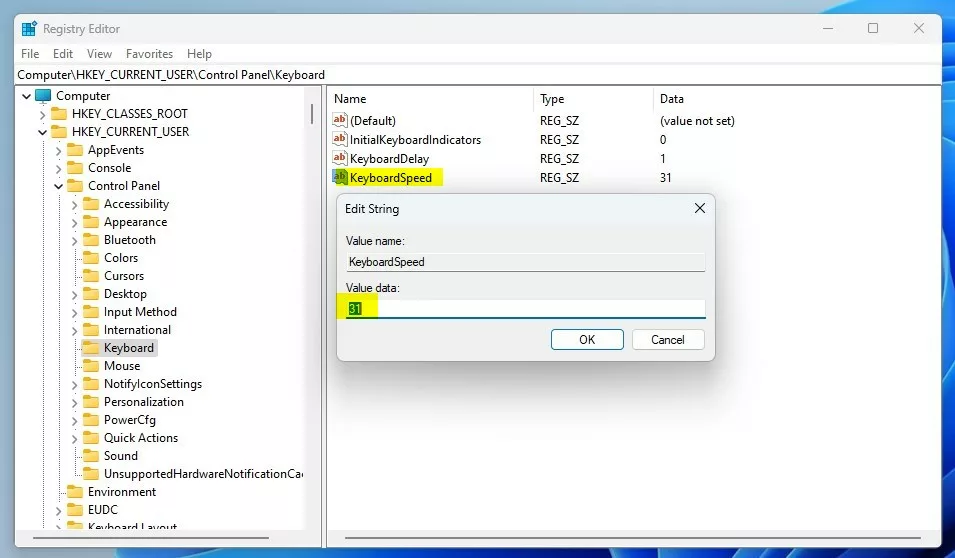
HKEY_CURRENT_USER\Control Panel\Keyboard. You can paste it into the address bar at the top of Registry Editor and press Enter. The Keyboard key should be selected, with its values listed in the right pane. - If you don’t see the Keyboard folder, right-click the Control Panel folder, choose New Key, and name it Keyboard. On most PCs this key already exists, so you will usually skip this step.
- Look in the right pane for an existing KeyboardSpeed value. If it is there, skip to the next step but one. If it is missing, right-click an empty area of the right pane and select New String Value. A new value appears with its name ready to edit.
- Name the new value KeyboardSpeed. Spell it exactly as shown and press Enter.
- Double-click KeyboardSpeed and enter a number between 0 (slow) and 31 (fast) in the Value data box to set your repeat rate speed. Click OK. To change the pause before repeating starts, edit KeyboardDelay the same way. It takes a small whole number, where 0 is the shortest delay and 3 is the longest, about one second.
- Close the Registry Editor and restart your computer to apply the changes. Signing out and back in may be enough, but a restart is the reliable option. If you see no difference afterwards, re-open the key and check that the value name and number are correct.
What Happens When You Change These Settings?
Once you save your changes, your keyboard repeats at the new speed. The repeat delay changes too if you adjusted it. You will notice the difference right away when you hold down a key, and a quick test in Notepad or any text box shows it clearly.
If the new setting does not feel right, go back to the same place and move the sliders or change the values again. Nothing is permanent. If you changed the registry and want to undo it, re-import your exported .reg file or type the old numbers back in.
Summary
Adjusting your keyboard repeat rate in Windows 11 lets you set a typing speed that feels right for you. For most people the Control Panel sliders are the quickest way, and they apply immediately. For finer control, or for scripting, use the Registry Editor, back up first, and restart afterwards.
Have a question about this guide?
Answered by AI from this guide. Good questions may be added to this page — please don't include personal details.
Did this guide fix your problem?

About the Author
Richard
Tech Writer, IT Professional
Richard is a writer at Geek Rewind who turns complex IT tasks into clear, step-by-step guides. He draws on years of hands-on experience in system administration and enterprise IT operations, focusing on Windows, Linux and WordPress: the problems people actually run into, and the fixes that work. His server and WordPress guides come from systems he runs himself. Richard builds and maintains the platform behind Geek Rewind, from its Ubuntu servers and Nginx configuration to its custom WordPress plugins. Many new tutorials start with readers' questions, and he's always glad to answer them in the comments.
No comments yet — be the first to share your thoughts!