How to Change Keyboard Character Repeat Delay in Windows 11


Keyboard character repeat delay in Windows 11 controls the pause before a held-down key starts repeating. The default is 500 milliseconds. A longer pause helps stop accidental double letters. A shorter pause makes text fill the screen sooner when you hold a key.
You can change this setting in less than a minute with the built-in Keyboard Properties window. This guide also covers the Settings app and the Registry Editor. The change only affects your keyboard behaviour, so you can undo it at any time.
Open Settings , go to Accessibility Keyboard, and move the Keyboard character repeat delay slider left for a longer delay or right for a shorter delay. Test the new delay in Notepad by holding a key, then close Settings. The change applies immediately without restart.
Option 1Change Repeat Delay in 🪟 Windows 11 Settings
Windows Settings is the quickest place to start, because you don’t need any system tools. You open the Accessibility menu, go to Keyboard, and use the slider to set how long Windows waits before a held key repeats.
- Press
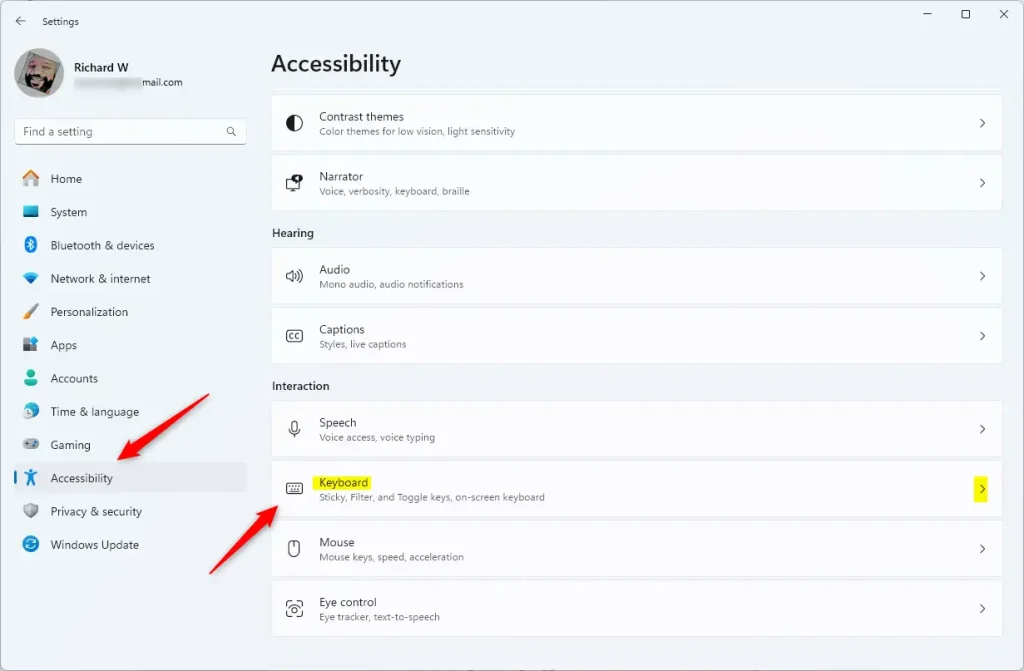
Win + Ito open Settings . The Settings window opens with a list of categories on the left. - On the left menu, click Accessibility.
- On the right, click Keyboard. The keyboard options for your account appear.
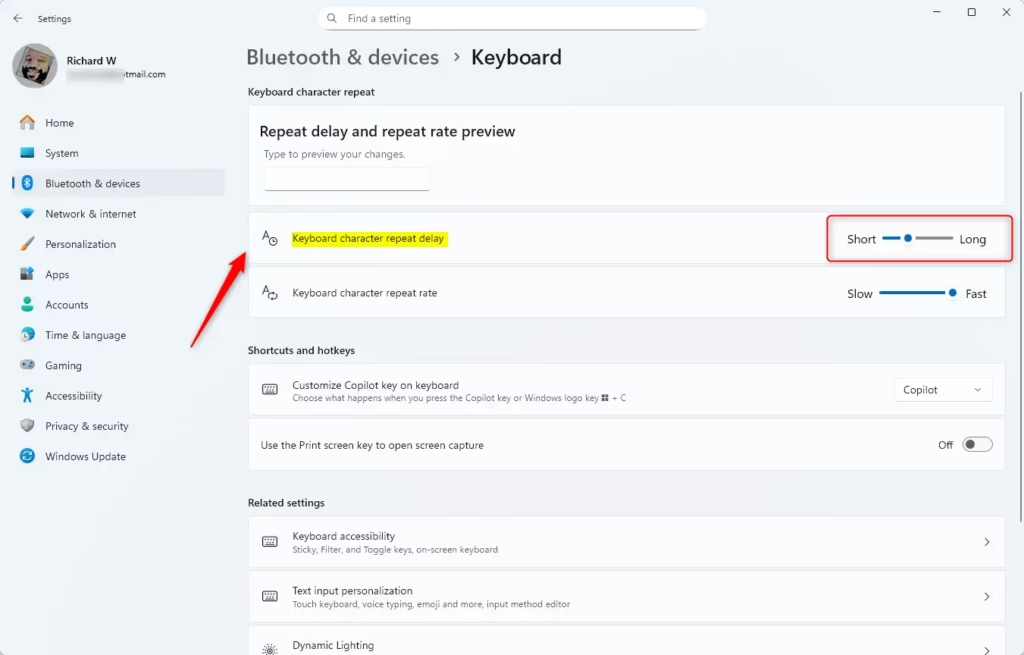
- Scroll down to find the Keyboard character repeat delay slider.
- Move the slider left for a longer delay (slower repeat) or right for a shorter delay (faster repeat).
- Click into a text field, such as Notepad, and hold down a letter key. If the pause feels wrong, go back and adjust the slider again.
- Close Settings when you’re done. The change applies straight away, and you don’t need to restart.
Some of these options only appear on certain Windows 11 versions. If you can’t find the slider on your build, use the Control Panel method below, which works on all builds. To undo your change, return to the same slider and move it back to where it was, or use the default value shown in the Registry section.
Option 2Change Repeat Delay in Control Panel
- Open the Control Panel . Press
Win + Rto open the Run dialog, typecontrol, and pressEnter. The Control Panel window opens. - Change View by (top right) to Small icons or Large icons if it isn’t already. In the default Category view the Keyboard item is hidden.
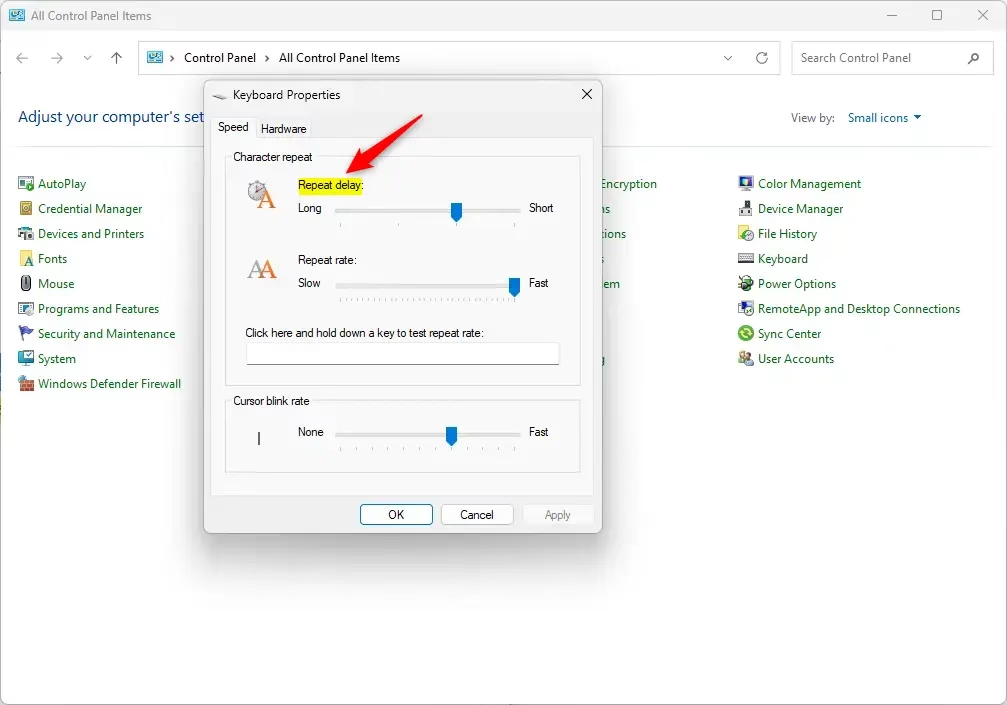
- Click Keyboard. The Keyboard Properties window opens.
- Click the Speed tab.
- Under Character repeat, drag the Repeat delay slider towards Short for faster repeat or Long for slower repeat.
- Click in the test box on the same tab and hold down a key to feel the new delay before you commit to it.
- Click OK to save. You can also click Apply first if you want to keep testing. No restart is needed.
The Repeat rate slider on the same tab controls how fast characters appear once repeating has started. It is a separate setting from the delay, so don’t confuse the two.
The classic Control Panel is a reliable way to change the repeat delay, and it works on both Windows 11 Home and Pro. You open the Run dialog, launch the Control Panel, open Keyboard Properties, and drag the slider to match your typing speed. If the slider is wrong, drag it back and click OK again to undo the change.
Option 3Change Repeat Delay Using Registry Editor (Advanced)
The Registry Editor lets advanced users set the delay by editing the value directly. You open it from the Run dialog and change the keyboard speed value. This is useful if you want a value the slider doesn’t offer, or if you are setting up several machines.
Click Yes if a User Account Control prompt appears. Before you change anything, consider backing up the registry with File Export, so you can restore it if something goes wrong.
- Press
Win + R, typeregedit, and pressEnterto open the Registry Editor. The Registry Editor window opens. - Navigate to this folder using the left sidebar:
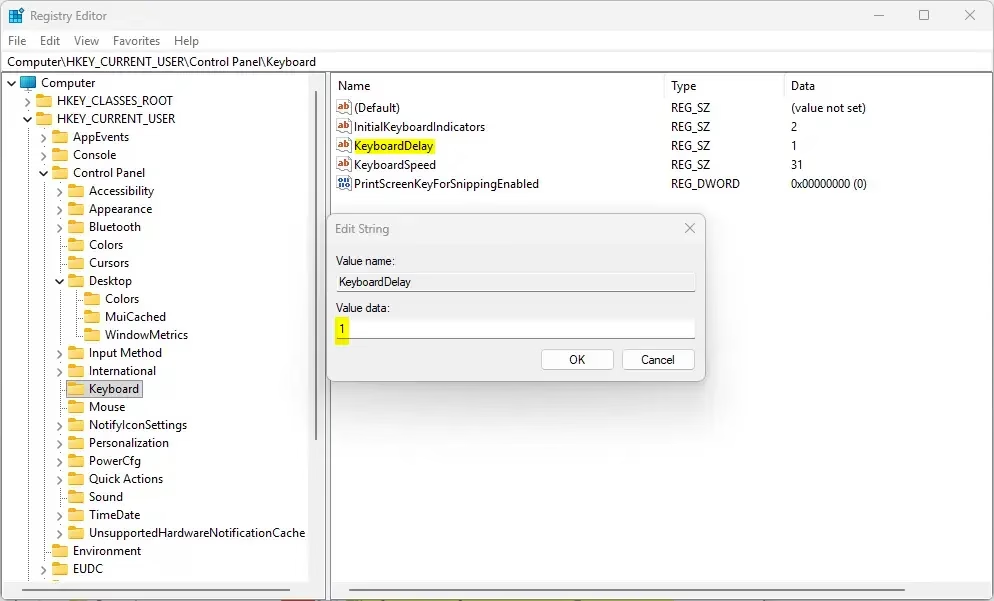
HKEY_CURRENT_USER\Control Panel\Keyboard - On the right side, find KeyboardDelay.
- Double-click KeyboardDelay to edit it. An edit window opens with the current value.
- Enter a number between
0(short delay) and3(long delay). The default is1. To undo your change later, enter the default again. - Click OK to save.
- Close the Registry Editor.
- Sign out of your account and sign back in, or restart your computer, for the changes to take effect. Until you do, Windows may keep using the old delay.
Summary
Changing the keyboard repeat delay fixes a keyboard that feels sluggish or too fast. You can do it in Windows Settings, the Control Panel, or the Registry Editor. Pick the method that suits you, then test it by holding down a key.
- You can make the repeat delay longer (slower repeat) or shorter (faster repeat) to match how you type.
- There are three ways to change it: Windows Settings, Control Panel, or Registry Editor.
- The default delay number is
1. You can choose between0(fast) and3(slow). - Some features in Settings are only available on certain Windows 11 versions (builds 26100.7309 or 26200.7309). The Control Panel method works regardless.
- If you don't like the changes, you can go back and reset to the original settings. Use the slider or enter the default registry value.
- Small adjustments make the biggest difference, so change the setting a little at a time until typing feels right.
Frequently asked questions
How to shorten the time needed to start deleting letters in Windows?
Lower the Keyboard character repeat delay so Backspace starts repeating sooner. Press Win + I, click Accessibility, then click Keyboard. Move the Keyboard character repeat delay slider to the right. A shorter delay means letters start deleting faster when you hold Backspace down. Test it in any text box.
How to make a number repeating on 🪟 Windows 11?
The number repeats because Windows repeats any key you hold down. Press Win + I, click Accessibility, then Keyboard. Move the Keyboard character repeat delay slider to the left to lengthen the pause before repeating. Tap the key briefly instead of holding it to type a single number.
When I hold down a key it clicks it multiply times?
This is key repeat, and Windows is working as designed. While you hold a key, it types the character again after a short pause. To lengthen that pause, press Win + I, click Accessibility, then Keyboard, and move the Keyboard character repeat delay slider left. If a key repeats without you holding it, check for a stuck key.
How to adjust keyboard press rate swaywm keyboard?
Sway is a Linux window manager, so the Windows steps in this guide do not apply. In Sway, add this line to your config file at ~/.config/sway/config: input type:keyboard { repeat_delay 300 repeat_rate 30 }. The delay is in milliseconds and the rate is key presses per second. Run swaymsg reload to apply it.
How to change delay on keyboard repeat rate?
Press Win + I to open Settings, then click Accessibility and Keyboard. Move the Keyboard character repeat delay slider left for a longer pause before repeating, or right for a shorter pause. To change how fast keys repeat after that pause, open Control Panel, click Keyboard, and adjust the Repeat rate slider on the Speed tab.
Still have a question?
Answered by AI from this guide. Good questions may be added to this page — please don't include personal details.
Did this guide fix your problem?

About the Author
Richard
Tech Writer, IT Professional
Richard is a writer at Geek Rewind who turns complex IT tasks into clear, step-by-step guides. He draws on years of hands-on experience in system administration and enterprise IT operations, focusing on Windows, Linux and WordPress: the problems people actually run into, and the fixes that work. His server and WordPress guides come from systems he runs himself. Richard builds and maintains the platform behind Geek Rewind, from its Ubuntu servers and Nginx configuration to its custom WordPress plugins. Many new tutorials start with readers' questions, and he's always glad to answer them in the comments.
No comments yet — be the first to share your thoughts!