How to Type Special Characters in Windows 11

Special characters in Windows 11 are non-keyboard symbols like ©, ™, or € that you insert into documents, emails, and messages without installing extra software. They also include accented letters, currency signs, math symbols, and arrows.
The fastest way to type these symbols is the built-in Emoji Panel, which you open by pressing the Win plus the period key (.) at the same time. The Win plus the semicolon key (;) opens the same panel. All the methods below work on both Home and Pro editions, and none of them needs a restart.
Press Windows key +. (period) to open the Emoji Panel, click the symbols icon (Ω) at the top, then click the special character you want. It inserts directly into your document where your cursor is positioned.
How to Access Special Characters and Symbols in 🪟 Windows 11
Three built-in methods handle the task. Which one you pick depends on how often you need symbols and what kind of device you are using:
- Emoji Panel – for quick access to emojis and symbols. It is the best choice for everyday use, such as a currency sign or a bullet.
- Touch Keyboard – helpful if you’re using a touchscreen or want extra keys. It is also useful on a desktop if you prefer clicking characters to remembering shortcuts.
- Character Map – lets you pick any symbol and copy it to paste wherever you want. Use it when the symbol you need is rare or you want to check which font has it.
1Use the Emoji Panel to Type Special Characters
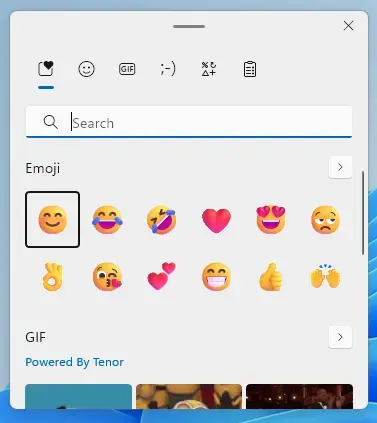
You can use the Emoji Panel to type special characters in Windows 11 by pressing the Win and the period key at the same time. This opens a small menu on your screen where you can click on symbols, accents, and emojis to insert them directly into any document or text box without needing to memorize complicated key codes. The panel only opens when a text field has focus, so click into your document or message first.
This direct placement ensures it appears exactly where you intend it to. If you had text selected when you clicked the symbol, the symbol usually replaces that selection. If you picked the wrong one, press Ctrl+Z in the app to undo it, or press ⌫ to delete it like any other character.
- Click where you want to type the symbol (in a document, message, etc.). You should see the blinking text cursor in that spot.
- Press
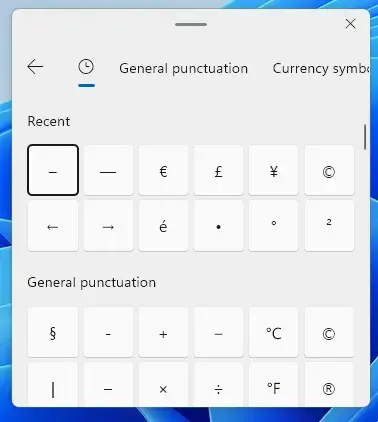
Windows key + . (period)on your keyboard. A small panel should appear near your cursor. If nothing happens, click back into the text field and try again. A few apps and remote sessions do not accept the panel. - The Emoji Panel will open. At the top, click the symbols icon (Ω) to see categories like punctuation, currency, math, and more. The categories are listed along the bottom of the panel.
- Scroll through and click the symbol you want. It will be added where your cursor is. The panel stays open, so you can click more symbols in a row. Press Esc, or click back in your document, to close it.
Learn more about the Emoji Panel and how to use it here: How to Use Emoji and GIF in Windows 11
2Use the Touch Keyboard to Type Symbols
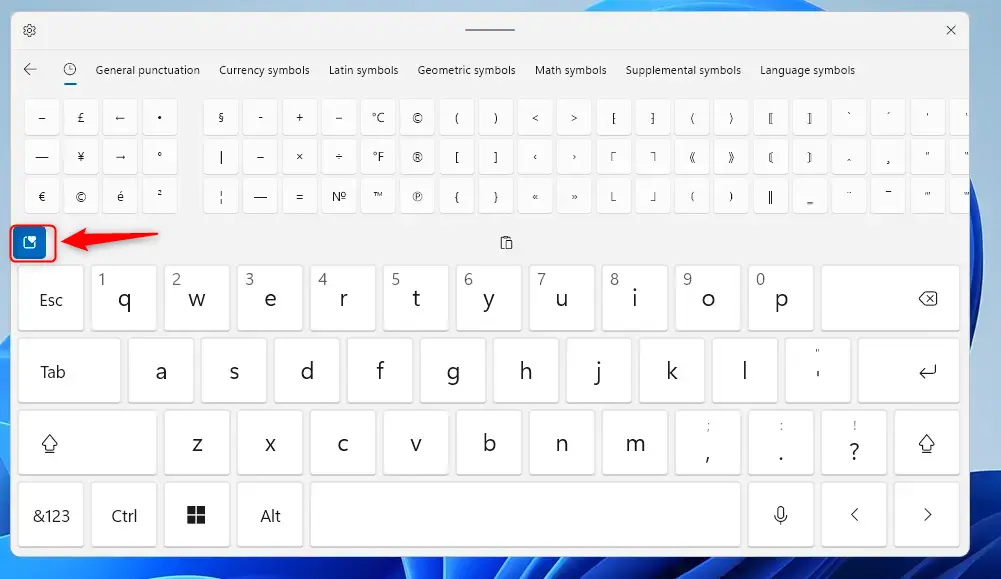
You can use the Touch Keyboard to type symbols in Windows 11 by opening the on-screen keyboard from your taskbar and switching to the symbol layout. The key that switches to numbers and symbols is labelled &123. This method is especially useful if your computer has a touchscreen or if you prefer clicking characters with your mouse instead of remembering keyboard shortcuts. It works the same on Home and Pro.
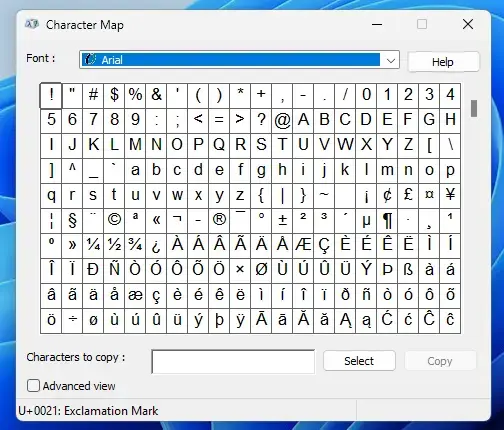
The Character Map tool gives you access to special symbols without requiring manual keystrokes. This utility displays a character grid, allowing users to copy and paste symbols such as © (copyright) or ™ (trademark) directly into documents. Unlike the Touch Keyboard, which types straight into the active text field, Character Map works through the clipboard: you copy the symbol first, then paste it. The Character Map tool, a feature included since early Windows versions, remains a comprehensive option for symbol insertion.
- Open the Touch Keyboard by clicking the keyboard icon on the taskbar, near the clock. If it's not there, right-click the taskbar, choose Taskbar settings, expand Taskbar corner icons, and turn on Touch keyboard. Choose Always if the drop-down is offered. The keyboard icon should now appear on the taskbar, and clicking it opens the on-screen keyboard.
- Once open, click the emoji icon (the smiley face) to open the Emoji Panel. You can then pick symbols the same way as in the previous method.
- To type accents or special versions of letters, press and hold (or click and hold) a key. A small menu will appear showing related symbols. Slide or move your pointer to pick one, then release. The character is typed at your cursor.
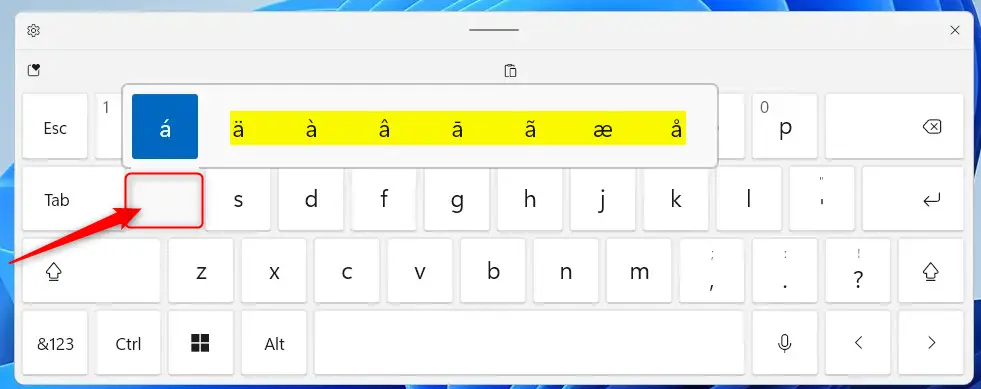
For more details, check: How to Open and Use Touch Keyboard in Windows 11
3Use the Character Map to Find and Copy Symbols
You can use the Character Map tool in Windows 11 to find and copy rare symbols that do not appear on standard keyboards. Search for Character Map in the Start menu, select the symbol you need, copy it to your clipboard, and paste it directly into your document. It is a classic desktop app, so it is available on every edition of Windows 11 and needs no setup.
For instance, the Euro symbol (€) can be accessed and inserted into text, making online shopping or international communication more convenient. Keep in mind that a symbol can only display if the font in your document includes it. If you see an empty box after pasting, change the font in the destination app.
- Click the Start button or press
Windows keyand typeCharacter Map, then open the app. A window with a grid of characters should appear. - Browse through the list or select a font to see different characters. Use the Font drop-down at the top of the window to switch fonts. Different fonts contain different symbols.
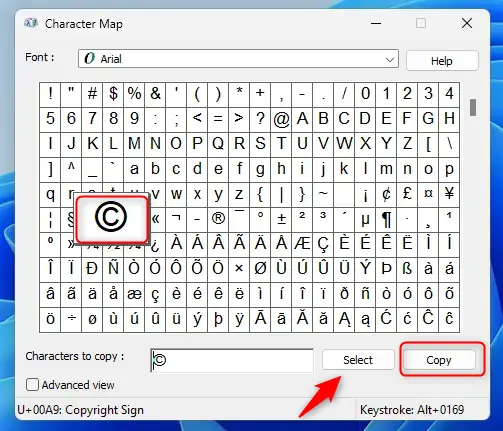
- Click the character you want, then click
Select, and then clickCopy. The character appears in the Characters to copy box after you click the first button, and the second button puts it on the clipboard. You can select several characters in a row before you copy. - Go to your document or message and press
Ctrl + Vto paste the symbol. Click where you want the symbol first, so it lands at your cursor.
Summary
Windows 11 provides three built-in ways to type special characters depending on what you need. You can use the Emoji Panel for quick symbols, the Touch Keyboard for on-screen typing, or the Character Map to find and copy less common characters into your documents. None of them needs extra software or a restart.
- The Emoji Panel is quick and handy for emojis and symbols. Start here for everyday needs.
- The Touch Keyboard is great if you have a touchscreen or want extra access to symbols. It also offers accents when you press and hold a key.
- The Character Map helps when you need a specific symbol that's hard to find. Check the font if a symbol shows as an empty box.
Experimenting with these utilities enhances document formatting and expression. Thoughts or questions regarding the process remain welcome in the comments below.
Have a question about this guide?
Answered by AI from this guide. Good questions may be added to this page — please don't include personal details.
Did this guide fix your problem?

About the Author
Richard
Tech Writer, IT Professional
Richard is a writer at Geek Rewind who turns complex IT tasks into clear, step-by-step guides. He draws on years of hands-on experience in system administration and enterprise IT operations, focusing on Windows, Linux and WordPress: the problems people actually run into, and the fixes that work. His server and WordPress guides come from systems he runs himself. Richard builds and maintains the platform behind Geek Rewind, from its Ubuntu servers and Nginx configuration to its custom WordPress plugins. Many new tutorials start with readers' questions, and he's always glad to answer them in the comments.
Great roundup — the Win + . shortcut really is the fastest way to pull up symbols on Windows 11. One small addition: the panel’s Symbols tab doesn’t cover everything (some currency and math symbols are buried), and that’s where the classic Character Map (charmap) still comes in handy for browsing by Unicode block. For symbols you use often in docs or Discord, I keep a copy paste text symbols page bookmarked — https://copypastesymbolshub.com/ — so I can grab things like ★ ♪ or ½ without opening any panel at all. Between the shortcut, charmap, and a good copy-paste list, you rarely need to memorize Alt codes anymore.
Thanks, John, that’s a useful addition. You’re right that the Symbols tab doesn’t list every currency or math sign, and Character Map is the better tool for browsing by Unicode block or checking which font has a character. The post covers it in method 3, but your point about hunting for rarer symbols is a good reason to use it.
I’m not going to add the external copy-paste site to the reply, though. Pasting from a third-party page works fine, but I can’t vouch for that site, so I’d rather keep the advice to built-in Windows tools.