How to Enter Emojis, GIFs and Symbols with Alt Codes on Windows 11

Alt codes are keyboard shortcuts that type a special character when you hold the Alt key and enter a number on the number pad. For example, holding Alt and typing 0153 gives you the trademark symbol (™). You don’t need to open a menu or copy the symbol from a website.
Alt codes work in Word, Notepad, web browsers and most other places where you can type text. You can use them for symbols like © or a long dash (—). The keyboard needs a physical number pad on the right side. Alt codes only produce characters. Emojis and GIFs come from the Windows emoji panel, covered further down.
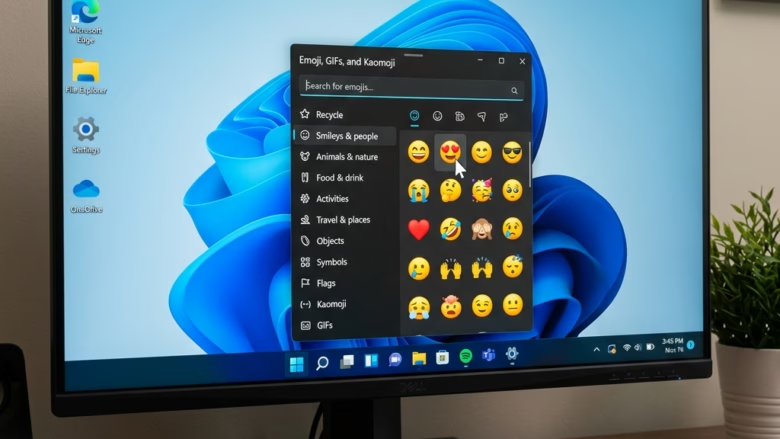
Hold Alt and type the numeric code on your number pad to insert symbols. For emojis and GIFs, press Windows key + Period (.) to open the emoji panel, then select your desired character.
Get Ready
Here is the basic routine. It takes a few tries to get used to.
- Click in the document, message or text box where you want the symbol. You should see the blinking cursor there.
- Check that Num Lock is on. The number pad does nothing for Alt codes when it is off. Most keyboards have a Num Lock light.
- Press and hold the Alt key. Use the Alt key on the left side of the spacebar if you have a choice.
- While holding Alt, type the code on the number pad, not the number row above the letters. Include any leading zero.
- Release the Alt key. The symbol appears at the cursor.
The Magic Numbers
For example, hold Alt and type 0169 to get the copyright symbol. Most people only need a handful of codes, so keep a short list nearby until you remember them.
Alt+1 produces a smiley face. It is a plain text character, not a colorful emoji, and how it looks depends on the app and font. For color emojis, use the emoji panel described below.
Here are some common Alt codes you can use right away:
Alt + 0169for the copyright symbol (©)Alt + 0174for the registered symbol (®)Alt + 0153for the trademark symbol (™)Alt + 0151for the em-dash (—)Alt + 0149for a bullet point (•)Alt + 0167for the section symbol (§)Alt + 0161for an upside-down exclamation mark (¡)Alt + 0191for an upside-down question mark (¿)
See the Symbol Appear
The Alt code method needs a working number pad with Num Lock turned on. If the pad is switched off, or the keyboard doesn't have one, nothing will appear when you release Alt. Many compact keyboards and laptops hide a number pad behind the Fn key, with small numbers printed on the letter keys. If yours does, you may need to hold Fn or turn on a number lock for those keys. If you have no number pad at all, use the Windows emoji panel instead.
The Easy Way: The Emoji Panel
Windows 11 has a built-in panel for emojis, GIFs and symbols. You don't have to remember any codes, and it works on keyboards of every size. It needs no setup and no restart.
Open the Panel
Open the panel like this:
- Click inside any text box, such as an email, a document or a chat window.
- Press the Windows key and the period key (.) at the same time.
The panel opens near the cursor. If nothing happens, make sure the cursor is actually in a text field. The panel can't open from the desktop or from an app that has no place to type.
Find Your Symbol
The panel has tabs along the top for Emojis, GIFs and Symbols. Windows 11 may also show tabs such as Kaomoji and clipboard history.
- Click the Symbols tab. The grid of characters opens.

Look and Choose
- Browse the categories, such as Punctuation or Currency, or type a keyword into the search box.
- Click the symbol you want. It is inserted at the cursor.
Use the Emojis or GIFs tab the same way. GIFs are only useful in apps that can show them, such as chat apps, so they may not work in Notepad or a plain text field.
Add It to Your Text
Alt codes work in almost any app where you can type text, including word processors, email programs and web browsers. Put the cursor where you want the symbol, make sure Num Lock is on, hold Alt, type the code, and release Alt.
Some specialized programs use their own keyboard shortcuts and may ignore Alt codes. If a code doesn't work in one app but works in Notepad, check that program's help section. The emoji panel is a good fallback in those cases.
Reference:
Summary
Alt codes and the built-in emoji panel give you two quick ways to add emojis, symbols and special characters to a document or message without searching online. Learning a few codes saves time if you often type symbols like © or ™ in emails or reports.
Use Alt codes when you have a number pad and know the number. Use the emoji panel (Windows key + period) when you want to browse, search, or add emojis and GIFs.
Frequently asked questions
How to get emojis on Windows?
To get emojis on Windows, press the Windows key and the period key (.) together. The emoji panel opens. Click the emoji you want, and it goes into whatever text box has the cursor. Use the tabs at the top to switch to kaomoji, symbols or GIFs. You can also press Windows key and semicolon (;).
Where can you add different types of emojis?
You add emojis from the emoji panel, which works in most apps where you can type. Press Windows key + period (.) or Windows key + semicolon (;) with the cursor in a text box. Click an emoji to insert it. The panel also has GIFs, kaomoji and symbols on separate tabs at the top.
How to do emojis on Windows?
To do emojis on Windows, press Windows key + period (.) while your cursor is in a text box. The emoji panel opens. Click the emoji you want, or type a word like 'smile' in the search box to find it faster. Press Esc to close the panel without inserting anything.
How to add different emojis to your keyboard?
You don't need to install anything to get more emojis. Windows already includes a full emoji set. Press Windows key + period (.) to open the panel, then choose from the Emoji tab, or the Kaomoji, Symbols or GIF tabs. The shortcut works with the keyboard you already have.
How to get emojis on keyboard?
Your keyboard doesn't need extra keys for emojis. Press Windows key + period (.) or Windows key + semicolon (;) to open the emoji panel, then click the emoji you want. On most keyboards, the Windows key has the Windows logo and sits next to the Ctrl key.
Where to see alt key codes in 🪟 Windows 11?
Windows 11 doesn't list alt key codes in Settings. To find and copy symbols, open Character Map by pressing Windows key + R, typing 'charmap', and pressing Enter. For a list of alt codes, check a reference page like this tutorial, which lists the codes for common symbols such as Alt + 0153 for ™.
Still have a question?
Answered by AI from this guide. Good questions may be added to this page — please don't include personal details.
Did this guide fix your problem?

About the Author
Richard
Tech Writer, IT Professional
Richard is a writer at Geek Rewind who turns complex IT tasks into clear, step-by-step guides. He draws on years of hands-on experience in system administration and enterprise IT operations, focusing on Windows, Linux and WordPress: the problems people actually run into, and the fixes that work. His server and WordPress guides come from systems he runs himself. Richard builds and maintains the platform behind Geek Rewind, from its Ubuntu servers and Nginx configuration to its custom WordPress plugins. Many new tutorials start with readers' questions, and he's always glad to answer them in the comments.
No comments yet — be the first to share your thoughts!