How to Enable or Disable Text Cursor Indicator in Windows 11

The text cursor indicator in Windows 11 puts a colored shape on your blinking typing line, the text cursor (also called the caret), so you can spot it fast on screen. It is not the mouse pointer. It marks where the next letter will appear. That helps on large or high-resolution monitors, on busy web pages, and anywhere the thin default cursor blends into the background.
Windows 11 lets you turn the indicator on or off and pick its color and size from the Accessibility settings. This guide covers the Settings app, the color and size options, the Registry Editor method, and what to check if the indicator does not appear. The feature is in both Windows 11 Home and Pro. If you do not see it, update Windows first, because older builds do not have it.
Go to Settings Accessibility Text cursor and toggle the Text cursor indicator switch to On or Off. You can also customize its size and color in this menu.
How to enable or disable the text cursor indicator
The Settings app is the easiest way to switch the indicator on or off. The page you want is Settings Accessibility Text cursor The steps below take you there. No restart is needed, and you can undo the change at any time by flipping the same switch back.
- Open the Settings app by pressing Win+I. The Settings window opens with the category list on the left.
- Select Accessibility from the left sidebar. The right pane now lists the accessibility groups, such as Vision, Hearing and Interaction.
- Click on the Text cursor tile. It sits in the Vision group. If you cannot find it, scroll down, or make sure Windows is fully updated.
The Text cursor page opens. It shows the text cursor indicator options at the top, with the thickness setting further down.
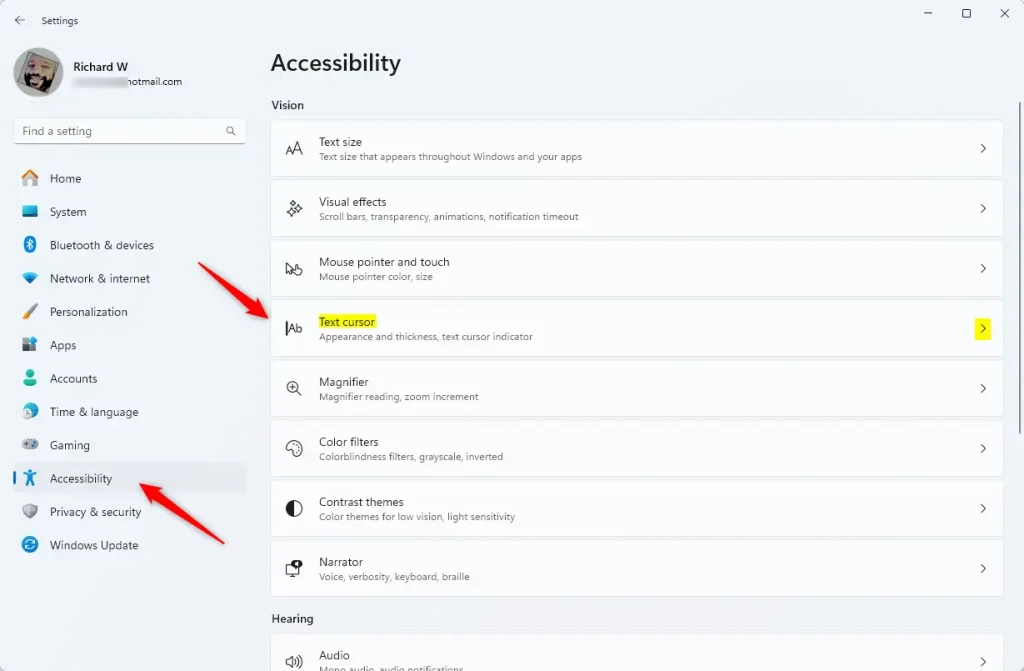
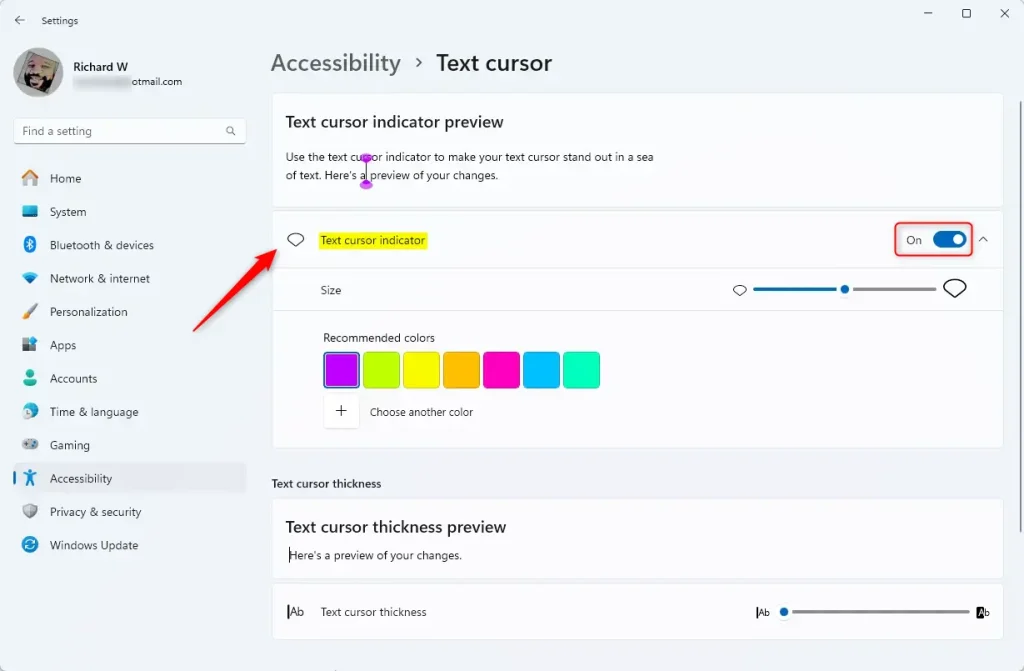
- Find the Text cursor indicator setting near the top of the page. Its switch is on the right side of the row.
- Set the Text cursor indicator switch to On to show a colored shape on your typing spot, or to Off to hide it. When the switch is on, the color and size options appear below it. When it is off, those options are hidden or greyed out. That is normal and does not mean anything is broken.
The change applies right away. You do not need to save anything or close the Settings window.
- Click into a text field to see the result. Notepad, the address bar in your browser, or the Start menu search box all work for this.
Once enabled, you can see the effect in most text editors and input boxes. You should see a colored marker attached to the blinking cursor. If the marker is hard to see, move on to the next section and adjust the color and size.
Customizing size and color
You can change the size and color of the indicator so it stands out against different backgrounds. The options only appear after the indicator is turned on, so go back to Settings Accessibility Text cursor and check that the switch is set to On. Then you will see a list of preset colors and a size slider.
- Pick a bright color that contrasts with the apps you use most. A light color works poorly on a white page, and a dark color is hard to see in dark mode.
- Drag the size slider to the right if you lose track of the indicator while typing. Drag it to the left if it covers too much text.
- Test each change in a text field as you go. The change applies at once, so you can adjust until it looks right.
To go back to the original look, switch the indicator to Off, or choose different settings the same way.
Advanced: Using Registry Editor
You can also enable or change the indicator with Registry Editor, a tool for changing advanced system settings. This is useful if the Settings page is unavailable or you want to apply the setting in a repeatable way. Registry changes can cause problems if you edit the wrong value. Before you start, back up the key you are about to change (right-click it in Registry Editor and choose Export), or create a restore point. The steps below use the exact path and value from the original guide.
1. Press Win+R, then type regedit and press Enter. If a User Account Control prompt appears, click Yes. Registry Editor opens with a folder tree on the left.
2. Navigate to the following path. You can expand the folders in the left pane one at a time, or paste the path into the address bar at the top of Registry Editor and press Enter.
HKEY_CURRENT_USER\Control Panel\Accessibility\CursorIndicator
3. Find the Configuration value in the right pane and double-click it. In the box that opens, set the Value data to cursorindicator to enable the indicator, or clear the data field to disable it. Click OK to save.
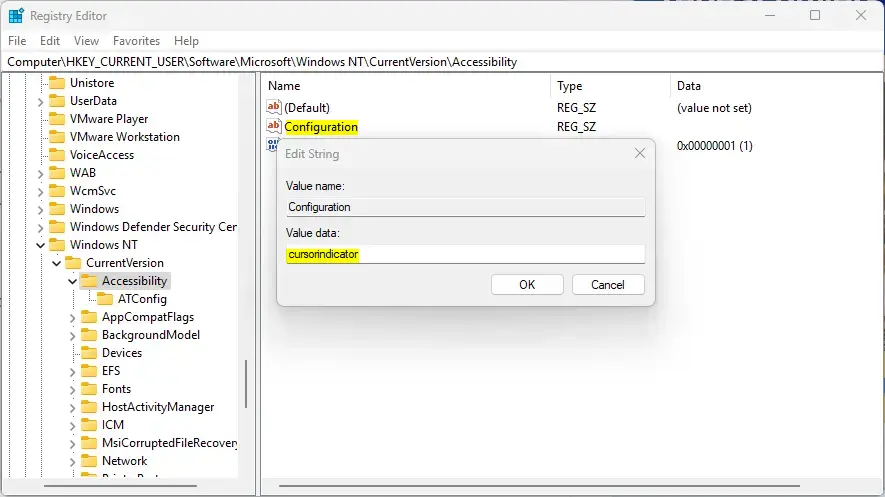
4. Restart your computer for the changes to take effect. After you sign back in, check Settings Accessibility Text cursor to confirm the switch matches what you set. To undo the change, go back to the same value and restore its previous data, or import the backup you exported earlier.
Troubleshooting common issues
If the indicator does not show up, start with the simple checks. Update the system and remove conflicting third-party themes. Custom mouse pointers can interfere with accessibility features, and switching back to the default Windows theme usually solves the problem. Work through these in order:
- Check that the switch is on. Open Settings Accessibility Text cursor and confirm Text cursor indicator is set to On. Turning it off and on again can also refresh it.
- Install updates. Open Settings Windows Update and click Check for updates. Restart if Windows asks you to. The feature is missing on older builds of Windows 11.
- Remove third-party themes and custom pointer packs. Switch back to a default Windows theme and the default mouse pointers, then test again.
- Try a different app. Some programs draw their own text cursor, so the indicator may not appear in them even when it works in Notepad.
- If you made registry changes, check that the Configuration value holds exactly what you entered, and restart the computer.
Summary
The Windows 11 text cursor indicator helps you see your typing spot better and makes your computer more personal. You can turn it on or off in a few clicks in Settings, tune its color and size to suit your screen, or set it through the registry when you need to. If it ever causes trouble, you can switch it off the same way you turned it on.
Have a question about this guide?
Answered by AI from this guide. Good questions may be added to this page — please don't include personal details.
Did this guide fix your problem?

About the Author
Richard
Tech Writer, IT Professional
Richard is a writer at Geek Rewind who turns complex IT tasks into clear, step-by-step guides. He draws on years of hands-on experience in system administration and enterprise IT operations, focusing on Windows, Linux and WordPress: the problems people actually run into, and the fixes that work. His server and WordPress guides come from systems he runs himself. Richard builds and maintains the platform behind Geek Rewind, from its Ubuntu servers and Nginx configuration to its custom WordPress plugins. Many new tutorials start with readers' questions, and he's always glad to answer them in the comments.
[…] article explains how to change the color of the Text Cursor Indicator in Windows […]
One thing to note right now is that when this cursor is enabled Windows 11 happily shows the cursor in all your DirectX games.
Not as a text input cursor where you are expected to enter text but as a defect showing on-screen in a fixed position that you cannot get rid of unless you turn off this cursor in Settings again.
[…] Turn On or Off Text Cursor Indicator […]
[…] the slider under Text cursor thickness to make the line wider or thinner. You can also turn on the cursor indicator or change the blink faster or slower to help it stand […]