How to Show the Emoji Panel Icon on Your Windows 11 Taskbar

The emoji panel icon on your Windows 11 taskbar opens a built-in menu that lets you add emojis, symbols, and GIFs to any text box with a single click. Windows 11 hides this shortcut by default. You can turn it on in about 30 seconds, but on some builds the setting only appears after you enable it with a free tool or a registry change. Both methods are covered below.
You don’t need the icon to use the panel. Press Windows key + . (period) (or Windows key + ;) in any text field to open it instantly. Follow the steps below if you want the icon visible on the taskbar so you can open the panel with the mouse.
Open Settings, go to Personalisation Taskbar Taskbar items, then toggle on Emoji panel. If the option doesn’t appear, download ViVeTool, run vivetool /enable /id:48504539 in Command Prompt as administrator, restart your PC, then enable it in Settings.
What is the Emoji Panel?
The emoji panel is a built-in menu that lets you insert emojis, kaomoji, symbols, and GIFs into almost any text box. It has tabs along the top for each type of content, plus a search box , and it also remembers your recently used items. You normally open it with a keyboard shortcut, which saves you from opening a web browser or copying characters from a website.
Why use it? It saves time. Instead of hunting through menus or copying symbols from a web page, you get every emoji option in one place. It works in Notepad, Word, browsers, chat apps and most other programs that accept text. Some apps with their own custom input boxes may not respond to it.
The first uses a free tool called ViVeTool plus a setting in the Settings app . The second edits the registry directly. Pick one. You don’t need both.
Step 1Enable the Emoji Icon Using ViVeTool
Windows 11 has a hidden feature that lets you show the emoji icon in your taskbar system tray . On many PCs, the setting for it isn’t switched on yet. To turn it on, you need a free tool called ViVeTool. You will also need an administrator account, because the tool changes system-level feature flags.
How to use ViVeTool:
- Download ViVeTool from the link above and unzip it. Right-click the downloaded zip file, choose Extract All, and note the folder it creates. You will need that folder in a moment. If your browser or antivirus warns about the file, check that you downloaded it from the official project page before you continue.
- [Admin Privileges Required] Open Command Prompt or Windows Terminal as an administrator. To do this, right-click the Start button and select Terminal (Admin), or search for Command Prompt and choose Run as administrator. Click Yes if User Account Control asks for permission. You should see a window with "Administrator" in its title bar. Then change to the folder where you unzipped ViVeTool, so the command can find the tool.
- Type the following command and press Enter:
vivetool /enable /id:48504539. ViVeTool should report that it successfully set the feature configuration. If you get an error instead, check that the window is running as administrator and that you are in the right folder. - Restart your computer. The change doesn't take effect until you do.
ViVeTool turns on hidden experimental features in the operating system by running specific commands in an administrator terminal window. This free open-source utility lets you enable hidden system toggles, like the taskbar emoji icon, before Microsoft releases them to everyone. Because these features are still being tested, they can behave differently between builds. If a feature causes problems, you can reverse it by running ViVeTool's matching disable command for the same feature, then restarting.
Step 2Turn On the Emoji Icon in Windows Settings
After you run the ViVeTool command and restart, you need to flip a switch inside the Settings app to show the emoji panel icon on your taskbar. This adds a clickable smiley face button next to your system tray for one-click access. This works on both Windows 11 Home and Pro.
- Open the Settings app. You can do this by clicking the Start menu and selecting Settings, or by pressing Windows key + I. The Settings window should open with a list of categories on the left.
- Click Bluetooth & devices on the left menu. Taskbar options sit under Personalization on many Windows 11 builds, so if you don't see a Taskbar page under Bluetooth & devices, click Personalization instead.
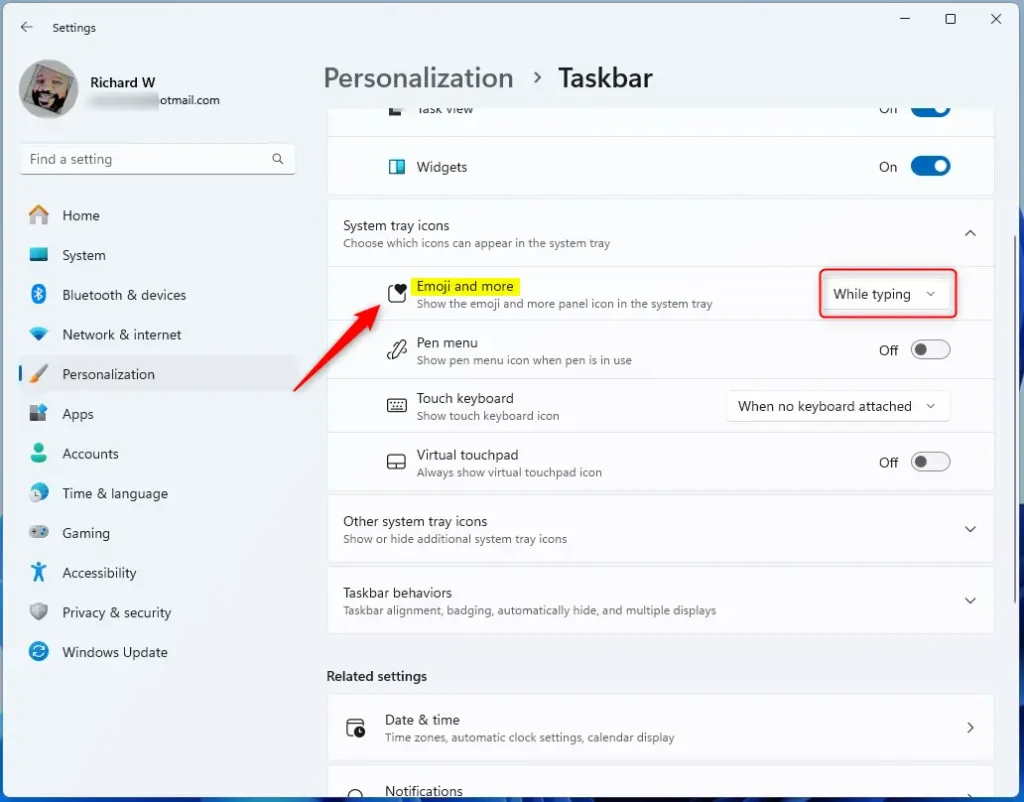
- Click Taskbar on the right side. The page shows taskbar items, taskbar behaviors, and a section called System tray icons (you may need to scroll).
- Look for the Emoji and more option under System tray icons. If it is missing, the ViVeTool change hasn't been applied yet. Check that you restarted after running the command, and that your Windows 11 build supports the feature.
- Click the drop-down menu and choose when you want the icon to appear:
- Never - Hide the icon. This is the default.
- While typing - Show it only when you type, so it stays out of the way the rest of the time.
- Always - Keep the icon visible all the time.
- Close the Settings app when you're done. You should now see the emoji button on your taskbar if you chose Always or While typing. For While typing, click into a text box and start typing to see it appear. To undo the change, return to this setting and select Never.

Alternative: Use the Registry Editor (Advanced)
You can use it to control the emoji panel taskbar icon if you prefer not to use third-party tools. This method involves adding a specific DWORD value inside a registry key to force the button to show up. Editing the registry can break things if you change the wrong entry, so create a restore point or export the key before you start. You also need an administrator account.
Here's how:
- [Admin Privileges Required] Press Windows key + R, type
regedit, and press Enter to open the Registry Editor. Click Yes if User Account Control asks for permission. The Registry Editor window should open with a folder tree on the left. - Navigate to this folder:
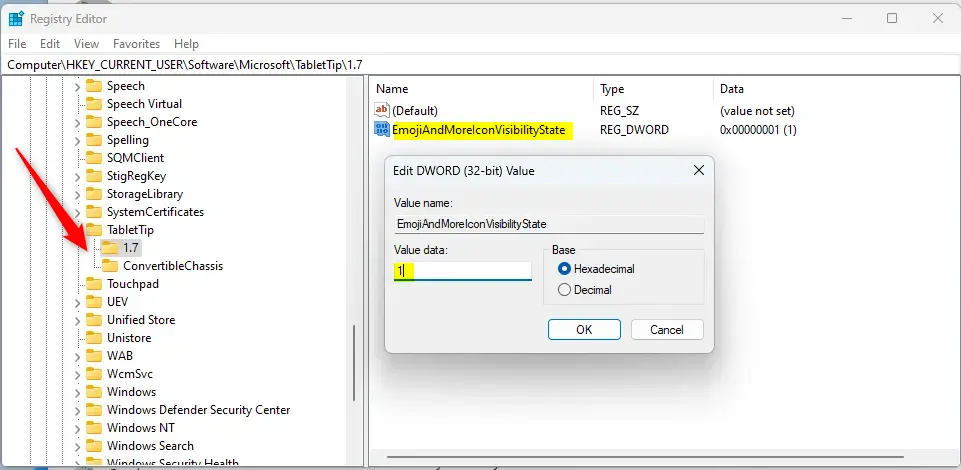
HKEY_CURRENT_USER\Software\Microsoft\TabletTip\1.7. You can also paste the path into the address bar at the top of Registry Editor and press Enter. Registry "folders" are called keys. - Right-click the 1.7 folder, choose New DWORD (32-bit) Value, and name it
EmojiAndMoreIconVisibilityState. The new entry should appear in the right pane. If an entry with that name already exists, skip this step and edit the existing one. - Double-click the new DWORD and set its value to one of these, then confirm in the Value data box:
- 0 for Never
- 1 for While typing
- 2 for Always
- Click OK and close Registry Editor.
- Restart your computer to apply the changes. After you sign back in, the icon should appear according to the value you set. To undo the change, set the value back to 0 or delete the DWORD, then restart.
Summary
The emoji panel in Windows 11 is a quick way to add emojis and GIFs. You can show its icon on your taskbar for easy access, either with ViVeTool and the Settings app or with a registry edit. If you change your mind, set the option back to Never or reverse the registry value, and restart if needed.
Have a question about this guide?
Answered by AI from this guide. Good questions may be added to this page — please don't include personal details.
Did this guide fix your problem?

About the Author
Richard
Tech Writer, IT Professional
Richard is a writer at Geek Rewind who turns complex IT tasks into clear, step-by-step guides. He draws on years of hands-on experience in system administration and enterprise IT operations, focusing on Windows, Linux and WordPress: the problems people actually run into, and the fixes that work. His server and WordPress guides come from systems he runs himself. Richard builds and maintains the platform behind Geek Rewind, from its Ubuntu servers and Nginx configuration to its custom WordPress plugins. Many new tutorials start with readers' questions, and he's always glad to answer them in the comments.
No comments yet — be the first to share your thoughts!