Enable Do Not Disturb in Ubuntu: A Quick Guide


Do Not Disturb in Ubuntu is a system setting that hides pop-up banners and stops alert sounds so you can work without interruptions. Turning it on takes a few seconds from the top bar or from the Settings app.
Alerts that arrive while it is on are not lost. Ubuntu sends them to the notification list in the top panel, so you can read them when you are ready. Pressing Super+V opens that list from the keyboard on current Ubuntu releases. You stay focused and still see everything that came in.
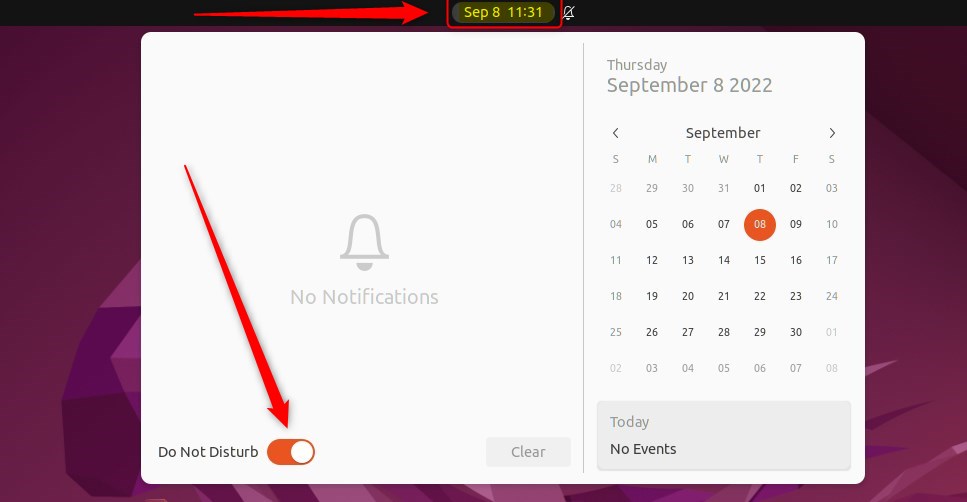
Turn on Do Not Disturb in Ubuntu by clicking the clock in the middle of the top bar and flipping the Do Not Disturb switch in the panel that opens. Banners and alert sounds stop at once, and alerts that arrive are kept in the notification list. To turn it off, click the same switch again. You can also use Settings Notifications.
How to enable or disable do not disturb in Ubuntu Linux
You do not need to open Settings for this.
- Click the clock in the middle of the top bar. A panel opens with the notification list and the calendar.
- Find the Do Not Disturb switch in that panel and click it. The switch turns on.
Banners and pop-ups stop appearing from this point. Notification sounds are silenced as well. No restart or sign-out is needed, and the change applies at once.
To undo it, open the same clock menu and click the Do Not Disturb switch again. Normal notification behavior comes back right away. Muting alerts this way works well for high-focus tasks like writing, calls or presentations. Turn it off afterward so you do not miss live alerts.
You can also control the same setting from the Settings app. This is the better route if you want to adjust notification rules for individual apps at the same time. The Settings app is the central place for system configuration, user accounts, updates and similar controls.

You can open Settings from the system menu in the top bar.
- Click the System menu at the top-right corner of the top bar. This is the group of status icons (network, sound, power).
- Click Settings in the menu that opens, as highlighted below. The Settings window appears.

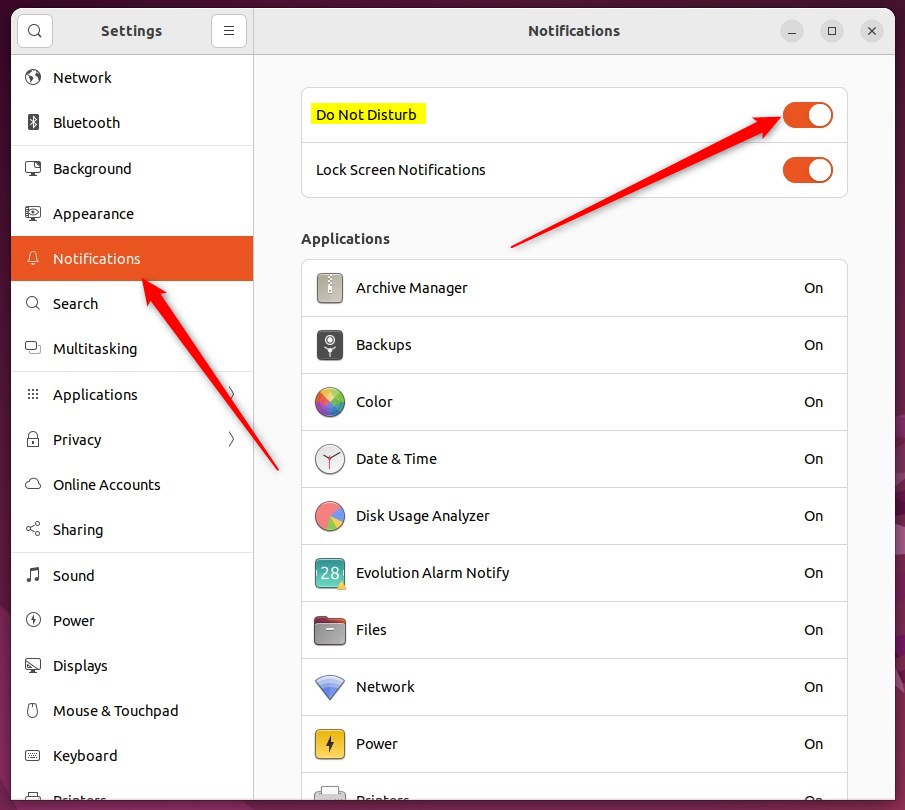
- Click Notifications in the sidebar to open the notification settings. On some releases this entry is a tile rather than a sidebar item.
- Flip the Do Not Disturb switch to On. You will find it in Settings Notifications.
The switch now shows as On, and Ubuntu silences banners and sounds. The clock menu switch follows this one, because both control the same setting.
To turn it off, flip the Do Not Disturb switch back to Off. Standard alerts resume as soon as the switch turns off. Nothing else needs to be reset.
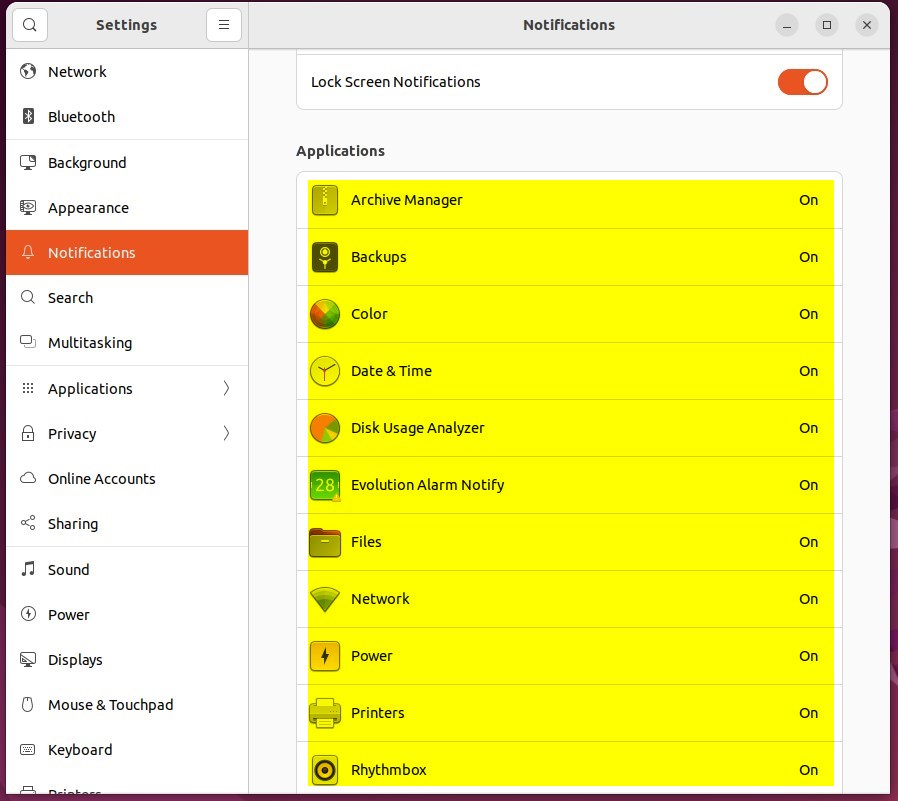
You can open an app in the list there and turn its banners or sounds on or off. That is useful if you want most apps quiet but still want to see alerts from one or two.
That completes the process, and you can close the Settings app. Your choice stays in effect until you change it.
Used with care, Do Not Disturb cuts down on distractions and keeps you on your task. Just remember to check the notification list when you finish.
- Enabling Do Not Disturb in Ubuntu Linux helps users minimize distractions and stay focused on tasks.
- Users can quickly toggle the Do Not Disturb feature from the top bar or through the Ubuntu Linux Settings app.
- The Do Not Disturb feature silences notification banners to prevent distractions without entirely disabling notifications.
- Disabling Do Not Disturb restores normal notification behavior on the Ubuntu Linux desktop.
Have a question about this guide?
Answered by AI from this guide. Good questions may be added to this page — please don't include personal details.
Did this guide fix your problem?

About the Author
Richard
Tech Writer, IT Professional
Richard is a writer at Geek Rewind who turns complex IT tasks into clear, step-by-step guides. He draws on years of hands-on experience in system administration and enterprise IT operations, focusing on Windows, Linux and WordPress: the problems people actually run into, and the fixes that work. His server and WordPress guides come from systems he runs himself. Richard builds and maintains the platform behind Geek Rewind, from its Ubuntu servers and Nginx configuration to its custom WordPress plugins. Many new tutorials start with readers' questions, and he's always glad to answer them in the comments.
No comments yet — be the first to share your thoughts!