Customize Typing Speed In Windows 11

- 14 steps
- Needs administrator rights
- Includes a restart or sign-out
To customize typing speed in Windows 11, open Keyboard Properties and move the Repeat delay and Repeat rate sliders on the Speed tab. Both sliders control how a held-down key behaves, and the change applies as soon as you click Apply.
Keyboard Properties is the classic Control Panel dialog box that still controls key repeat in Windows 11. The quickest way to open it is the Run command, a box where you type the name of a program or window to open it. Type control keyboard in the Run box and press Enter. No administrator rights and no restart are needed.
This post also covers cursor blink rate, the Filter keys accessibility feature for slowing repeated keystrokes, and how to measure your actual words-per-minute speed.
To customize typing speed in Windows 11, press Win+R, type control keyboard and press Enter. On the Speed tab of Keyboard Properties, move the Repeat delay and Repeat rate sliders, then click Apply. Changes take effect straight away, and no administrator rights or restart are needed.
What “Typing Speed” Means in 🪟 Windows 11
Windows 11 has no setting that makes you type faster. How many words you type per minute depends on you. What Windows does let you adjust is how the keyboard responds while you type, and that is what “typing speed” settings refer to.
Three values matter:
- Repeat delay is how long you hold a key before Windows starts repeating it. A short delay starts repeating almost immediately. A long delay waits longer.
- Repeat rate is how fast characters appear once repeating starts. Hold the A key and you get a stream of the letter at this speed.
- Cursor blink rate is how fast the text cursor (the thin vertical line that shows where your next character lands) flashes.
These settings affect held keys such as Backspace, Delete, the arrow keys and the spacebar. Windows saves these settings for your user account, so every app you open uses them. They apply to a physical keyboard, whether built in or plugged in.
How to Customize Typing Speed in 🪟 Windows 11
The steps below change the repeat delay, repeat rate and cursor blink rate together. This part of the process does not require administrator privileges.
- Press Win+R. The Run dialog box opens in the lower-left corner of the screen.

Run dialog - Type control keyboard and press Enter. The Keyboard Properties window opens. If nothing opens, use the Control Panel route in the next section.
- Select the Speed tab. The window normally opens on this tab. You see two sliders under Character repeat and one under Cursor blink rate.
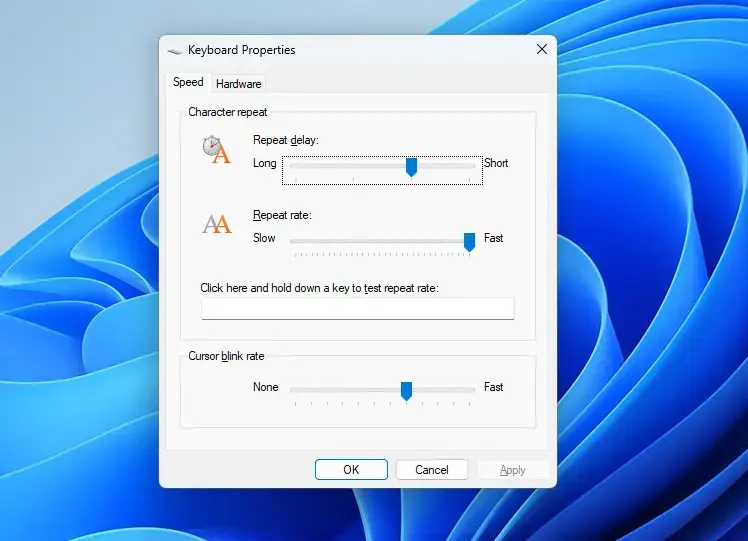
Control Panel - Drag the Repeat delay slider. Move it toward Short so held keys start repeating sooner, or toward Long to make them wait longer.
- Drag the Repeat rate slider. Move it toward Fast for quicker repeating, or toward Slow for slower repeating.
- Click the test box and hold down a key. The box is labelled Click here and hold down a key to test repeat rate. Letters appear at the speed you chose.
- Drag the Cursor blink rate slider. A sample cursor next to the slider blinks at the new speed. Moving it to None stops the blinking, and Fast speeds it up.
- Click Apply. Windows saves the values and uses them straight away, even while the window is open.
- Click OK. The window closes. Open Notepad, hold a key and confirm it behaves the way you expect.
If the test box feels wrong, adjust one slider at a time and test after each change. Changing both at once makes it hard to tell which one caused the problem.
Open Keyboard Properties from Control Panel instead
If the Run command does not open the window, go through Control Panel. Open Start, type Control Panel and press Enter. In the top-right corner, change View by to Large icons or Small icons, then click Keyboard. The same Keyboard Properties window opens, and steps 3 to 9 above apply.
Control Panel is the older settings area that sits alongside the Settings app. Microsoft has moved many options to Settings, but the key repeat sliders are still in this dialog. For other places where Windows 11 hides useful options, see how to customize Windows 11 Settings for efficiency.
Choose Values That Suit How You Type
There is no single correct setting. The right values depend on whether you edit text, write long documents, play games or have trouble with accidental repeated letters. Change the sliders in small steps and test each change.
If you want held keys to react faster
Move Repeat delay toward Short and Repeat rate toward Fast. This helps when you hold Backspace to delete a long line, or hold an arrow key to move through a spreadsheet or a document. Text editors and code editors benefit most, because you spend a lot of time moving the cursor.
The trade-off is accuracy. A very short delay means a slightly long keypress already counts as a repeat, and you may see doubled letters such as “hhello”. If that happens, lengthen the delay by one notch.
If you get repeated letters you did not intend
Move Repeat delay toward Long. This gives your fingers more time to lift off a key before Windows decides it is being held. Slow the Repeat rate a little as well if held keys overshoot, for example if Backspace deletes more than you meant to.
If one specific key repeats on its own while you are not touching it, the cause is probably hardware, such as a sticky switch or debris under the keycap. Software settings will not fix that. Test the same key on another keyboard to confirm.
If the blinking cursor distracts you
Drag Cursor blink rate toward None to stop the cursor flashing, or toward Fast if you lose track of it on a big screen. Some people find a steady cursor easier to follow. A slow blink is hard to spot if you are looking at a dense page of text.
Slow Down Repeated Keystrokes with Filter Keys
Filter keys is a Windows accessibility feature (a tool built for people with tremors, limited hand control or other difficulty using a keyboard). It tells Windows to ignore brief or repeated keystrokes. Use it if your problem is accidental extra letters rather than how fast held keys repeat. Turning it on does not require administrator privileges.
- Press Win+I. The Settings app opens.

Start Menu - Select Accessibility. The accessibility categories appear in the main pane.
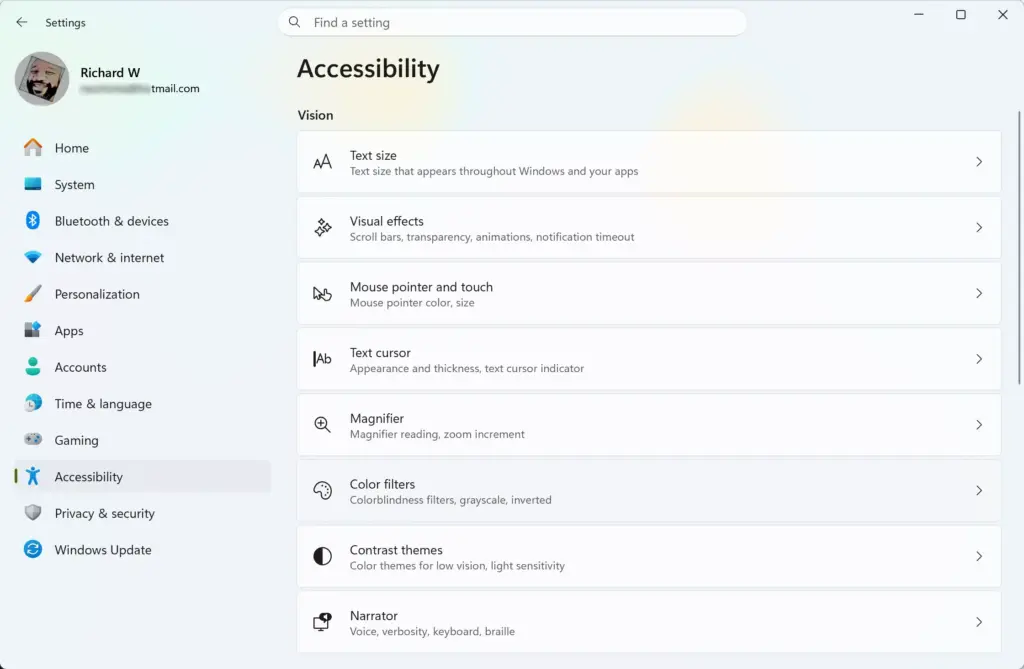
Settings › Accessibility - Click Keyboard. The page lists Sticky keys, Filter keys and Toggle keys.
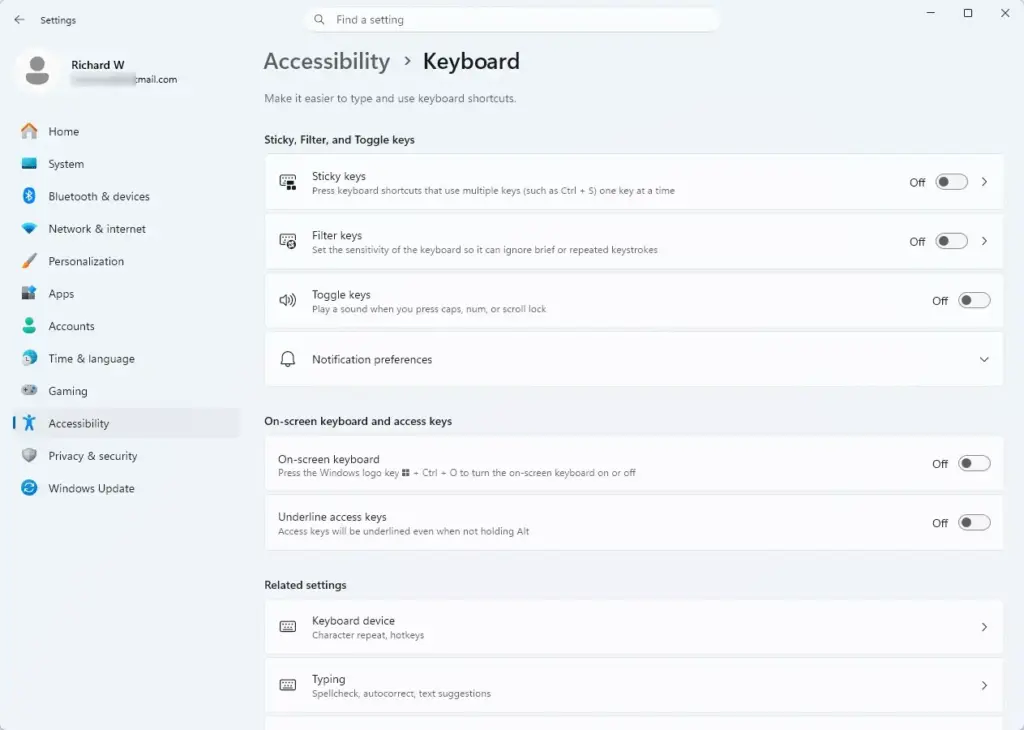
Settings › Accessibility › Keyboard - Click Filter keys. The row expands and shows its options.
- Turn on the Filter keys toggle. Windows now ignores very short or repeated keystrokes using its filtering settings.
The options under the toggle differ between Windows 11 builds, so the labels on your PC may not match another PC. Read each option before changing it, and test your typing in Notepad after each change.
If you want the older, more detailed controls, open Control Panel Ease of Access Ease of Access Center and choose the keyboard options. They cover Slow keys (a key must be held before it counts), Repeat keys (sets how fast held keys repeat) and Bounce keys (ignores quick repeated presses). Menu labels there can also differ by version.
If the Settings Are Missing or Do Not Change Anything
Most problems come down to the wrong dialog, a keyboard with its own software, or a remote session. Work through these checks in the order listed, and stop when the setting starts to work.
- Keyboard Properties will not open. Use the Control Panel route described earlier. If both fail, restart the PC and try again, because a stuck Control Panel process can block the window.
- The sliders move but nothing changes. Click Apply before OK, then use the test box on the Speed tab. If the test box repeats at the new speed but an app does not, close and reopen that app. Some apps and games read the setting only when they start.
- A game or remote session ignores the setting. Some games use their own key handling. In a remote desktop window, or in a virtual machine (a program that runs a second operating system inside a window), the keyboard speed may follow the remote system instead of your PC.
- A keyboard utility overrides Windows. Some gaming and productivity keyboards ship with their own software. Check that software for a repeat or response setting if the Windows sliders have no effect.
- A touch keyboard does not respond. These sliders affect physical keyboards. The on-screen touch keyboard has its own behavior and does not follow them.
- Another user account behaves differently. Windows stores these settings for each user account. Make the change separately for every account on the PC.
Measure Your Typing Speed in Words Per Minute
Windows 11 has no built-in typing test. To measure how many words you type per minute, use a typing test in your browser, which gives a score and an accuracy percentage. Try it before and after changing the sliders so you can tell whether the new settings help.
The Windows Typing insights feature does not produce a words-per-minute score. To see what it records and how to switch it on or off, read how to enable or disable Typing insights in Windows 11.
If your goal is to get text onto the screen faster rather than to type faster, voice typing is worth a try. Press Win+H in a text field to start dictating. For the shortcut that opens it from a text field, see how to enable the Voice typing launcher in Windows 11. Fewer mistakes also save time. See turning on spell check in Windows 11 typing settings to catch typos as you write.
Undo the Changes
Reopen Keyboard Properties: press Win+R, type control keyboard, and press Enter. Move the sliders back to where they were, then click Apply and OK. Windows does not show the original values on screen, so note the slider positions before you change them, or take a screenshot of the Speed tab with Win+Shift+S.
To undo Filter keys, go to Settings Accessibility Keyboard, click Filter keys and turn the toggle off. The effect is immediate, and no restart is required.
What to Do Next
If typing still feels wrong after adjusting the sliders, test the keyboard on another PC or try a different keyboard to rule out hardware. A new user account starts with default settings, so repeat these steps for each account. Other typing options sit in the Settings app, including Improve inking and typing, which controls whether Windows sends samples of how you type to Microsoft.
Have a question about this guide?
Answered by AI from this guide. Good questions may be added to this page — please don't include personal details.
Did this guide fix your problem?

About the Author
Richard
Tech Writer, IT Professional
Richard is a writer at Geek Rewind who turns complex IT tasks into clear, step-by-step guides. He draws on years of hands-on experience in system administration and enterprise IT operations, focusing on Windows, Linux and WordPress: the problems people actually run into, and the fixes that work. His server and WordPress guides come from systems he runs himself. Richard builds and maintains the platform behind Geek Rewind, from its Ubuntu servers and Nginx configuration to its custom WordPress plugins. Many new tutorials start with readers' questions, and he's always glad to answer them in the comments.
No comments yet — be the first to share your thoughts!