What to Do When the Print Screen Key Does Nothing in Windows 11

- 33 steps
- Needs administrator rights
- Includes a restart or sign-out
When the Print Screen key does nothing in Windows 11, the capture has often worked but gone silently to the clipboard (the temporary memory Windows uses for copy and paste). Press Win+PrtSc, then check Pictures Screenshots If no file appears, turn on the Print screen setting under Settings Accessibility Keyboard
Plain Print Screen gives no sound, no flash and no file, so it looks broken even when it works. This post shows how to confirm whether a screenshot was taken. It then works through the real causes in order: a switched-off setting, a laptop Fn key, another app grabbing the key, and a damaged Snipping Tool or keyboard driver.
When the Print Screen key does nothing in Windows 11, the capture has often worked but gone silently to the clipboard. Press Win+PrtSc and check Pictures Screenshots for a PNG file. If no file appears, turn on the Print screen setting under Settings Accessibility Keyboard, or press Fn + PrtScn on a laptop.
What Print Screen Does in 🪟 Windows 11
Each Print Screen shortcut does something different, and only some of them show any feedback. Knowing which does what tells you whether the key is dead or only quiet.
- PrtScn copies the whole screen to the clipboard. Nothing appears on screen. If the Print screen setting is on (covered below), it opens the Snipping Tool capture bar instead.
- Alt+PrtSc copies only the active window to the clipboard.
- Win+PrtSc saves the whole screen as a PNG file in your Screenshots folder. The screen dims briefly.
- Win+Shift+S opens the Snipping Tool capture bar at the top of the screen, so you can choose a rectangle, a window or the full screen. The capture goes to the clipboard.
- Win+Alt+PrtSc records a screenshot of the game you are playing through Xbox Game Bar. It saves to the Videos folder, in a subfolder named Captures.
On many laptops the key is labeled PrtSc, Prt Sc or Print Scr. It is the same key.
Check Whether the Screenshot Was Taken
Begin with the simplest check: did the key take a capture? If one exists, the key works, and you only need to find where Windows saved it.
Paste the Clipboard Into Paint
This test shows whether plain PrtScn put an image on the clipboard. It changes nothing on your PC.
- Press PrtScn once. On a laptop, try Fn + PrtScn if nothing seems to happen.
- Click Start, type Paint, and press Enter. Paint opens with a blank canvas.
- Press Ctrl+V. If the key worked, your whole screen appears on the canvas.
- If the canvas stays blank, nothing reached the clipboard. Go on to the sections below.
The same image pastes into Word, an email or a chat window. Paint is the quickest way to check. Any app that accepts a paste, such as Word or a chat window, gives the same result.
If you want a paper or PDF copy afterwards, paste the image into Paint and print it. The guide on adding or removing Microsoft Print to PDF in Windows 11 covers saving a printout as a PDF file.
Test Windows + PrtScn and Find the Screenshots Folder
This shortcut saves a file, so it gives you something to look for. It does not use the clipboard at all.
- Press Win+PrtSc. On a laptop, try Windows + Fn + PrtScn if the first combination does nothing. The screen dims for a moment when the capture succeeds.
- Open File Explorer by pressing Win+E.
- Click Pictures in the left pane, then open the Screenshots folder. The full path is
C:\Users\USERNAME\Pictures\Screenshots. - Look for a file named like Screenshot (1).png. If it is there, the key works.
Check there if the local folder is empty.
If the Screenshots folder does not exist at all, the key has probably never registered a press on this PC. Windows creates the folder when it saves the first screenshot.
Turn On the Print Screen Setting for Snipping Tool
Windows 11 has a setting that makes the Print Screen key open the Snipping Tool capture bar. With the setting on, pressing the key gives you a visible response. With it off, the key only copies silently. The default differs between versions and between clean installs and upgraded PCs, so check it.
- Press Win+I to open Settings.

- Click Accessibility in the left pane.
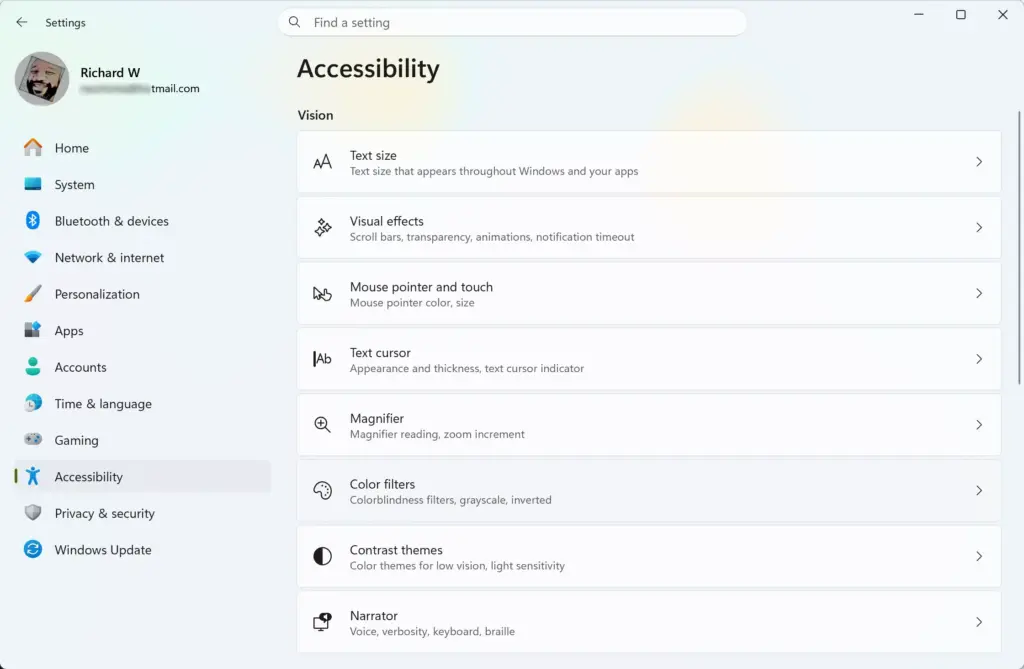
Settings › Accessibility - Scroll down to the Interaction section and click Keyboard.
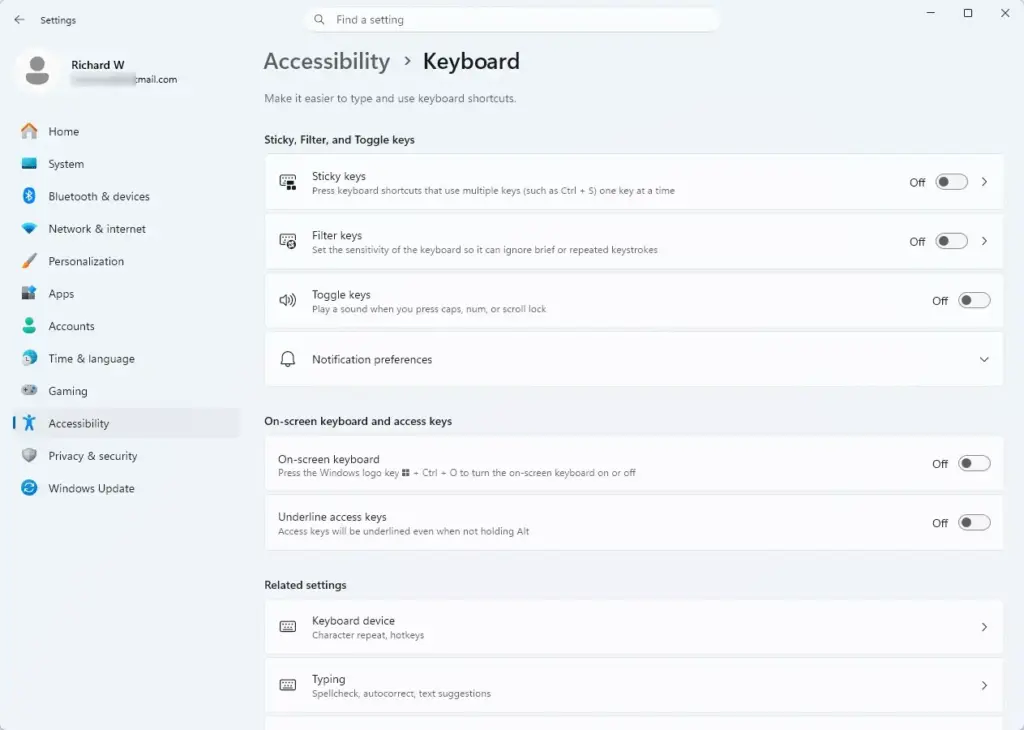
Settings › Accessibility › Keyboard - Find Use the Print screen button to open screen capture and turn the toggle On.
- Press PrtScn. The screen dims and a small toolbar appears at the top. Drag across the area you want, and the capture goes to the clipboard. A notification appears that you can click to open the image in Snipping Tool.
If the toggle is missing, your build of Windows 11 is older than the version that added it. Install pending updates under Settings Windows Update, or use Win+Shift+S in the meantime.
To undo the change, turn the toggle off. PrtScn then goes back to copying the full screen silently.
Check the Keyboard Itself
If neither Paint nor the Screenshots folder shows a capture, find out whether Windows receives the key press at all.
Look for an Fn Key or Fn Lock
Many laptop keyboards share Print Screen with another function, such as an insert key or a media control. Which action you get depends on whether the Fn key (the key that switches some keys to a second function, usually near the bottom-left corner) is held down.
- If the PrtScn label is printed in a different color or inside a box, hold Fn while you press it.
- Look for an Fn Lock key (a key that changes how the Fn key behaves) or an F Lock key. It is often a secondary function on Esc or another key marked with a padlock. Press Fn + Esc (or the marked key) to turn the lock on or off, then test PrtScn again.
- Some gaming keyboards have a Win lock (a key that switches off the Win) or a game mode that disables it. That breaks Win+PrtSc and Win+Shift+S. Switch game mode off and try again.
Some laptop makers also offer a keyboard utility that remaps keys. If you installed one, check its settings.
Test the Key in the On-Screen Keyboard
The On-Screen Keyboard (a virtual keyboard that appears on your display) highlights keys as you press them on your physical keyboard. That shows whether Windows receives the signal.
- Press Win+Ctrl+O. The On-Screen Keyboard opens.
- Press the physical PrtScn key (use Fn + PrtScn on laptops that need it).
- Watch the PrtScn key on the on-screen keyboard. If it lights up, Windows receives the key and the cause is software.
- If it does not light up, press a few other keys to check the highlight works. If other keys light up but PrtScn never does, the key is likely faulty or disabled in the firmware.
To close the On-Screen Keyboard, click the X in its top-right corner. It does not start with Windows unless you set it to.
Try a USB keyboard if you have one. If PrtScn works on it, the problem sits in the laptop keyboard, not in Windows.
Find an App That Takes Over Print Screen
A screenshot tool, cloud storage client or remote desktop app can claim the Print Screen key for itself. When it does, Windows never sees the press, so you get no screenshot and no error.
Check Common Screenshot and Cloud Apps
Look for these in the system tray (the small icons near the clock), and check the hotkey settings in each:
- Screenshot tools such as Greenshot, Lightshot, ShareX and Snagit.
- Cloud storage clients such as OneDrive and Dropbox. Both apps can take over screenshots on their own, so check their settings.
- Remote desktop and virtual machine software, which sometimes passes keystrokes to the remote session and not to your PC.
- Keyboard and mouse software from your hardware maker.
If one of these owns the key, change its hotkey to something else, or close the app and test PrtScn again. Quitting the app from its tray icon is enough for a test.
Run a Clean Boot to Find the Culprit
If PrtScn works in that state, one of the disabled items was blocking it. This step requires administrator privileges. This change is reversible. Undo it when you finish, or your usual startup apps stay disabled.
- Press Windows + R, type msconfig, and press Enter. System Configuration opens. Click Yes if User Account Control asks for permission.
- Click the Services tab.
- Select Hide all Microsoft services, then click Disable all.
- Click the Startup tab, then click Open Task Manager.
- In Task Manager, right-click each enabled startup app and choose Disable. Close Task Manager.
- Click OK in System Configuration, then click Restart.
- After the restart, press PrtScn and test with Paint as before.
If it works, turn services and startup apps back on in small groups and restart until the problem returns. The last group you enabled contains the cause.
To undo the clean boot, open msconfig again. On the General tab, choose Normal startup. On the Services tab, click Enable all. Re-enable your startup apps in Task Manager under Startup apps, then restart.
Repair or Reset Snipping Tool
If PrtScn is set to open Snipping Tool but nothing appears, the app itself may be damaged. Repair keeps your settings. Reset clears them. Try Repair first.
- Open Settings and go to Apps Installed apps
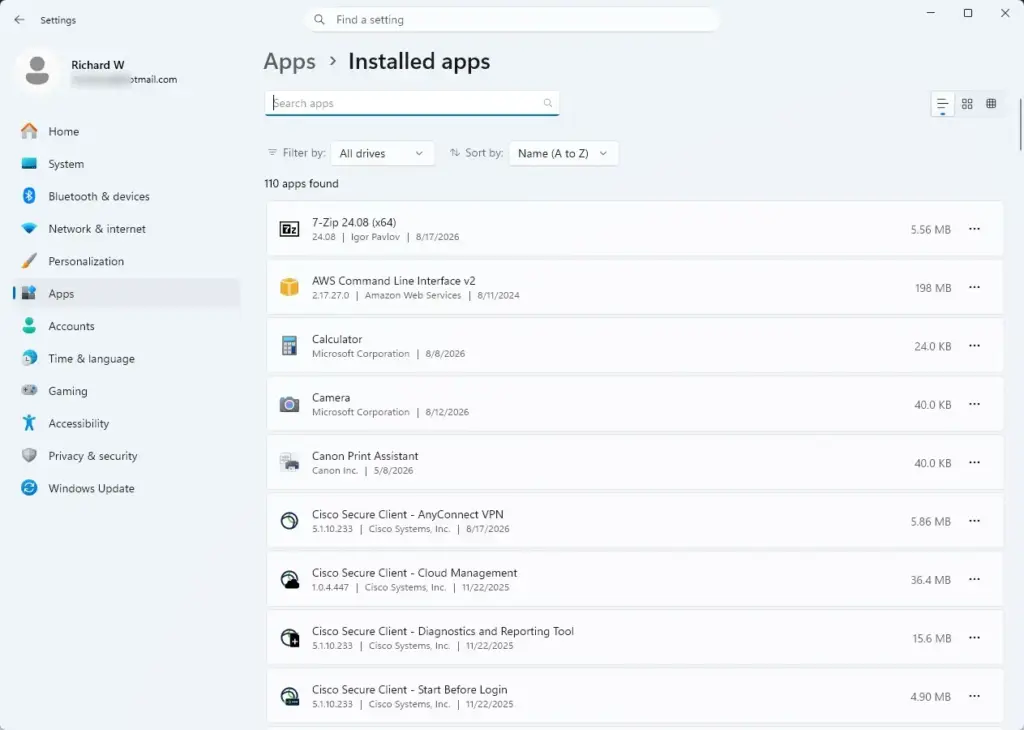
Settings › Apps › Installed apps - Find Snipping Tool in the list. Click the three dots next to it and choose Advanced options.
- Scroll to the Reset section and click Repair. A check mark appears when it finishes.
- Test PrtScn again.
- If it still fails, click Reset. This erases the app's data and settings, and you cannot get them back, so use it only after Repair fails.
Snipping Tool also updates through the Microsoft Store. Open the Store, click Library, then Get updates, and let any pending updates install.
Reinstall the Keyboard Driver
A corrupted keyboard driver (the software that tells Windows how to read your keyboard) can make individual keys stop working. Windows reinstalls the driver on restart, so this is low risk. This step requires administrator privileges.
- Right-click the Start button and choose Device Manager.
- Expand Keyboards.
- Right-click your keyboard, for example Standard PS/2 Keyboard or HID Keyboard Device, and choose Uninstall device. Confirm when asked.
- Restart your PC with the mouse: click Start, then Power, then Restart. The keyboard may not respond until Windows reloads the driver.
After the restart, Windows detects the keyboard and installs the driver again. Test PrtScn when you reach the desktop. If the Keyboards list in Device Manager shows more than one keyboard, uninstall only the one that matches your built-in keyboard.
Work Around a Key That Still Fails
If the physical key is dead, you can still take screenshots and keep working.
- Use Windows + Shift + S. It does not depend on the Print Screen key.
- Open Snipping Tool from Start and click New.
- Give Snipping Tool its own keyboard shortcut. The guide on assigning an app shortcut key in Windows 11 shows how.
- Remap another key to Print Screen with Keyboard Manager in Microsoft PowerToys (a free set of Windows utilities). This replaces a key you rarely use, so pick one carefully.
If You Meant Printing Instead
Despite its name, the Print Screen key does not send anything to a printer. If you pressed it hoping for a paper copy, paste the capture into Paint or Word first, then print from there. If that print job stalls, check the current print jobs in the Windows 11 queue and, if needed, cancel a print job in Windows 11.
If This Didn't Work
If the On-Screen Keyboard test showed that Windows never receives the key, and a USB keyboard works fine, the fault is in the laptop keyboard. Contact the manufacturer, or use Windows + Shift + S until it is fixed. If PrtScn works after a clean boot, work through your startup apps one by one to find the app that blocks it. Once screenshots work again, the next job is usually handling them: the Microsoft Print to PDF guide shows how to turn a pasted capture into a PDF.
Have a question about this guide?
Answered by AI from this guide. Good questions may be added to this page — please don't include personal details.
Did this guide fix your problem?

About the Author
Richard
Tech Writer, IT Professional
Richard is a writer at Geek Rewind who turns complex IT tasks into clear, step-by-step guides. He draws on years of hands-on experience in system administration and enterprise IT operations, focusing on Windows, Linux and WordPress: the problems people actually run into, and the fixes that work. His server and WordPress guides come from systems he runs himself. Richard builds and maintains the platform behind Geek Rewind, from its Ubuntu servers and Nginx configuration to its custom WordPress plugins. Many new tutorials start with readers' questions, and he's always glad to answer them in the comments.
No comments yet — be the first to share your thoughts!